
There are some users who are complaining that Windows 11/10 stops copying files, or they see their file transfer get stuck halfway. In this guide, we provide several solutions to help you resolve the issues you encounter while copying files on your Windows 11 or Windows 10 PC.
We regularly copy files from one drive to another drive, or from one folder to another. The estimated time to copy the files changes according to the file size, drive, and your PC’s capabilities. There are even some third-party software programs available to make file copying easy and optimize the process. However, the performance capabilities of your PC, based on the configuration, determine the speed.
When you see files stop copying, get stuck halfway, or see no progress in the copying process, it might be due to many reasons. The size of the files you are copying might be large, the files might be corrupted, the drive you are copying might be corrupted, any program installed on your PC might be causing the delay, interfering with the copying process, or there might be a virus infection, etc. We need to eliminate all the possible causes of the issue and copy files without any errors or delays.
Windows 11 stops copying files
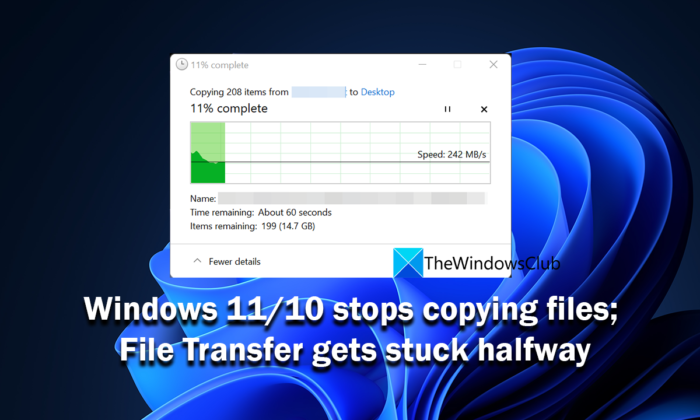
If the copying of files gets stuck halfway or stops on Windows 11/10, you can follow the below methods to fix the issue.
- Check the file size
- Scan the files with antivirus
- Check the storage
- Update drivers
- Optimize your hard drive
- Disable Remote Differential Compression
- Disable Indexing of your drives
- Format the destination drive in NTFS
- Temporarily turn off antivirus
- Troubleshoot in Clean Boot.
Restarting your PC and trying again is one option you can consider. If that is not something you want to do, try the following suggestions.
File Transfer gets stuck halfway in Windows 11/10
1] Check the file size
If the files you are trying to copy are large and your PC’s configuration is limited, it will take some time to complete the copy. Copying files within the same drive is faster than copying to other drives. You need to give time if the file size is large. If the file size is small and you face copying issues, restart your PC and try again. If the issue is not yet fixed, follow the below methods.
Read: USB file transfer stuck at 99% on Windows
2] Scan the files with antivirus
There are chances that your files might be affected by malware which is making the copying process hard. To ensure it is not malware, scan the files and the entire drive with a free antivirus program. If the issue is due to malware, it will be fixed and you can carry copying files. If the files are infected, antivirus quarantines or deletes them according to your choice, which makes those files inaccessible to you.
Read: Free Standalone On demand Antivirus Scanners for Windows
3] Check the storage
When copying files, ensure the destination drive has sufficient storage space. If the drive has less storage space than the copying files, you see an error. If the drive has equal or slightly more storage than the files, you might see this issue. Delete all the unnecessary files that consume more storage and try copying files again.
You might want to also clear up resources by disabling some resource-intensive processes that you do not need, using the Task Manager.
4] Update drivers
You need to ensure that the drivers on your Windows PC are up to date and not corrupted or damaged. They decide the performance of various components of your PC. Generally, drivers on Windows are updated to regular Windows updates. Check for any Windows updates and install them. You can also use the Optional Updates feature provided by Windows to install device driver updates. Press Win+I to open the Settings app and navigate to Windows Update and then to Advanced options to use this feature.
Read: Where to download drivers for Windows
5] Optimize your hard drive
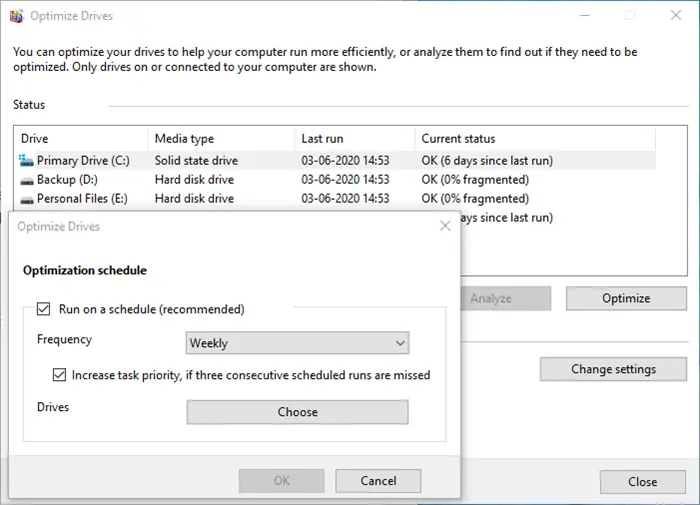
If there are any issues with the fragments of the file you are copying, you might see this issue. You need to run the defragmenter on both the drives and optimize them for better performance.
- Click on the Start button and search for Disk Defragmenter
- You will see Defragment and Optimize Drives program. Open it
- Select the drives that are involved in the copy process and click on Optimize
6] Disable Remote Differential Compression
RDC or Remote Differential Compression syncs data with the remote source over the network. Sometimes, it might even cause delays in the copying process, even on drives without a network. We need to eliminate that cause by disabling Remote Differential Compression on our Windows.
To disable Remote Differential Compression,
- Click on the Start menu and type Turn Windows features on or off. Open the result.
- Search for Remote Differential Compression API Support and uncheck the box next to it.
- Click OK to save the changes.
Check if the issue with copying files has been resolved.
7] Disable Indexing of your drives
Sometimes, the indexing process of files on a drive can also cause the issue of slow copying of files or stuck halfway. Although indexing enables the PC to function more efficiently by caching drive data, it may result in a delay during the copying process. You need to disable the indexing and see if it fixes the issue.
To disable indexing on Windows,
- Press Win+R to open the Run box. Type services.msc and press Enter.
- It opens the Services window. Find Windows Search service in the list and right-click on it. Now select Stop to disable indexing.
8] Format the destination drive in NTFS
The copying of files may be slow or stuck midway due to the factory format of hard drives. You need to format the destination drive in NTFS format manually to fix the issue.
To format the destination drive in NTFS,
- Right-click on the drive you are copying the files to and click on Format in the context menu. Before that make sure the data on the drive is copied elsewhere.
- In the File System drop-down menu. choose NTFS and also uncheck the Quick format checkbox. Then, click Start to format the drive in NTFS format.
9] Temporarily turn off antivirus
The antivirus on our PC interferes with many processes while we use our PC. It is good until it secures our PC without causing any harm to its performance. There is a chance that your antivirus might be interfering with the copying process and delaying it. Open your antivirus program and disable it for some time and copy files again. If the antivirus is the reason for the delay, the copying process will go on normally without any delay.
10] Troubleshoot in Clean Boot
In the Clean Boot state, only the essential components of Windows run, disabling all the third-party programs. You can know which program is causing the delay in copying files and uninstalling them by performing a clean boot. For that, you need to restart your PC many times to know the program by enabling or disabling them with every restart.
These are the different ways to resolve issues with delayed or stuck file copying.
Related read: File Transfer to a Shared folder stops randomly.
Why does my computer stop copying files?
When your computer stops copying files, there might be a third-party program or antivirus interfering with the process, the file size may be too large to copy fast, the destination drive has minimal storage space, the files might be infected by malware, etc.
Why does my computer freeze when transferring files?
When the file size is too large to copy, it consumes a significant amount of your PC’s resources, and you might see your computer freeze. Additionally, other reasons may include high disk or CPU usage by other programs, corrupted services, or disk fragmentation.
