
Visual Studio is an Integrated Development Environment (IDE) created by Microsoft, designed to help developers build applications across platforms. However, some users have reported that Visual Studio is crashing on startup in Windows 11/10, and sometimes, the Windows system crashes when one launches Visual Studio. In this post, we will discuss these issues and explore ways to resolve them.
Fix Visual Studio crashing on startup in Windows 11/10
Crashes occur during the initial IDE startup when loading extensions or caches, immediately after installing updates (e.g., .NET upgrades or Visual Studio patches), or during specific actions such as editing code or performing backspace/paste operations. They may also follow system changes, such as Windows 11 feature updates or security software updates, which alter runtime permissions or file access patterns.
If Visual Studio crashes on startup, follow the solutions mentioned below to resolve the issue.
- Clear ComponentModelCache
- Repair .NET Framework
- Disable the problematic third-party extension
- Reset User Settings
- Reinstall .NET via Visual Studio Installer
Let’s discuss them in detail.
1] Clear ComponentModelCache
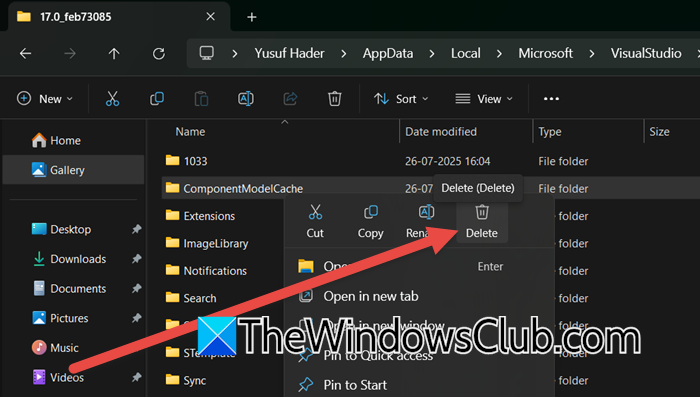
Visual Studio uses the Managed Extensibility Framework (MEF) cache (stored in ComponentModelCache) to speed up loading of extensions, editors, and UI components. If this cache becomes corrupted, Visual Studio crashes on startup because it fails to load critical components. Deleting the cache forces Visual Studio to rebuild it from scratch. If you want to clear the ComponentModelCache, follow the steps mentioned below.
- Open Task Manager by Ctrl+Shift+Esc and make sure no Visual Studio process is running.
- Now, open the File Explorer and then go to the following location.
%localappdata%\Microsoft\VisualStudio\17.0_<InstanceID>\
Note: <InstanceID> is a unique identifier for your Visual Studio installation (e.g., 17.0_abcd1234). You can go to %localappdata%\Microsoft\VisualStudio and then find the Instance folder. If you see multiple folders, check the ActivityLog.xml in each folder for timestamps matching your last launch.
- You need to delete the ComponentModelCache Folder. This folder contains subfolders like Microsoft.VisualStudio.Default.cache and .err files.
- Make sure not to delete other folders (e.g., Extensions, ImageLibrary).
- Finally, start Visual Studio.
Hopefully, this will do the job for you.
2] Repair .NET Framework
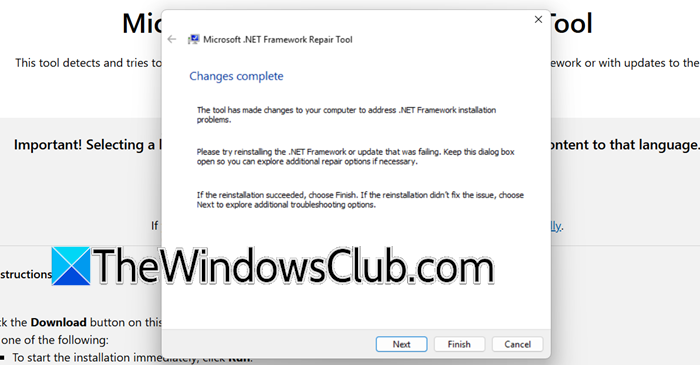
One of the reasons why you encounter this issue is corruption of .NET Framework files. The .NET Framework Repair Tool fixes corrupted runtime files, misconfigured registry entries, and security permission errors in .NET installations. Visual Studio relies on .NET components (like clr.dll) to load the IDE core, extensions, and project systems. You can go to Microsoft.com and download the tool. Finally, run the tool and hopefully, it will repair the corrupted .NET Framework files.
3] Disable problematic third-party extension
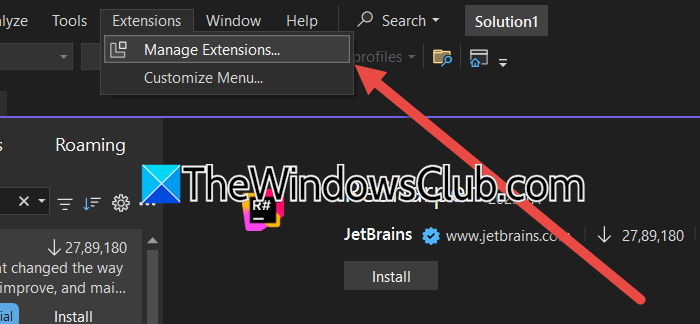
Third-party extensions (like ReSharper, Git tools, or productivity add-ons) run deeply integrated code during Visual Studio startup. If the extensions are incompatible, have corrupted files after updates, or conflict with other extensions or system components, you need to follow the solution.
- Kill Visual Studio from the Task Manager.
- Now, open Command Prompt and run the command – devenv /safemode.
- If VS opens, extensions are the problem, but if VS doesn’t open, skip this solution.
- If VS opens in Safe Mode, go to Extensions > Manage Extensions.
- You need to disable the extension, but start from the ones with higher priority, Git Extensions, ReSharper, etc.
Finally, check if the issue is resolved.
4] Reset User Settings
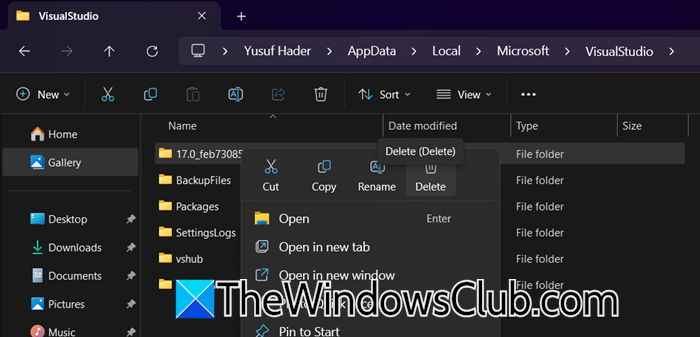
Resetting user settings resolves startup crashes by eliminating corrupted configurations that conflict with Visual Studio’s core operations. You can use one of the methods mentioned below to reset User Settings.
- From Command Prompt: Open Command Prompt and run devenv /resetsettings.
- From File Explorer: Open File Explorer and %LocalAppData%\Microsoft\VisualStudio\17.0_<ID> and %LocalAppData%\Microsoft\VSCommon folders
Finally, check if the issue is resolved.
5] Reinstall .NET via Visual Studio Installer
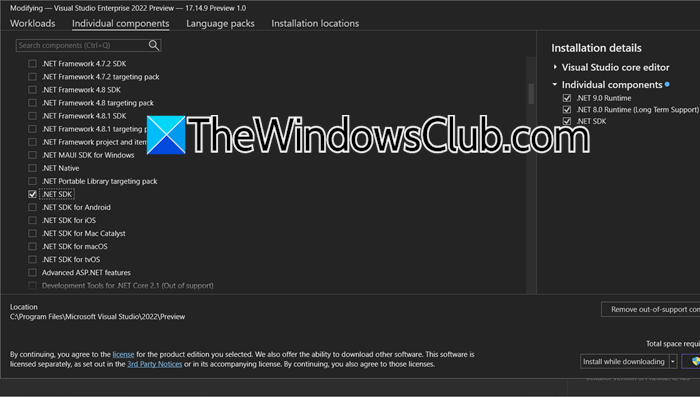
If nothing works, your last resort is to reinstall the .NET via the Visual Studio Installer. This process resolves .NET framework mismatches by forcibly replacing corrupted or conflicting SDK files with clean, version-consistent components, eliminating runtime errors (e.g., clr.dll crashes) caused by incomplete updates, disk corruption, or version conflicts. Follow the steps mentioned below.
- Open Visual Studio Installer from the Start Menu.
- Choose your active Visual Studio installation and click on Modify.
- Go to Individual Component.
- Look for .NET SDK, and uncheck it.
- Reboot your Visual Studio Installer, open it again, but check the .NET SDK.
Finally, check if the issue is resolved.
Hopefully, with the help of these solutions, your issue will be resolved.
Read: Visual Studio Code: The window has crashed [Fix]
Windows is crashing when Visual Studio launches
Windows crashes during Visual Studio launch typically stem from system-level conflicts where Visual Studio’s intensive processes, such as JIT compilation, extension loading, or GPU-accelerated rendering, trigger latent instabilities in drivers, hardware, or core Windows components. Common culprits include outdated or corrupted display drivers, faulty RAM modules that fail under VS’s high memory allocation, or damaged storage sectors that affect critical .NET runtime files during load.
Additionally, incompatible kernel-mode extensions (like antivirus hooks or overclocking utilities) may destabilize the system when VS accesses protected memory regions or hardware resources, leading to BSOD errors such as SYSTEM_SERVICE_EXCEPTION or DPC_WATCHDOG_VIOLATION.
To resolve this, first test hardware integrity by running mdsched.exe for RAM diagnostics and chkdsk /r for disk errors, then update all drivers, especially GPU and chipset, via Device Manager or manufacturer tools.
Temporarily disable non-Microsoft services via msconfig and perform a clean boot to isolate software conflicts; if crashes stop, re-enable services to identify the offender.
If instability persists, use DISM /Online /Cleanup-Image /RestoreHealth and sfc /scannow to repair Windows system files.
Hopefully, this will do the job for you.
Read: VS Code unable to connect to browser
How to fix Visual Studio crashing?
To fix Visual Studio crashing, first delete the corrupted MEF cache by closing VS, navigating to %localappdata%\Microsoft\VisualStudio\17.0_<ID>\, removing the ComponentModelCache folder, and restarting. This resolves assembly-load failures. If crashes persist, repair .NET Framework using the official repair tool (as mentioned earlier) to address clr.dll or runtime errors. Now, launch VS in safe mode via devenv /safemode to disable conflicting extensions. If stable, disable them individually in the Extensions Manager.
How do I stop something from opening on startup in Windows 11?
If an application opens at startup, one of the easiest ways to stop it is by using the Task Manager. You need to open the Task Manager, go to the Startup apps tab, look for apps for which the status says Enabled, right-click on them, and select Disabled. Finally, check if the issue is resolved.
Also Read: GitHub Copilot not working in Visual Studio.
