
If Visual Studio is unable to attach to process and access is denied, Visual Studio cannot connect the debugger to the selected application. This usually happens because of insufficient permissions, process protection, or a mismatch between the debugger and the target process.
Microsoft Visual Studio.
Unable to attach to <Process>. Access is denied.
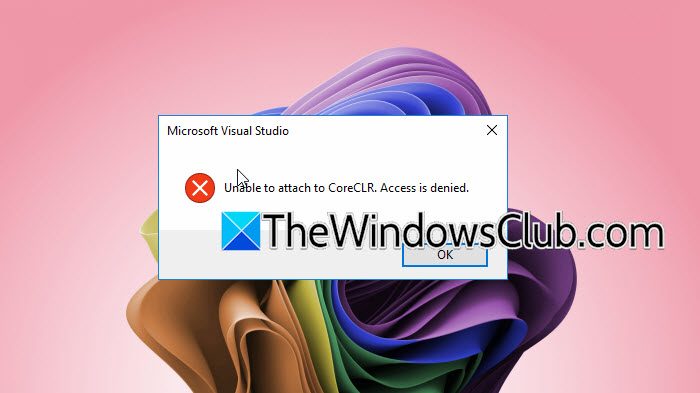
Why does Visual Studio say Access is denied?
The Visual Studio “Unable to attach to process. Access is denied” error usually occurs because Windows prevents the debugger from accessing the selected process. This can happen if Visual Studio lacks administrator privileges, the application is running under a different user account or as SYSTEM, or endpoint security software blocks debugging. Running Visual Studio with elevated permissions, matching privilege levels, and enabling the required debugging rights generally resolves the issue.
Visual Studio Unable to Attach to Process. Access Is Denied
The Visual Studio unable to attach to process. Access is denied error appears when Windows blocks Visual Studio from attaching its debugger to a running process. This commonly occurs if Visual Studio isn’t running with administrative privileges, the target process is running at a higher privilege level, the process is protected by Windows, or security software prevents debugger access. In some cases, mismatched architectures or disabled debugging privileges can also trigger the error.
If Visual Studio is unable to attach to the process, follow the solutions mentioned below.
- Run Visual Studio as Administrator
- Run the target application with the Same Privilege Level
- Enable the SeDebugPrivilege
- Disable Antivirus or Endpoint Protection Temporarily
- Verify the process isn’t protected or running as SYSTEM
- Repair Visual Studio Installer
Let us discuss them in detail.
1] Run Visual Studio as Administrator
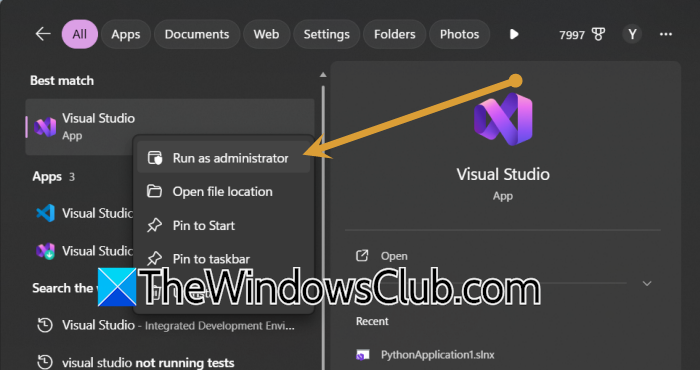
Running Visual Studio with elevated privileges allows it to attach to processes that require administrator-level access. This is the most common and effective fix when the target application is running with higher privileges. So, right-click on the Visual Studio icon and select Run as administrator. Click Yes when prompted by UAC. Now, open your project and try attaching to the process again (Debug > Attach to Process).
2] Run the target application with the Same Privilege Level
Windows prevents lower-privileged applications from debugging higher-privileged processes. Running both applications with the same permission level removes this security restriction. So, first close the target application, then launch both Visual Studio and the application as administrator. Then, try Debug > Attach to Process. Hopefully, it will work.
3] Enable the SeDebugPrivilege
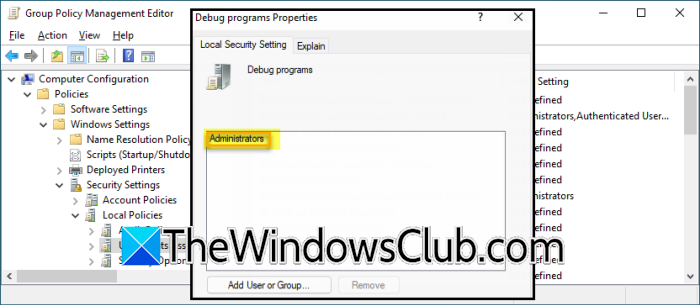
The Debug programs (SeDebugPrivilege) privilege allows authorized users to debug system and protected processes. If this privilege is missing or disabled, Windows may deny debugger access. To resolve this issue, follow the steps below.
- Hit Win + R, type secpol.msc, and press Enter.
- Navigate to Local Policies > User Rights Assignment.
- Now, go to Debug programs.
- Add your user account or the Administrators group if it isn’t listed.
- Sign out and sign back in (or restart the PC).
Launch Visual Studio and try attaching again.
4] Disable Antivirus or Endpoint Protection Temporarily
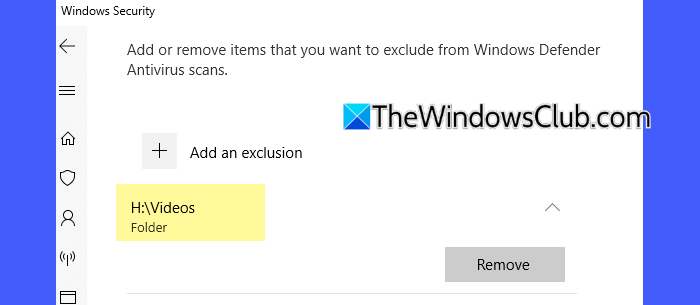
Some antivirus and endpoint security tools block debugging operations to prevent unauthorized process injection. Temporarily disabling the protection helps determine whether the security software is causing the issue. Temporarily disable your antivirus or endpoint protection. Now, open Visual Studio and try attaching to the process. If it works, add Visual Studio to the antivirus exclusions. Now, re-enable your security software.
5] Verify the process isn’t protected or running as SYSTEM
Windows Protected Processes and SYSTEM-owned processes cannot be debugged by regular users, even with administrator privileges. Using the appropriate account or avoiding protected processes resolves the issue. Open the Task Manager, locate the target process, and check whether it is running as SYSTEM or is a protected Windows process. If possible, restart the application under your own user account. Finally, try attaching the debugger again from Visual Studio.
Read: How to install Claude AI code in VS Code
6] Repair Visual Studio Installation
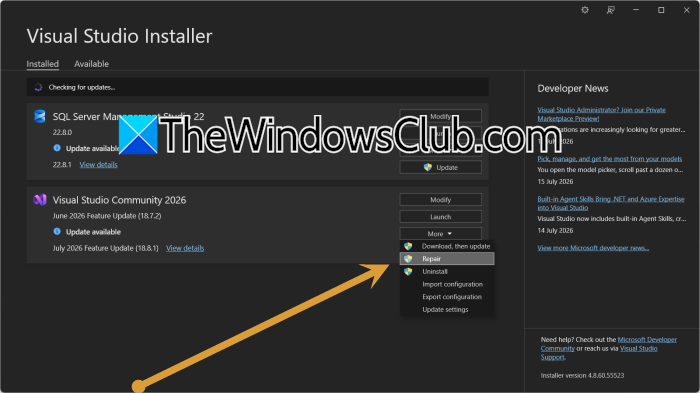
If the Visual Studio debugger components are corrupted or missing, the IDE may fail to attach to running processes even when permissions are correct. Repairing the installation reinstalls the debugger and related components without affecting your projects, making it an effective solution for persistent attach failures.
First of all, close Visual Studio. Open the Visual Studio Installer from the Start menu. Locate your installed version of Visual Studio, and click on More > Repair. Wait for the repair process to complete and restart your computer. Finally, launch Visual Studio and try Debug > Attach to Process again.
Hopefully, with the help of these solutions, your issue will be resolved.
Read: Visual Studio crashing on startup in Windows 11
How do I fix Visual Studio Access is denied?
To fix the Visual Studio unable to attach to process access is denied error, first run Visual Studio as an administrator and ensure the target application is using the same privilege level. If the issue persists, enable SeDebugPrivilege, temporarily disable antivirus software, verify that the process is not protected or running as SYSTEM, and repair your Visual Studio installation to restore any missing or corrupted debugger components.
Also Read: Visual Studio failed to push to the remote repository.
