
You may experience SystemSettings.exe System error because of corrupted system files, viruses, and malware, or because of other numerous reasons. In this post, we will discuss the following error and how to resolve it.
SystemSettings.exe System Error, The system detected an overrun of a stack-based buffer in this application. This overrun could potentially allow a malicious user to gain control of this application.
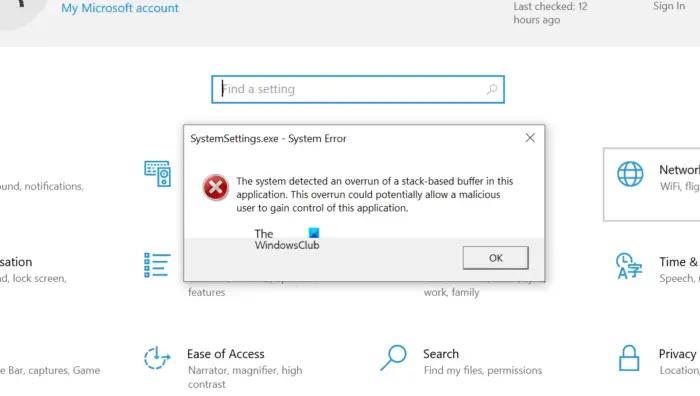
If you see the error message, refer to the troubleshooting guide to resolve the issue.
What is SystemSettings exe?
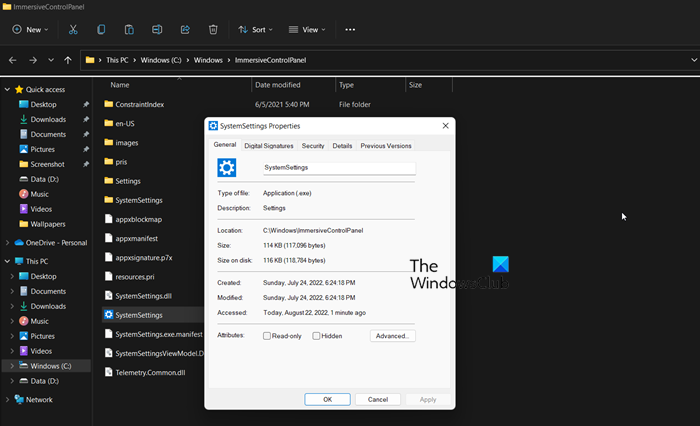
SystemSettings.exe is an executable associated with Windows Settings. It is a genuine Windows process and is somewhere around 85 to 90kb. You can find the file at the following location.
C:\Windows\ImmersiveControlPanel
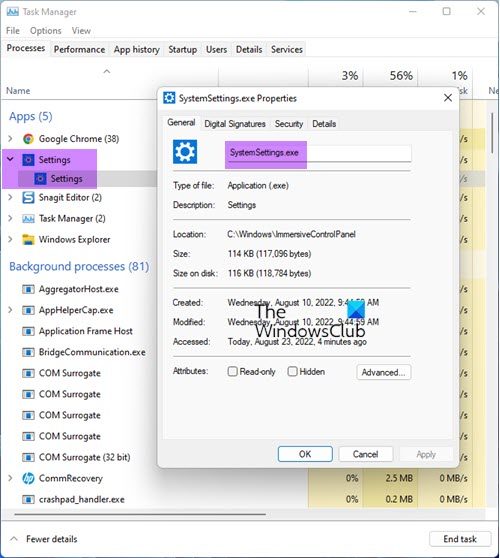
To learn more about this file, you can go to its location or right-click SystemSettings.exe in Task Manager and select Open file location.
Fix SystemSettings.exe System error in Windows 11
If the system detects an overrun of a stack-based buffer and the program can’t start because of a SystemSettings.exe System error, try the solutions mentioned below:
- Repair your OS using SFC and DISM Tools
- Scan your computer for viruses and malware
- Update Windows and all its drivers
- Create a new user account
- Repair the system files using Installation Media
Let us talk about them in detail.
1] Repair your OS using SFC and DISM Tools

As mentioned earlier, one of the major causes of this error code is corrupted system files, to repair those corrupted files, we need to run some commands. So, first of all, open Command Prompt as an administrator by searching it out of the Start Menu.
Once you have launched CMD in elevated mode, run the following commands one by one.
sfc /scannow
DISM /Online /Cleanup-Image /RestoreHealth
chkdsk /v /f /r C:
After executing the commands, restart your computer and check if the issue persists.
2] Scan your computer for viruses and malware
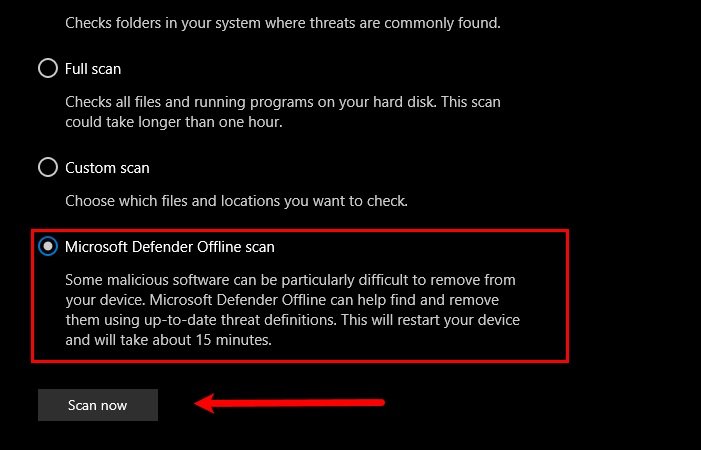
You may also see the error code in question if there is a virus and malware on your computer. To fix this issue, you can try using a third-party antivirus, if you don’t have third-party security software, then using Microsoft Defender is a great option. Follow the prescribed steps to run Microsoft Defender Offline Scan.
- Search out Windows Security from the Start Menu.
- Go to Virus & threat protection window and then click on the Scan options button.
- Select Microsoft Defender Offline scan and click on the Scan now button.
Let the security program run, it will take its time to find and remove the virus that’s causing the issue. Once the defender program has done its job, check if the issue persists.
You may also use a third-party standalone on-demand malware scanner.
3] Update Windows and all its drivers
Next up, let us try updating Windows and all its drivers to the latest versions to make sure the error is not caused by any compatibility issues. So, first of all, check if there is any Windows update available, if there is an update, go ahead and install it on your system. Once your OS is up to date, use any of the following methods to update all your drivers.
- Use one of the freeware to update all your drivers
- Install Driver and Optional Update from Windows Settings.
- Launch Device Manager and update drivers.
- Install the latest version of the drivers from the manufacturer’s website.
After updating the drivers, check if the issue persists.
Read: SystemSettings.exe suspended or stopped interacting with Windows 11
4] Create a new user account
For some users, the issue occurred due to corruption in the user account. You can try to create a new user account and see if that helps. Check our guide to create a new user account, if you don’t already know how to do the same.
5] Repair the system files using Installation Media
If nothing worked, your last option is to repair the system files using Installation Media. Since it takes longer than the other methods, we kept it last, and this will do the job for you if nothing else was able to repair the files.
Related: The system detected an overrun of a stack-based buffer in this application
Hopefully, you can resolve the issue using the solutions mentioned in this post.
Read: Windows Settings not opening or working, crashes or freezes
How do I fix System Settings exe?
If you encounter a System error for SystemSettings.exe, run SFC and DISM scans, scan your computer for malware, update Windows or repair the system files using Installation Media. We recommend starting with the first solution and then working your way down to save time. Hopefully, you will be able to resolve the issue easily.
How do I fix SystemSettings.exe Application error?
To fix the SystemSettings.exe Application Error, first restart your PC to clear temporary glitches. Next, run System File Checker in Command Prompt to repair corrupted system files. If issues persist, use the DISM tool to restore Windows image health. Updating Windows and drivers often resolves compatibility problems. Finally, if nothing works, perform a Reset This PC operation to fix the issue.
Also Read: The system detected an overrun of a stack-based buffer in this application.
