
Some users encountered an error with MS Outlook while changing their POP or IMAP account settings. According to them, when they try to change the POP or IMAP account settings, they encounter the “Something went wrong and Outlook couldn’t save your account settings” error. In this article, we will show some fixes for this error.
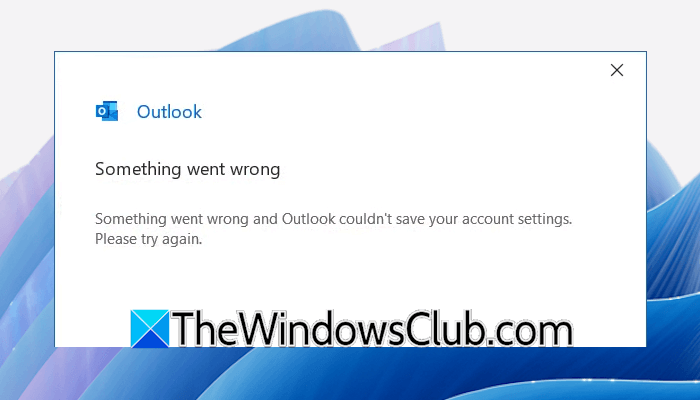
Something went wrong Outlook couldn’t save your account settings
Use the following fixes for the “Something went wrong and Outlook couldn’t save your account settings” error in MS Outlook:
- Update Office
- Update the server settings in Safe Mode
- Disconnect from VPN (if applicable)
- Disable your antivirus and Firewall
- Remove and add your account
- Create a new Outlook profile
- Create a new user profile in Windows
- Change your account settings through the Control Panel
- Repair Office
- Roll back or reinstall Office
- Contact Microsoft Support
All these fixes are explained below in detail. Before proceeding, there is a workaround that you can try. There is a Retry link on the error window. Keep pressing that Retry link. This is a workaround and not a permanent fix. Therefore, use these fixes to get rid of this error.
1] Update Office
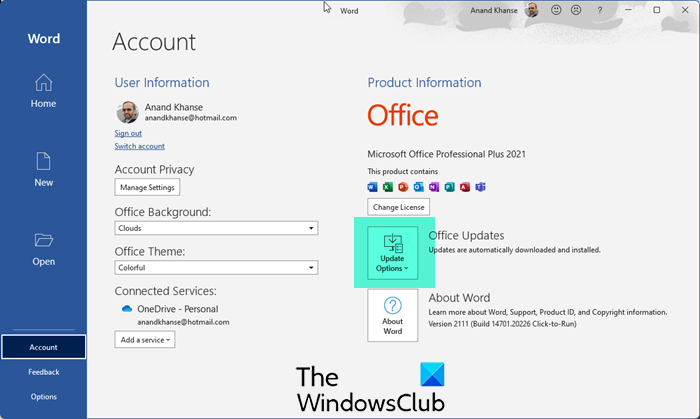
The first step is to update Office. Though Office installs updates automatically, you can also update its version manually.
2] Update the server settings in Safe Mode
You can also try to update the server settings in Safe Mode. To launch Outlook in Safe Mode, click on Windows Search and type Outlook. Now, press and hold the Shift key and then click Outlook Classic in the search results. Click Yes in the confirmation box.
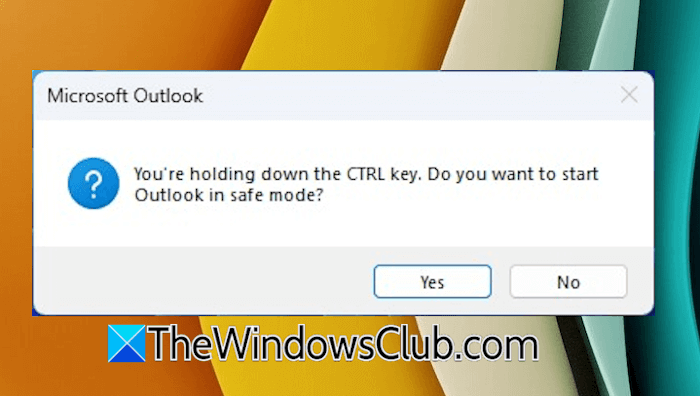
Alternatively, you can use the following command in the Run command box:
outlook.exe /safe
If this resolves the issue, an add-in may be causing the error. You can identify that add-in by disabling add-ins one by one.
3] Disconnect from VPN (if applicable)
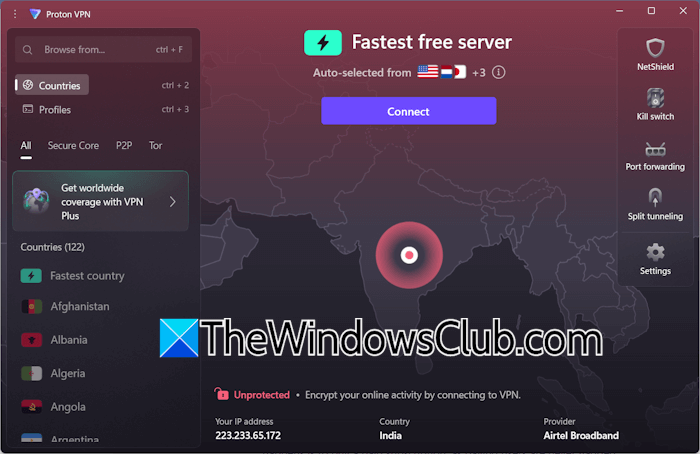
A VPN makes a network more secure, but it can slow down internet speed. Sometimes, a VPN also causes network issues. If you have connected your system to a VPN, disconnect from it and try again.
4] Disable your antivirus and Firewall
Your antivirus and firewall might be responsible for this error. To verify this, temporarily disable your antivirus and firewall, and then try again. If this resolves the issue and the error disappears, your antivirus and firewall are likely conflicting with Outlook, triggering the error.
Now, in this case, you have to create rules in the Firewall to allow the respective port. You can easily add and block ports in Windows Defender Firewall. However, if you use a third-party antivirus, the settings may be different.
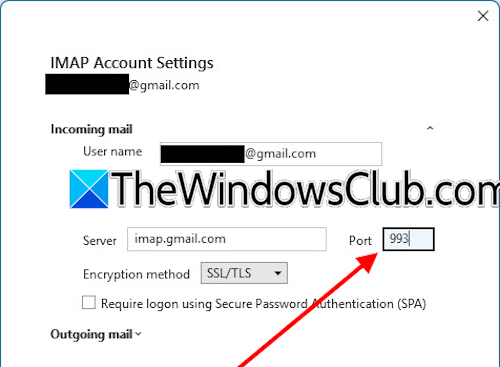
To view the respective port for the email address in Outlook, follow these steps:
- Open Outlook Classic.
- Go to File > Account Settings > Server Settings.
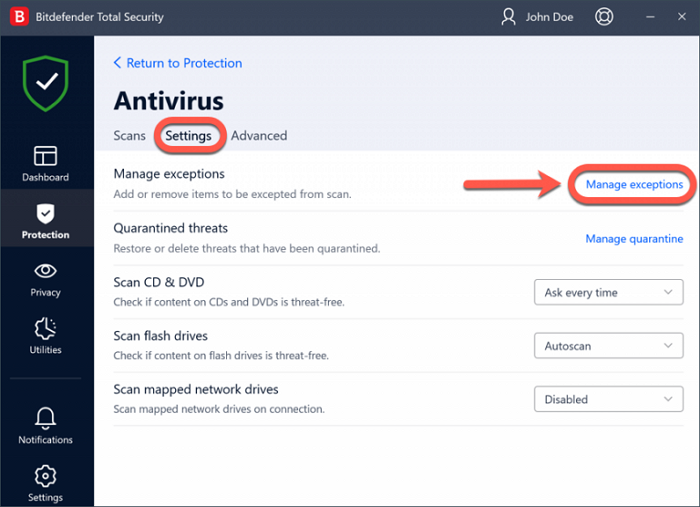
You will see the port number there. The next thing you can do is add the Outlook exe file to the exception list in your antivirus software.
5] Remove and add your account
You can also try removing and then adding your account in Outlook. Follow these steps:
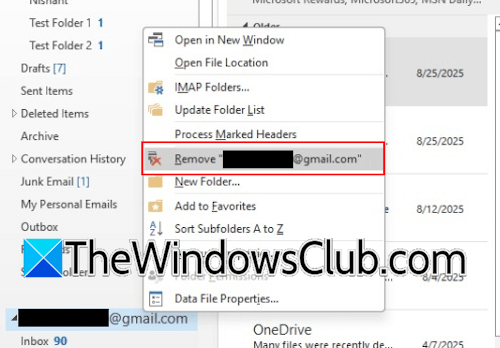
- Open Outlook Classic.
- Right-click on your email account and click Remove.
6] Create a new Outlook profile
If the error persists, create a new profile in Outlook and add your email address to that profile. To create a new profile in MS Outlook, follow these instructions:
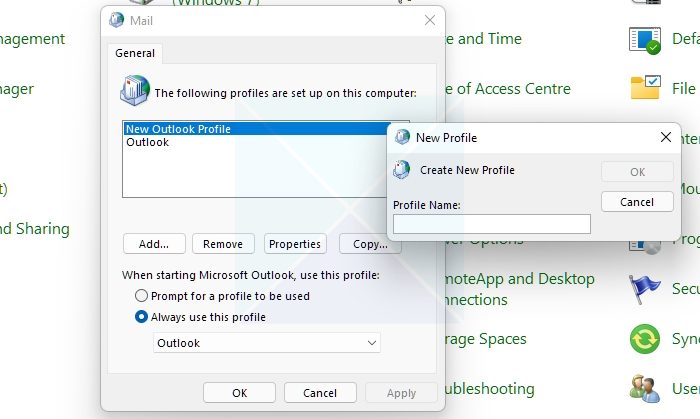
- Open the Control Panel.
- Type Outlook in the Control Panel search box.
- Click Mail (Microsoft Outlook) in the search results.
- Now, click Show Profiles.
- Select the Prompt for a profile to be used radio button.
- Click Add and follow the on-screen prompts to add a new profile.
Now, launch Outlook and select the newly created profile. See if you can change your IMAP account settings. If this works, you can delete the old Outlook profile.
7] Create a new user profile in Windows
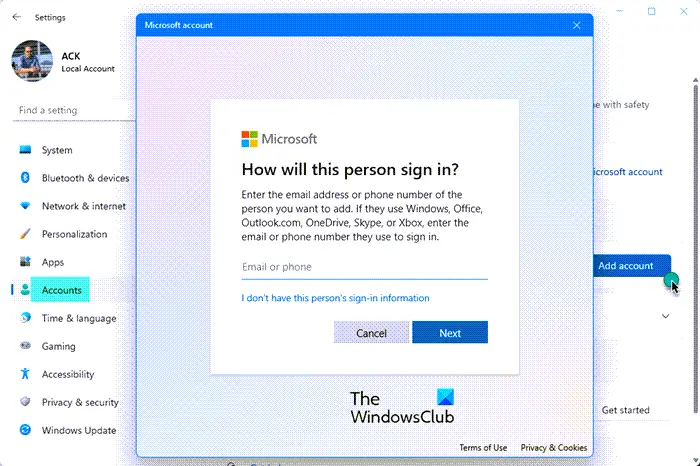
You can also try creating a new user profile. Now, log in to the new user profile and set up your email address in Outlook. If this works, you can start using that user profile and transfer all your profile data from the previous profile to the new profile. Transwiz is a free tool that transfers data from one user profile to another in Windows.
8] Change your account settings through the Control Panel
If the error “Something went wrong and Outlook couldn’t save your account settings” occurs while changing your account settings in Outlook, you can change your account settings through the Control Panel.
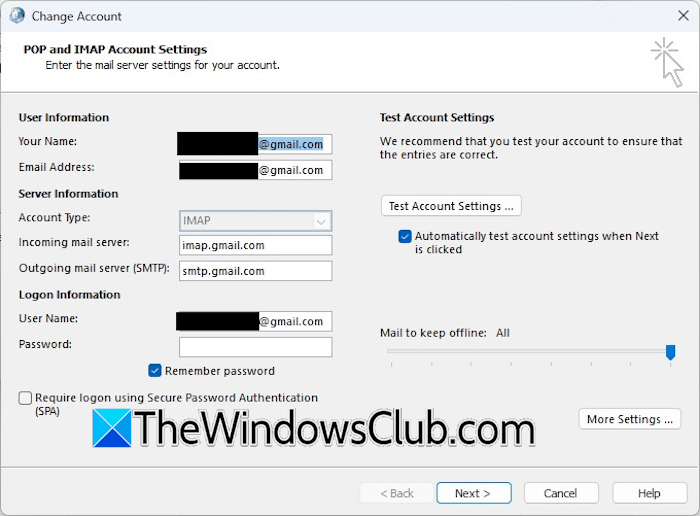
Follow these steps:
- Open the Control Panel.
- Type Outlook in the Control Panel search box.
- Click Mail (Microsoft Outlook) in the search results.
- Click Email Accounts.
- Under the Email tab, double-click on your IMAP email account.
- Change your account settings and click Next.
Make sure that the “Automatically test account settings when Next is clicked” checkbox is enabled, so Outlook can send a test email when you click Next.
9] Repair Office

The error might be occurring due to corrupt Outlook files. Repairing the Office can help. Run an Online Repair.
10] Roll back or reinstall Office
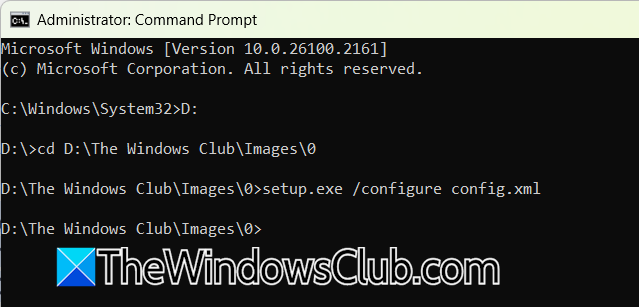
If this error started occurring recently, it might be due to a faulty Office update. Microsoft Office installs updates in the background automatically. You can try to roll back Office to an earlier version. This requires you to run the required commands in the elevated Command Prompt.
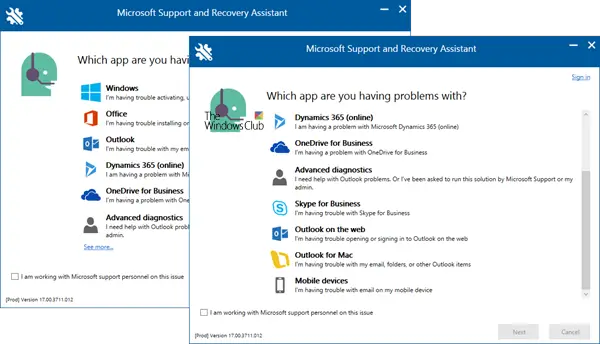
If this does not work, the last resort is to reinstall Office. Download and install the Microsoft Support and Recovery Assistant (SaRA) tool. Use it to remove Office completely from your system.
The consumer version of Microsoft Support and Recovery Assistant (SaRA) has been deprecated. Despite the deprecation, the Enterprise version of SaRA which is a command line tool is still available for download from Microsoft’s official site, for now.
11] Contact Microsoft Support
If the error persists, contact Microsoft Support.
That’s it. I hope this helps.
Why does my Outlook email keep saying something went wrong?
The Something went wrong error in Outlook occurs due to several reasons, like Microsoft 365 server outage, browser extensions, unstable internet connection, incorrect date and time settings, etc. To resolve this error, you can try some fixes, such as changing your IP address by using a different internet connection, updating your DNS settings, or resetting your account password.
How do I repair Outlook settings?
You can repair Outlook by repairing the corrupt Outlook data files. If this does not work, you have to repair the entire Office suite. For this, run an Online Repair. Stellar Toolkit for Outlook is a third-party tool to repair Outlook data files. Apart from that, this tool also offers a bunch of useful features.
Read next: Cannot add calendar to Outlook.
