
If you encounter the 0x8007003B error while signing into your Microsoft account, the solutions provided in this article will help you. The 0x8007003B login error can occur in various scenarios, such as signing in to account.microsoft.com, outlook.com, an Xbox device, or the Microsoft Store. This article covers fixes for this error in all these scenarios.
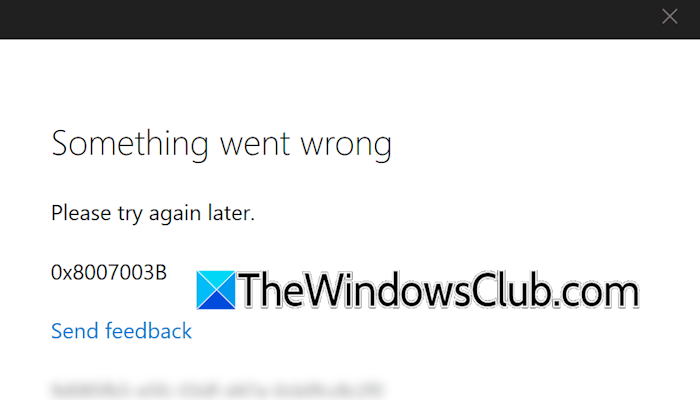
The complete error message is:
Something went wrong
Please try again later.
0x8007003B
Some users also encountered this error while adding an email account to Outlook.
0x8007003B login error – Something went wrong
Use the following fixes for the 0x8007003B Microsoft Account login error – Something went wrong.
- Check the server status
- Switch to another internet connection
- Use another web browser
- Disable browser extensions
- Change your DNS
- Use other ways to sign in
- Reset your account password
- Reset, release IP, and flush DNS cache
- Check your date and time settings
- Reset Microsoft Store
- Check the status of the required services
All these fixes are explained in detail below. Before proceeding, check your internet connection, as login issues can sometimes occur due to a weak or unstable internet connection.
1] Check the server status
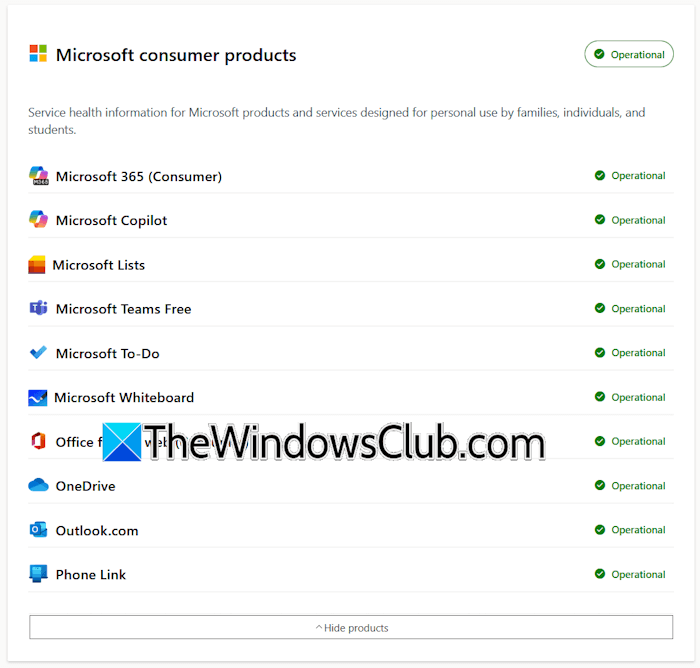
Login errors can occur due to server issues. Visit Microsoft’s official website to check the service status of all Microsoft products.
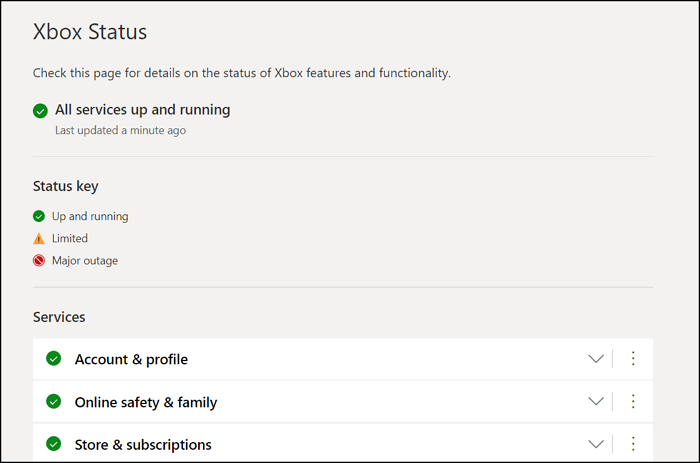
To check the Xbox service status, you have to visit support.xbox.com. If there is a server outage, wait till Microsoft resolves the issue. However, if all the services are operational, the issue is likely on your end.
2] Switch to another internet connection
The issue may be related to your IP address. If so, changing the IP address will work. To change your IP address, switch to another network (if available), or connect your system to your mobile data through the mobile hotspot.
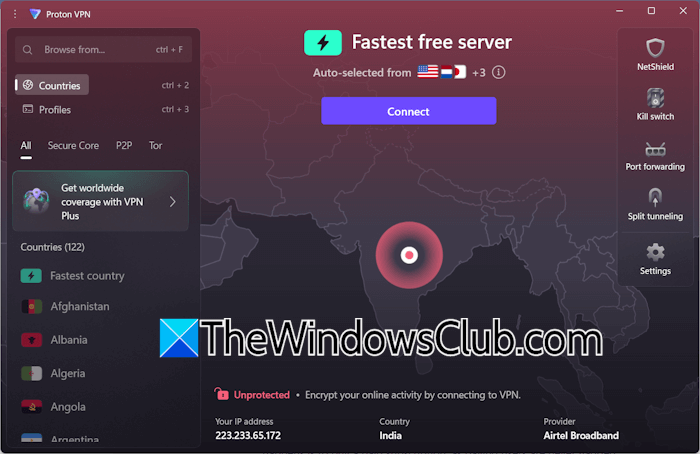
Alternatively, you can try a VPN connection. Connecting to a VPN secures your network and changes your IP address. You can install any of the free VPN software. If this works, you can disconnect from the VPN after adding your email account to the Outlook Classic or New Outlook app.
3] Use another web browser
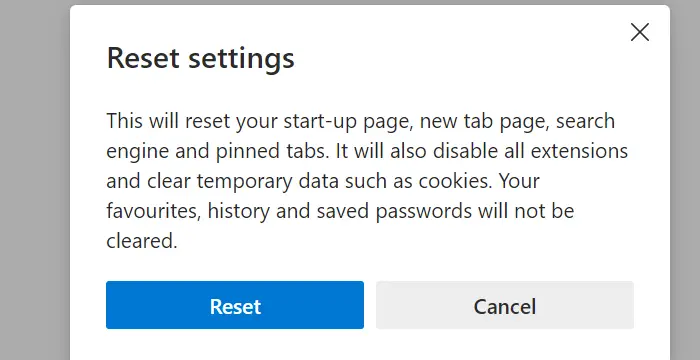
The issue may also be related to your web browser. To confirm this, switch to another web browser and check if you can log in to your Microsoft account there. If so, you can reset your previous web browser.
4] Disable browser extensions
Your browser extensions might be causing this login problem. To check this, disable all extensions and log in again. If this works, your next step is to find the problematic extension. You can do this by a hit-and-trial method.
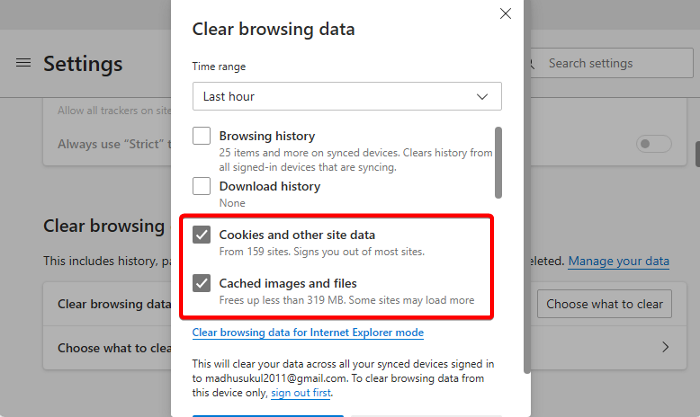
Another possible cause is the corrupt cache and cookie data. To check this, log in to your account in Incognito or Private mode. If this works, clearing the browser cache and cookies can help.
5] Change your DNS
Changing your DNS can also help fix internet connectivity issues. Try this and see if it works.
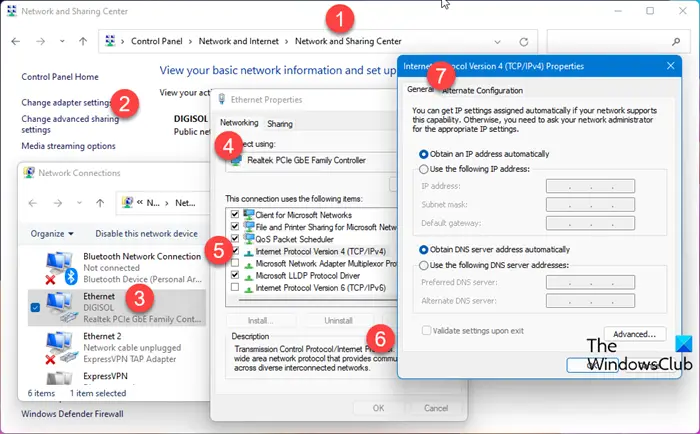
Add the following Google DNS addresses:
- Preferred DNS server: 8.8.8.8
- Alternate DNS server: 8.8.4.4
You can also use the Cloudflare Public DNS server addresses:
- Preferred DNS server: 1.1.1.1
- Alternate DNS server: 1.0.0.1
If changing the DNS addresses does not work, you can revert the changes and let your system obtain the DNS server address automatically.
6] Use other ways to sign in
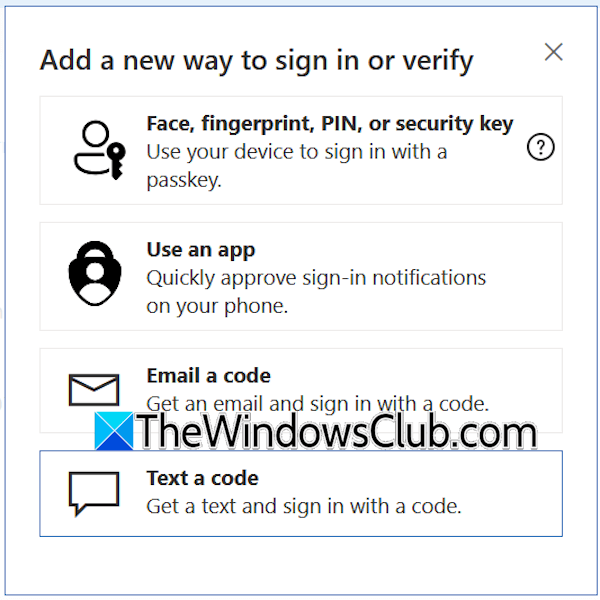
You can also try other ways to sign into your Microsoft account. However, this option only appears if you have added alternate sign-in methods to your account. While signing into your account, click the Other ways to sign in link and select any of the available sign-in options.
7] Reset your account password
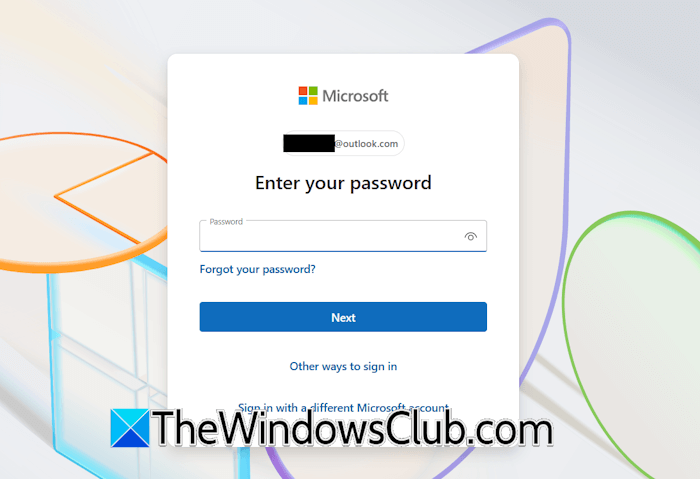
You can also try resetting your account password. On the login screen, click Forgot your password link and follow the on-screen prompts to reset your account password. After changing your account password, use it to log in to the Microsoft Store, Outlook, and other Microsoft products.
8] Reset, release IP, and flush DNS cache
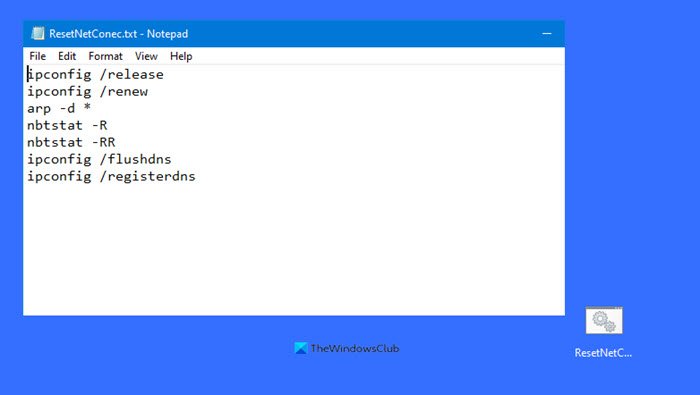
If the error persists, reset and release the IP or flush the DNS. This usually resolves internet issues on a Windows computer. For this, you need to execute separate commands in the elevated Command Prompt. The easiest way to do this is by creating a batch file.
The above action will reset your network. An alternate way to reset your network is through the Windows 11 UI. Follow these steps:
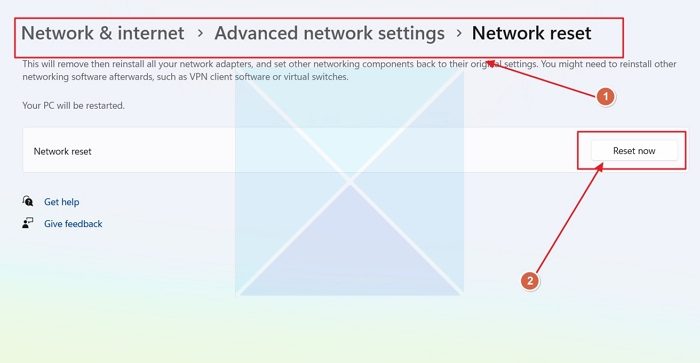
- Open Windows 11 Settings.
- Select Network & Internet > Advanced Network Settings.
- Select Network Reset and click Reset Now.
Before proceeding, save all your pending work, as Windows will restart automatically in 5 minutes to apply the changes.
9] Check your date and time settings
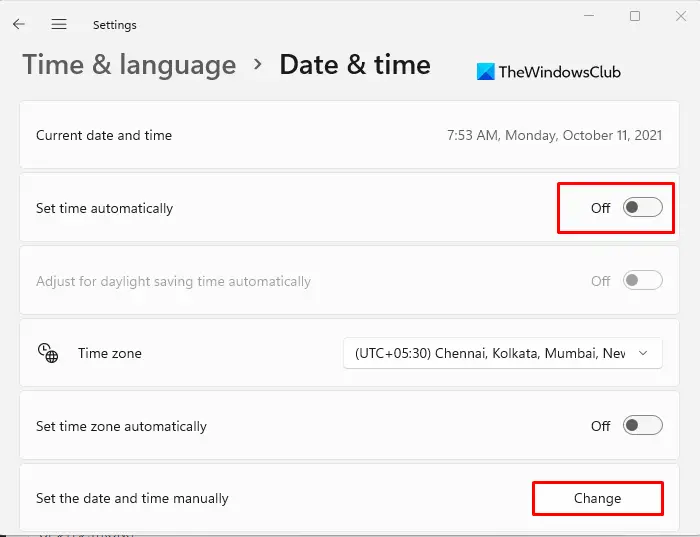
Incorrect date, time, and region settings cause issues with the Microsoft Store. Check your date, time, and region settings. Correct them if required.
10] Reset Microsoft Store
If changing the date, time, and region settings does not work, or the date, time, and region are correct, reset the Microsoft Store.
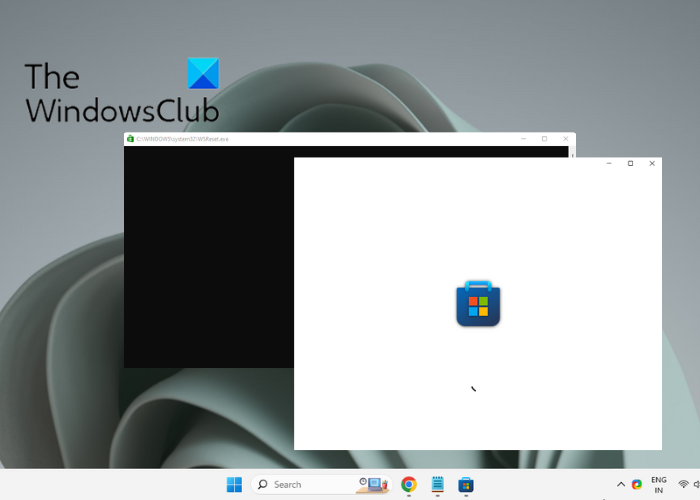
To do this, open the Run command box, type the following command, and then click OK.
wsreset
A Command Prompt window will appear and close automatically. After that, the Microsoft Store will open automatically. Now, check if you can sign in.
11] Check the status of the required services
Make sure that the required services are running. Open Windows Services Manager and check the status of the following services:
- IP Helper
- Xbox Accessory Management Service
- Xbox Live Auth Manager
- Xbox Live Game Save
- Xbox Live Networking Service
- Windows Update
- Gaming Services
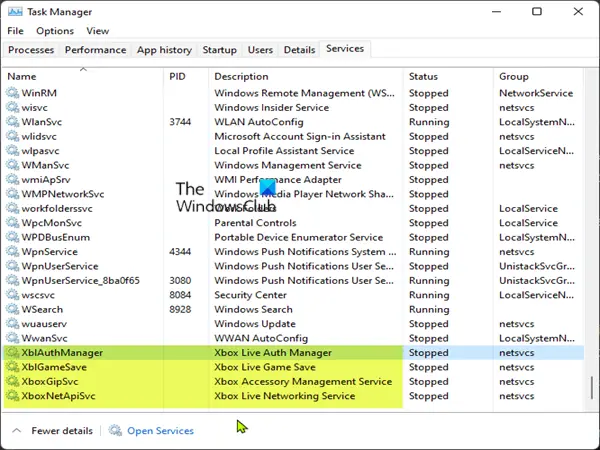
If any of these services is stopped or disabled, enable and start it. For this, right-click on it and select Properties. Now, follow these steps:
- Under the General tab, set the Startup type to Automatic.
- Click Start to start the service.
- Click Apply and then click OK.
That’s it. I hope this helps.
What is the error code 0x8007003B on Xbox?
The error code 0x8007003B, also known as the login error on Xbox, typically indicates network issues. Check your internet connection. If possible, switch to another network. This will change your IP address and fix the error. If this does not help, try power cycling your WiFi router or resetting your network.
How to fix too many requests in Microsoft?
The “Too many requests” error occurs while signing in to your Microsoft account. It also prevents you from singing into outlook.com. This error is usually associated with a particular IP address. Therefore, changing your network can fix this error. Alternatively, you can perform a Network Reset.
Read next: 0x80190001 Outlook error when adding account.
