
We can add multiple accounts to the Outlook Classic and the New Outlook app. However, some users cannot do that due to the error code 0x80190001. If you encounter the 0x80190001 Outlook error when adding an account, the solutions provided in this article will help you.
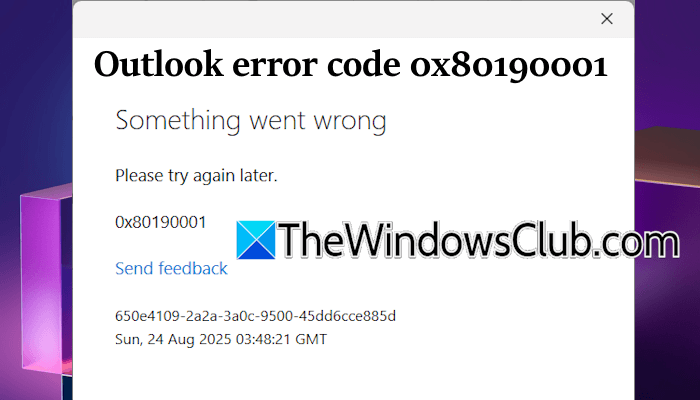
The complete error message that Outlook displays is:
Something went wrong
Please try again later.
0x80190001
Fix 0x80190001 Outlook error when adding an account
Use the following fixes for the 0x80190001 Outlook error when adding an account:
- Power Cycle your WiFi router
- Reset your account password
- Use a VPN
- Connect to another internet connection
- Create another user profile
- Reset your network
- Repair, reset, or reinstall the New Outlook app
- Repair or reinstall Office
All these fixes are explained below in detail.
1] Power Cycle your WiFi router
The first step is to power cycle your WiFi router. Follow these steps:
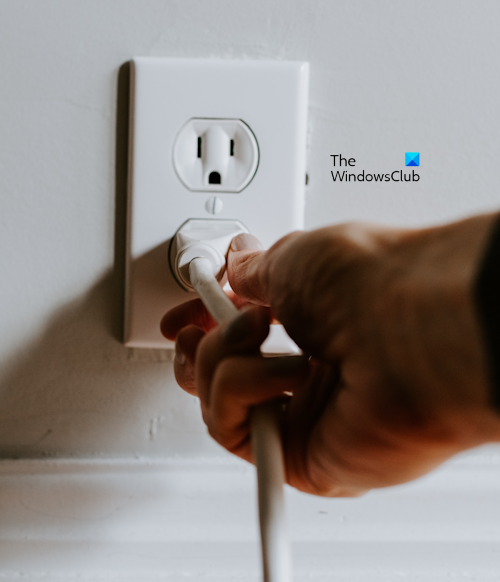
- Turn off your router.
- Unplug the power adapter from the wall socket.
- Wait for a few minutes.
- Plug back in the power adapter and turn on your WiFi router.
Wait till it initializes and connects to the internet. Now, check if you can add your account to Outlook.
2] Reset your account password
Try to reset your Microsoft account password. To do so, open your favorite web browser and visit account.microsoft.com. Now, enter your Microsoft account credentials to log in. After signing in, follow these steps:
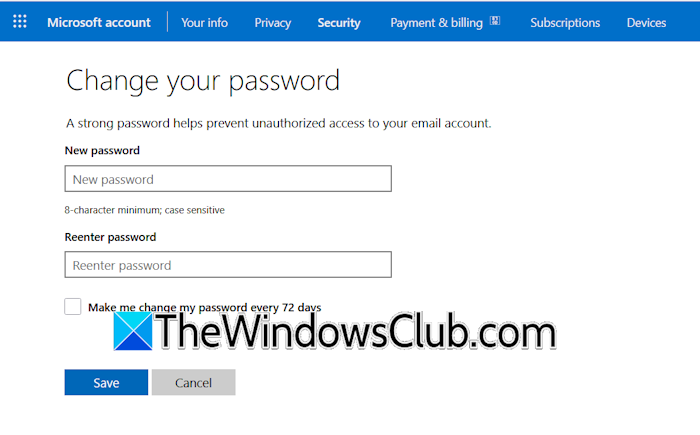
- Click Security on the left side.
- Click Change password.
- Now, enter the new password and click Save.
After changing your account password, open Outlook and check if you can add your account.
3] Use a VPN
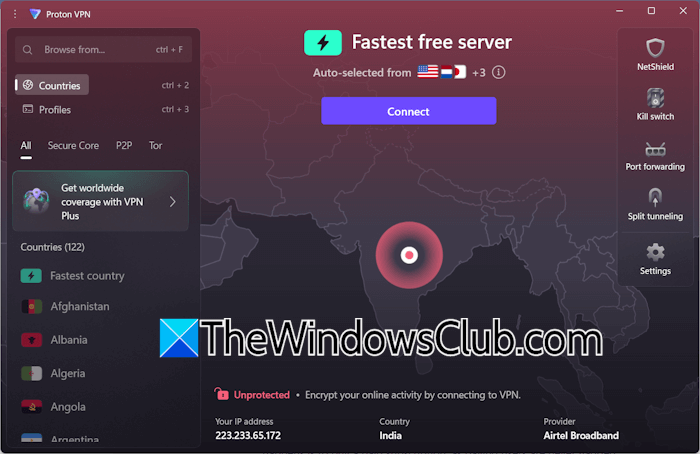
Sometimes, such types of issues are associated with a particular IP address. In this case, changing your IP address works. To do so, you can connect to a VPN. You can install free VPN software.
After connecting to a VPN, open Outlook and try to add your account. If that works, you can disconnect the VPN after adding your account.
4] Connect to another internet connection
Switching to another internet connection also changes the IP address. If you do not want to use a VPN, you can switch to another internet connection. You can also connect your system to your mobile data through a mobile hotspot.
I encountered this error while adding my email to the New Outlook app. After connecting my system to another internet connection, I was able to add my email account to the app. Therefore, this fix should also work for you.
5] Create another user profile
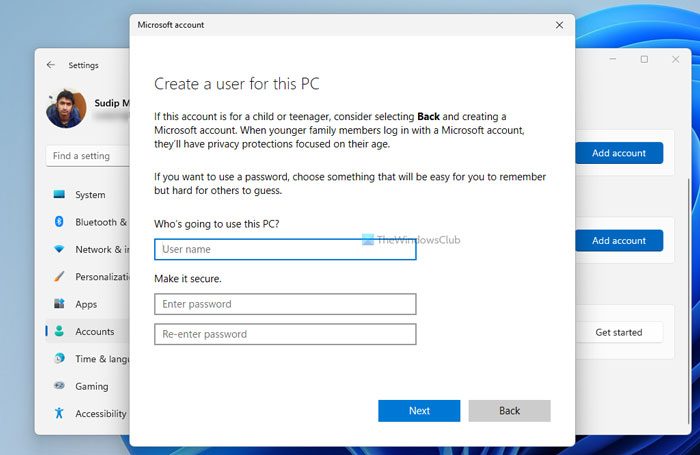
Sometimes, issues occur on a particular user profile in Windows PCs. This might be the case with you. To check this, create a new local user profile. Now, log in to the new user profile, open Outlook or the New Outlook app, and check if you can add your email account. If this works, you can transfer all your account data from the previous account to the new one, and delete the previous one later.
6] Reset your network
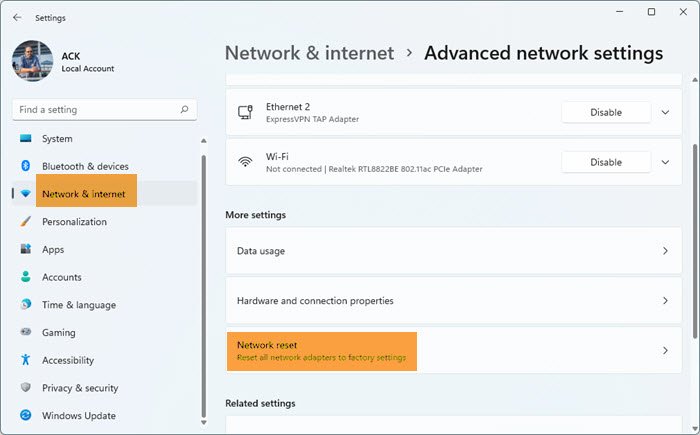
If the issue persists, you can try resetting your network. This action reinstalls the network adapters and resets the networking components to their default values. This process takes 5 minutes, and Windows restarts automatically to apply changes. Therefore, you will have 5 minutes to save your pending work after pressing the Reset now button.
7] Repair, reset, or reinstall the New Outlook app
If you still cannot add your email account to the New Outlook app, you can repair or reset it. Follow these steps:
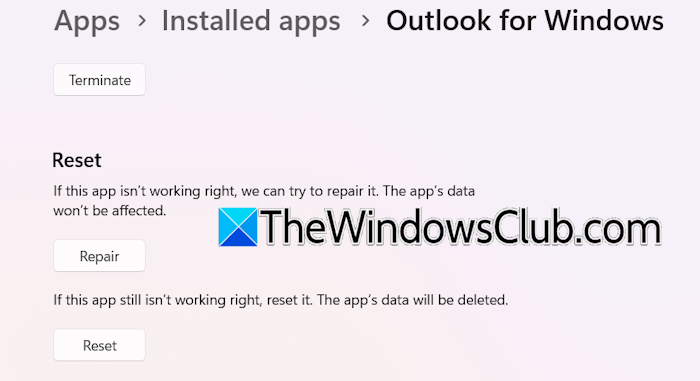
- Open Windows 11 Settings.
- Go to Apps > Installed apps.
- Search for the New Outlook app.
- Click on the three dots next to it and select Advanced options.
- Scroll down and click Repair.
Now, launch the New Outlook app and check if you can add your account. If this does not work, reset the app and try adding your account again. If nothing works, uninstall the New Outlook app and reinstall it from the Microsoft Store.
8] Repair or reinstall Office

If the issue occurs with Microsoft Outlook, repair the Office suite. Run an online repair. This takes time but fixes issues in most cases. However, if repairing Office does not help, uninstall and reinstall it. Install the Microsoft Support and Recovery Assistant tool to completely remove Office from your system. After that, restart your computer and reinstall Office. Before uninstalling Office, ensure that you have its activation key, as it will be required to reactivate the license.
That’s it. I hope this helps.
Related: Fix 0x80190001 Microsoft login error
Why is Outlook not adding my account?
There can be multiple reasons why Outlook is not adding your account, such as incorrect account credentials, an outdated Outlook app or Office suite, Internet connectivity issues, etc. Switch to another available network and try again. If the license of your Office suite is not activated, you cannot add an email account to Outlook.
How do I manually add an account to Outlook?
If you want to add an account to the New Outlook app, open it and click Add account link. To add an account to Outlook (Classic), open it and select File > Add account. Now, follow the on-screen instructions to add your account.
Read next: Please retry with a different device use a VPN.
