
If you encounter an error code 0x80190001 while signing into your Microsoft account in Windows 11, here is how you can fix the issue. Regardless of whether you encounter this error in the Phone Link app or Microsoft Store, Teams, OneDrive, etc., you can follow these solutions to resolve the issue.
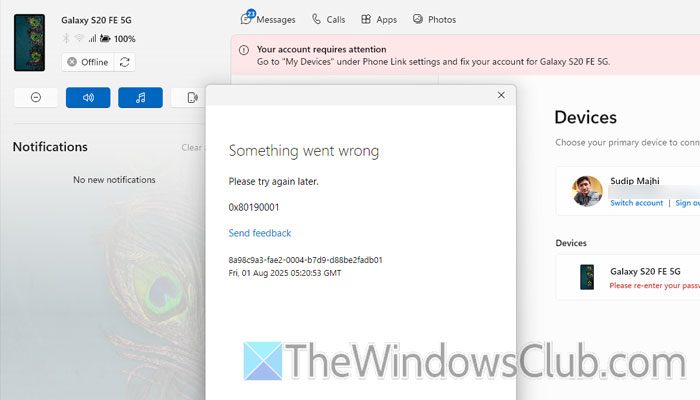
Primary reasons:
- Internet connection issue
- Problems with the default browser
- Microsoft server problem
- Outdated Phone Link app
- Microsoft account problems
Fix 0x80190001 Microsoft login error
To fix the Microsoft login error 0x80190001 in Windows 11/10, follow these instructions:
- Verify internet connection
- Disable two-factor authentication temporarily
- Use Microsoft account instead of Local account
- Change default browser
- Flush DNS cache
- Disable VPN and proxy temporarily
- Repair and reset Phone Link app
- Switch to a different internet connection
To learn more about these solutions, continue reading.
1] Verify internet connection
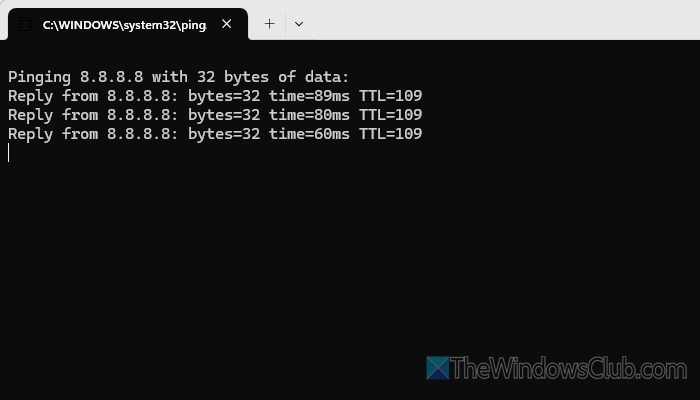
It is the first thing you need to check, as this problem may arise due to a conflicted internet connection. To verify your internet connection, you can use the ping tool. For that, do the following:
- Type Win+R to open the Run prompt.
- Type ping 8.8.8.8 -t and hit the Enter button.
If you see continuous results without any errors, your internet connection is fine. Otherwise, you need to troubleshoot your connection first.
Read: Best Free Ping Monitor Tools for Windows PC
2] Disable two-factor authentication temporarily
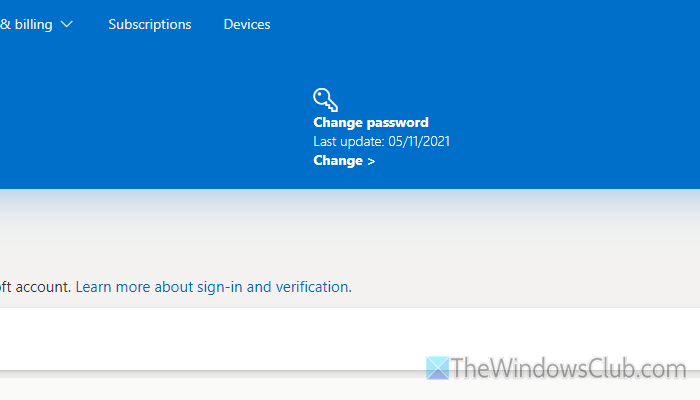
At times, this problem may appear due to a conflict within your Microsoft account. That is why we suggest temporarily disabling two-factor authentication and checking if it resolves your issue.
Read: How to enable 2-step verification in Microsoft Account
3] Use Microsoft account instead of Local account
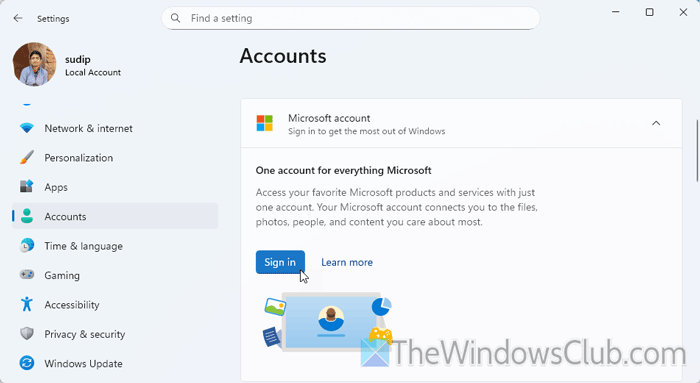
If you use a local account on your computer, it is suggested to opt for a Microsoft account. At times, your system may cause an issue due to having two separate accounts for different purposes. That is why you can opt for a Microsoft account and enjoy some of the benefits of using a Microsoft account.
4] Change default browser
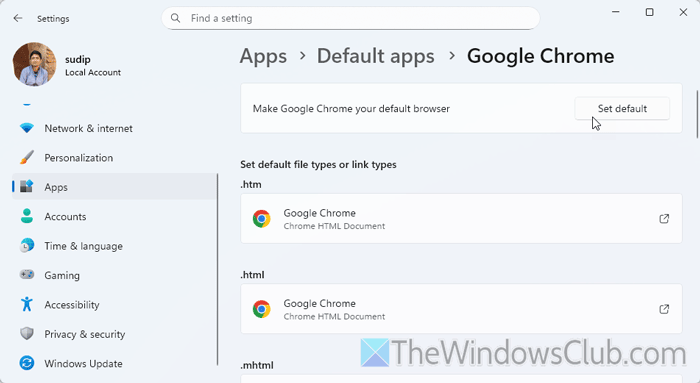
Regardless of whether you use Google Chrome, Microsoft Edge, or another browser, it’s worth trying a different default browser. If your existing browser has issues, there is a high chance that you will encounter this problem on your computer. That is why you can follow this guide to change the default browser on your computer.
5] Flush DNS cache
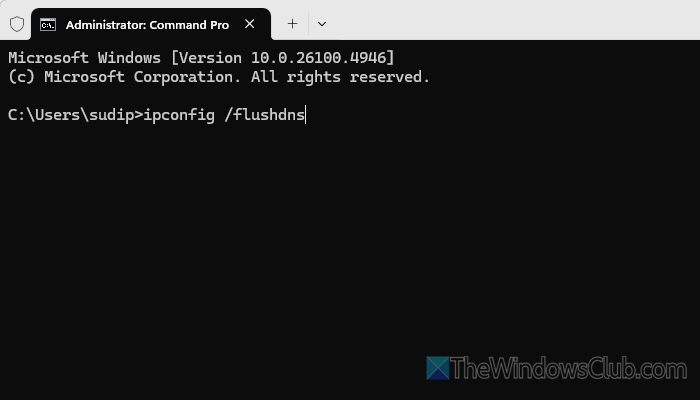
To flush DNS cache, follow these steps:
- Press Win+X and select Terminal (Admin).
- Click on the Yes button.
- Enter this command: ipconfig /flushdns
6] Disable VPN and proxy temporarily
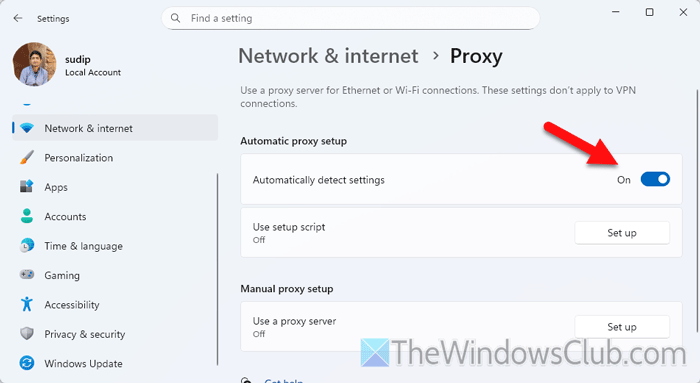
Internet connection interruptions can be caused by conflicts within your VPN and proxy servers as well. That is why it is recommended to disable VPN and proxy if you are using any of them.
To disable the proxy in Windows 11, follow these steps:
- Open the Windows Settings panel.
- Go to Network & internet > Proxy.
- Toggle the Automatically detect settings button to turn it ON.
Related: Fix 0x80190001 Outlook error when adding account
7] Repair and reset Phone Link app
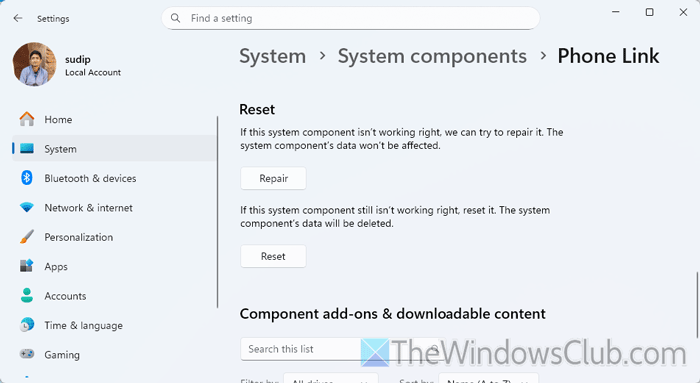
To repair and reset the Phone Link app, follow these steps:
First, you need to press Win+I to open Windows Settings. Then, go to System > System Components. Click on the three-dotted icon of the Phone Link app and select Advanced options.
Click the Repair button to repair the app. If it doesn’t solve the problem, click the Reset button twice.
Read: Troubleshoot Phone Link app problems & issues on Windows PC
8] Switch to a different internet connection
It is probably the last thing you can do to fix the aforementioned issue. At times, your current internet connection may cause some issues that cannot be detected manually. In such cases, you can fix the issue by changing the internet connection. If you are using Ethernet, you can switch to Wi-Fi, mobile hotspot, or USB tethering and vice versa.
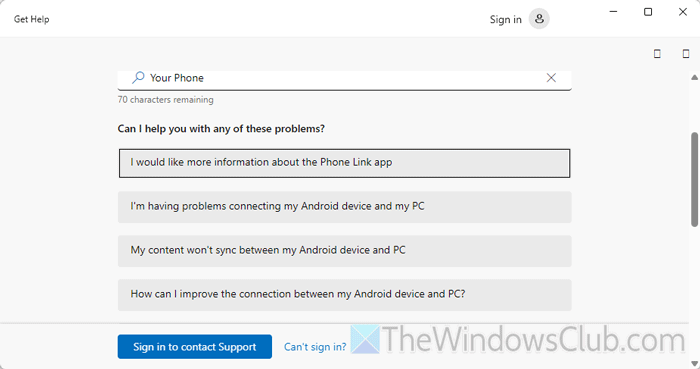
Bonus tip: You can also use the Get Help app. In that case, open the Get Help app, search for your phone, and follow the on-screen instructions to complete the task.
Read: Fix Error 0x80190001 during Windows Update or Setup
How to fix error 0x80190001 Microsoft?
To resolve error code 0x80190001, please verify your internet connection first. Then, flush the DNS cache, disable VPN, turn off proxy, repair/reset/update the Phone Link app, etc. Finally, you can switch to a different internet connection.
Why is Microsoft not letting me sign into my account?
If there is no password-related issue, the most common problem could lie with your computer, and it is most likely due to your internet connection or a corrupt Phone Link app. Additionally, a fault in your proxy or VPN could also be the issue.
Read: Fix 0x80190001 Xbox sign in error.
