
The text predictions feature in Outlook suggests words or phrases as you type or compose an email or message. This feature remains turned on by default. However, some users have complained that text predictions are missing or unavailable on their MS Outlook and/or Outlook app. If you also face this issue, the solutions in this post will help you solve it.
Why did my Outlook stop predictive text?
Microsoft temporarily disabled the text prediction feature in MS Outlook on May 20, 2025, and restored it later. However, text predictions may not appear in Outlook if the feature is turned off. So, you have to enable it manually. Additionally, you won’t be able to use text predictions in Outlook if you are not using the supported channel (Current Channel or Monthly Enterprise Channel) or if the feature is disabled by your admin or IT department in your organization.
Outlook Text predictions missing or unavailable
If Outlook text predictions are missing or unavailable, use the following options:
- Update MS Outlook
- Re-enable Text predictions
- Switch Office to Current Channel or Monthly Enterprise Channel
- Use Outlook on the web
- Repair Office.
Let’s check these solutions.
1] Update MS Outlook
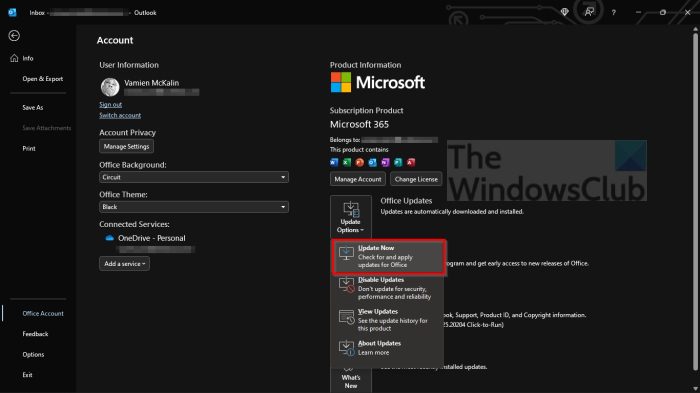
The Outlook text predictions feature missing or unavailable, was a known issue and fixed by Microsoft. Thus, text predictions were restored for MS Outlook and are available in Monthly Enterprise Channel, Current Channel, Current Channel Preview, and Beta Channel. So, you should update MS Outlook and see if this works.
2] Re-enable Text predictions
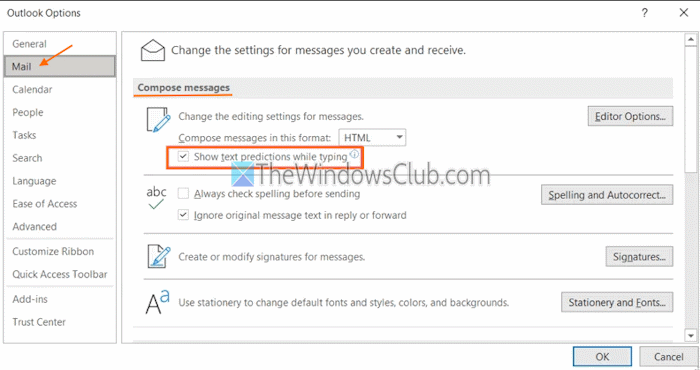
If the text predictions option is turned off by default or accidentally, you may have to re-enable it. If you are using MS Outlook, the steps to re-enable text predictions are as follows:
- Launch MS Outlook on your Windows PC
- While composing an email, navigate to File > Options > Mail
- On the right section of the Outlook Options window, go to the Compose messages section
- Check or tick mark the Show text predictions while typing option
- Press OK.
On the Outlook app, use these steps to re-enable text predictions:
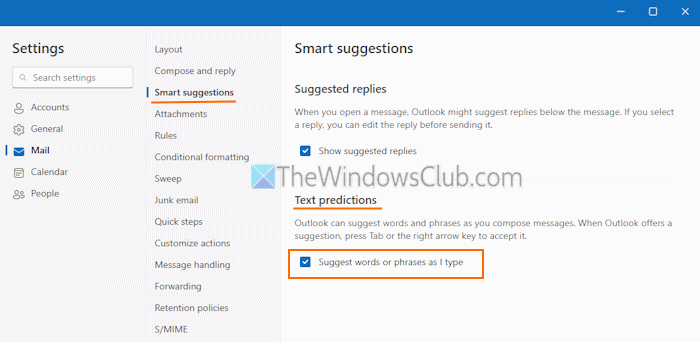
- Open the Outlook app
- Click on the Settings icon (or gear icon) available on the top-right part of the Outlook app. A new window will open
- Select the Mail category
- Access the Smart suggestions section
- Under the Text predictions section, select the Suggest words or phrases as I type check box
- Press the Save
Related: Outlook app not sending or receiving emails
3] Switch Office to Current Channel or Monthly Enterprise Channel
As we mentioned earlier, the text predictions feature is restored and available in the Current Channel and the Monthly Enterprise Channel for organizations. It is not present in the Semi-Annual Enterprise Channel or Semi-Annual Enterprise Channel (Preview). So, you need to switch Office to the Current Channel or the Monthly Enterprise Channel for your users. For this, you can use the Registry commands.
To update or switch to the Current Channel, you can run the following command:
reg add HKLM\Software\Policies\Microsoft\office\16.0\common\officeupdate /v updatebranch /t REG_SZ /d Current
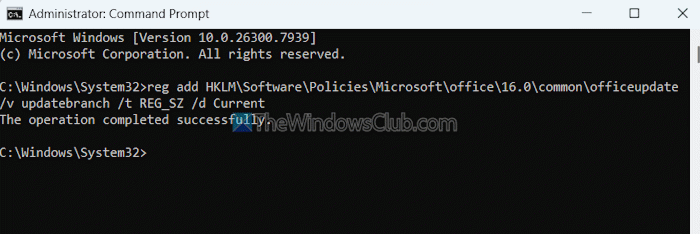
If you want to update the Registry to Monthly Enterprise Channel, run this command:
reg add HKLM\Software\Policies\Microsoft\office\16.0\common\officeupdate /v updatebranch /t REG_SZ /d MonthlyEnterprise
After successfully executing the command:
- Restart Outlook
- Navigate to File > Office Account
- Open the Update Options drop-down menu, and
- Click on the Update Now button.
You can also let users in your organization choose which channel to update or install. For this, you can run the following commands one by one:
reg add HKLM\Software\Policies\Microsoft\office\16.0\common\officechannelexposure /v insiderfast /t REG_DWORD /d 1
reg add HKLM\Software\Policies\Microsoft\office\16.0\common\officechannelexposure /v firstreleasecurrent /t REG_DWORD /d 1
reg add HKLM\Software\Policies\Microsoft\office\16.0\common\officechannelexposure /v current /t REG_DWORD /d 1
reg add HKLM\Software\Policies\Microsoft\office\16.0\common\officechannelexposure /v monthlyenterprise /t REG_DWORD /d 1
The commands listed above make the channel selections available to all users on the device.
Once the commands are executed successfully, follow these steps:
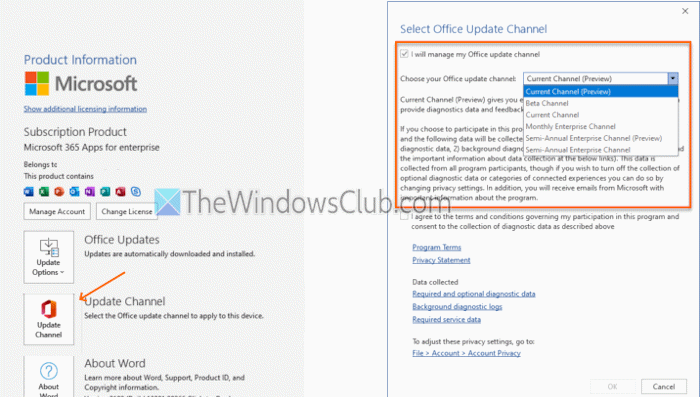
- Open MS Outlook
- Go to File > Office Account > Update Channel
- Select the, I will manage my Microsoft 365 apps update channel checkbox, and a list of available channels will be visible
- Select a channel, press OK, and the existing Microsoft 365 Apps installation will be switched to the selected channel.
Now, the text predictions should work in Outlook. If not, you can re-enable it (if it’s turned off).
Also read: Fix Outlook connectivity issues on Windows PC
4] Use Outlook on the web
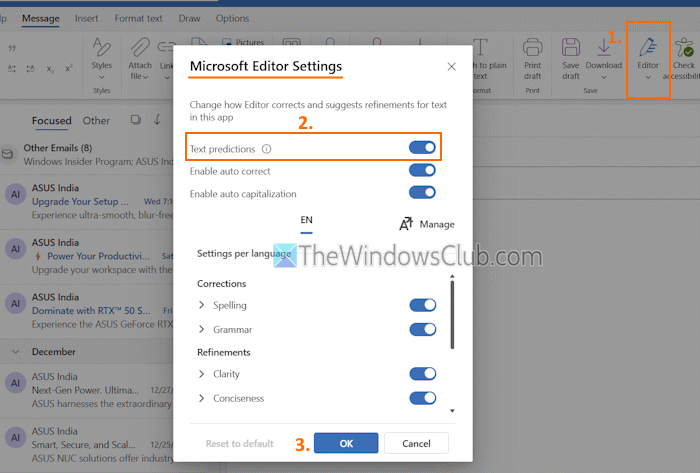
Text predictions are also supported in Outlook on the web. So, if the issue is not resolved, you can use Outlook on the web. In case text predictions don’t appear, you can enable them manually. Here are the steps:
- While composing an email, click on the Editor drop-down menu in the Ribbon menu
- Select Editor Settings, and a Microsoft Editor Settings box will pop up
- Use the toggle button for Text predictions to turn it on
- Press the OK button.
Alternatively, you can select the Open Editor option in the Editor drop-down menu and turn on the Text predictions option.
5] Repair Office

If nothing works, you should repair the Office. Select the Online Repair option in the repair window that can help you fix all the issues.
That’s all! Hope this helps.
Now read: Change Outlook app Sync Settings in Windows PC
Why is my Outlook not predicting email addresses?
If Outlook is not predicting email addresses or suggesting names when typing in To, Cc, and Bcc lines, it may happen because autocomplete is not working correctly in MS Outlook. In this case, ensure that the Autocomplete setting is enabled, and rename the RoamCache folder. You should also clear the Auto-complete list in MS Outlook or create a new profile to fix the issue.
Read next: Set up & add multiple email accounts to Outlook app.
