
Unlike its predecessors, the Outlook App for Windows 11/10 offers more options to set up different email services. Apart from the improved performance and a familiar three-pane email UI, you can find a toggle to quickly move between your email and calendar app. You can configure the sync settings for the new Outlook app using the following methods.
Change Outlook app Sync Settings in Windows 11
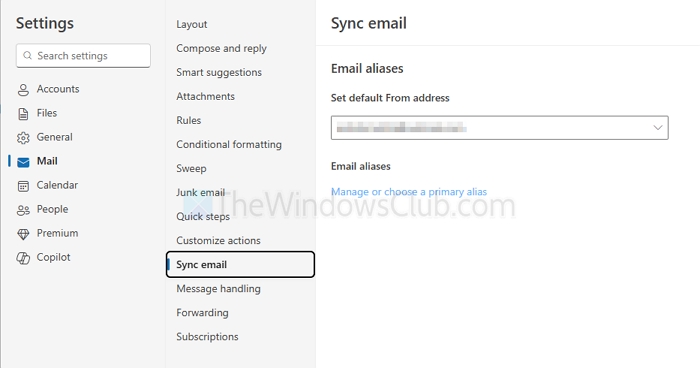
- Open the Outlook (new) app
- Go to Settings > Mail > Sync Email
- Select the email dropdown you want to sync, and it will start syncing.
The new Outlook app doesn’t offer micro settings to control the frequency of the sync. Instead, it does it almost instantly.
Windows Mail App sync settings
Open the Mail App by clicking on the ‘Start. Button and chose ‘Mail’. Thereafter, click on the gear icon in the lower right corner of the left hand Mail App sidebar that shows your account and folders.
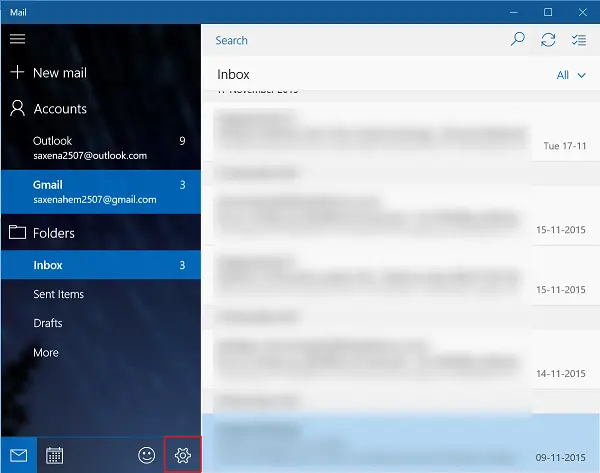
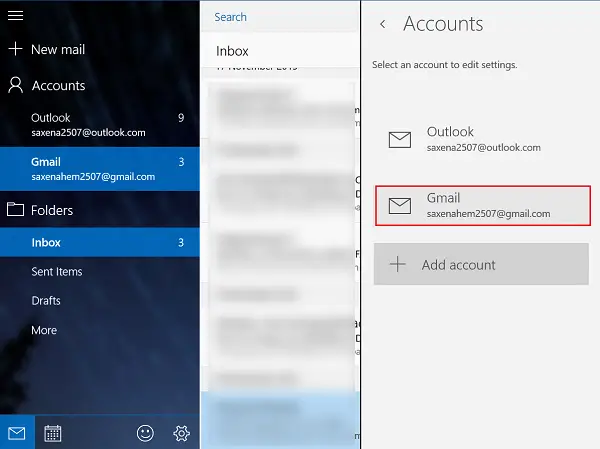
Instantly, a Settings sidebar will appear on your device screen on the right side of the app window. Click on Accounts to open the list of email accounts that are on your machine.
Now, click on the email account that you want to modify the sync settings for.
When done, click on Change mailbox sync settings to open up the settings display.
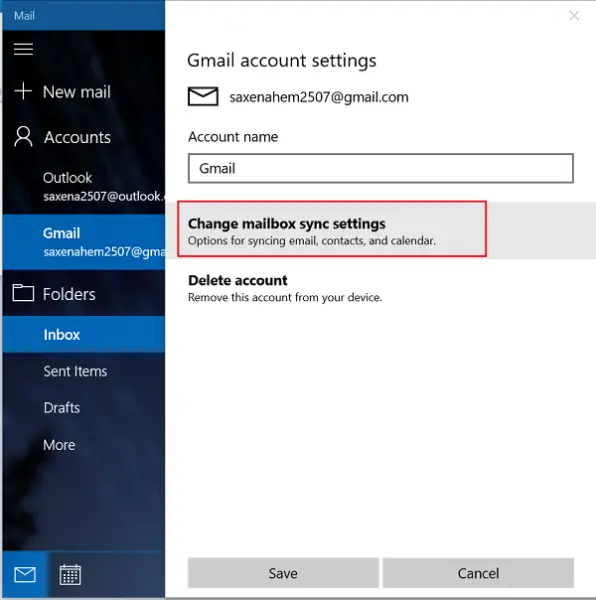
Next, click on the drop down arrow on the Download email from option. The feature allows you to decide how often you would like to download email, as items arrive every 15 minutes, every 30 minutes or on hourly basis. This can be set manually.
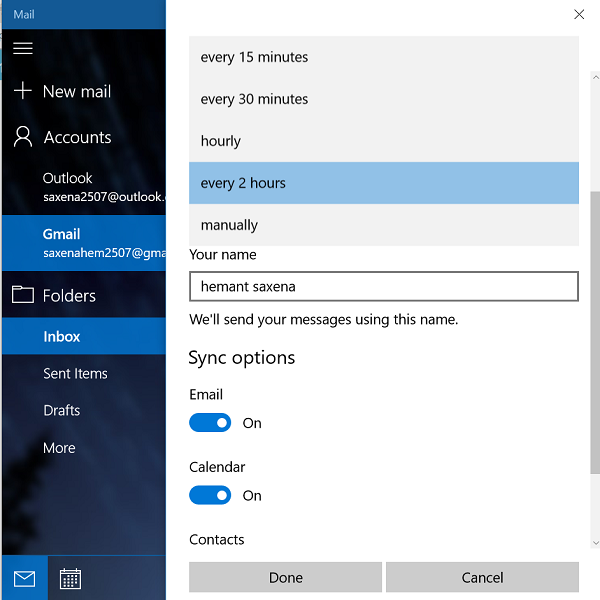
Later, you will be requested to select how much of your email you would want to sync on your device i.e., here, you can decide how far back in time you would want to go to see your email. There are options for 3 and 7 days, 2 weeks, a month or any time. Please note that your email might take some time to sync.
This last option syncs all of those accounts’ emails to your device, so just be aware of the available storage space before proceeding.
Finally, click Done and close out the other dialog boxes. Thereafter, re-sync your account to sync your email based on the new settings.
