
If Outlook freezes or crashes when attaching files, the solutions provided in this article will help you. This can be frustrating because it prevents you from sending attachments until the underlying issue is fixed. You can use Outlook.com for sending attachments. However, this is a temporary fix.
Outlook freezes or crashes when attaching files
Use the following solutions if Outlook freezes or crashes when attaching files:
- Check for required updates
- Clear Outlook cache
- Disable add-ins
- Disable the Store my Outlook Settings in the Cloud option
- Create a new Outlook profile
- Disable your antivirus
- Troubleshoot in a Clean Boot state
- Repair Outlook data file
- Downgrade your Office version
- Repair or reinstall Office
All these fixes are explained in detail below. Before proceeding, make sure that your attachment is under the allowable limit. If not, compress it before uploading. Or you can share it through OneDrive.
1] Check for required updates
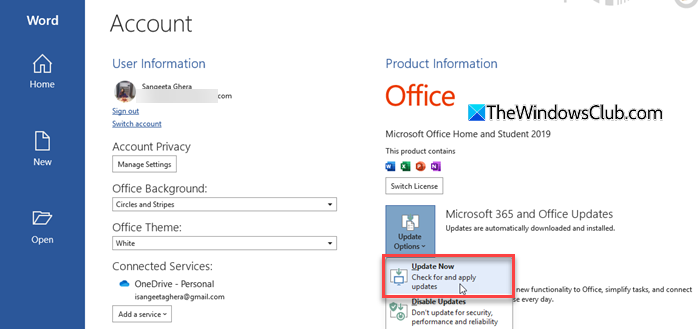
The first step is to check for the required updates. The MS Outlook on your system might be outdated or have some bugs. Updating it to the latest version can help. Check for Office Updates manually and install them (if available).
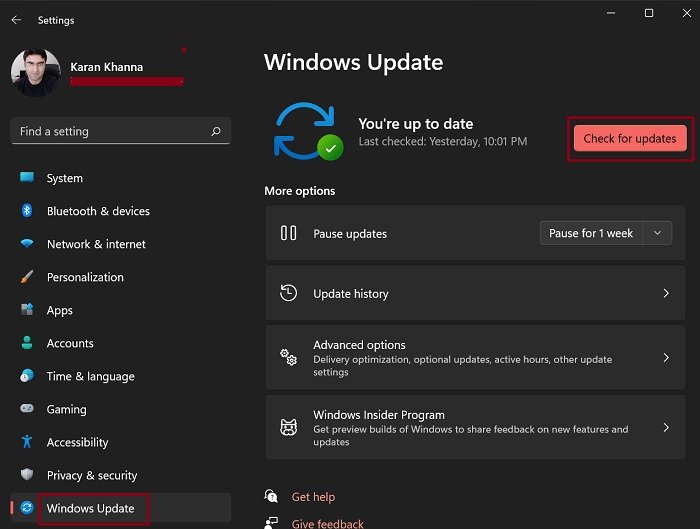
Additionally, I also suggest you check for Windows Updates. This will fix bugs on your system.
2] Clear Outlook cache
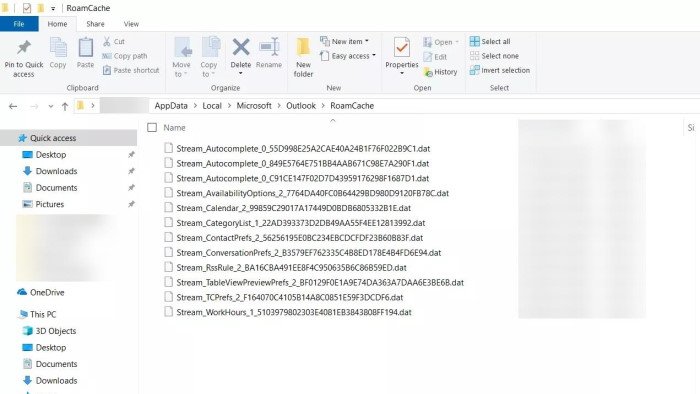
One possible cause of this issue is the corrupt Outlook cache files. Clear Outlook cache files and see if it helps.
3] Disable add-ins
Conflicting add-ins in Outlook and other Office applications cause several issues. There might be a problematic add-in installed on your MS Outlook. To check this, disable all add-ins and then attach a file. If Outlook does not freeze or crash, one of the installed add-ins is the culprit.
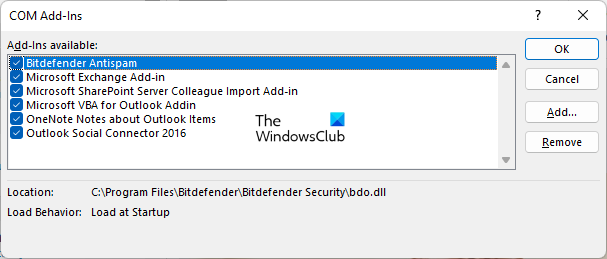
Follow these steps:
- In MS Outlook, go to File > Options.
- Select COM Add-ins in the drop-down and click Go.
- Uncheck all the checkboxes and click OK.
Now, attach a file. If Outlook does not freeze or crash this time, find out the problematic add-in. For this, enable the disabled add-ins one by one and attach a file after enabling each add-in. When Outlook freezes or crashes, the add-in you have just enabled is the culprit. Now, remove that add-in and look for its alternative.
4] Disable the Store my Outlook Settings in the Cloud option
If you have Outlook (Microsoft 365), you can try disabling the “Store my Outlook Settings in the Cloud” option. This option in Microsoft 365 Outlook saves your Outlook account settings and preferences to the cloud, making them available on all your devices.
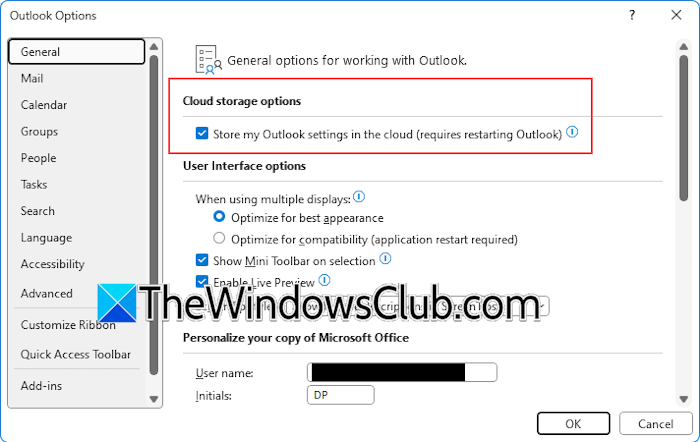
This option remains enabled by default. To disable it, go to File > Options > General. Now, uncheck the Store my Outlook settings in the cloud checkbox under the Cloud storage options.
5] Create a new Outlook profile
The problem may also be associated with your Outlook profile. To confirm this, create a new Outlook profile. After creating a new profile in MS Outlook, add your email account to that user profile and check if you can attach documents. If Outlook does not freeze or crash while attaching files in the new profile, the email account in your previous profile might have been corrupted.
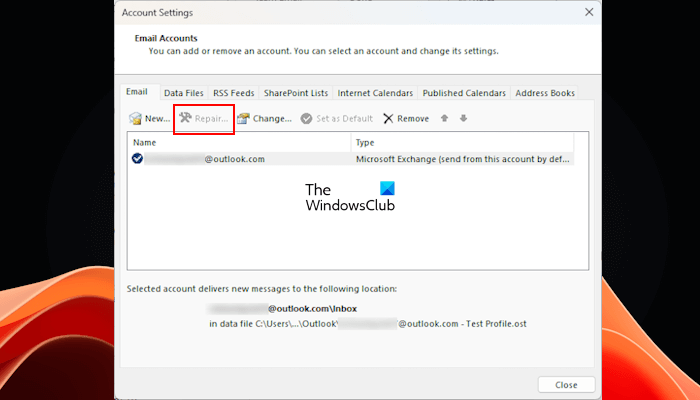
You can repair your email account in the previous profile by following these steps:
- In MS Outlook, go to File > Info.
- Click Account Settings > Manage Profiles. Click Yes in the UAC prompt.
- Click Show Profiles.
- Select your previous profile and click Properties.
- Click Email Accounts.
- Now, select the affected email account and click Repair.
You may find the Repair option greyed out. If so, check your account type. The Repair option is not available for Exchange accounts. This is also mentioned on Microsoft’s official website.
The Repair option isn’t available if you’re using Outlook 2019/16 to connect to an Exchange account.
6] Disable your antivirus
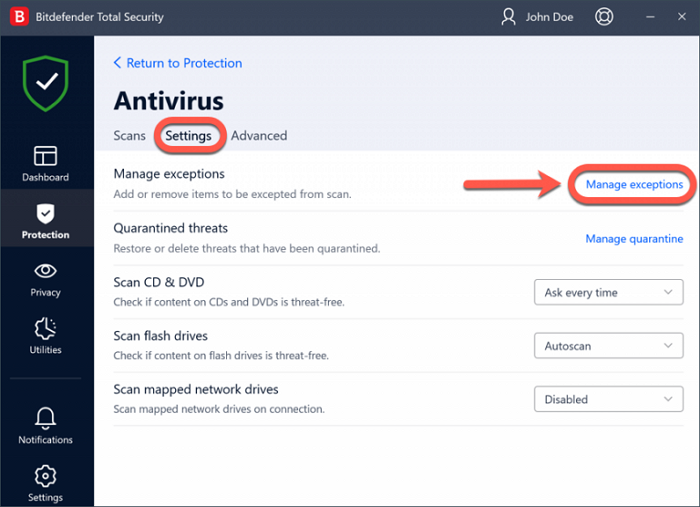
Your third-party antivirus might be interfering with MS Outlook, causing it to crash or freeze every time you attach a file. To check this, temporarily disable your antivirus and then attach a file. If the issue disappears, your antivirus is the culprit. Now, in this case, you have to add the Outlook exe file to the exception list of your antivirus.
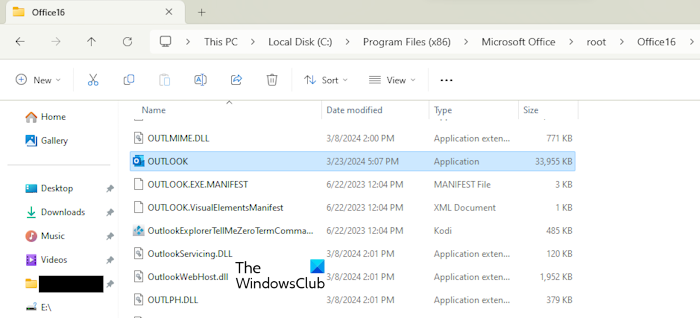
The Outlook exe file is located at the following location in the C drive:
C:\Program Files (x86)\Microsoft Office\root\Office16
7] Troubleshoot in a Clean Boot state
A third-party application or service might be interfering with MS Outlook, causing it to crash or freeze when attaching files. To check this, troubleshoot in a Clean Boot state. Use MSConfig to enter the Clean Boot state. Be careful while disabling the services, as if you disable all the services by mistake, your system will become unstable.
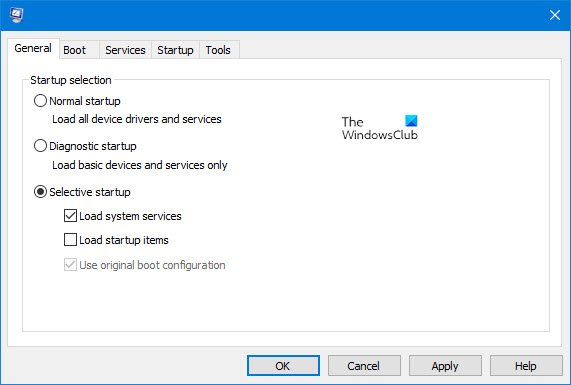
Once you are in Clean Boot state, open MS Outlook and attach files. If Outlook does not crash or freeze this time, find out which third-party service is causing this issue. Once you find the culprit, check which application the service is associated with. Uninstall that application.
8] Repair Outlook data file
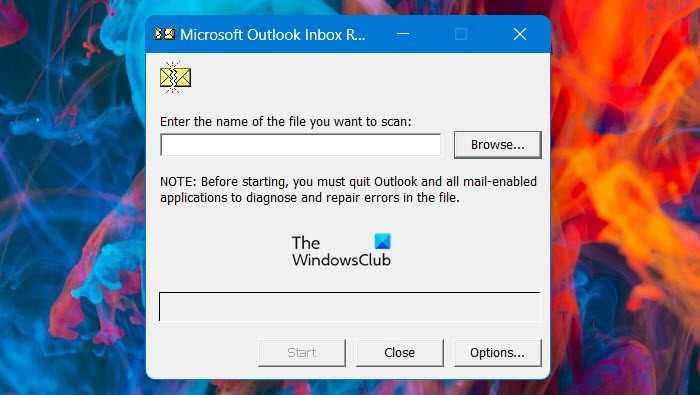
Your MS Outlook may also have corrupt data files. The Inbox Repair Tool will help you repair the corrupt PST and OST Outlook files. You can also use a third-party tool, such as Stellar Toolkit for Outlook.
9] Downgrade your Office version
Office installs updates automatically by default. This issue might be a result of a recent Office update. Downgrading your Office version will surely fix this issue. Do note that you can roll back only Office Click-to-Run applications.
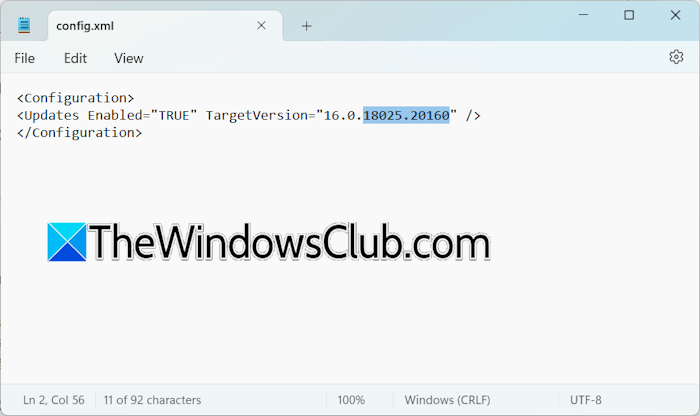
After rolling Office back to the previous version, do not forget to disable the Automatic Update option. You can update your Office suite to the latest version at any time.
10] Repair or reinstall Office

If none of these fixes work, the last resort is to repair or reinstall Office. Run an online repair. After completion, check if the issue is fixed. If this does not work, uninstall and reinstall Office.
That’s it. I hope this helps.
Why does Outlook freeze when trying to attach a document?
MS Outlook may freeze when you try to attach a large document. The size limit for an attachment is 20 MB and 10 MB for Exchange accounts (business emails). Therefore, verify the attachment size before attaching it. Other causes include corrupt Outlook data files, a corrupt Outlook profile, a conflicting third-party application, antivirus conflict, etc.
How to fix the attachment issues in Outlook?
If the attachment exceeds the allowable size in Outlook, try compressing the file. You can use free online file compression tools. Alternatively, you can also send the file as a shareable link after uploading it to OneDrive.
Read next: How to send a large file through Outlook.
