
If you are using Microsoft PC Manager and the Deep Cleanup option shows an “Unable to proceed” error, here is what you can do to troubleshoot it. There are a few things you must keep in mind to use the Deep Cleanup feature, and here are the common causes of this problem on Windows 11.
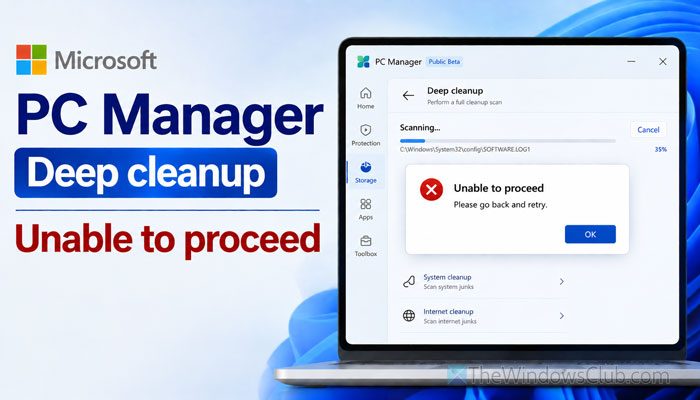
What does Deep Cleanup do in Microsoft PC Manager?
The Deep cleanup option in Microsoft PC Manager helps you remove unnecessary files for two main reasons:
- It helps you free up space on your hard disk.
- It lets you run your PC more smoothly.
Why does Microsoft PC Manager’s Deep Cleanup show “Unable to proceed”?
If Microsoft PC Manager’s Deep Cleanup shows an Unable to proceed error, these could be the reasons:
- Microsoft PC Manager doesn’t have the administrator privileges.
- One of the browsers is running in the background.
- Your computer is connected to a remote computer or network.
- Some apps may be running in the background and need to be closed.
- An update is pending or installing alongside the Microsoft PC Manager.
- The installation might have some issues.
- You may have moved Microsoft PC Manager from the C drive to another drive.
Microsoft PC Manager Deep Cleanup Unable to proceed
If Deep Cleanup is showing an Unable to proceed error in Microsoft PC Manager in Windows 11/10, follow these solutions:
- Open Microsoft PC Manager with administrator permission
- Close all browsers using Task Manager
- Close all apps running in the background
- Close the connection between your PC and remote network
- Install Windows Update first
- Restart Microsoft PC Manager service
- Update Microsoft PC Manager
- Repair and Reset Microsoft PC Manager
- Don’t move the app to another drive
To learn more about these solutions, continue reading.
1] Open Microsoft PC Manager with administrator permission
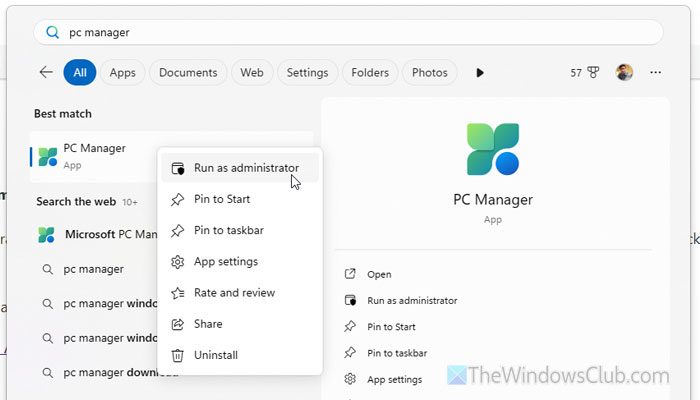
Certain features in Microsoft PC Manager require administrator privileges. To give it permission, search for Microsoft PC Manager in the Taskbar search box, right-click on it, select the Run as administrator option, and click the Yes button on the UAC prompt.
Now, go to the Home tab, find the Deep cleanup option, and use it accordingly.
Read: How to allow Standard users to Run a Program with Admin rights
2] Close all browsers using Task Manager
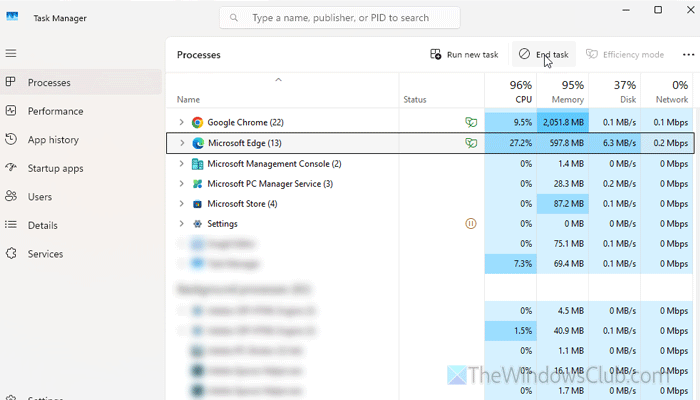
The Deep cleanup option also removes browser data. Since a third-party application does this, you must close any open browsers. For example, if you have Microsoft Edge and Google Chrome open, close both.
It is suggested to use Task Manager since some processes may keep running in the background all the time.
3] Close all apps running in the background
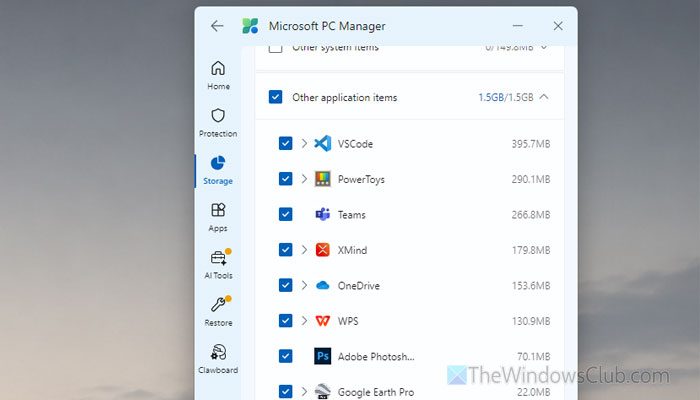
The same applies to other apps. That said, if it finds anything to delete from another installed app, you must close it. To find such apps, expand the Other application items section after it finishes scanning. If you find any apps running in the background, close them immediately.
Read: How to close running Apps on Windows 11
4] Close the connection between your PC and remote network
If your computer is part of a remote network or you use Remote Desktop to connect to another computer over the internet, it is time to close that connection. As Deep Cleanup lets you remove network connection data, Windows Network Certificate Cache, etc., the connection must be terminated before it goes forward.
5] Install Windows Update first
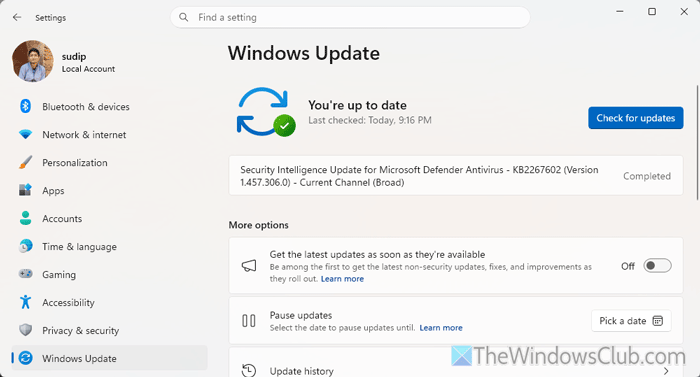
If an update is pending or you are in the middle of installing one, finish the installation process. In case you need to update your PC, do that as well. Since Deep Cleanup helps you remove additional files from Windows Update, you must complete the installation of updates first.
6] Restart Microsoft PC Manager service
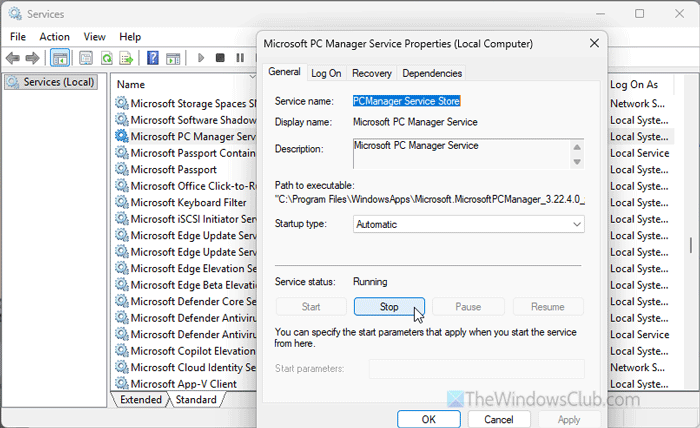
To restart the Microsoft PC Manager service, do the following:
Press Win+R to open the Run prompt. Type services.msc and hit the Enter button to open Windows Services Manager. Double-click the Microsoft PC Manager Service and click the Stop button.
Choose Automatic from the Startup type drop-down menu and click the Start button.
Once done, click the OK button to save the change.
Although it is not mandatory, it is suggested to restart your PC once.
7] Update Microsoft PC Manager
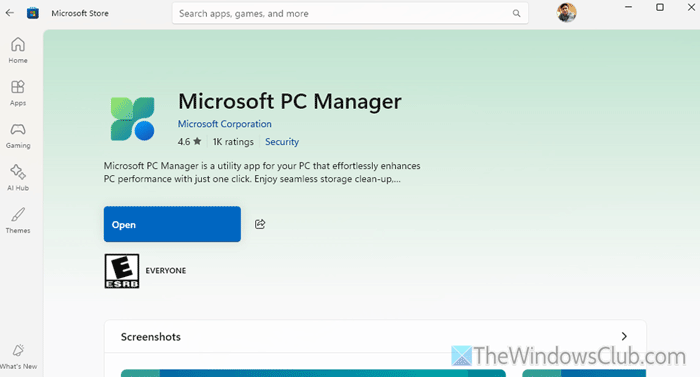
To update Microsoft PC Manager, open the Microsoft Store first. Then, go to the Downloads section and find Microsoft PC Manager. If an update is available, you will find the Update button next to this particular app. Click on that button to start the update process.
Read: How to update Microsoft Store Apps manually in Windows 11
8] Repair and Reset Microsoft PC Manager
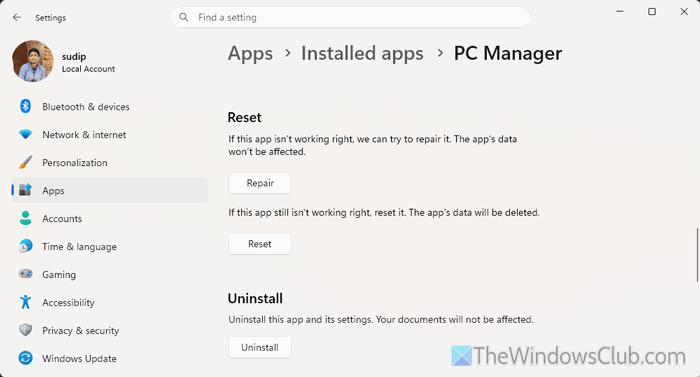
To repair and reset Microsoft PC Manager, open the Windows Settings panel and go to Apps > Installed apps. Find PC Manager, click on the three-dotted icon, and select Advanced options.
Click on the Repair button to start the repair process. However, if it doesn’t do anything, you can reset the app. For that, click on the Reset button twice.
Read: Reset or Repair Microsoft Store apps via Windows Settings
9] Don’t move the app to another drive
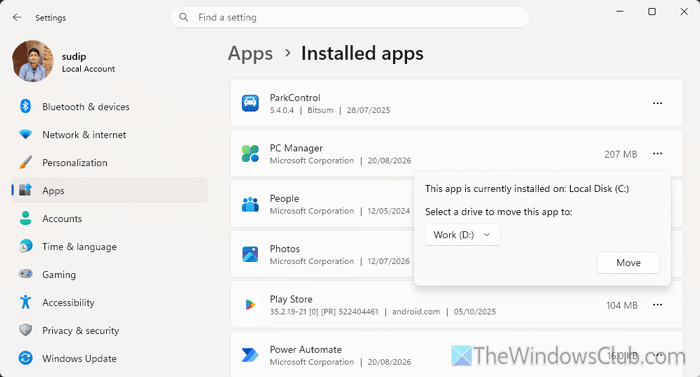
If you have moved Microsoft PC Manager from the C drive to another drive, it is suggested to move it back. For that, open the Windows Settings panel, go to Apps > Installed apps, click on the three-dotted icon next to PC Manager, and select the Move option.
Choose the C drive and click the Move button.
Read: Automatically delete Junk files using Storage Sense in Windows
Why can’t I delete Windows Update Cleanup files?
If you have an older Windows 11 build (e.g., version 24H2 or older), you may encounter this problem. There is nothing to worry about since it was a bug at that time. You can update Windows 11 to fix this problem. If this still does not help. follow the solutions laid down in this post.
What to do if the computer is stuck on cleaning up?
If Disk Cleanup is stuck on Cleaning up in Windows 11, manually delete the contents of the SoftwareDistribution folder, run Disk Cleanup in Clean Boot state, etc. Once done, restar your Pc and then try again.
