
If your Dell, HP, Lenovo, etc. laptop touchpad is too hot, the solutions in this article will help. Users who encountered this issue on their laptops reported that their touchpads became too hot and unresponsive. Additionally, they also encountered performance issues. Excessive heat generation in a laptop can affect performance, shorten component lifespan, and cause unexpected system issues if left unchecked.
Windows laptop touchpad is too hot
If your Dell, HP, Lenovo, etc. laptop touchpad is too hot, use the fixes provided below:
- Is the battery located beneath the touchpad?
- Clean your laptop
- Check all cable connections
- Check your CPU and GPU temperature
- Roll back or update the touchpad driver
- Update BIOS and chipset driver
- Hardware fault
All these fixes are explained in detail below:
1] Is the battery located beneath the touchpad?
If the battery is located beneath the touchpad, the issue might be associated with the battery. Battery degradation is a natural and irreversible process that occurs with time. A degraded (old or worn-out) battery can swell and overheat, posing a danger if left unaddressed. This can be the case with you.
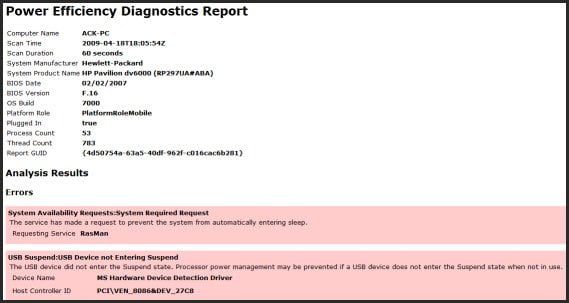
Open your laptop and physically examine the battery. If you find it swollen, replace it immediately. If the battery looks fine physically, it may still be weak and require replacement. To check your battery health, you can use the built-in command line utility or third-party battery test software.
2] Clean your laptop
Dust buildup blocks proper airflow and prevents effective ventilation, trapping heat inside the laptop. This increases the laptop temperature, which affects its performance.
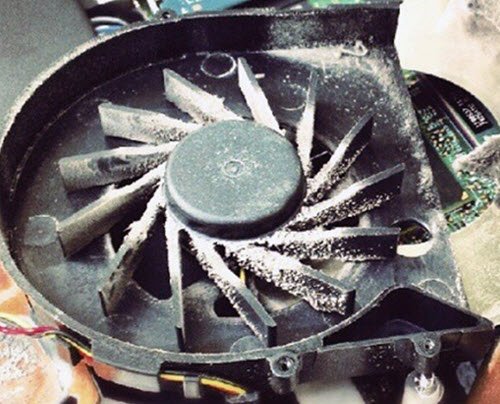
Open your laptop and clean it carefully. If you are not good at this, take professional help. After cleaning your laptop, check if the issue persists.
3] Check all cable connections
Loose cable connections inside the laptops cause heating issues due to the increased electrical resistance and unstable power supply. Open your laptop and check all cable connections. Make sure that cables are not loose.
4] Check your CPU and GPU temperature
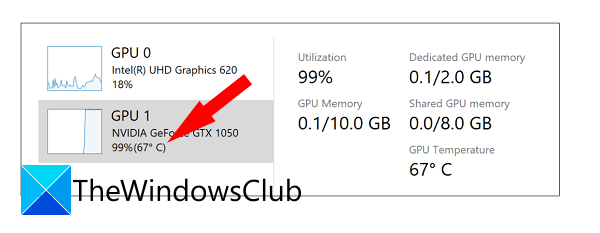
One possible cause of this issue is the increased CPU or GPU temperature. You can use Windows built-in Task Manager to check the GPU temperature. To monitor the CPU temperature, you can use a third-party tool, like Core Temp.
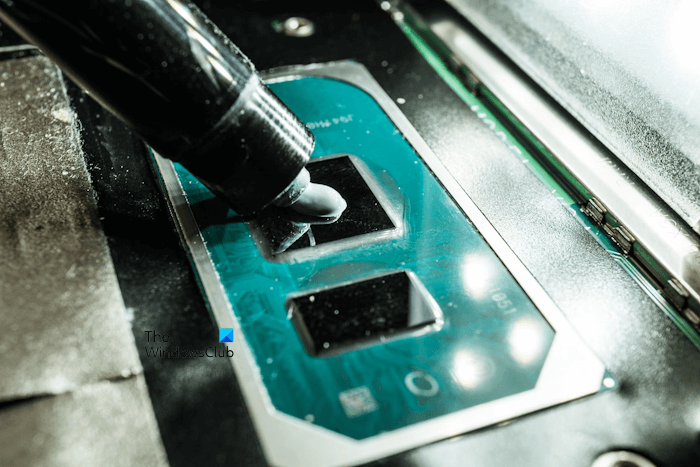
If the CPU or GPU temperatures rise without using any resource-intensive programs, you should troubleshoot the issue immediately. One possible cause of this problem is the worn-out thermal paste. Reapplying the thermal paste can help. Take professional help if you do not know how to do that.
5] Roll back or update the touchpad driver
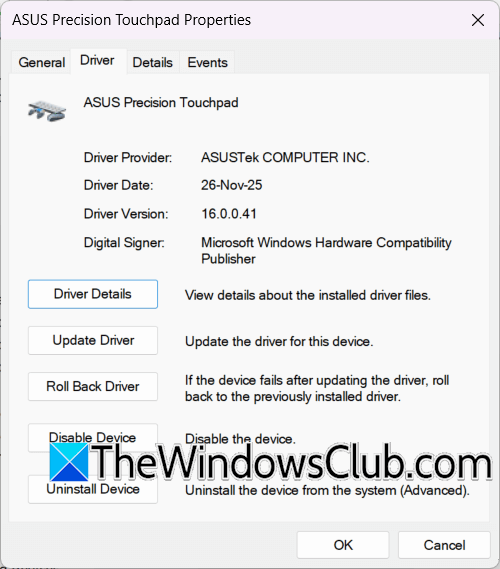
Rolling back the touchpad driver can help fix this issue. Follow these steps:
- Open Device Manager.
- Expand the Mice and other pointing devices branch.
- Right-click on your touchpad driver and select Properties.
- Navigate to the Driver tab and click Roll Back Driver.
- Follow the on-screen instructions to roll back the touchpad driver.
Now, check if the issue persists.
Windows also keeps multiple copies of earlier versions of a device driver. If rolling back the driver does not work, you can check whether Windows has retained multiple versions of the touchpad driver. Follow these steps:
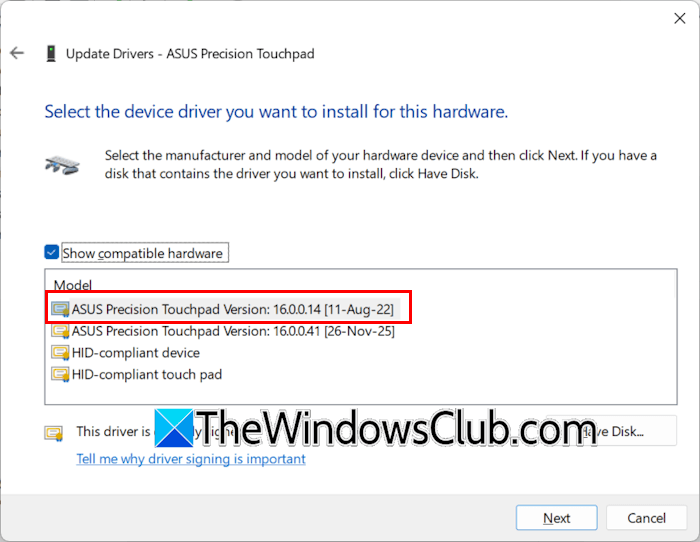
- In the Device Manager, right-click on your touchpad driver and select Update driver.
- Select Browse my computer for drivers.
- Now, click the Let me pick from a list of available drivers on my computer option.
- Make sure that the Show compatible hardware checkbox is selected.
- Windows will show you different touchpad driver versions with a date. Select the driver with the earliest date and click Next.
- Follow the on-screen instructions.
Installing the earliest version of the touchpad driver should fix this issue.
You can also download Touchpad drivers from the manufacturer’s website.
6] Update BIOS and chipset driver
An outdated BIOS version can also cause such hardware-related issues. Open System Information and check the current BIOS version. Compare the current BIOS version with the one available on the official manufacturer’s website. If the new version is available, download and install it.

Connect your charger and turn on the power supply during the BIOS update, even if your laptop is fully charged. If the power supply is interrupted, it may damage your motherboard.
7] Hardware fault
If the issue persists, there may be a hardware fault in your system. Take your laptop to a professional computer repair technician for further assistance.
That’s it. I hope this helps.
Read: Laptop Touchpad is locked, disabled, gets stuck or scroll not working
Is it normal for a laptop to be hot to the touch?
It is not normal for a laptop to be hot to the touch. Your laptop might be overheating. There are different causes of overheating, including dust accumulation, worn-out thermal paste, etc. Room temperature also plays an important role in maintaining the laptop’s temperature. Keep your room well ventilated.
How do I fix overheating in my laptop?
Multiple factors cause overheating issues on a laptop. Therefore, to fix this problem, you need to find out the cause. Make sure that you are using the right charger. An incompatible charger can cause your laptop to overheat. You can also purchase a good laptop cooler or cooling pad to fix this issue.
Read next: How to increase the Lifespan of Laptops.
