
Some users report that their laptops freeze when they connect an external display through an HDMI cable. There can be multiple causes of this issue, including an unsupported monitor, a corrupt graphics card driver, or a faulty HDMI cable. If your Windows laptop freezes when an HDMI cable is plugged in, this article will help.
Windows laptop freezes when an HDMI is plugged in
Use the following fixes if your Windows laptop freezes when an HDMI cable is plugged in:
- Use another cable
- Connect another monitor (if available)
- Check for your monitor firmware update
- Change the monitor resolution and refresh rate
- Force Windows to use a dedicated GPU
- Update or reinstall the graphics card driver
- Disable hardware acceleration
- Run a system diagnostic test
- Update BIOS and chipset driver
All these fixes are explained in detail below.
1] Use another cable
A faulty or incompatible HDMI cable can cause this problem. Try connecting another HDMI cable to see if the issue continues.
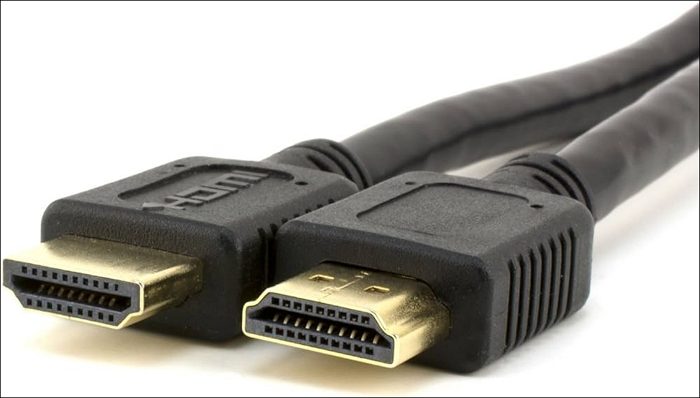
You can also try using a cable other than the HDMI, such as a DVI or a DP cable. If this works, you can keep using these cables instead of the HDMI.
2] Connect another monitor (if available)
The issue may be related to your monitor, although this is less likely. To verify, connect another monitor to your laptop and check if the problem persists. If the laptop does not freeze with another monitor, the original monitor is likely the problem. However, before jumping to the conclusion, you can try other fixes.
3] Check for your monitor firmware update

An outdated monitor firmware can cause several issues like computer crashes. Try updating the monitor firmware and see if it fixes the issue.
4] Change the monitor resolution and refresh rate
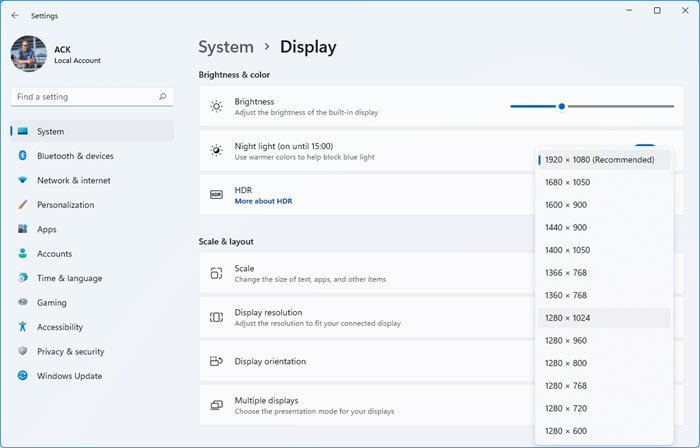
Press the Win + Ctrl + Shift + B keys to reset the GPU driver. You will hear a beep sound, and your screen will flicker for a second. Now, if your laptop starts working normally, you can change the monitor resolution. Select a lower display resolution than the last one. Disconnect and reconnect the monitor and see if the issue persists. Also, try a different refresh rate for your monitor.
5] Force Windows to use a dedicated GPU
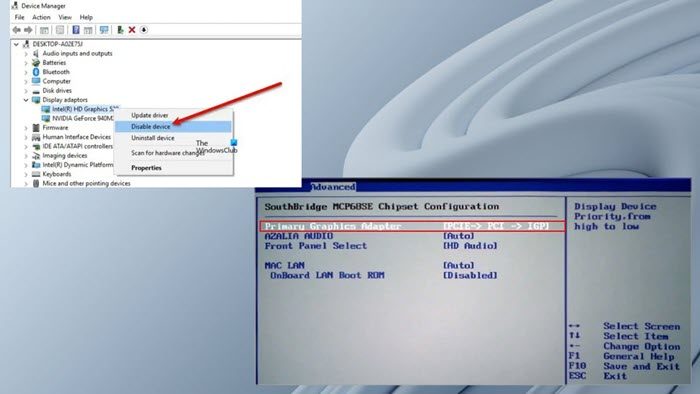
If your system has dual graphics, your system might be using the integrated graphics for your external display, causing the freezing issues. To verify this, you can force your system to use the dedicated GPU. The easiest way to do this is by disabling the integrated graphics card. You can do this via the Device Manager or in your system BIOS.
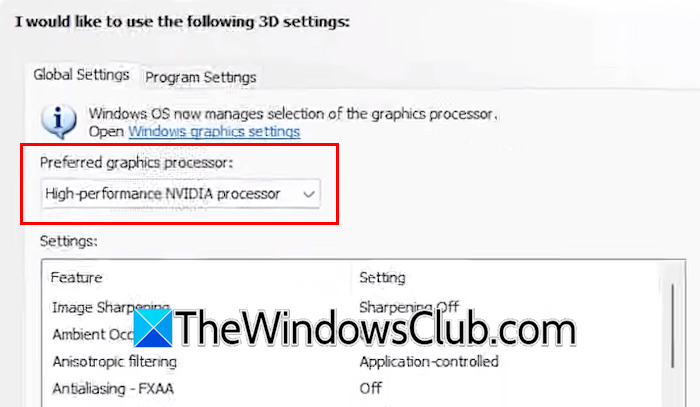
NVIDIA graphics card users can force Windows to use the dedicated GPU through the NVIDIA Control Panel. When your external display is disconnected, launch NVIDIA Control Panel and select 3D Settings > Manage 3D Settings. Under the Global Settings tab, select the dedicated GPU in the Preferred graphics processor drop-down.
6] Update or reinstall the graphics card driver
The corrupt graphics card driver may be causing this issue. Updating or reinstalling the graphics card driver can help. First, download the latest version of your graphics card driver from your computer manufacturer’s official website. Now, download the Display Driver Uninstaller (DDU).
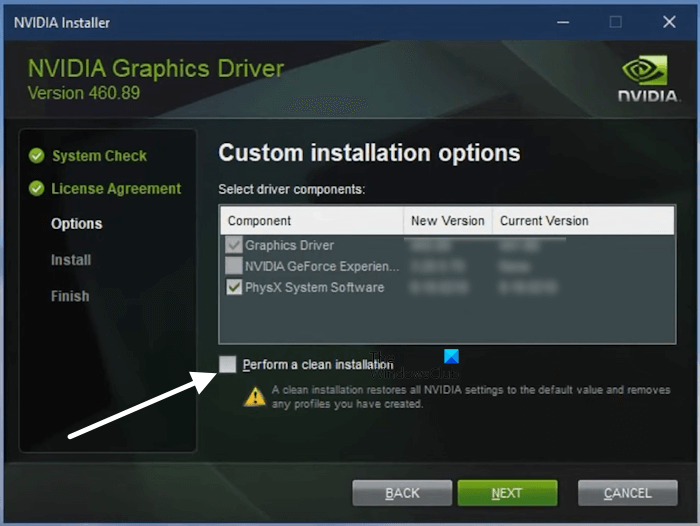
Completely remove the graphics card driver with DDU, then perform a clean installation of the GPU driver. After installing the GPU driver, check if the issue persists. NVIDIA graphics card users can use the NVIDIA Installer instead of DDU to perform the clean installation of the NVIDIA GPU driver.
7] Disable hardware acceleration
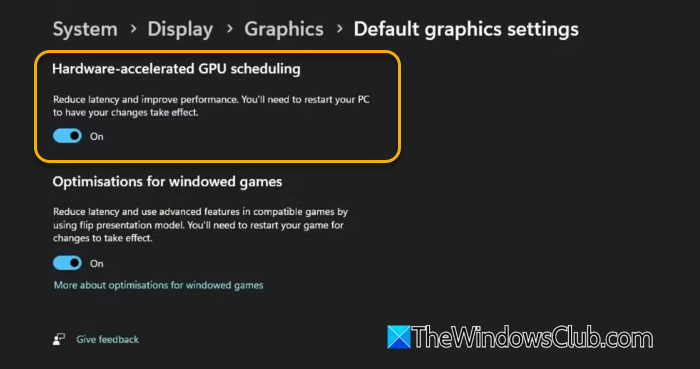
If the issue persists, you can try disabling the hardware acceleration. Open your graphics settings and turn off the Hardware-accelerated GPU scheduling.
8] Run a system diagnostic test
You can also try running a system diagnostic test. Computer manufacturers provide dedicated software, such as the MyASUS app or Dell SupportAssist, to troubleshoot computer issues. These dedicated tools have an option to run display diagnostics. Look for such a feature in your software.
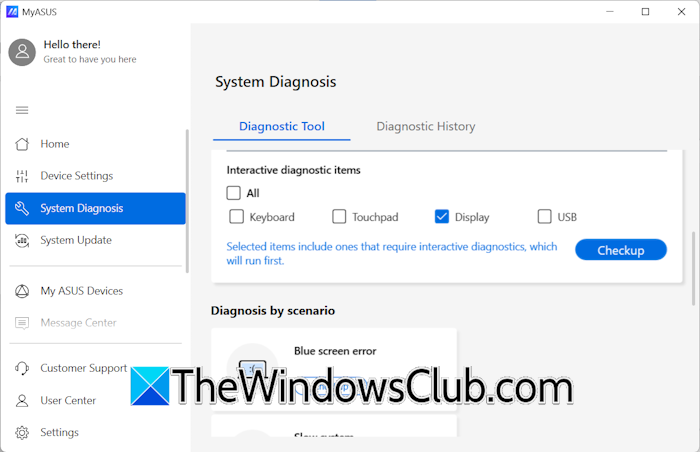
If you have an ASUS laptop, launch the MyASUS app and select System Diagnosis. Select the Display checkbox and click Checkup.
8] Update BIOS and chipset driver
BIOS updates improve hardware compatibility. If a BIOS update is available, install it. Open System Information on the laptop and check the currently installed BIOS version. After that, visit your computer manufacturer’s official website and check the BIOS version available there. If an updated version is available, download and install it.
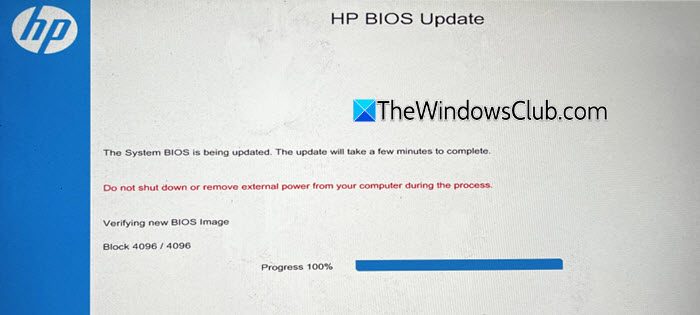
During a BIOS update, connect your laptop charger, even if your laptop is fully charged. If the power supply is interrupted during a BIOS update, your motherboard may be damaged. Also, update the chipset driver.
That’s it. I hope this helps.
Can a bad HDMI cable cause freezing?
Yes, a bad HDMI cable can cause freezing issues with a laptop. Cheap cables have a poor shielding that often results in freezing issues. Additionally, an incompatible HDMI cable can also freeze your laptop.
Why does my laptop freeze when I plug in a USB?
This issue usually occurs due to the faulty drivers. Uninstalling and reinstalling the Universal Serial Bus Controllers can help. Other causes of this issue include a faulty USB port or a faulty USB device. Connect your device to another available USB port to verify this.
Read next: Monitor not displaying full screen in Windows.
