
This guide covers what you can do if GRID Legends is crashing on startup on Windows 11/10. GRID Legends is a new motorsport racing game available for Windows, PS4, PS5 and Xbox Series. The game is the best place to test your racing skills and offers top-notch gameplay and graphics. But at the same time, many gamers have reported crashes with the game on their Windows PCs. So, if GRID Legends is crashing on your Windows PC as well, follow the troubleshooting guide to resolve the issue.
GRID Legends crashing on startup on Windows PC
If GRID Legends is not loading or crashing on startup on your Windows 11/10 PC, here are some solutions to fix your problem.
- Ensure your system matches the minimum requirement
- Run GRID Legends in administrator mode
- Download the latest Graphics Driver
- Clean unnecessary background running applications
- Whitelist the game in Windows Firewall
- Verify integrity of game files
- Troubleshoot in clean boot state
- Turn off Steam Overlay
- Update GRID Legends
Let’s check out these solutions in detail.
1] Ensure your system matches the minimum requirement
GRID Legends is a modern Motorsport racing game that features advanced and best graphics. Considering this, you must have a system with high-end specifications to run the game without any issues. If your system doesn’t meet any minimum requirements, you will encounter a crash. Below are all the minimum requirements to run GRID Legends on Windows 11/10.
- OS: Windows 11/10 64bit
- Processor: Intel i3 2130 / AMD FX4300
- RAM: 8 GB RAM
- Graphics: NVIDIA GTX 950 / AMD RADEON RX 460
- DirectX: DirectX 12
- Free Space: 50 GB available space
2] Run GRID Legends in administrator mode
The next effective solution is running the game in administrator mode. Most modern applications, including GRID Legends, require administrator privileges to run without any issue on PC, and they will throw different issues if not provided, including the crashing problem. So, here’s how to run GRID Legends in administrator mode.
- Right-click on the GRID Legends shortcut icon and choose the Properties option.
- Click on the Compatibility tab.
- In the following window, check the Run this program as an administrator option.
- Tap on Apply > OK.
Launch the game and check whether the problem is fixed.
3] Download the latest Graphics Driver
An outdated graphics card driver is another major reason GRID Legends crashes on your PC. As mentioned, GRID Legends is a graphics-oriented game; therefore, graphics cards are the most important factor in running the game without issues. And if that is outdated, the game will crash on launch. To fix it, you will have to update your graphics card driver. Here’s how it’s done.
- Update Windows, Graphics Driver will be automatically updated.
- You can use Device Manager to update Graphics Driver
- Download the latest version of the graphics driver from the Manufacturer’s websites.
Once updated, launch the game and check if the problem persists.
4] Clean unnecessary background running applications
Many background-running applications are another major culprit behind the crashing problem. So, close all unnecessary background-running applications to fix the crashing issue. Here is how it’s done.
- Open the Task Manager by pressing Ctrl + Shift + Esc shortcut key.
- Under the Processes section, right-click on all those applications of no use and choose the End Task option.
Now, launch the game and check if the problem is fixed or not.
5] Whitelist the game in Windows Firewall
The Windows Firewall settings can cause the crashing issue in Shadow Warrior 2. Firewall stops the connection or game files, which automatically disrupts the smooth functioning of games. While temporarily disabling Windows Firewall is an option, whitelisting the game in Windows Firewall is the better option.
6] Verify integrity of game files
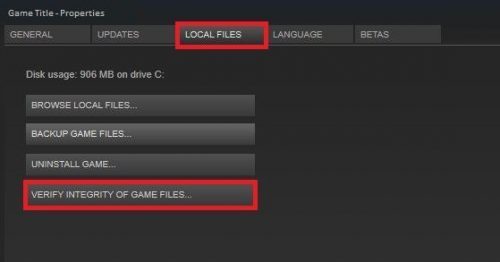
Another possible cause of the crashing problem is corrupted or missing game files. Thankfully, you can replace such files with the working ones using the verify the integrity of game files feature. Here is how it’s done.
- Open Steam and navigate to the Library.
- Right-click on GRID Legends and click on Properties.
- Click on the Local Files tab.
- Select Verify Integrity of Game Files.
Once the process is complete, check whether the issue is fixed.
7] Troubleshoot in clean boot state
Most apps are configured to start automatically when the system boots. But on the negative side, they consume a lot of system resources, which can lead to crashes in other applications. To tackle the situation, you will have to perform a clean boot and disable all the unnecessary applications that start on their own upon booting the system. Once there, identify the offending process causing this issue and disable it.
8] Turn off the Steam overlay
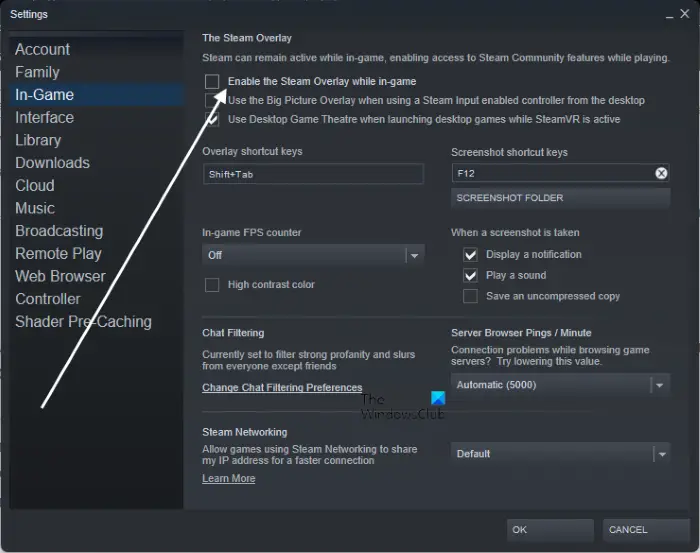
Without any second thought, overlay unlocks many advanced features in the game. But at the same time, it can also be a major culprit behind crashes. Therefore, disable the in-game overlay to resolve the issue. To do so, follow the steps below.
- Open the Steam Client.
- Click on Steam, and then go to Settings.
- In the In-Game tab, uncheck Enable the Steam Overlay while in-game.
- Click on the OK buttons to save the changes.
Check if the problem continues.
Read: Kena Bridge of Spirits keeps crashing on Windows PC.
9] Update GRID Legends
If you haven’t downloaded the GRID Legends latest patch update, you will face the crashing issue on your Windows PC. So, here’s how to update the game.
- Open the Steam client and go to the Library option.
- Select GRID Legends, and click on Check for Updates.
- Steam will look for any available updates. If found, click on the Update option to begin the update process.
Wait until the update is installed. Now, launch the game, and you will notice that you are no longer facing the mentioned problem.
Why GRID Legends crash on Windows?
There can be several reasons GRID Legends crashes on Windows. From outdated graphics card drivers, Windows Firewall settings, corrupted or missing game files, overlay features, to a lack of administrative privileges, anything can be responsible for the crashing problem. Along with all these, the game will crash if you haven’t downloaded the latest patch.
Read Next: F1 game stuck on Loading screen.
