
If your F1 game is stuck on the Loading screen, on your Windows 11/10 PC then this post offers working suggestions to fix the issue. F1 2025 is among the most popular motor racing games. However, many users have reported that the game gets stuck at the loading screen. If you are facing the same problem, follow the troubleshooting guide below to fix it.
F1 game stuck on Loading screen on Windows PC
Here is a list of effective workarounds to try in case the F1 game gets stuck on the Loading screen.
- Ensures that Your System Matches With the Minimum Requirement
- Close Background Processes
- Update Game Files
- Download Latest OS Update
- Update Graphics Driver
- Run Steam as Administrator
- Verify F1 Integrity
Now, let’s check out all the solutions in detail.
1] Ensures that Your System Matches With the Minimum Requirement
F1 is a graphics-oriented game; you must have a high-end PC to run it without any problem. However, if your system doesn’t matter with the minimum, you will face different difficulties including the loading screen issue.
The Recommended Requirements for F1 2025 are:
- OS: Windows 11 or Windows 10 64-bit (Version 21H1 or newer)
- Processor: Intel Core i5-9600k or AMD Ryzen 5 2600X
- Memory: 16 GB RAM
- Graphics:
- NVIDIA RTX 2070 (for VR) or RTX 3070 (for ray tracing)
- AMD RX 6600XT / RX 6700XT (VR) / RX 6800 (RT)
- DirectX: Version 12.
2] Close Background Processes
Sometimes, a lot of background running applications can also cause the problem. So you can disable all unnecessary applications running in the background to fix the problem. Here are the steps you need to follow.
- Press Windows + Shift + Esc to open Task Manager.
- Under the background processes, right-click on all the unnecessary applications and choose End task.
That’s it. Launch the game and check whether the problem is fixed.
3] Update Game Files
If you have started to face the problem out of the blue, i.e., the game was working fine earlier but is throwing an error now, then it indicates that you have to download the latest game files. If you haven’t downloaded the latest update, it is no surprise you are facing the problem. Here’s how you can download the latest F1 update.
- Launch Steam, and click on Library.
- Tap on the F game icon present at the left panel of the screen.
- Now, Steam will look for any available update for the game. If found, click on the Update option to begin the download process.
Once the update process is complete, restart your system and open the game. Check if the problem persists.
4] Download Latest OS Update
An outdated OS also causes the mentioned problem. Therefore, it’s always recommended to install the latest OS update to keep your system free from any problems. Here’s how you can download the latest OS update.
- Press Windows + I shortcut key to open the Settings menu.
- Tap on the Windows Update option present at the left panel of the screen.
- Click on Check for updates.
Now, Windows will look for any available update. If found, click on the download icon next to the update to begin the process. Once you have downloaded the update, restart your system. Check whether the loading screen problem is fixed.
4] Update Graphics Driver
Similar to Windows updates, if you haven’t updated the graphics driver for a long time, you will face the loading screen issue. Therefore, download the latest graphics driver update to fix the problem. There are a couple of ways by which you can download the graphics driver update.
- Download the graphics driver update by visiting the manufacturer’s official website.
- You can check for available graphics driver updates via Windows update.
- You can even try a free-to-use graphics driver updating software tool.
- In case, your system already features an INF driver then follow the below steps.
- Open Device Manager.
- Tap on the Display Adaptors to expand the menu.
- Right-click on the installed driver and choose Update Driver.
- Follow the on-screen instructions to complete the update process.
5] Run Steam as Administrator
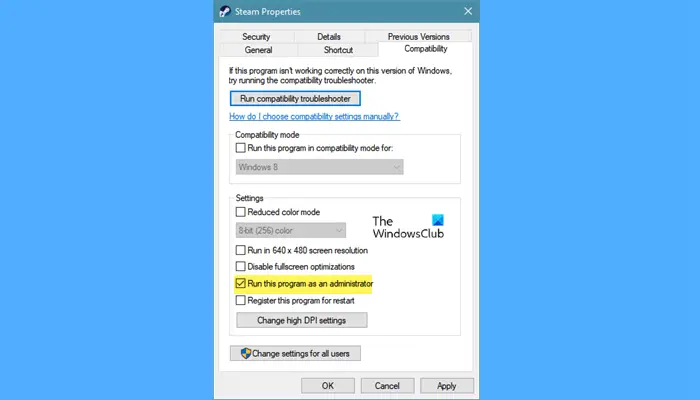
Steam requires the essential permissions for all games to run without issues on your system. And the best way to do this is to grant it administrator rights. To do so, follow the steps below.
- Right-click on the Steam client and choose the Properties option.
- Click on the Compatibility section.
- Checkmark Run this program as an administrator.
- Click Apply > Ok.
Restart Steam and open the game. Check whether the problem is fixed.
Read: 10 best free Racing Games for PC from the Microsoft Store
6] Verify F1 Integrity
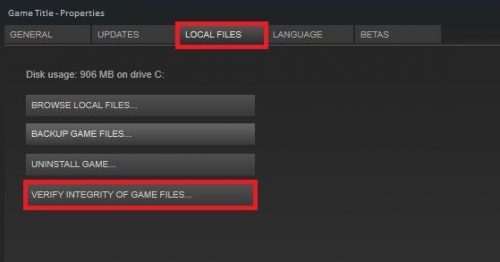
Sometimes the game file can become corrupted, causing the mentioned problem. In such a case, you will have to verify the game files via Steam. Here are the steps you need to follow.
- Launch Steam > Library > right-click on F1.
- Choose Properties.
- Click on Verify Integrity of game files.
That’s it. Wait for a few seconds until the process is complete. Launch the game and check if you are still facing the problem.
Related: F1 game keeps crashing on PC
Why isn’t my F1 2025 opening?
There can be multiple reasons why F1 2025 is not opening on your system. A corrupted game file or poor system specs can prevent the game from opening smoothly. An incompatible system or outdated driver can also cause the problem.
Read Next: Dying Light keeps freezing or crashing on Windows PC.
