
Dying Light 2 is a great game but like any other Windows game, it has some issues. On many systems, the game continues to freeze and crash, leaving buyers frustrated. Not anymore, as we are going to resolve this issue for you with ease. If Dying Light 2 is freezing or crashing on your computer, try the solutions mentioned here.
Why does Dying Light 2 keep crashing on my PC?
A game usually crashes on a system if it doesn’t meet the requirements. But many users know that their system is compatible with the game. So, why’s it crashing? More often than not, it’s corrupted system files. The reason behind the corruption is uncanny, but the solution isn’t. There are a couple of solutions we will see; they should resolve the issue for you easily.
Dying Light 2 can also crash due to incompatible parameters. To fix it, we just need to append the command to the launch option, and hopefully, your issue will be resolved.
An outdated graphics driver is another reason behind this issue. Usually, all the drivers are updated with Windows Update, but it’s not the only method.
We will see some other reasons, solutions and workarounds to get the game back on track. So, without wasting any time, let us hop into it.
Dying Light 2 crashing or freezing Windows PC
If Dying Light 2 The Beast is freezing or crashing on your computer, check the following solutions.
- Change Launch Option
- Fix corrupted Files
- Lower the graphics settings
- Update Graphics Drivers
- Update Visual C++, DirectX
- Troubleshoot in Clean Boot
Let us talk about them in detail.
1] Change Launch Option
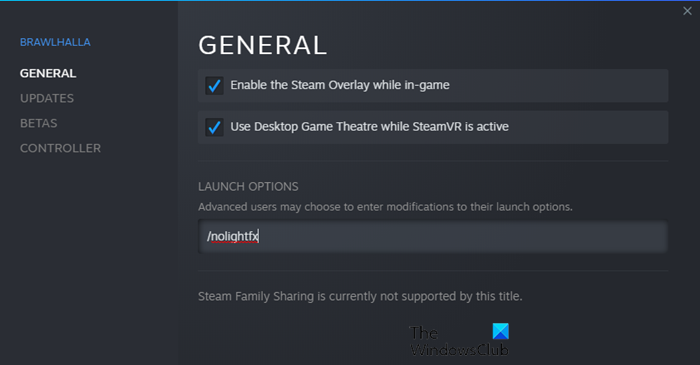
For a lot of users, changing the Launch Option of the game from Steam has worked. We are going to do the same and hopefully, the issue will be resolved. Follow the given steps to do the same.
- Open Steam and go to LIBRARY.
- Right-click on the game and click Properties.
- In LAUNCH OPTIONS field, type “/nolightfx”.
Launch the game and see if the issue persists.
2] Fix Corrupted Files
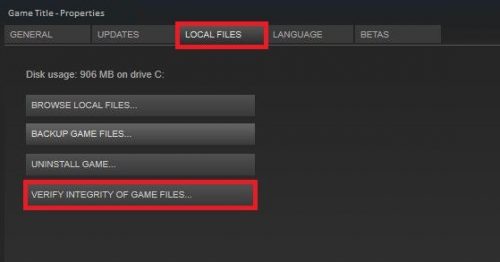
Next up, we need to verify the integrity of game files and see if that works. This can resolve the issue if it is because of corrupted files. Follow the given steps to do the same.
- Open Steam and go to LIBRARY.
- Right-click on the game and click Properties.
- Go to the LOCAL FILES tab and click VERIFY INTEGRITY OF GAME FILES.
Let it scan and fix those files.
3] Lower the graphics settings
If the game crashes during gameplay, try lowering its graphics settings. This may not work for you if the game is crashing during startup, so it is a situational solution. Lowering the settings will put less pressure on your system.
4] Update Graphics Drivers
Outdated Graphics Drivers trigger compatibility issues. So, let us provide some ways to update the drivers, you can pick any one of them and fix the problem.
- Check for updates of Windows and install it. This will update all your drivers.
- Update your Graphics Driver from the Device Manager
- Download the latest version of the driver from the manufacturer’s website.
Hopefully, this will resolve the issue for you.
5] Update Visual C++, DirectX
Both Visual C++ Redistributable and DirectX are important for your computer. If you have an older version of the tools, the one that’s incompatible with the game, your game will crash. So, update Visual C++ Redistributable and DirectX and see if the issue persists.
6] Troubleshoot in Clean Boot
There are a ton of apps that can interfere with your game and cause problems. However, we don’t know which application it is, but there is a way to know the culprit, i.e, by troubleshooting in Clean Boot. This stops all the background processes and then enables them one by one to narrow down the potential reasons and eventually find the cause. So, go ahead and troubleshoot in Clean Boot, hopefully, your issue will be resolved.
Hopefully, you will be able to play Dying Light 2 again.
System Requirements to run Dying Light 2
We need to check the system requirements and confirm that your system is compatible to run the game.
Recommended
- CPU: AMD Ryzen 5 3600X or Intel i5-8600K or newer
- RAM: 16 GB
- OS: Windows 11/10 or later
- VIDEO CARD: NVIDIA® GeForce RTX™ 2060 6GB or AMD RX Vega 56 8GB or newer
- FREE DISK SPACE: 60 GB
- DEDICATED VIDEO RAM: 6 GB, for AMD 8GB
How do I fix Dying Light not responding?
Even though the solutions that we have mentioned are for Dying Light 2, if the first iteration of the game, you can try our solutions as well. The only difference is the system requirements. So, just check the requirements and if your system is compatible, start troubleshooting.
Also read: Dying Light Docket codes; And how to get the best weapons.
