
Razer Blade systems are among the most powerful gaming systems on the market. They are specifically made for gaming and high-intensive works with the best processors and GPU. Though Razer Blade is the best, there are users who are facing issues with it. In this guide, we show you some fixes to fix flickering, blotching, discoloration, or inconsistent brightness on a Razer Blade display.
Fix Razer Blade display issues like Flickering, Blotching, Discoloration, etc.
If you are experiencing display issues such as flickering, blotching, discoloration, or inconsistent brightness on a Razer Blade display, the following methods can help you fix them easily.
- Check if the issue is hardware-related
- Perform a Pixel test
- Update Graphics drivers
- Adjust Screen Resolution
- Uninstall Monitor and Scan for hardware changes
- Calibrate your Display
Let’s get into the details of every method and fix display issues on Razer Blade.
1] Check if the issue is hardware-related
If there are any hardware failures or issues, you might face display issues on the Razer Blade. You need to check whether hardware issues are the real cause. Connect an external monitor using an HDMI cable and see if it is working fine without any issue. If no issues are found on the external monitor, the display issues on the Razer Blade are due to hardware. You need to visit the Razer service center and get it fixed. If you are facing the same issues on the external monitor, try the methods below.
2] Perform a Pixel test
By performing the Pixel test on your PC, you can find the working status or health of every pixel. There are many free services that offer pixel tests online and provide detailed results.
3] Update Graphics drivers
The graphics driver on your PC might be causing the display issues on the Razer Blade. They might be outdated or corrupted. You have to update them to the latest versions, which fix bugs from previous updates and improve performance. So, try updating the graphic drivers and check if the issue still persists. You can update graphics drivers on your Razer Blade in the following ways:
- You may check for Driver Updates via Windows Update to update your drivers
- You may visit the manufacturer’s site to download the drivers.
You may also visit razersupport.com to download and install the required drivers.
After updating drivers, restart your PC and see if the issues are resolved.
4] Adjust Screen Resolution
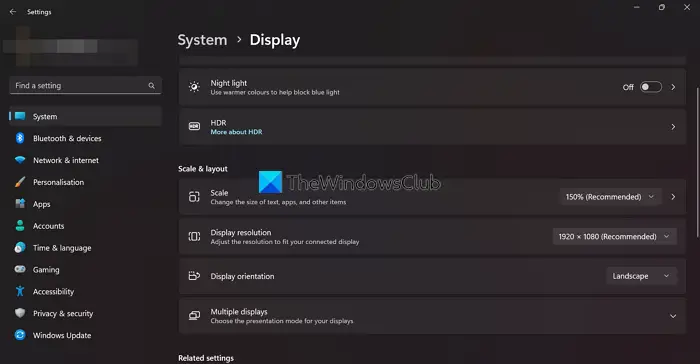
If you are seeing display issues on a specific app or game, you can use this fix. Sometimes, the screen resolution of your program or game might not match that of your Razer Blade. You need to adjust the screen resolution of your Razer Blade to match the game or application’s resolution.
To adjust the screen resolution,
- Right-click on the desktop and select Display settings
- You will find the Display resolution under Scale & layout.
- Click on the drop-down button beside it to see different resolutions and adjust it according to the app or game you are using.
Read: Windows Display Quality Troubleshooter will fix Screen Resolution issues
5] Uninstall and Reinstall Generic PnP Monitor

The corrupted Generic PnP monitor drivers can also cause display issues on Razer Blade. You need to uninstall it and reinstall it on your Razer Blade to fix the issues.
To uninstall the Generic PnP monitor,
- Right-click on the Start button and select Device Manager
- Then, expand Monitors in the Device Manager
- Right-click on the Generic PnP Monitor and select Uninstall device
- Follow the on-screen wizard and complete the process
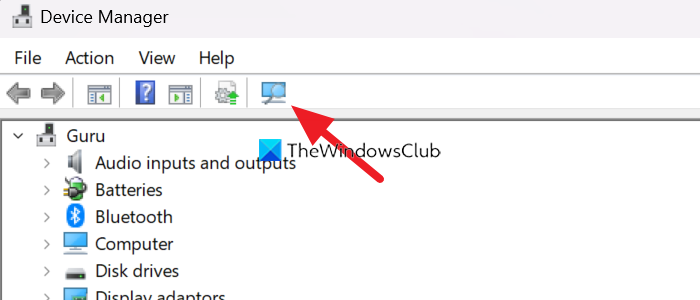
After uninstalling the Generic PnP Monitor, click the Scan for hardware changes button in the Device Manager menu and follow the on-screen wizard to reinstall it.
Read: Fix Generic PnP Monitor driver issue on Windows
6] Calibrate your Display
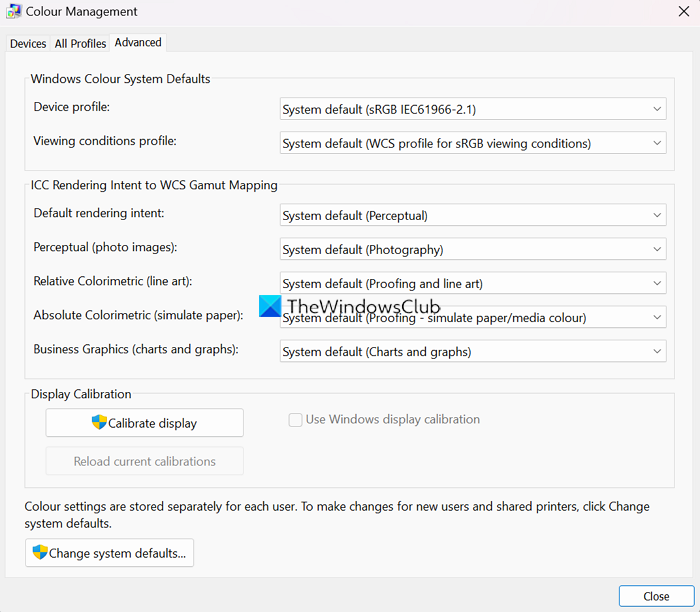
The other way to fix the display issues on Razer Blade is to calibrate the display. It can be done easily in a few steps.
To calibrate the display,
- Right-click on the desktop and select Display settings
- Then, click on Advanced display under Related settings
- In the Advanced display settings, click on Display adaptor properties for Display 1
- It opens a Generic PnP Monitor and Intel (R) UHD Graphics Properties window. Click on the Colour Management tab
- Then, click on the Colour Management button
- It opens the Colour Management window
- Click on the Advanced tab
- Then, click on Calibrate Display under the Display Calibration section
- Follow the on-screen wizard and calibrate the display
These are the different ways using which you can fix the display issues on Razer Blade. If none of the above methods helped you fix the issues, you have to visit the Razer Blade service center or contact the support team online.
Why is my Razer screen flickering?
For the Razer screen to flicker, there might be many reasons. Outdated or corrupted graphics drivers, hardware issues, dead pixels, calibration settings failure, etc. You can use the above methods to fix the issues.
Related: Fix Razer Blade touch screen not working
How do I fix my Razer laptop screen?
If there are any hardware issues, you need to visit the service center. If not, you can update graphics drivers, reinstall the monitor, recalibrate the display, etc. You need to implement a fix based on the type of error.
Read: How to fix Stretched Screen display problem on Windows.
