
A monitor gives us a window into the world through our PC. The colors the monitor shows are important. If the monitor fails to show accurate or at least near-accurate colors, our work suffers. Accurate colors are of utmost priority if you work as a content creator or a designer who works for online or print jobs. At times, due to accidental changes in color profiles or other small reasons, the colors change on the monitor. We can recognize the change instantly as we get habituated to a certain color profile. Monitors showing over-saturated colors are one such issue. If you see over-saturated colors on your main monitor in Windows 11, follow this guide to learn how to fix it.
Why is my screen so saturated in Windows 11?
Saturated colors on Windows 11 are mostly due to HDR settings. If not for HDR, the color profiles might have been changed accidentally, or the calibration of colors on your monitor may be overly done. Over time, monitors become faulty and display over-saturated or dull colors and show bars on the screen. Even the display driver or the recent Windows update could mess up the display settings due to a bug.
Over-saturated colors on my main monitor in Windows 11
Display quality and color accuracy vary by price. We need to check the color accuracy specifications before getting a new monitor. That said, no monitor is configured to show over-saturated colors, even the cheaper ones. Over-saturated colors on a monitor are surely a fixable issue. Let’s see how.
- Adjust color profiles in Monitor settings
- Check if HDR is enabled
- Configure Color Management options
- Check if the monitor is faulty
- Check Display drivers
- Uninstall recent Windows update
Here’s the detailed explanation of each method.
1] Adjust color profiles in Monitor settings
Every monitor comes with built-in settings where we can adjust different aspects of the monitor, including colors, brightness, contrast, etc. The color profile on your monitor must have changed accidentally to something that feels over-saturated. Changing the color profile to something that you recognize can fix the issue. Use the buttons provided on your monitor to access the built-in settings.
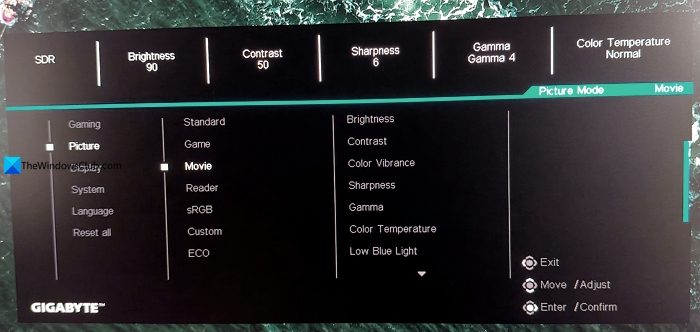
In the monitor settings, you can find a Picture or Preset or something similarly named setting where you can find pre-calibrated color profiles based on the need. Like for gaming, reading, watching content, etc. Try every preset and set the color profile that suits your need without being over-saturated or dull.
2] Check if HDR is enabled
The High Dynamic Range (HDR) option in Windows, as well as on monitors, is a tricky setting. The HDR content does not look good on non-HDR monitors. It either looks too dull or too bright, causing oversaturated colors. Check the configuration of your monitor and see if HDR is supported. If your monitor is HDR-ready and HDR is enabled in Windows 11 settings, the oversaturated colors could be due to the cable. You must use HDMI 2.0 or DisplayPort 1.4 to view HDR content with vibrant colors and depth.
Usually, Windows 11 does not provide options to enable or disable HDR when you use non-HDR monitors. Even when you play HDR content, Windows processes it like SDR content and shows you in regular colors. Open the Settings app on your PC. Go to System>Display. Under Brightness & color, click the HDR tab. If you have multiple monitors connected, select the monitor by clicking the drop-down beside Select a display to view or change its settings. Then, toggle the button beside HDR video streaming.
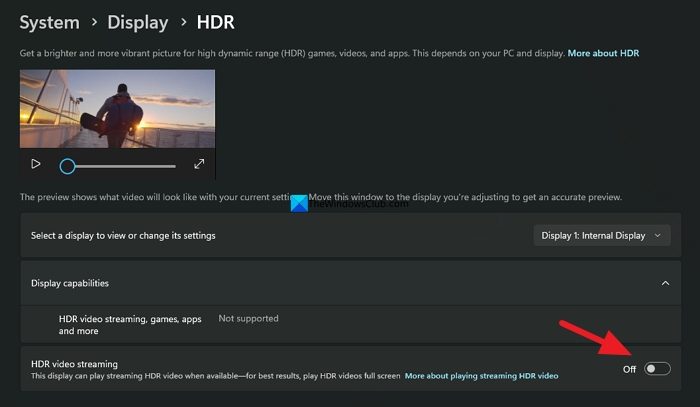
Check if it has restored colors on your monitor. If you are using a professional monitor, use the software provided by the manufacturer and tweak HDR settings to get back to normal colors from the over-saturated look.
3] Configure Color Management options
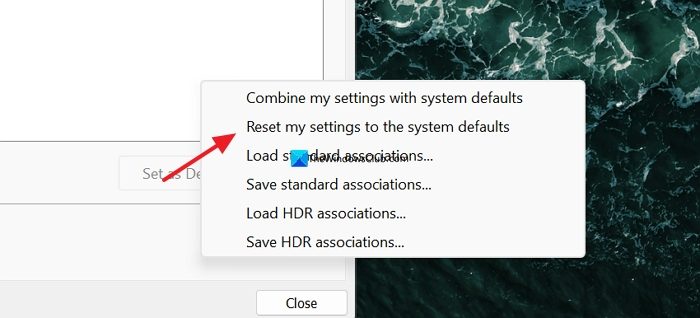
Windows 11 lets you manage colors and calibrate your displays to suit your viewing needs. You can do it in Color Management on Windows. Click the Start menu, search for Color Management, and open it. In the Devices tab, select your monitor and check the button beside Use my settings for this device. It will activate the Profiles button at the bottom. Click on it.
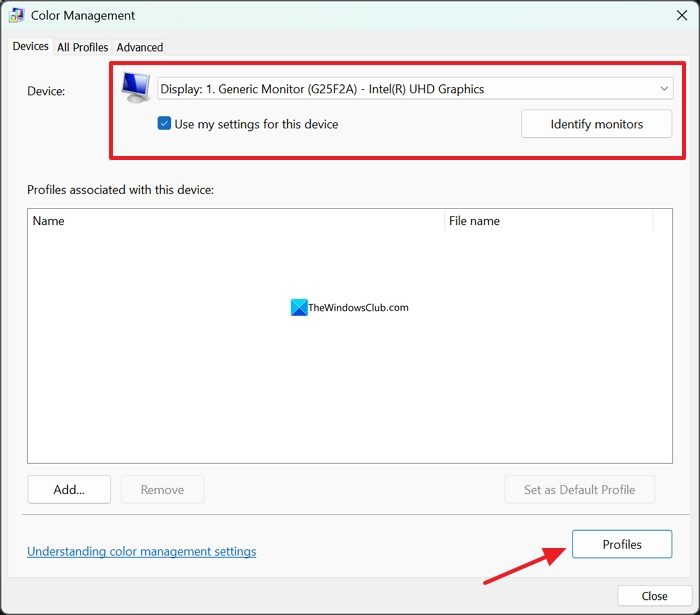
Then select Reset my settings to the system defaults.
If you still feel colors are not calibrated properly, click the Advanced tab. Click Calibrate display.
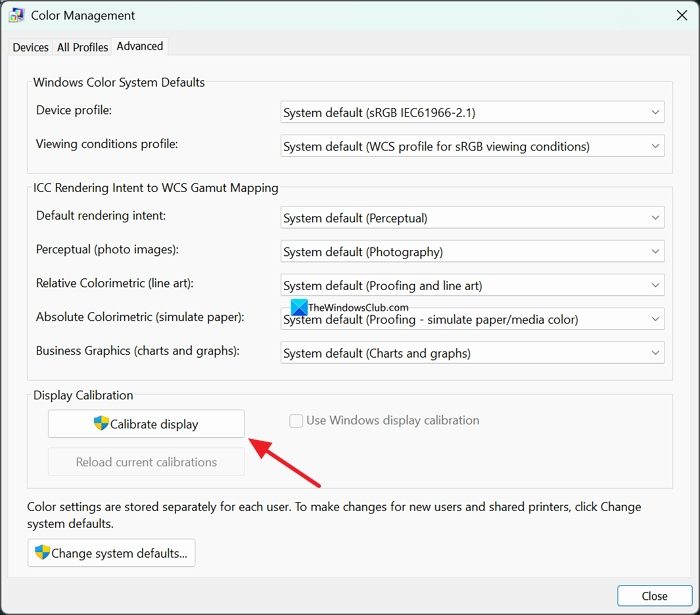
It opens the Display Color Calibration window. Calibrate your display following the on-screen instructions to get normal colors back on your display. You can also use free third-party tools to calibrate your monitor.
4] Check if the monitor is faulty
When you see oversaturated colors on your monitor even after calibrating the display, it may be a fault with the monitor itself. Connect the monitor to another PC and see if you are seeing over-saturated colors. If the issue persists with another PC too, the monitor is likely faulty. You need to get it to the manufacturer’s service center to get it fixed.
Read: Color Saturation changes while playing a game on PC
5] Check Display drivers
If the display drivers on your PC have run into an error or are corrupted, you may see over-saturated colors or such issues on your monitor. Open the Device Manager on your PC and expand Display adapters. Check if any of the display adapters are in error. Right-click on it and select Uninstall device.
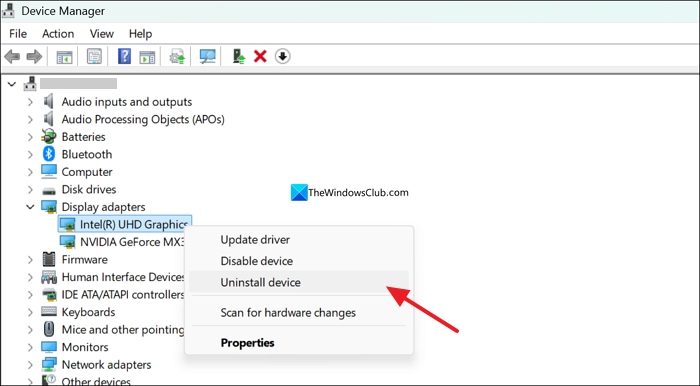
Then restart your PC to let Windows install the missing driver automatically and fix the over-saturated colors issue on your monitor, if it is due to a display driver issue.
6] Uninstall recent Windows update
You are only seeing the over-saturated colors on your main display just after a Windows update, and nothing above has fixed the issue; you need to uninstall the recent Windows update to fix the issue. The issue could be caused by a bug in the Windows update. Navigate to the Settings app > Windows Update > Update history > Uninstall updates. Then, click Uninstall beside the recent Windows update.
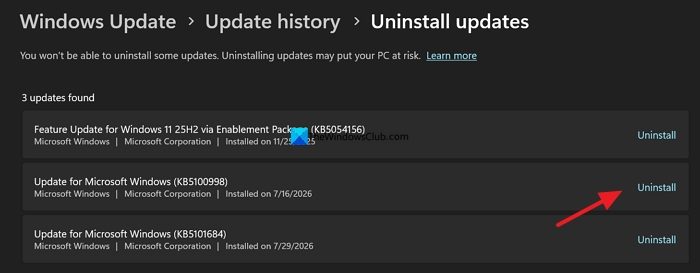
This will fix the issue with your monitor colors.
Read: Monitor not displaying full screen in Windows 11
How to change saturation on Windows 11?
To change saturation on Windows 11, right‑click your desktop and select Display settings. Next, scroll down and click Advanced display settings. Now open your graphics control panel (Intel Graphics Command Center, NVIDIA Control Panel, or AMD Radeon Software), depending on your GPU. In the color settings, look for Saturation or Digital Vibrance controls, move the slider to increase or decrease saturation as needed, and apply the changes.
How do I reduce color saturation in Windows 11?
You can reduce color saturation in Windows 11 by disabling HDR options, as we rarely come across true HDR content. Though many monitors claim to be HDR-ready in their configuration, they cannot show the full range of colors. So, the colors look saturated. Then, calibrate your display, change the color profiles in the built-in monitor settings, check the display drivers, etc. Make sure your monitor is working properly and has no display issues.
Related read: Second Monitor is zoomed in on Windows computer.
