
This post helps you decide which type of graphics card to use. The difference between Dedicated and Integrated Graphics cards may be small, but a dedicated graphics card greatly improves the real-time graphics experience. Use a dedicated graphics card if your work is graphics-intensive. For everything else, an integrated card is more than enough.
Integrated vs. Dedicated Graphics Card
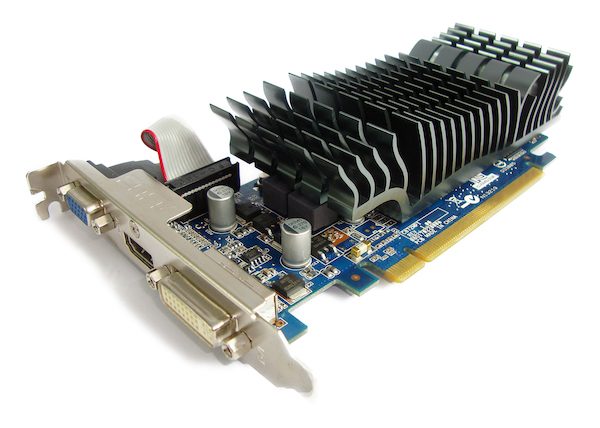
What is the difference between Integrated and Dedicated Graphics?
Some important points about the dedicated graphics card and integrated graphics card are listed below:
- The dedicated graphics card has a CPU that’s known as a GPU (Graphics Processing Unit) and RAM of its own
- Integrated graphics card don’t have a CPU of its own, and they use system RAM and system CPU
- Since the dedicated graphics card has onboard RAM and access to system RAM compared to the integrated graphics card, it can handle intensive graphics much better
- Integrated cards use the system RAM so they kind of slow down your computer when you are performing graphics-related tasks such as playing games or rendering a video on Premiere + After Effects
- Since the dedicated graphics has its own GPU and it can access the system RAM too, it works better
The dedicated graphics card comes with its own GPU and RAM. The CPU is better known as the GPU (graphics processing unit). It still uses system RAM, so it has more space to read and write data. If you have 8GB of RAM on your computer and 2GB of RAM on your graphics card, you can access the full 10 GB. With an integrated card, you get to use only the system RAM; that’s 8GB
The above RAM example is for understanding the difference, as computers don’t work exactly like that. It is much more complex than it appears in the above example. (For example, switching to different locations and opening a file, reading, writing to the file, and closing it. Then immediately open the same or a different file and repeat reading and writing, plus the close function. The system RAM uses the fetch function to retrieve information from the graphics card’s RAM.)
Read: DDR3 vs DDR4 vs DDR5 Graphics Card.
Do you need a dedicated graphics card?
It depends on what you want to do on your computer. Your computer already has integrated graphics. The next section explains how to tell whether you have a dedicated graphics card.
Coming back to if you need a dedicated graphics card, list out the things you want your computer to do for you. If the list contains any of the following, you need a dedicated card.
- Gaming
- Streaming 4K videos or more
- Video Editing (Professional: Premiere works better with a dedicated card when building preview)
- Real-time video mixing using Avid or other software
- Animation & 3D works.
Read: How to disable Integrated Graphics Card
How to tell if you have an integrated graphics card on Windows
To find out which Graphics Card you have on your Windows – and if it is a dedicated or integrated video card, you can use Device Manager or GPU-Z freeware.
1] Open Device Manager
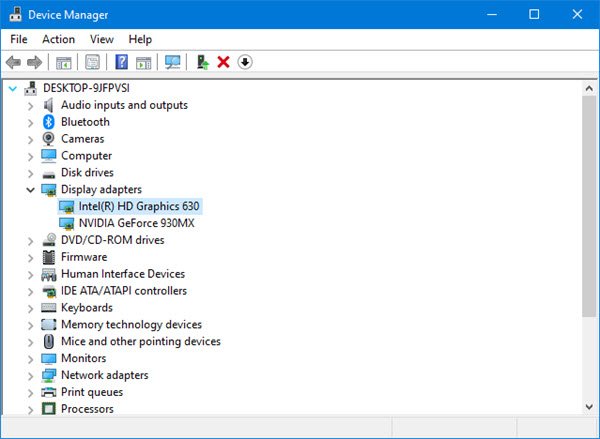
From the Winx Menu, open Device Manager. Expand Display adapters, and you will see the Graphics Card details mentioned.
In the above image, you see two entries:
- Intel(R) HD Graphics 630
- NVIDIA GeForce 930MX.
This means that the Intel one is the integrated graphics card and the NVIDIA one is the dedicated graphics card. If only one is mentioned, it means that you have only one, i.e., the integrated graphics card installed.
2] Using freeware to find out if you have a dedicated graphics card
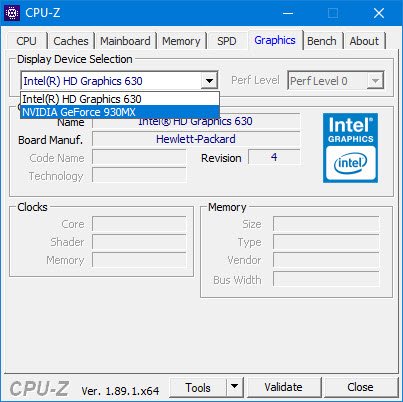
If you are looking for a freeware to do the job for you, you can download CPU-Z. This tool gathers information about the main devices of your system. It will give you information not only about your Graphics card but also other important system information. Go to the Graphics tab. If you see one entry, it means that you have only the integrated graphics card installed. In the image above, you can see that a dedicated NVIDIA card is also installed.
You can also download and use GPU-Z from here.
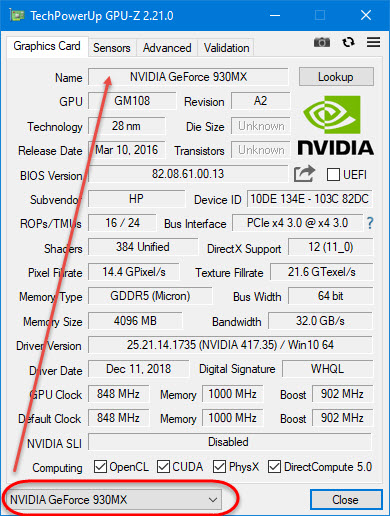
If you have a dedicated graphics card installed, you will see a drop-down at the bottom of its window. Click it to see the details.
Check out this post to find out Computer RAM, Graphics Card, Video memory & other hardware specs of your PC.
