
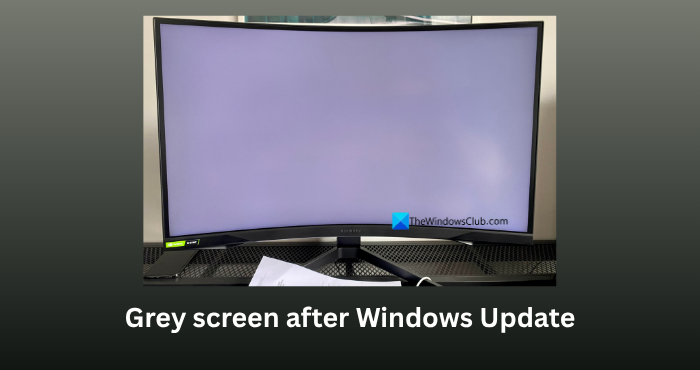
Microsoft regularly provides updates for Windows 11. These updates bring significant performance improvements, fix bugs, and introduce new features. It is okay to see some errors and issues while and after installing Windows updates, as they can be easily fixed. Some Windows users are seeing their screens turn grey instead of showing anything. If the grey color replaces the entire UI, we cannot use anything. Fortunately, we have a few ways to help you fix it if you see a grey screen after a Windows update.
Grey screen after Windows Update in Windows 11
If your computer screen or display turns gray after a Windows Update, it could be because the graphics driver crashed or the UI failed to launch. Follow the methods below to fix the issue.
- Unplug external devices
- Adjust the refresh rate of your display
- Restart the graphics Driver
- Uninstall the recent Windows update
- Update the Graphics driver.
1] Unplug external devices
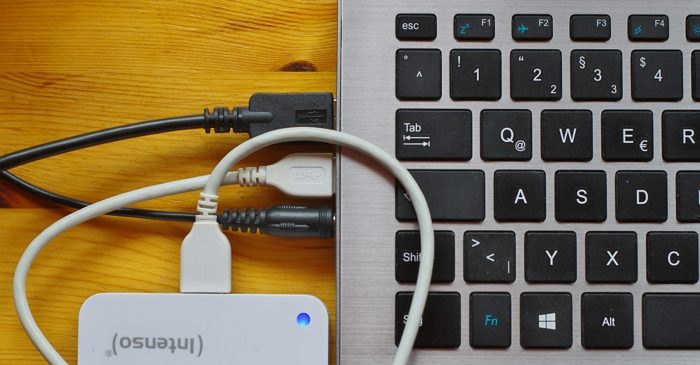
If you have connected USB drives, external HDDs or SSDs, or any such accessory to your PC, unplug them and restart your PC. This basic workaround can fix the grey screen issue on Windows after an update. Once you have restarted your PC and normalcy is back on the screen, you can reconnect and use those accessories again.
2] Adjust the refresh rate of your display
Sometimes, the refresh rate set for your display plays the spoilsport and makes it look grey instead of full colors. It happens due to a failed synchronization between your GPU and hardware. A high refresh rate makes it even worse by putting stress on the GPU and related hardware.
Since you cannot access the Settings app on Windows 11, the only option is to use the monitor’s built-in settings. Every monitor comes with on-screen settings utility buttons along with a power button. Use them and enter the display settings. Look for Picture, Gaming, or System settings. Then, look for Refresh Rate and set it to 60Hz, as Windows 11 supports only up to 60Hz on an HDMI connection.
3] Restart the Graphics Driver
The biggest reason for the grey screen after a Windows update is the crash or corruption of the graphics driver. As you cannot access any settings or apps on Windows, you can simply use a keyboard shortcut. Press Win+Ctrl+Shift+B on your keyboard. You will hear a short beep and witness a flicker on screen. It force relaunches the graphics driver to fix your grey screen issue.
4] Uninstall the recent Windows update
If the grey screen issue is not fixed yet, you have to uninstall the recent Windows update. The only way to uninstall the Windows update without access to the Settings app is using Safe Mode. Windows Recovery Environment lets us enter Safe Mode. To trigger the Windows Recovery Environment, you need to power off the Windows PC. Then, turn it on. While on the manufacturer’s logo, press the power button and hold it for 2-3 seconds to turn it off. Repeat it 2-3 times to automatically enter the Windows Recovery Environment.
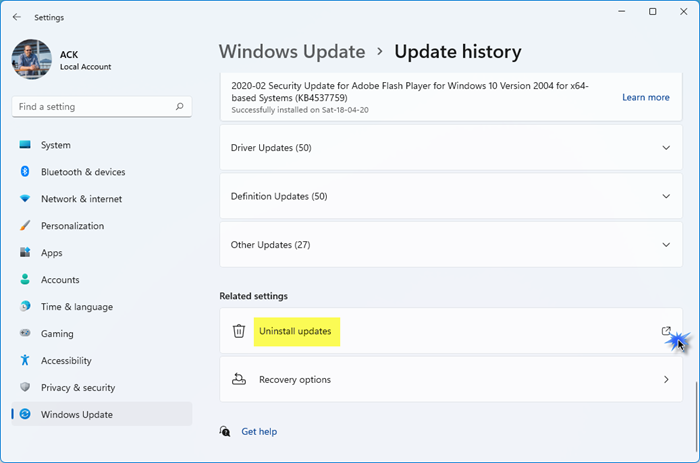
In the Windows Recovery Environment, choose Troubleshoot > Advanced options > Startup Settings > Restart. Press 4 on your keyboard after the restart. Your PC will boot into Safe Mode. Open the Settings app and click Windows Update. Go to Update history and click Uninstall updates under Related settings.
On the Uninstall updates page, click Uninstall beside the recent Windows update after confirming the date written underneath.
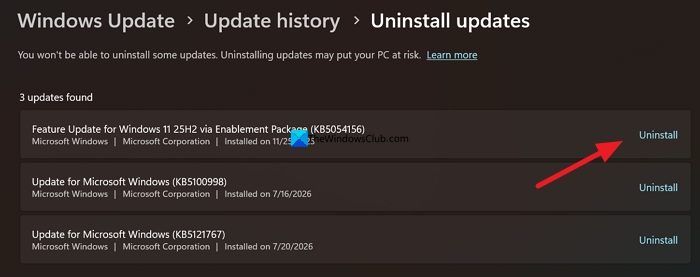
Wait for the reinstallation process to complete.
5] Update the Graphics driver
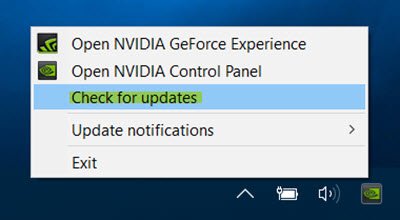
Update the Graphics driver and see if that helps.
All the best.
TIP: If your Windows screen goes black after an Update, your display driver or system files might have been corrupted.
Read: Monitor not displaying full screen in Windows 11
Why did my PC screen just go grey?
If your PC screen has gone grey and you are not able to use it, remove all the external devices connected to your PC, adjust the refresh rate of your display using the monitor’s built-in settings, and restart the graphics driver. If nothing has fixed the issue, you can just uninstall the recent Windows update using Safe Mode.
How to fix a grey monitor?
If your monitor has turned grey, check the connections between the CPU and the monitor. If it is an old monitor, check if the Night light is turned on. Then, update or reinstall the graphics driver and adjust the refresh rate. Also, check whether the monitor is physically working properly or has lost all its colors due to a circuit failure or similar issue by connecting it to another PC.
Related read: Color Management not working in Windows 11.
