
Razer Blade PCs are powerful gaming laptops with great configurations and features. They have the latest and best processors and GPUs with great touchscreen displays. Some users are reporting touchscreen issues on the Razer Blade system. In this guide, we show you how to fix them.
Razer Blade touch screen not working
If you are facing any touchscreen issues on your Razer Blade PC, you can fix them using the following methods.
- Update Touchscreen Drivers
- Disable and re-enable the HID-compliant touch screen device
- Calibrate the screen
- Contact Razer Blade support
Let’s get into the details of each method and fix the issues with the Razer Blade touchscreen.
1] Update Touchscreen Drivers
The issues with the touchscreen on your Razer Blade system might be due to corrupted or outdated touchscreen drivers. You need to update them to the latest version to fix the issues. Visit razersupport.com to download and install the drivers. You may also install Windows Driver Updates if any are available.
After updating drivers, restart your PC and see if the issues are resolved.
2] Disable and re-enable the HID-compliant touch screen device
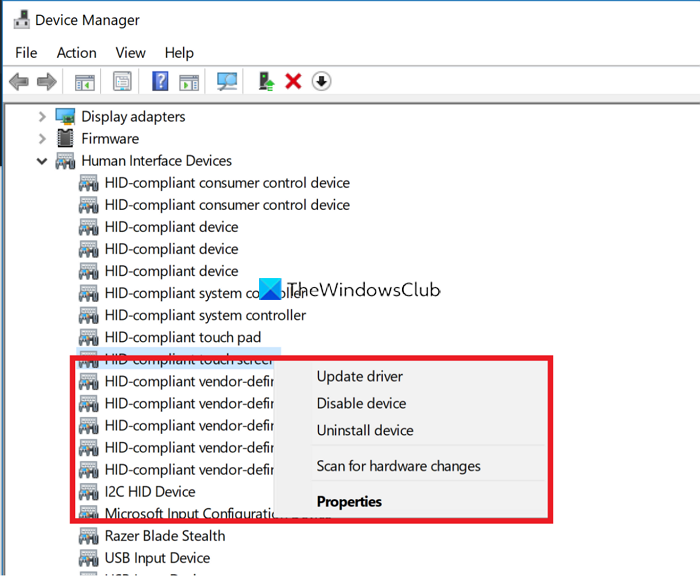
Sometimes, disabling and enabling the relevant devices or drivers can fix the issue just like restarting the PC to fix small errors. You need to disable the HID-compliant touch screen device and restart your PC. Then, you need to re-enable it.
To disable HID-compliant touch screen device,
- Right-click on the Start button and select Device Manager
- Expand Human Interface Devices
- Find the HID-compliant touch screen and right-click on it.
- Then, click on Disable device and restart your PC
After restarting your PC, enable the driver in the same way you disabled it. See if it has fixed the issue.
Read: HID-Compliant TouchScreen Driver is missing from Device Manager
3] Calibrate the screen
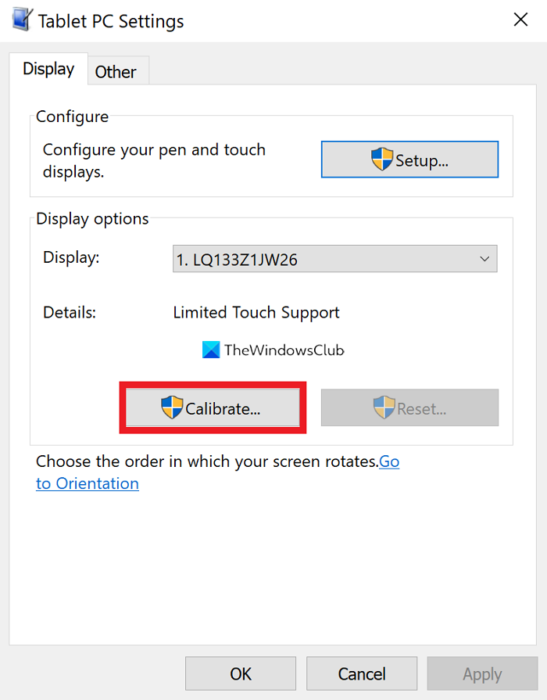
Sometimes, you may encounter touchscreen issues if there are calibration problems. You need to recalibrate the touchscreen to fix the issues.
To calibrate the screen,
- Search for Calibrate Display Color in the Start menu and open it
- Under Tablet PC Settings, click on the Calibrate button
- It will take you to the Calibration process. Follow the on-screen wizard and calibrate the screen
- After the calibration is complete, it will prompt you to save data, click on Yes
- Then, click on Apply and OK
Restart your PC and see if the issues are fixed.
Read: TouchScreen not working in Windows 11
4] Contact Razer Blade support
If none of the above solutions helped you fix the touchscreen issue, you need to visit Razer Service Center near you or contact the support team for further guidance.
These are the different ways using which you can fix the touchscreen issues on Razer Blade.
Fix: Razer Blade display issues like Flickering, Blotching, Discoloration, etc.
Does Razer Blade have Touchscreen?
Yes, Razer Blade 13 and the latest versions have touchscreen displays, which are also OLED screens that are perfect for gaming and other uses. The touchscreen displays are as fast as those on the Razer Blade PCs.
How do I fix my Razer laptop screen?
If you are experiencing any issues with the Razer laptop’s touchscreen, you can follow the methods outlined above. If your laptop is not touchscreen and is experiencing screen issues, you need to update graphics drivers and Windows, etc.
Read: How to disable TouchScreen in Windows 11.
