
When you connect a USB or a wireless device to your computer, Windows first installs its compatible driver. A device driver is software that establishes a connection between the hardware and the Operating System. It helps an Operating System identify the type of device connected to the computer so that the device works as expected. If the device drivers get corrupted or disabled by mistake, the respective USB or wireless device will not work properly. In such a case, you can view the device status in Device Manager. This device is disabled (Code 22) is one of the Device Manager Error Codes.
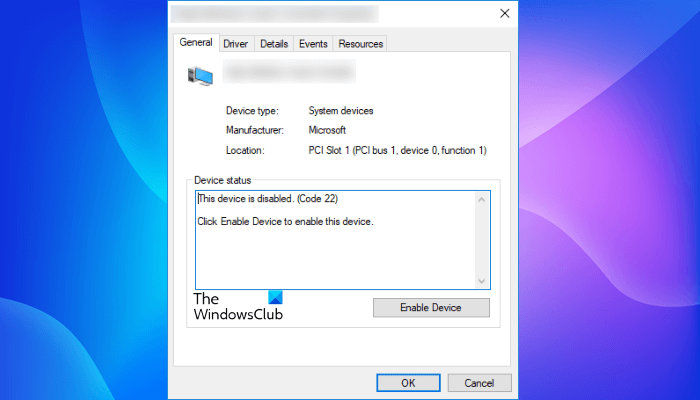
The complete error message displayed in the Device Manager is as follows:
This device is disabled. (Code 22)
Click Enable Device to enable this device.
If you are receiving this error in the device manager description, it simply means the device has been disabled.
Fix This device is disabled (Code 22) error in Windows 11/10
A device can be disabled for many reasons. It could be because Windows did it when it encountered a serious problem or was disabled by the user in Device Manager. Follow these suggestions:
- Enable the device via Device Manager
- Update your device driver
- Uninstall and reinstall your device driver
- Troubleshoot in a Clean Boot state
- Update BIOS
Below, we have explained all these methods in detail.
1] Enable the device via Device Manager
To resolve this issue, find the device disabled in the Device Manager, right-click on it, and select the option “Enable Device.” In a moment, this will start the Enable Device Wizard. Follow the instructions, and the device will be back online.
If manually enabling the device does not fix the problem, here are some other fixes you can try.
2] Update your device driver
If despite enabling the device in the Device Manager, the error persists, updating its driver may help. The steps for the same are given below:
- Press Win + R keys to launch the Run command box.
- Type
devmgmt.mscand click OK. - Right-click on your device driver and select Update driver.
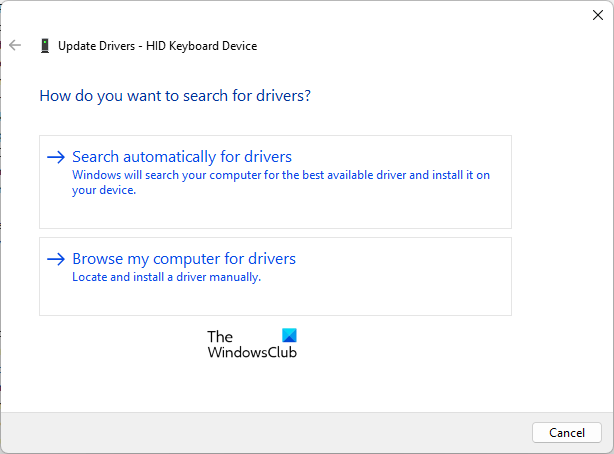
- Now, click Search automatically for drivers.
After that, Windows will search online for the latest driver version and install it.
If this does not work, install the compatible hardware. The steps to do so are written below:
- Open the Device Manager.
- Right-click on your device driver and select Update driver.
- Click Browse my computer for drivers.
- Now, click Let me pick from a list of available drivers on my computer.
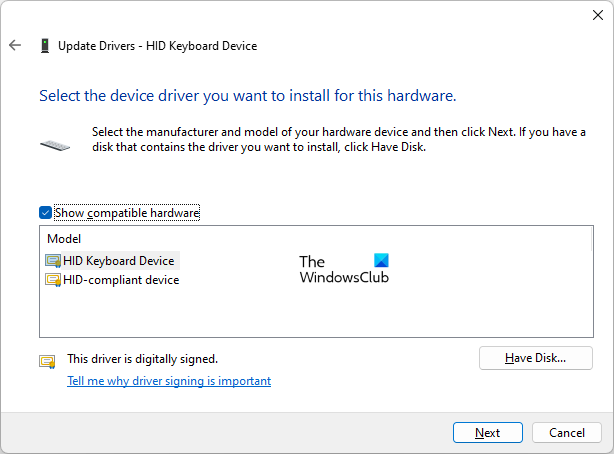
- You will see a checkbox named Show compatible hardware. Enable this checkbox.
- After this, you will see a list of compatible drivers for your device. Select one of them and click Next. Follow the on-screen instructions to install the driver.
- After installing the driver, restart your computer.
After restarting your computer, check if the issue persists. If yes, repeat the steps above and install another compatible driver for your device (if available).
Alternatively,
- You may check for Driver & Optional Updates via Windows Update to update your drivers
- You may visit the manufacturer’s site to download the drivers.
3] Uninstall and reinstall your device driver
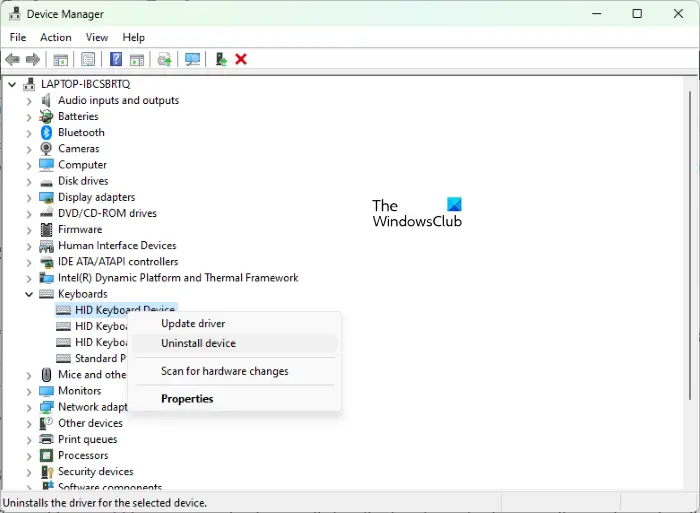
If updating the driver does not fix the issue, remove the driver from your computer via the Device Manager. To do so, open the Device Manager, right-click on your device driver, and select the Uninstall device option. After uninstalling the driver, restart your computer and connect your device. Let Windows install the driver for the connected device. Now, check if the same issue occurs again.
4] Troubleshoot in a Clean Boot state
The problem might be occurring due to a conflicting third-party application or software. To confirm this, perform a clean boot and check if the same issue persists in the clean boot state. If not, a third-party application is causing the problem. Now, you have to identify that application. For this, enable any one of the disabled programs in Clean Boot, then boot your computer in the normal state. If the problem occurs in the normal state, the program you recently enabled is the culprit. Uninstall that program to fix the issue. If the problem does not occur in the normal state, go to the clean boot state and then enable another program. Repeat this process to identify the culprit program.
5] Update BIOS
If none of the above fixes solved your problem, updating the BIOS of your computer may help.
How do I reconnect my hardware device to my computer?
To reconnect your USB device, simply plug it into the USB port. If the device is not working, you can try plugging it into another USB port. If you have removed the Bluetooth device from your computer, you can reconnect it via Windows 11/10 Settings app. Open the Settings app and go to Bluetooth & Devices. Now, click Add and select Bluetooth. Turn on the Bluetooth on your device so Windows can detect it. When you see your Bluetooth device in the list of devices detected by your computer, select your device and pair it with your computer.
Read: Windows cannot initialize the device driver for this hardware (Code 37).
How do I fix the Device Manager error?
At times, you may see different errors in Device Manager. Each Device Manager error has a different code and different solutions. To fix the Device Manager error, first view its error code, then search for solutions online.
Read next: This device cannot find enough free resources that it can use (Code 12).
