
As soon as we press the power button on our computers to boot them, a large number of files and processes are initiated, making the computer operational. But if something goes wrong, the system could throw up an error. One of these errors is Fatal Error C0000022. This is usually triggered while Applying Updates. This occurs due to an error with Windows Update. We will be looking for relevant fixes for this. Let us now dive into it.
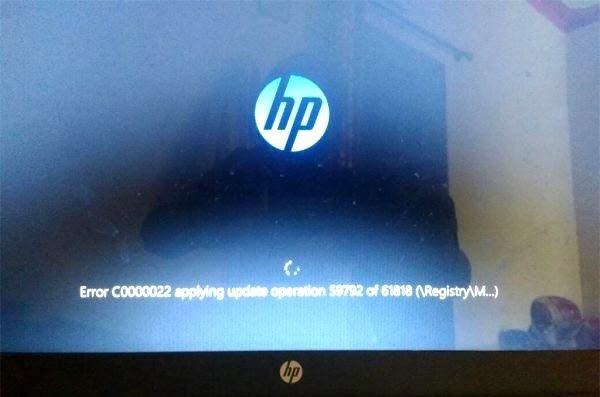
Fix Fatal Error C0000022
We will implement the following fixes to resolve Fatal Error C0000022 on all Windows computers:
- Perform a Full Shut Down.
- Use System Restore.
- Run Automatic Startup Repair.
- Use DISM to uninstall specific Windows Updates.
- Get the required Updates manually.
1] Perform Full Shut Down
Open the command prompt (admin), type the following command and hit Enter:
shutdown /s /f /t 0
This will make your Windows 10/8 computer shut down ‘fully’. The correct syntax thus for a full shutdown of Windows 10/8 should be: shutdown /s /f /t 0 and for Hybrid shutdown should be: shutdown /s /hybrid /t 0.
Now, power on your computer and see if the problem has gone away.
2] Use System Restore
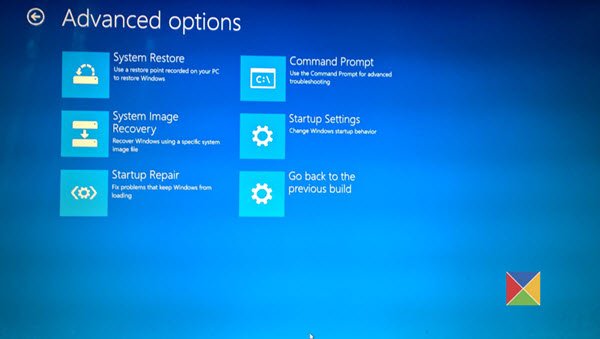
If you are in Advanced Startup Options, you can select System Restore directly and proceed with the steps.
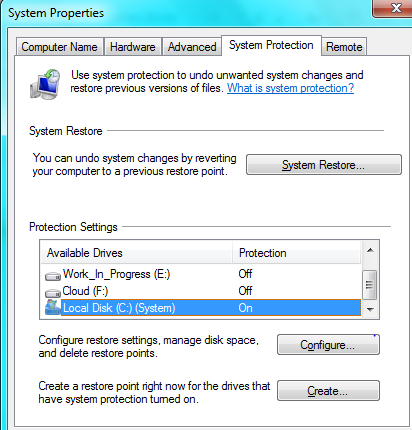
If you just booted into Safe Mode, type sysdm.cpl in Start search box and hit Enter. Select the tab labeled as System Protection and then choose the System Restore button.
It will now open a new window where you will need to choose your desired System Restore Point. After selecting your desired System Restore Point, follow the on-screen instructions to complete the process.
Now Reboot your computer and check whether this method resolved your issue.
3] Run Automatic Startup Repair
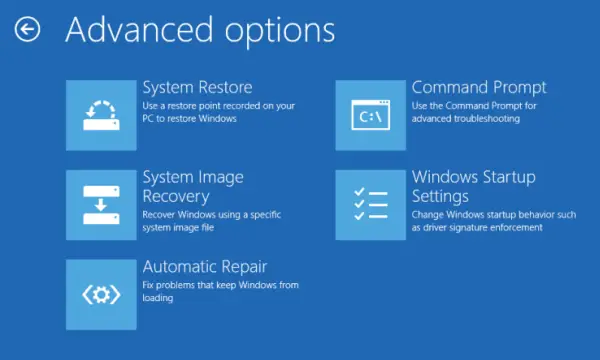
Run Automatic Repair on your computer and see if that helps. For this, you have to enter Windows Recovery Environment. If your system is displaying the Fatal error message on boot, you cannot use Windows 11/10 Settings to enter Windows Recovery Environment. In such a case, follow the instructions provided below:
- Press and hold the power button to force-shutdown your computer.
- Turn on your computer. When you see the manufacturer’s logo or WidoWindows logo, immediately press and hold the power button until your PC turns off.
- Repeat the steps above until Windows enters repair mode. You are now in the Windows Recovery Environment.
Now on the Automatic repair screen, select Advanced Options > Troubleshoot > Advanced Options.
Automatic Startup Repair scans system files, registry settings, configuration settings, and more to try to fix the problem.
Read: Windows will not boot up or start.
4] Use DISM to uninstall specific Windows Updates
Right-click on the Start button and click on Command Prompt (Admin), type in the following command, and then hit Enter.
DISM.exe /online /get-packages
It will populate a list of Windows Updates installed on your computer using DISM on the Command Prompt command line.
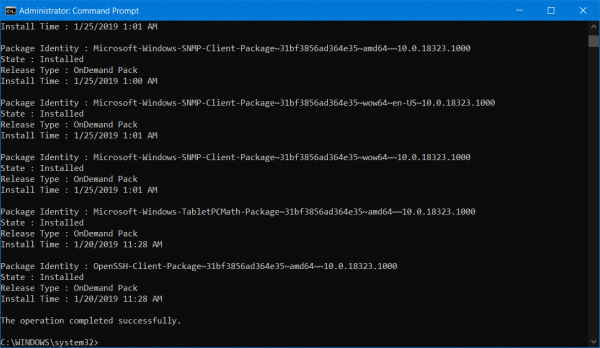
Look for the update that you want to uninstall. It will look something like, package_for_KB976932~31bf3856ad364e35~amd64~~6.1.1.1. And then copy it.
Now, enter this command and hit Enter to uninstall the particular update,
DISM.exe /online /remove-package /packagename:[NAME OF THE UPDATE TO BE UNINSTALLED]
Reboot your computer for the change to take effect.
5] Get the required Updates manually
If it’s not a Feature Update and only a Cumulative Update, you can manually download and install the Windows Update. To find which update has failed to follow the steps:
- Go to Settings > Update and Security > View Update History
- Check which particular update has failed. Updates that have failed to install will display Failed under the Status column.
- Next, go to Microsoft Download Center, and search for that update using the KB number.
- Once you find it, download, and install it manually.
You could use Microsoft Update Catalog, a service from Microsoft that provides a listing of software updates that can be distributed over a corporate network. The Microsoft Update Catalog is a one-stop location for Microsoft software updates, drivers, and hotfixes.
If it is a Feature update, you can always rely on the following methods to get your computer updated.
- You can download and install the latest version of Windows on your computer. These updates can be downloaded either download Windows with Media Creation tool or get an ISO file for Windows.
- Or you can try Resetting your Windows computer.
All the best!
What is the cause of Fatal error?
Fatal errors are unexpected errors that can cause your system to crash, resulting in the loss of unsaved data. Both hardware and software issues can trigger Fatal errors. If you recently installed a program and your system displayed a fatal error, that program might be causing the error. In some cases, overheating and insufficient system resources can also trigger a Fatal error.
How to repair PC by cmd?
You can repair your system by repairing the corrupted system image files. System File Checker and Deployment Image Servicing and Management (DISM) are the command-line tools that help users repair corrupted system image files. Windows startup issues can also occur when the Boot Configuration Data is corrupted. In such a case, rebuilding BCD via the Command Prompt can help. If something has gone wrong with your PC, you need to run Startup Repair in the Windows Recovery Environment.
