
Some Windows users may encounter the Crypt32.dll not found or missing error while using or installing certain programs on their Windows 11 or Windows 10 computer, when Windows starts or shuts down, or maybe even during a Windows installation. This post provides the most suitable solutions to this issue.
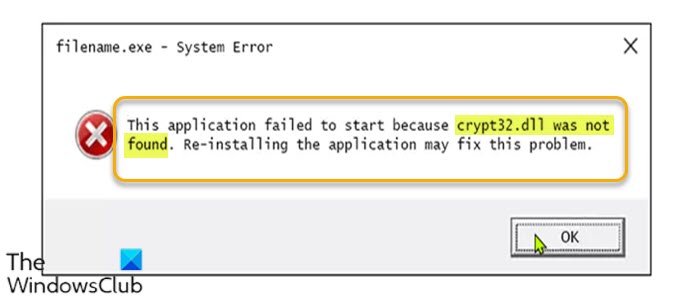
The following are the main culprits for this error-
- Crypt32.dll has got unregistered
- Registry problem.
- Virus or malware infection.
- Hardware failure.
It’s also known that issues with media player updates can cause some of the variants of this error.
Below are some of the known variants or instances of this error;
Crypt32.dll Not Found
This application failed to start because crypt32.dll was not found. Re-installing the application may fix this problem
Cannot find [PATH]\crypt32.dll
The file crypt32.dll is missing
Cannot start [APPLICATION]. A required component is missing: crypt32.dll. Please install [APPLICATION] again
Regardless of the instance of this error you have encountered, the solutions presented in this post apply.
What is crypt32.dll?
The CRYPT32.DLL, otherwise known as the Microsoft Cryptographic library, is the module that implements many of the certificate and cryptographic messaging functions in the CryptoAPI. Both the Windows client and Windows Server Operating Systems ship with this library. However, the different versions of this DLL provide different capabilities.
How do I repair Windows missing files?
Most Windows 11/10 users, if not all, would encounter issues related to missing or corrupt system files from time to time, throughout usage. This issue is no cause for alarm because if you are wondering how to fix/repair the missing DLL files issue, the Windows OS ships with two main native tools viz; System File Checker (SFC) and Deployment Image Servicing and Management (DISM) that help you carry out the repairs on your own without losing any data.
Crypt32.dll not found or missing
If you’re facing the Crypt32.dll not found or missing issue, you can try reinstalling or repairing the app to see if that helps. If not, try our recommended solutions below, in no particular order, to see if they resolve the issue.
- Run full system AV scan
- Run SFC and DISM scan
- Restore crypt32.dll file
- Re-register DLL files
- General fix for missing DLL files errors
- Perform Reset This PC or In-place Upgrade Repair Windows
Let’s examine the descriptions of the processes involved with each of the listed solutions.
Before you try the solutions below, check for updates and install any available bits on your Windows device and see if the error reappears. Also, as indicated on the error prompt (if applicable), you can try reinstalling the program that’s triggering this error.
1] Run full system AV scan
A malware infection might have modified this particular dll file, consequently triggering the Crypt32.dll not found or missing error on your Windows 10/11 computer. In this case, you can run a full system antivirus scan with Windows Defender or any reputable third-party AV product. Also, in severe cases, you can run perform Windows Defender Offline Scan at boot time or use bootable AntiVirus Rescue Media to recover your system if somehow your computer is failing to boot.
Also, as some affected users reported, check if your antivirus software is scanning the %Windir%\SoftwareDistribution\ folder as the files in that folder could be interfering with the scanner and consequently triggering this error. In this case, you can disable the AV software – if that resolves the issue, you can simply add that folder to AV exclusion list. If you’re running third-party security software, refer to the manual for instructions on excluding folders/files from AV scans.
2] Run SFC and DISM scan
This solution requires you to run an SFC scan and see if that helps. If not, you can run a DISM scan or try the next solution.
3] Restore crypt32.dll file
If you have accidentally deleted the crypt32.dll file from your system, you can try and restore the file from Recycle Bin. You can also restore this file by logging into another working Windows computer that has been recently updated, navigating to the C:\Windows\System32\ folder, locating and copying the file to a USB drive, then plugging the drive into the problematic PC, navigating to the exact folder, and pasting the file in that location.
4] Re-register DLL files
This solution requires you to re-register the crypt32.dll file and see if that helps.
5] General fix for missing DLL files errors
Since this is a case of DLL missing or not found errors, you can try this general fix for missing DLL files errors and see if the issue will be resolved. If not, try the next solution.
6] Perform Reset This PC or In-place Upgrade Repair Windows
If nothing has worked so far up to this point, you can try Reset This PC to reset every Windows component. You may also try In-place Upgrade Repair and see if that helps.
Any of these solutions should work for you!
How do I fix sqlite3.dll missing error?
PC users who encounter the sqlite3.dll file missing error on their Windows 10/11 computer can try a number of fixes, which include:;
- Restore/replace the sqlite3.dll file with a healthy copy from another working Windows PC.
- Run a full virus/malware scan of your entire system.
- Perform System Restore to undo recent system changes.
- Reinstall the program that uses the sqlite3.dll file.
- Update the drivers for hardware devices that might be related to sqlite3.
Related post: Fix amd_ags_x64.dll missing error.
