
This post will explain how to restore or recover the deleted files, folders, and other items from the Recycle Bin to the original locations. Sometimes, we delete important files and folders and don’t know how to restore them to their original place. But you need not worry, as this beginner’s post will guide you through all the steps and methods in detail. First, let’s see how and where to locate the Recycle Bin.
Find or Locate the Recycle Bin
The Recycle Bin is usually located on the desktop. You will find it there most of the time. In case you are not able to find it, go to the Search option and simply search for ‘Recycle Bin‘.
To get the Recycle Bin on your desktop in Windows 11/10, follow these steps. Open Windows Settings > Personalization > Themes.
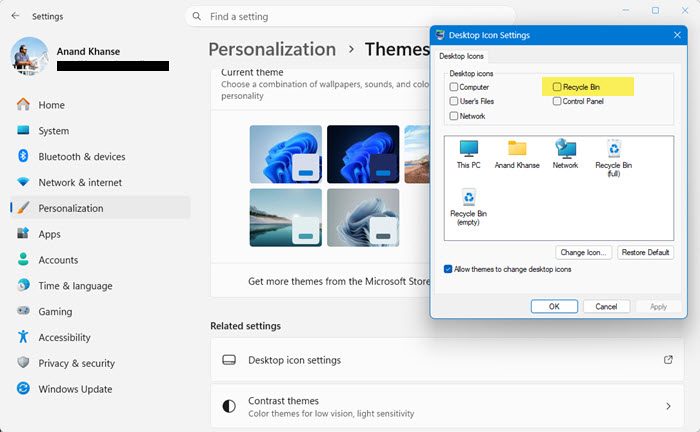
Locate and click on the arrow next to Desktop icon settings.
A smaller pop-up window will be displayed on the screen.
Click on the Recycle Bin checkbox and then click on Apply.
The Recycle Bin icon will now appear on your screen.
How to recover Deleted files from Recycle Bin
There are two main ways to restore deleted items from the Recycle Bin. Let us see how.
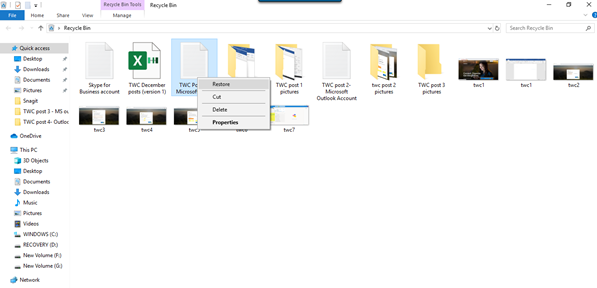
First, open the Recycle Bin. To do so, right-click on the icon and click Open; or double-click on the icon. The Recycle Bin is now open.
1. Click on the file(s) and folder(s) you want to restore and select them. Right-click on that and select the Restore option.
2. Select the file or folder you want to restore. On the Ribbon above, you will see the Manage option under Recycle Bin Tools. Single-click on Manage and then click on the appropriate option Restore the selected items.
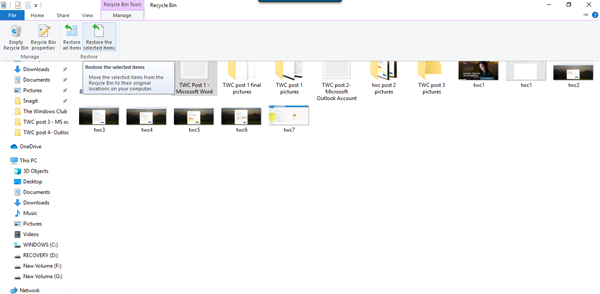
These are the two ways you can restore deleted files and folders from the Recycle Bin to their original locations. You can also restore all items from the Recycle Bin by choosing that option.
Recover Shift Deleted files which have been deleted permanently
When you use the Delete command, files get moved to the Recycle Bin, which is then emptied periodically – or you can empty the Recycle Bin manually. If you press Shift+Delete, then the item is not moved to the Recycle Bin. It gets directly deleted. To recover such Shift Deleted files, which have been deleted permanently, you will have to use a Free Data Recovery Software.
Even if you have emptied the Recycle Bin, you can still recover them permanently using this software. Thus, even if you accidentally delete any important files or folders, you do not have to panic as they can be easily restored without any hassle.
You can also restore deleted files with these methods:
- Restore files from a backup: Open Control Panel > Backup and Restore > Restore my files.
- Using File History: Type restore files in Taskbar search and in the search results above, select Restore your files with File History.
- Restore files from Previous versions: Previous versions come from File History or Restore Points. Navigate to the folder that had the file, right-click it, and then select Restore previous versions.
Read next: How to restore accidentally deleted system files in Windows.
Are files deleted from Recycle Bin gone forever?
Files deleted from the Recycle Bin aren’t gone forever. They remain on your storage media until new data overwrites them. To recover these files, use data restoration tools promptly, as chances of successful recovery diminish once overwriting occurs.
Can you recover deleted files after emptying the Recycle Bin?
You can, in most cases, recover deleted files after emptying the Recycle Bin using data recovery software. The files remain on the storage media but are marked as replaceable until new data overwrites them. Prompt recovery increases the chances of successful file restoration.
Recycle bin not restoring deleted files
If the Recycle Bin won’t restore deleted files, first check its Properties to ensure files aren’t set to bypass it. Next, try restoring another file to confirm if the issue is general or specific. Some folders or files might not restore if your system has already created new ones in their place. You could also repair the Recycle Bin by running rd /s /q C:\$Recycle.bin in Command Prompt (Admin) and restarting your PC. You can also run System File Checker and ChkDsk.
How to recover permanently deleted files from Recycle Bin without software?
To recover permanently deleted files from the Recycle Bin without software, utilize the Command Prompt on Windows. Type “cmd” in the search bar, right-click on ‘Command Prompt’ and select ‘Run as administrator.’ Then type attrib -h -r -s /s /d drive letter:*.* replacing “drive letter” with your actual drive letter. This may help retrieve files if they haven’t been overwritten.
How do I recover permanently deleted files from the Recycle Bin?
Use a file recovery program to recover permanently deleted files from the Recycle Bin, as files removed from it are not easily restorable. Look for trusted data recovery tools online, and follow the software’s instructions to reclaim your lost data. However, there is no guarantee that they will be recovered.
