
In this post, we will show you how to remove the Recycle Bin from the Desktop in Windows 11. This will only hide the Recycle Bin icon from the desktop and the Recycle Bin itself still exists and works normally and can be accessed in a different way.
Can the Recycle Bin be removed from the desktop?
Yes, you can remove the Recycle Bin icon from the desktop. Doing so will not delete the Recycle Bin because it’s a core system feature – only its shortcut gets removed.
How to remove Recycle Bin from Desktop in Windows 11
To remove the Recycle Bin from the Desktop in Windows 11, follow these steps:
- Right-click on an empty space on your Desktop.
- Select Personalize from the context menu.
- In the Personalization settings, click on Themes in the left-hand menu.
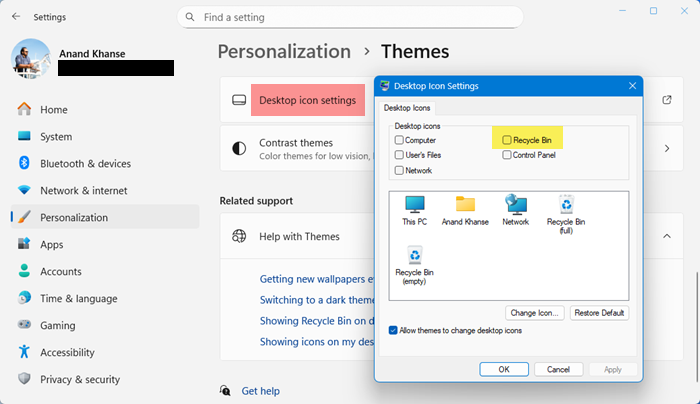
- Scroll down and click on Desktop icon settings under the Related Settings section.
- In the Desktop Icon Settings window, uncheck the box next to Recycle Bin.
- Click OK to save the changes.
After completing these steps, the Recycle Bin icon will no longer appear on your desktop.
Read: Can’t find Recycle Bin in Windows 11
How to get Recycle Bin back on desktop in Windows 11?
You can always bring it back later by re‑checking the box in Desktop icon settings.
- Open Windows Settings > Personalization settings
- Click on Themes in the left-hand menu.
- Scroll down and click on Desktop icon settings under the Related Settings section.
- In the Desktop Icon Settings window, check the box next to Recycle Bin.
- Click OK to save the changes.
Read: Restore accidentally deleted Recycle Bin in Windows 11
Other ways to access the Recycle Bin
- Open File Explorer and type Recycle Bin in the address bar. It works just like the desktop icon.
- Press the Windows key, type Recycle Bin and click on the search result.
- In File Explorer, right‑click Recycle Bin and choose Pin to Quick Access so it’s always in the sidebar.
I hope you find this small tip useful.
