
In this post for beginners, we will show you how to resize or change Height or Width of Start Menu in Windows 11 and Windows 10. Each section below outlines the easy steps you can take to resize the Start Menu and Taskbar to personalize your system and get the most comfortable Windows experience.
How to resize the Start menu in Windows 11
There are two native ways to resize the Start menu in Windows 11. These are:
- Using the Settings app
- Using the Registry Editor.
Let’s check both options.
1] Using the Settings app
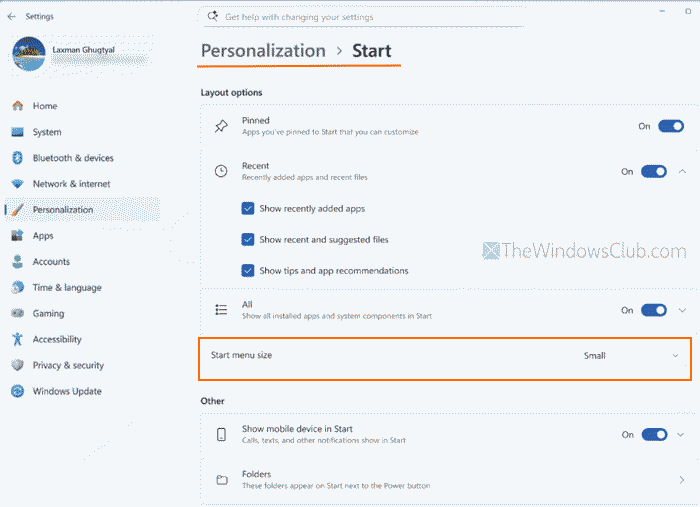
The steps to resize the Start menu in Windows 11 using the Settings app are as follows:
- Press Win+I hotkey to open the Windows 11 Settings app
- Select Personalization > Start. You will see a redesigned page for Start menu settings
- Under the Layout options section, click on the drop-down menu for Start menu size
- You will see three options: Automatic (default), Small, and Large
- Select an option, and the Start menu will resize accordingly. We can’t select a custom width and height.
2] Using the Registry Editor
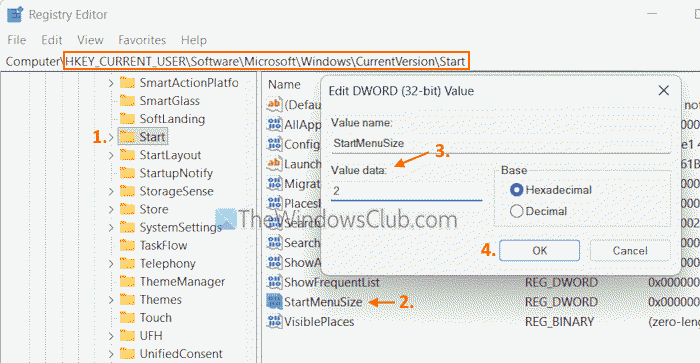
Before proceeding, you should backup Windows Registry. After this, follow these steps to resize the Start menu in Windows 11 using the Registry Editor:
- Type regedit in the Windows 11 Search box
- Press Enter to open the Registry Editor
- Navigate to the Start name Registry key. Here is the path:
HKEY_CURRENT_USER\Software\Microsoft\Windows\CurrentVersion\Start
- You will see a StartMenuSize DWORD (32-bit) Value. By default, its Value data is set to 0, which means the Start menu size is set to Automatic (default)
- To change the Start menu size to Small or Large, you need to change the Value data of StartMenuSize. For this, double-click on it
- A new edit box will open. Here, enter 1 in the Value data box to make the Start menu size Small, or add 2 to set it to the Large mode
- Press OK.
That’s all.
Read: How to change Taskbar size on Windows 11.
How do I adjust the Windows 11 Start menu?
If you want to adjust the size of the Windows 11 Start menu, you can access the Start page in the Settings app of Windows 11 and set it to Large, Small, or Automatic (default). But, if you want to customize Windows 11 Start menu, like move Start menu to the left, change Start menu color, show/hide recently added apps, recommended files in Start, etc., you need to access Taskbar, Colors, and other pages present in the Personalization category of the Settings app.
Can you make Windows 11 Start menu look like 10?
There are a few third-party tools, like ExplorerPatcher, that can help you set the Start menu style to Windows 10. In addition, if you want to change the look and feel of Windows 11 Start menu with different themes or skins, change the Start button, etc., you can try some of the best free Start menu alternatives for Windows 11, like Start Menu X, Start Menu Reviver, etc.
Resize the Start Menu in Windows 10
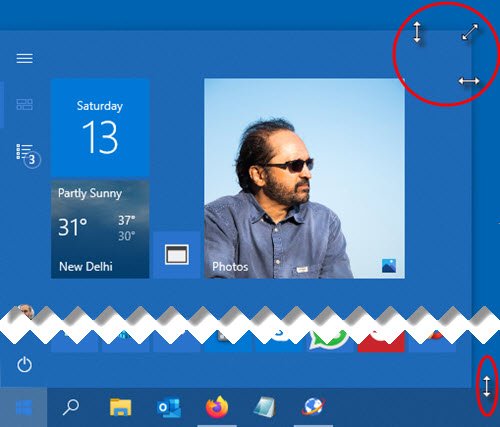
You can easily resize the Start menu in Windows 10 until it’s just right, which can give you more real estate to pin your favorite items or reveal more of the Desktop.
How to change the Height of the Start Menu in Windows 10
To resize or change the height of the Start Menu, do the following:
- First, launch the Start menu by either clicking on the Start button on the taskbar or pressing the Windows key on the keyboard.
- Once the Start menu is open, position your mouse cursor on its edge.
- The pointer cursor will change into the resize cursor, which looks like a short vertical line with an arrowhead on both ends.
- Once you see the resize cursor, click and drag the mouse up or down to change the height of the Start Menu.
- When you reach the desired height, you can release the mouse button, and the Start Menu will stay that size.
How to change the Width of the Start Menu in Windows 10
To resize or change the width of the Start Menu, do the following:
- Position your mouse cursor on the edge of the taskbar.
- The pointer cursor will change into the resize cursor, which looks like a short horizontal line with an arrowhead on both ends.
- Once you see the resize cursor, click and drag the mouse left or right to change the width of the Start Menu.
- When resized horizontally, the Start menu will snap to multiples of your tile size.
- When you reach the desired width, you can release the mouse button, and the Start menu will stay that size.
- You can also adjust height and width simultaneously by placing your cursor on the Start menu’s upper-right corner and dragging your mouse inward or outward diagonally.
That’s it!
Read next:
- How to increase Taskbar to 2 or more rows in Windows 11
- How to move Taskbar to the second monitor
- How to open multiple apps at once from Start Menu.
