
Windows 11 or Windows 10 may give us the feeling of being secure. The reason is obvious. Being advanced, it incorporates the latest technology for security – and includes many security advancements and features. However, the need for securing Windows is still there. Given its immense popularity, hackers and malware writers always want to target this popular operating system. It, therefore, becomes imperative to secure your already battle-hardened Windows further. You need to make sure your copy of Windows is secure and that it provides you with optimal protection against malware and hackers.
How to prevent Malware in Windows 11/10
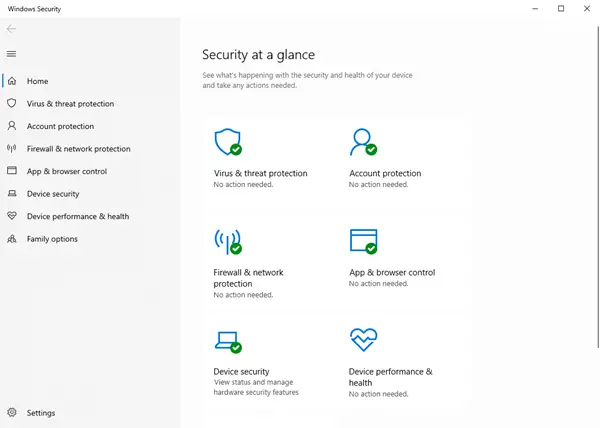
Secure Windows 11/10
Here are some beginners tips for securing Windows 11/10. This can help prevent malware infections.
- Update Your Operating System
- Install a good Security Suite
- Use The Action Center to monitor
- Avoid using Admin Account
- Use Strong Passwords
- Keep The Applications Updated
- Use A Good Firewall
- Upgrade Your Hardware
- Application Whitelisting approach
- Use Hosts file & Internet Security Zones
Let us take a look at them in detail.
1] Update Your Operating System
You would agree that Windows 11/10 has much better security features when compared to its predecessors, like Windows XP. So if you are still using and older Windows, why not upgrade to its latest version? At the time of writing this article, Windows 10 is the latest and most secure OS in the Windows line of operating systems. So this is the first thing I’d like to recommend: If you are using an older version of Windows, upgrade to the latest Windows 11/10.
For securing Windows, one of the important tips is to make sure that you have installed all its latest updates, especially the security updates, using the Windows Updates feature. So other than using the latest operating system, you should make sure any upgrades and patches to the operating system should automatically apply to it. This can easily be achieved by setting up Windows Updates to automatic (Control Panel -> Windows Updates). One of the traits of Windows Updates is that it also checks for updates to other software installed on your computer (drivers and Microsoft Office etc. ). If and when it finds updates to such software, it will notify you under Optional Updates.
2] Install a good Security Suite
While the built-in Windows Defender is good, you may if you wish, install a good Internet Security Suite or Antivirus software. Also, take a look at these free Internet Privacy Software.
Read: How to use Windows Security in Windows 11 for the best protection.
3] Use The Action Center to monitor
The Action Center in Control Panel of Windows provides you information about several things that require your notice: Anti-Virus, Windows Update, etc. It also provides information about the last time you backed up your data. It is never recommended to turn off the Action Center notifications as they remind you of things you need to do for securing Windows computers.
4] Avoid using Admin Account
Even if you are the only user on your computer, you should avoid using the Administrator account. Use a Standard User Account for your day to day use. Guests may be given access to the Gues account. It may happen that any of your friends or kids might want to check out something on the Internet or play a game to mess up with your computer while you are not looking. Granting guest access is the best thing.
Also, set the User Account Control to as high as possible so that you get alerts before any program tries to change any settings. Also or as a replacement, you can use WinPatrol for further securing Windows.
5] Use Strong Passwords
Again, if you are a single user, you might turn off the password on your user account so that you can save time. However, this can help others log in when you are not looking and steal your data. For securing Windows PC, strong passwords are a must – be it the user account or when logging on to the Internet. Do not forget to lock the computer when you intend to leave it for a while. Press Windows Key + L to lock your computer.
6] Keep The Applications Updated
Old applications are more prone to errors and hacks when compared to the newer versions. This is because almost every application maker tends to keep on testing his applications against different problems/factors and updates the programs accordingly.
There are several third-party software update checker programs available that keep on checking for updated versions of the software installed on your computer. You can use the one you feel comfortable with.
Read: How to check if a file is malicious or not.
7] Use A Good Firewall
You can use the default firewall in Windows 10/8/7, but you may worry if you do not see alerts. Windows Firewall works silently and needs some tech experience to configure it. If you need help, you may check out this post on how to manage and configure Windows firewall. If you wish, you may want to consider installing some third-party free firewall software. instead. You need just one firewall. Using both Windows Firewall and a third-party firewall could result in conflicts, thereby possibly exposing your system to hackers.
Read: Internet Security article & tips.
8] Upgrade Your Hardware
You should keep your hardware upgraded. If wondering how updating the hardware would provide better security, the answer lies in the fact that the latest technology offers base-level security in the hardware itself. Newer motherboards, CPUs, and BIOS have built-in security. An example is the trusted platform module (TPM) embedded into hard disk controllers – protecting them against malicious programs. For those unaware of TPM, it checks the firmware while booting to make sure it is not infected by malicious programs.
While it would be difficult to change the motherboard, you can still go for an upgrade of HDDs to get better protection compared to a three-year-old hard disk.
9] Application Whitelisting approach
Application whitelisting is a good practice that most IT administrators employ to prevent unauthorized executable files or programs from running on their system. Home users too can take advantage of whitelisting. This post will show you how to whitelist programs in Windows 11/10.
10] Use Hosts file & Internet Security Zones
Our admin, Anand Khanse, MVP suggests you download a ‘good’ Hosts file from mvps.org and replace your original Hosts file situated in C:\Windows\System32\drivers\etc with this one and then lock it or make it a read-only file. HostMan is a good freeware Host Manager. The Hosts file contains the mappings of IP addresses to host names. This file is loaded into memory at startup; then Windows checks the Hosts file before it queries any DNS servers, which enables it to override addresses in the DNS. A large HOSTS file (over 135 kb) tends to slow down the Windows machine.
To resolve this issue; Run services.msc > Search for DNS Client Service > Change Startup Type to Manual. However, CoolWebSearch Hijackers are masters at altering even Read-only or locked Hosts files. They can also redirect Windows to use a Hosts File that has nothing to do with the one you keep updating.
We also suggest that you use ZonedOut utility to Add, Delete, Import, Export, Build a Black/WhiteList and do more. It now includes Restricted, Trusted and Intranet Zones”. It is an excellent tool of size just 185kb. Then download IE-SpyAd For ZonedOut. It is a simple registry patch that adds a long list of known adult sites, crack sites, advertisers, marketers, and malware pushers to the Restricted sites zone of IE. Using ZonedOut, you can add this list easily.
Read: Tips to best secure your browsers.
Other tips:
It is also a good idea from a security point of view, to show file extensions.
If in spite of taking all precautions, should your computer ever get infected, you might want to check out this Malware Removal Guide.
Incidentally, you may also use our Ultimate Windows Tweaker, to change a few settings on your computer to further harden Windows security. It will let you quickly tweak some of your security settings in Windows and other inbuilt applications.
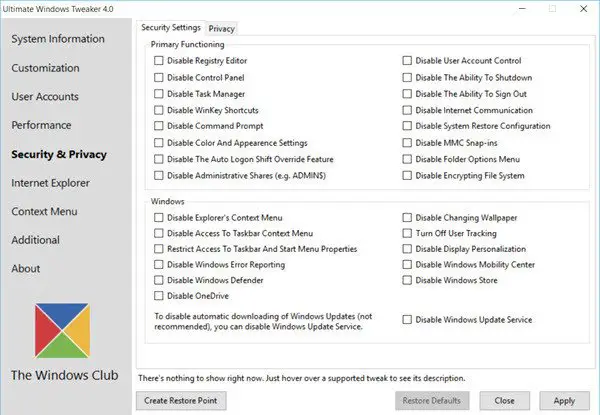
Win10 Security Plus is another freeware that can help you harden Windows security.
These were our tips for securing Windows 11/10. How do you secure your Windows? What software do you use?
If you have inputs or suggestions, please let us know using the comments section below.

