
If you are wondering which Windows 11/10 features you can safely turn off, then this guide will help you. Windows comes with several built-in features that are enabled by default. However, many of these are rarely used by most users. If left enabled, they can pose security risks and make the system vulnerable to malicious attacks.
If you don’t rely on certain Windows features, it’s best to turn them off. Disabling unnecessary features not only strengthens your PC’s security but also improves its performance by reclaiming system resources.
Windows Features you can turn off in Windows 11
Here’s the list of Windows 11/10 features you can safely turn off:
- SMB v1 protocol
- Print Spooler service
- Remote Desktop
- Remote Registry
- Remote Assistance
- Windows Script Host (WSH)
- Automatic Wi-Fi connection for public networks
- Network Discovery
- Windows WebClient service
- Startup apps you don’t use
- Diagnostic Data
- AutoPlay / AutoRun
- Bluetooth
- Copilot
Let us have a detailed look at them.
1] SMB v1 protocol
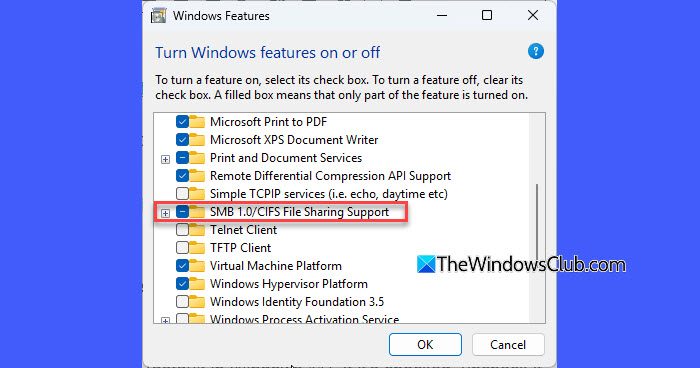
SMB v1 is one of the most important features to disable for Windows security.
SMB v1 is a very old file-sharing protocol that has been widely exploited by ransomware such as WannaCry. Modern versions of Windows disable it by default, but on systems upgraded from older builds, it may still be enabled. So it’s important to ensure it is turned off.
Press Win + R, type optionalfeatures, and press Enter. Look for SMB 1.0/CIFS File Sharing Support in the list.
If it’s unchecked, it’s already disabled (default in Windows 11). If it’s checked, uncheck it and restart your PC.
2] Print Spooler service
The Print Spooler is a Windows service that manages all print jobs sent to a printer or print server. However, this service has been a frequent target of vulnerabilities, such as PrintNightmare. While Microsoft has patched past vulnerabilities through Windows Updates, the service can still be a target for new exploits.
If you don’t use a printer or print sharing, it’s best to disable the Print Spooler service.
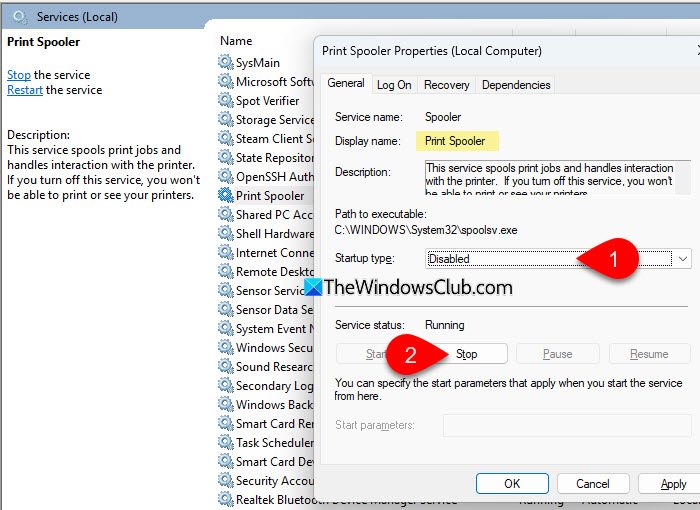
Press Win + R, type services.msc, and press Enter. In the Services window, scroll down and find Print Spooler.
Right-click it and select Properties. Under Startup type, select Disabled. Click Stop (if the service is running), then click Apply > OK.
Note: If you need to use a printer later, you can re-enable this service by setting the Startup type to Automatic.
3] Remote Desktop
Remote Desktop (RDP) is a Windows feature that allows remote access to a PC from another device over a network. Brute-force attacks and Ransomware frequently target RDP. If you don’t need remote access, it’s safer to turn it off.
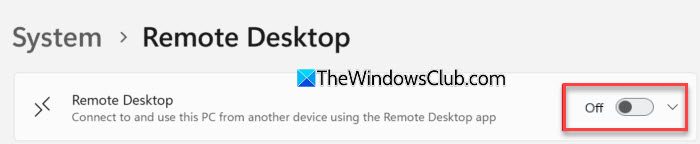
Press Win + I to open Settings. Go to System > Remote Desktop. Toggle Remote Desktop to Off. Confirm any prompts.
Note:
- Remote Desktop is only available on Windows Pro, Enterprise, and Education editions.
- If you need remote access later, you can safely re-enable it and use strong passwords and network-level authentication for security.
4] Remote Registry
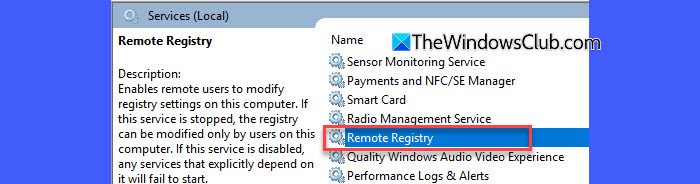
The Remote Registry service enables remote access to a computer’s registry for troubleshooting purposes.
Remote Registry is disabled by default on most Windows systems, but it’s worth checking to ensure it’s off, especially on upgraded or enterprise-managed PCs. If Remote Registry is enabled, attackers may attempt to remotely alter critical system settings.
Open services.msc. Scroll down and locate Remote Registry.
Right-click and select Properties. Under Startup type, select Disabled. Click Stop (if the service is running), then Apply > OK.
5] Remote Assistance
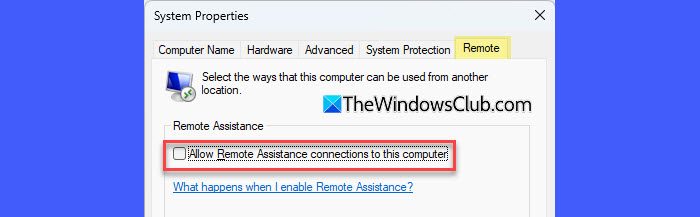
Remote Assistance (or Remote Help) is similar to Remote Desktop, but it’s designed for Home users to allow someone they trust (like a friend or IT support ) to connect temporarily to their PC for troubleshooting. If left enabled, it can potentially be exploited by attackers to gain access to your PC.
Press Win + R, type SystemPropertiesRemote.exe, and press Enter.
Under Remote Assistance, uncheck Allow Remote Assistance connections to this computer.
Click Apply and then OK.
6] Windows Script Host
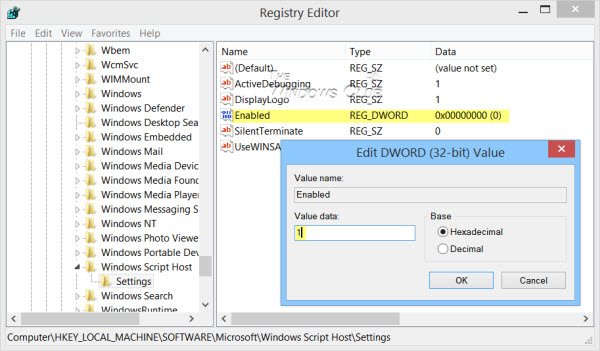
Windows Script Host (WSH) is a Windows feature that allows running scripts written in VBScript (.vbs) or JavaScript (.js) directly on a PC. It was originally designed for automation and administrative tasks, but attackers often use it to run malicious scripts automatically. If you don’t use legacy scripts for automation, it’s best to turn WSH off.
Press Win + R, type regedit, and press Enter. Navigate to the following key in the Registry Editor window:
HKEY_LOCAL_MACHINE\Software\Microsoft\Windows Script Host\Settings
Look for a value named Enabled. If it doesn’t exist, create a new DWORD (32-bit) Value named Enabled.
Set the value to 0 to disable Windows Script Host. Close Registry Editor and reboot your PC to apply changes.
7] Automatic Wi-Fi connection for public networks
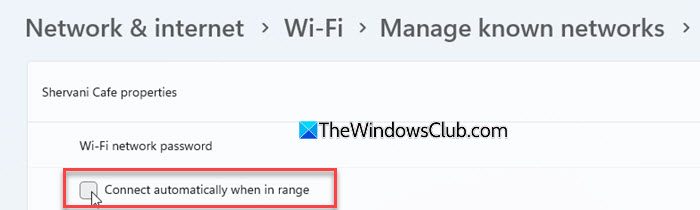
Windows can automatically connect to open or public Wi-Fi networks that it detects. This feature is intended for convenience, but it can expose your PC to unsecured networks.
Disabling automatic connections ensures your PC only connects to Wi-Fi networks you trust, reducing security risks.
Open Settings. Go to Network & Internet > Wi-Fi > Manage known networks.
Click the network you want to control and turn off “Connect automatically when in range“.
8] Network Discovery
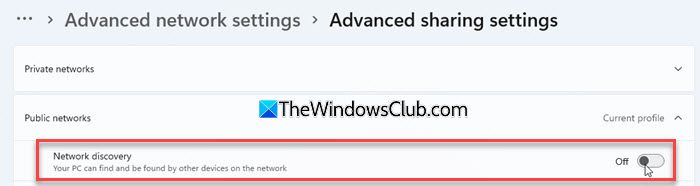
Network Discovery allows your PC to see other devices on the same network and be visible to them. If enabled on public or untrusted networks, it can expose your PC to attackers who may attempt to gain access or spread malware.
Open Settings and go to Network & Internet > Advanced network settings > Advanced sharing settings.
Under your current network profile (Private/Public), turn Network discovery to Off. You can leave Network Discovery on for your trusted private/home networks to continue sharing files and printers safely.
9] Windows WebClient service
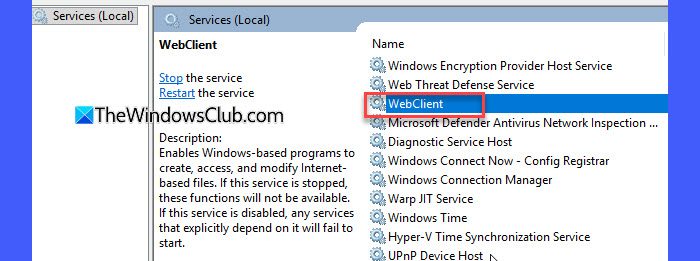
The Windows WebClient service is primarily used to access files on remote web folders or SharePoint libraries using the WebDAV protocol. If you don’t use web folders, leaving this service enabled increases the risk of attackers gaining access to your system.
To disable the Windows WebClient Service in Windows 11/10, type services.msc in the Run dialogue and press Enter.
Scroll down and locate WebClient. Set its Startup type to Disabled and click Stop if it’s running.
10] Startup apps you don’t use
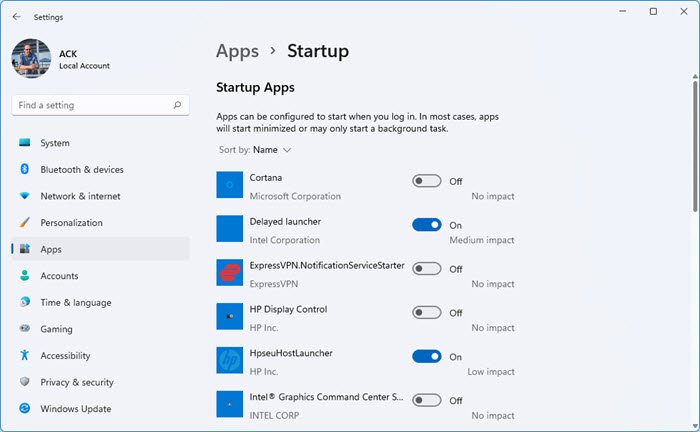
Windows allows certain apps to launch automatically when your PC starts. Some of these apps may run background processes that collect data or connect to the internet without your knowledge.
Disabling apps you don’t need ensures your system starts faster and stays more secure.
11] Diagnostic Data
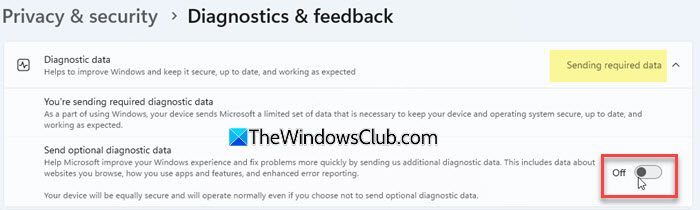
Diagnostic Data or Telemetry is the information Windows collects about your system, app usage, and device performance to help Microsoft improve its products. For privacy-conscious users or systems handling sensitive data, it’s a good practice to restrict unnecessary data collection.
Open Settings. Go to Privacy & Security > Diagnostics & feedback.
Under Diagnostic data, turn off Send optional diagnostic data.
12] AutoPlay / AutoRun
AutoPlay is a feature that automatically opens media files or runs programs when you insert a USB drive, CD/DVD, or external device into your PC. While convenient, it can pose a security risk, as malicious software can launch without your knowledge.
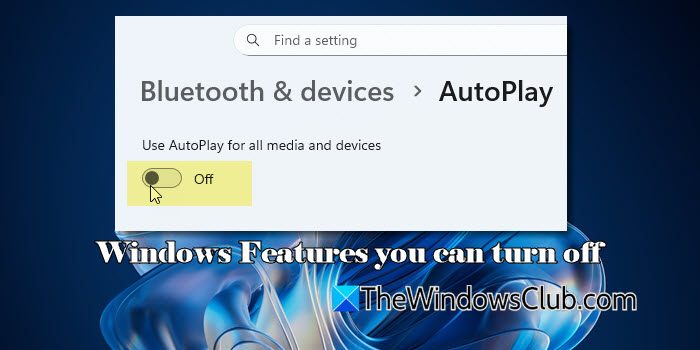
To disable Autoplay, open Settings, go to Bluetooth & devices > AutoPlay, and toggle Use AutoPlay for all media and devices to Off.
13] Bluetooth
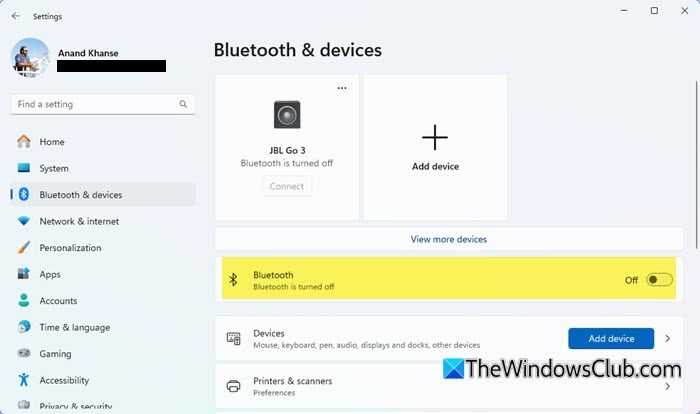
Keeping Bluetooth turned on can drain battery power and expose your system to security risks, such as unauthorized pairing or data access. It’s best to turn off Bluetooth when not in use.
14] Copilot
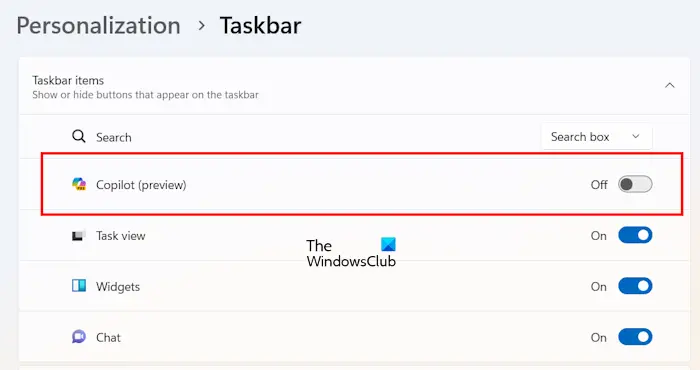
Copilot is Microsoft’s AI-powered assistant integrated into Windows 11. It relies on cloud processing, which means queries, context, and sometimes snippets of your data may be sent to Microsoft’s servers for processing. If sensitive data is shared by mistake, it could pose a privacy risk. So if you don’t actively use it, it’s best to disable Copilot.
Which Windows feature is disabled by default?
Windows offers some Optional features that aren’t included by default, but can be added if required. For example, the SMB v1 protocol is disabled by default in modern Windows systems due to security risks. You can view these features in the Windows Features dialog.
How do I turn off unnecessary Windows features?
Windows has many built-in features and services that run by default. You can turn off features you don’t use via Settings, the Windows Features dialog, or services.msc.
Read Next: Which Windows Services can you safely disable?
