
Usually, we have an idea of what the volume would be for a certain setting on the system. However, at times, the volume of the system is too loud even at the lowest setting. If you encounter this issue, then please read through this article for the resolutions.
Why is my volume so loud on the lowest setting?
The media player app you’re using could be the cause of the loud volume in Windows 11/10, even on the lowest settings. If the media player volume settings work independently and its volume controller is separate from your system-wide volume settings, then this would be the cause. Apart from that, outdated audio drivers, hardware problems, etc., could also be the reason for this issue.
Volume too loud on lowest setting on my computer
Try the following solutions sequentially the resolve the problem in Windows 11/10:
- Check for hardware issues
- Check the media player
- Update the audio drivers
- Run the Hardware and Devices troubleshooter
- Change system volume
- Troubleshoot in Clean Boot.
1] Check for hardware issues
Before anything else, check if the issue is with the audio output device. If you just changed the speaker or headset, try using a different one. If the issue is resolved, it would likely be due to the changed hardware.
2] Check the media player
Many media players amplify the system’s volume. Eg. Sounds will have a higher amplitude with VLC. If you’ve just changed your media player, try using the previous one. If that helps, then you know where the problem is.
Read: Computer volume increases or decreases automatically
3] Update the audio drivers
Outdated drivers could also be a contributing factor to the problem discussed. In this case, updating the drivers to the latest version could be helpful. The best way to do so is by running the Intel Driver and Support Assistant or AMD Driver AutoDetect on your system.
4] Run the Hardware and Devices troubleshooter
The Hardware and Devices troubleshooter can help in detecting issues related to devices including audio output devices. To run the Hardware and Devices troubleshooter on your Windows system, the procedure is as follows:
Press Win+R to open the Run window. In the Run window, type the following command and hit Enter:
msdt.exe -id DeviceDiagnostic
This will open the Hardware and Device troubleshooter on your system.
Click on next to run this troubleshooter on your system.
5] Change the system volume
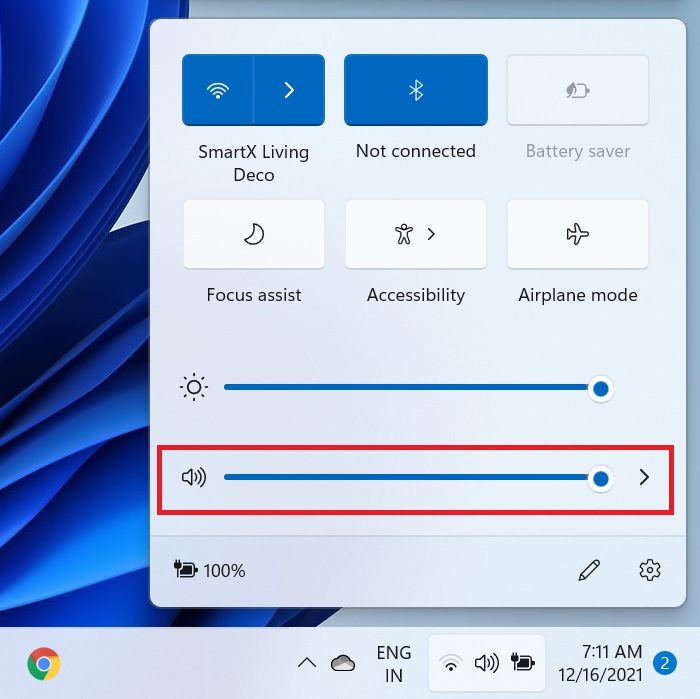
You can adjust the volume from both the media player and the system tray. The procedure to change the system volume is as follows:
Click on the Volume icon in the system tray.
You will notice the option to change the volume. Use the slider to do the same.
6] Troubleshoot in Clean Boot
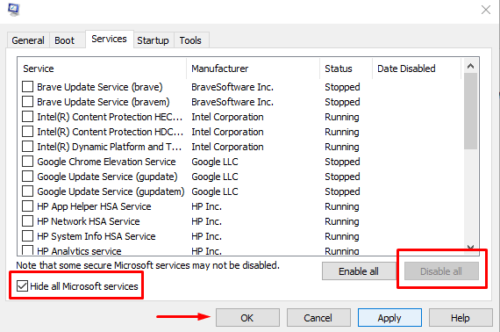
At times, a third-party software could be responsible for the said issue. In this case, troubleshooting the issue in the Clean Boot State would be helpful. The procedure is as follows:
Press Win+R to open the Run window.
In the Run window, type the command msconfig and hit Enter. This will open the System Configuration window.
Go to the Services tab.
Check the box associated with Hide all Microsoft services. If any other service is checked, click on Disable all.
Click on Apply and then OK.
Select the option to Reboot the system.
Once in Clean Boot State, you may need to identify the offending process manually and disable it.
Let us know if this was helpful in the comments section.
How can I make my computer volume quieter?
To make your Windows 11/10 computer volume quieter, check for the Volume icon in the system tray, and click on it. The volume slider will appear among the other options. Slide it to the left to reduce the volume of your system. You can also right-click on the Volume icon and select the Open volume mixer option to adjust the system volume and volume of apps separately.
Related: Computer sound volume too low.
