
This post lists the possible solutions to fix the Unknown USB Device, Device Failed Enumeration error on Windows 11/10. When you connect your USB device to a Windows computer, Windows first installs the required driver and then displays the device in Windows Explorer so you can access it. Drivers help Windows communicate with the hardware connected to it. If a driver gets corrupted, Windows does not recognize the USB device and displays several errors. One of the causes of the “Device Failed Enumeration” error is the corrupted or outdated drivers.
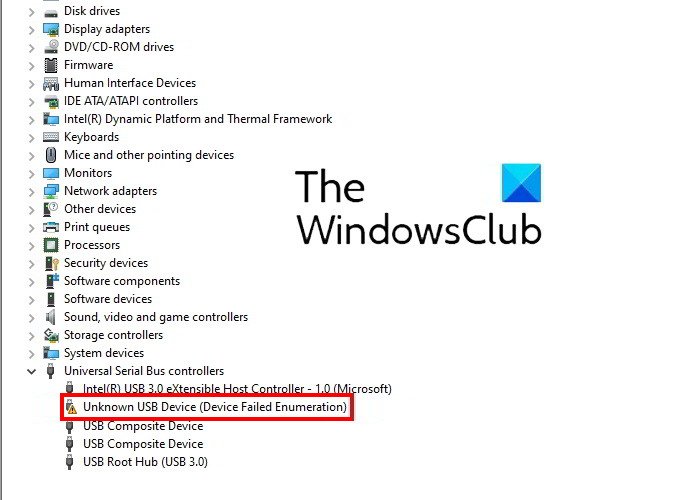
You can view this error message in the Device Manager under the Universal Serial Bus Controllers node.
For your information, the Unknown USB Device error could also be followed by these messages, instead:
What is USB Enumeration?
USB Enumeration is the process by which a host device detects the connected USB device, determines its type, loads its drivers, and defines its communication speed. USB Enumeration is important because different USB devices communicate with the host in different ways.
USB device Enumeration ensures that the host device detects and identifies the connected USB device correctly and is ready to use at a specific data transfer speed. If the USB Enumeration process fails, the host device does not recognize the connected USB device. In this case, the user encounters the following error message in the Device Manager:
Unknown USB Device (Device Failed Enumeration)
In this post, we have explained some troubleshooting methods to fix the issue. But before you try these troubleshooting methods, we suggest you try some quick fixes given below:
- Restart your Windows computer.
- Plug your USB device into another USB port of your computer.
- Connect your USB device to another computer (if available).
- Change the USB cable.
- If you are using an external USB hub, disconnect your USB device from there and connect it directly to your computer’s USB port.
Fix Unknown USB Device, Device Failed Enumeration error in Windows 11
These are the things that you can try to fix this error.
- Run the Hardware and Devices Troubleshooter.
- Update your device driver.
- Uninstall and reinstall the USB Root Hub (USB 3.0) driver.
- Uninstall and reinstall the USB Controllers.
- Install the latest chipset drivers from your motherboard manufacturer’s website.
1] Run the Hardware and Devices Troubleshooter
Hardware issues are one of the possible causes of this error. Hence, running the Hardware and Devices Troubleshooter can help you fix the error. Though all the troubleshooters are available in the Settings app in Windows, you may not find the Hardware and Devices Troubleshooter there.
To run this troubleshooter on Windows, open Command Prompt, copy the following command, and paste it into Command Prompt. After that, press Enter.
msdt.exe -id DeviceDiagnostic
After the troubleshooting process is completed, connect your USB device and see if Windows recognizes it.
2] Update your device driver
As explained earlier in this article, outdated drivers may also cause this error. Hence, updating the driver of the affected USB device can fix this issue.
You can update your device driver from the Device Manager. The steps for the same are listed below:
- Click on the Windows Search box and type Device Manager. Click on the app to launch it.
- Expand the Universal Serial Bus Controllers node. You will see your affected USB device there with a yellow exclamation mark.
- Right-click on it and select the Update driver option.
- Now, select the Search automatically for drivers option. After that, Windows will search for the latest driver online and install it on your system.
- After the installation process gets completed, restart your computer and see if it brings any changes.
Read:
3] Uninstall and reinstall the USB Root Hub (USB 3.0) driver
You can also try to reinstall the USB 3.0 driver on your system. This will be beneficial if your USB device works properly with USB 2.0 ports but displays the “Device Failed Enumeration error” error when connected to a USB 3.0 port.
We have explained the process below:
- Launch the Device Manager.
- Scroll down the list and expand the Universal Serial Bus Controllers node.
- Right-click on the USB Root Hub (USB 3.0) and select the Uninstall device option. Follow the on-screen instructions to uninstall the driver from your computer.
- After the uninstallation process gets completed, reboot your computer.
- On a restart, Windows will scan for the hardware changes and install the latest USB 3.0 driver on your computer automatically.
Now, check if Windows recognizes your USB device on USB 3.0 port or not.
4] Uninstall and reinstall the USB Controllers
Windows communicates with the connected USB devices via USB Controllers. If the USB Controllers get corrupted, your computer will not be able to recognize the USB device. Hence, you can try uninstalling and reinstalling the USB Controllers in Device Manager to see if that helps.
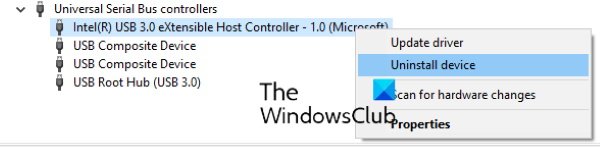
The steps to do so are listed below:
- Launch the Device Manager.
- Expand the Universal Serial Bus Controllers node.
- Now, you have to uninstall all the USB Controllers listed there. For this, right-click on the USB Controller and select Uninstall device.
- Similarly, uninstall other USB Controllers one by one (if available).
- When you are done, restart your system.
- After a restart, Windows will detect the hardware changes and automatically reinstall the removed USB controllers.
Now, connect your USB device and check whether it appears in Device Manager.
5] Install the latest chipset drivers from your motherboard manufacturer’s website
Visit your motherboard manufacturer’s website and download the latest chipset driver. Install the driver on your system and check if it fixes the issue.
It should help.
How do I identify an unknown USB device?
You can identify the unknown USB device in your computer’s Device Manager. The method we are going to show you will help you determine the vendor ID and device ID of the unknown device. If you do not know the vendor or device ID of your device, it may be challenging to download the correct drivers.
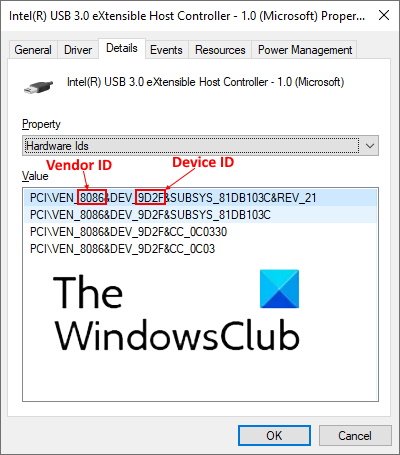
Follow the steps below:
- Launch the Device Manager.
- Look for the unknown device. The unknown device is displayed in the Device Manager with a yellow exclamation icon.
- Once you find the unknown device, right-click on it and select Properties.
- A new window will open in which you have to click on the Details tab.
- Now, click on the drop-down menu under the Property section and select Hardware Ids from the list.
- Then the Device Manager will display the data containing both vendor ID and device ID. The text of four characters followed by VEN represents the vendor ID and the text of four characters followed by DEV represents the device ID. Refer to the above screenshot for details.
Now, you can download the drivers for the unknown device directly from the manufacturer’s website.
When I plug in a USB device, nothing happens
You may encounter this issue with your USB device. When you plug in a USB device and nothing happens, it means Windows is unable to recognize it. There are many causes of this error, like:
- The USB drivers may have become corrupted or unstable.
- Your system is missing important updates.
- The USB Controllers on your computer may have become corrupted or unstable.
- The connected USB device may have entered the Selective Suspend mode and Windows is experiencing an error while waking the device.
- Your computer’s motherboard may require updated drivers.
To fix this issue, we suggest you open the Settings app on your computer and check for any pending updates. If updates are available, install them and check whether the issue is fixed.
If the issue is not fixed after updating Windows, or if your system is up to date and you are still experiencing it, try the solutions described above in this article. In addition to the solutions listed above, you can do one more thing: disable the Selective Suspend mode of your system and check if this fixes the problem.
Hope this helps.
Read next: USB-C not working, charging, or recognized.
