
Do you want to download or update USB Type C Drivers on Windows 11/10? If yes, this guide features step-by-step instructions to get the work done. USB Type-C is a 24-pin USB connector system that lets you connect a wide range of devices. Earlier, USB Type-C ports were limited to smartphones, but now almost all the latest Windows PCs come with USB Type-C support.
To use USB Type-C, ensure your system has the latest USB Type-C drivers. Continue with this guide to find out how to download or update USB Type-C drivers on your Windows 11 PC.
What is USB C?
In layman’s terms, USB-C is a special USB plug with a unique cable and wiring. Like any other USB cable, USB Type-C transmits both data and power. The significant difference between USB Type C and its predecessor, USB A, is the shape. The Type C is oval in shape – completely symmetrical, ensuring that there’s no chance of inserting it into the wrong ports. The main criteria that differentiate USB-C from other standard cables are,
- Power capability
- Speed
- Supported data protocol
The transfer speed depends on the device you’re connecting it to. For instance, if you have connected a USB Type C cable to a USB 3.1 port, you will get 10 GB per second transfer speed. The USB 3.2 port will offer 20 GB per second data transfer speed, whereas the Thunderbolt 3 port will offer 40 GB per second. When it comes to power, USB Type-C can charge portable devices like smartphones, laptops, power banks and more. Although similar to Type A, Type C also offers just 2.5 watts of power. But if the device features PD aka Power Delivery protocol, then the USB-C can deliver up to 100 watts of power.
To know more about USB-C, you can check out our detailed guide on What is USB-C? How to add USB-C Port to Windows laptop?
Download or update USB Type C Drivers on Windows 11
Now that you have some prior knowledge about USB Type-C, let’s check out how to install, download or update Type-C drivers on Windows 11.
Normally, when you connect a USB device to your PC, the driver is automatically installed. Now there are two ways to get the work done. The first method features downloading and updating drivers via Device Manager. Whereas in the second method, you will need to use the OEM website to achieve the desired result. So, let’s begin.
Note: Before getting into the steps, make sure your Windows PC supports USB Type-C. As it turns out, Type-C is still a new thing for Windows PCs. If you have an older system, the chances are low that it will feature a USB Type-C port.
1] Use the Device Manager
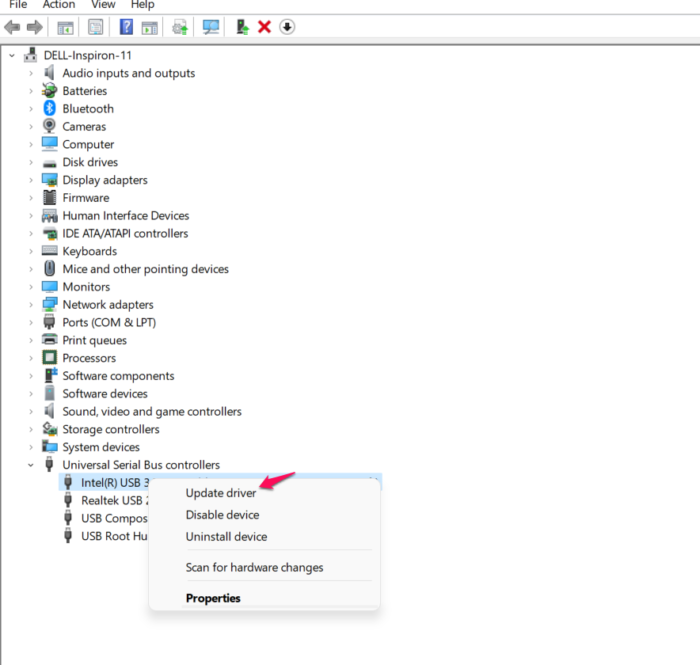
You can use the Device Manager of your Windows 11 PC to download or update the USB Type C drivers. To do so, follow the below steps.
- To begin with, press the Windows + X shortcut key to open the control centre.
- Select Device Manager from the list of options.
- The device manager window will pop up featuring all the hardware and drivers installed on your system.
- Double-tap on Universal Serial Bus controllers to expand the option.
- Right-click on eXtensible Host Controller, and from the context menu, choose update driver.
- In the following window, select Search automatically for drivers option.
- Now, Windows will look for any new driver, specifically, USB driver update.
- If found, it will automatically begin downloading.
Once the installation process is complete, close the window and restart your system. Upon restart, you will see that the system features the latest USB Type C, driver.
Read: Windows takes long time to Shutdown when connected USB Type-C Charger
2] Use OEM website
The next thing you can try is to download the Type-C driver from the OEM website. But to use this method, you need to make sure you have the Service Tag, Product ID or Model number of your system. Once you have all these things with you, visit the official website and search for a USB Type C driver.
The process will vary by manufacturer; therefore, you can visit the manufacturer’s website to find out how to download drivers for your system. Once you have downloaded the drivers, restart your system for changes to take effect.
Read: How to set up and use USB-C charging base for Surface Slim Pen
Why is my USB-C not recognized?
They can be multiple reasons why Windows is struggling to recognize USB-C. If the cable doesn’t support the USB-C feature, similar to the connected device, you will face the problem. The issue will also occur if the device is connected to the incorrect USB-C port.
How do I fix my USB-C port not working?
There are various steps you can take if the USB-C port is not working. To solve the problem, you can download the latest USB driver update, disable USB selective suspend, verify DisplayPort Alternate Mode, and run the Hardware and Device troubleshooter. But before all, make sure the connected device or dongle supports USB-C.
Read Next: How to fix USB-C problems on your Windows computer.
