
According to some users, Spellbreak is crashing or freezing on PC. It is a great shooting game, but gamers are facing compatibility issues while playing. If you want to know how to fix it, then this is the article for you; we are going to see some solutions to fix this issue.
Spellbreak is a free-to-play, class-based third-person shooter video game developed by Proletariat for Microsoft Windows, PlayStation 4, Xbox One and Nintendo Switch.
Why Spellbreak is crashing?
Many basic things can cause the game to crash. The graphics driver is the first one. An outdated Graphics driver can cause freezing and crashing. More often than not, overclocking doesn’t improve gameplay; it can cause crashes instead.
Programs running in the background and corrupted game files are other possible causes of the issue. We’ll cover all of them in detail and help you resolve the issue.
Keep in mind that if your computer doesn’t meet the system requirements, Speelbreak may crash. So make sure your computer meets them. Wehave listed the system requirements below, so you should meet both the minimum and recommended requirements. You must meet the minimum requirements, but we recommend meeting the recommended ones.
Read: How to force quit a Full-Screen Program or Game in Windows
Spellbreak keeps crashing, disconnecting or freezing on Windows PC
If Speelbreak keeps crashing, disconnecting or freezing on your Windows 11/10 PC, start the troubleshooting process by checking for updates. If updating doesn’t help, try the solutions below.
- Check your Internet connection
- Verify the game files
- Update your Graphics Driver
- Disable overlays
- Stop overclocking
- Troubleshoot in Clean Boot
Without any further ado, let’s start!
1] Check your Internet connection
Check if your Internet connection is working properly. If possible change the connection and see.
2] Verify game files
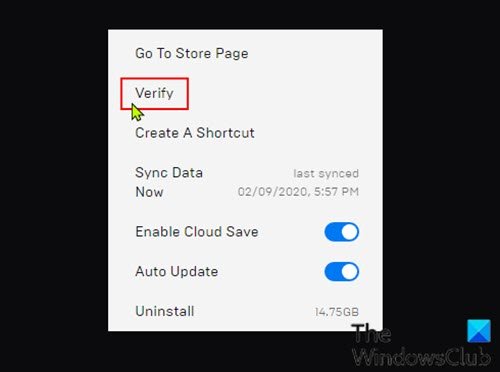
Missing or corrupted game files are the most common reason for this issue. However, they can be easily fixed using your launcher. Here’s what to do to make sure they are not corrupted or missing.
- Launch Epics Game launcher.
- Go to the Library.
- Under the Spellbreak title, click on the settings icon.
- Click on the Verify options and wait for the process to be completed.
Restart your computer once the process is done. If it still gives you trouble, move on to the next solution.
3] Update your Graphics Driver
Checking your graphics driver status is the first step to make sure there is no compatibility issue. Outdated Graphics drivers can freeze or crash your game. Following are the ways to update your Graphics Driver:
- Use a free driver updater to update your Drivers
- Use Device Manager to update Graphics Driver
- Get the latest driver from the manufacturer’s website.
- Install Optional and Driver Update.
Some of you may want to use free Driver Update software or tools like AMD Driver Autodetect, Intel Driver Update Utility or Dell Update utility to update your device drivers. NV Updater will keep NVIDIA Graphic Card Driver updated.
Fingers crossed this resolves the issue.
4] Disable Overlays
Overlays enhance the gaming experience; they provide additional features. Steam, Discord, and GeForce have pretty well-known Overlays. However, disable them while playing, as overlays use extra resources and can cause crashes.
5] Stop overclocking
Overclocking your CPU/GPU can help if you want better gameplay. However, sometimes it does the total opposite. If you were using overclocking software, try disabling it and then see if the issue is resolved.
6] Troubleshoot in Clean Boot
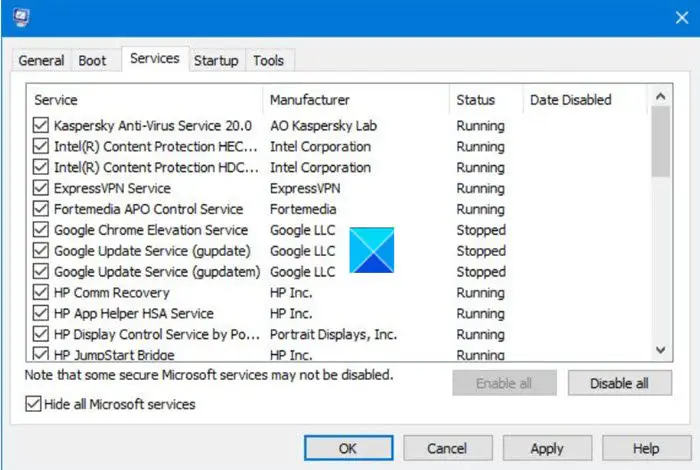
Programs working in the background can interfere with your game, and as a result of which, your game may crash. We will be performing Clean Boot and find out the exact cause of this issue, then we are going to remove that program and your issue will be resolved.
- Click Win+R to open the Run Dialog box.
- Type Msconfig and click on the Enter button.
- In the Service tab, tick the box next to Hide all Microsoft services.
- Untick all the boxes as they may interfere with your game except that of Spellbreak or any other important programs such as your GPU.
- Now click the Ok button.
Then open the game and see if the issue persists. If your issue is resolved, try enabling processes manually to find out the culprit. Then, all you have to do is remove that program, and your issue should be resolved.
Hopefully, you can resolve the issue with these solutions.
Read: Fix Game Stuttering with FPS drops in Windows 11/10
What are Spellbreak System requirements?
Your PC must have the listed requirements for smooth gameplay.
Recommended
- OS: Win 11/10 64 or later
- Processor: Intel Core i5-2300 2.8GHz / AMD FX-6300
- Graphics: AMD Radeon R9 280 or NVIDIA GeForce GTX 960 2GB
- System Memory: 8 GB RAM
- Storage: 20 GB Hard drive space
- DirectX 11 Compatible Graphics Card
If your computer is compatible, Spellbreak should run just fine.
Also Read: List of Best Games in Microsoft Store for Windows PC.
