
Sekiro Shadows Die Twice is one of the best adventure games in the market. However, the game is not running smoothly on many computers. According to some users, Sekiro Shadows Die Twice keeps Freezing, Stuttering or Crashing on their Windows 11/10 PC. In this article, we will discuss solutions, workarounds and tips to resolve this issue.
Why does my Sekiro keep freezing?
More often than not, any game will crash if the system requirements are not met. So, first of all, you need to check the system requirements for Sekrio Shadows Die Twice before starting your journey. Also, there are some other things, such as outdated Graphics Drivers, a ton of apps running in the background, etc., that can make your game crawl. Therefore, if Sekiro is freezing on your computer, check out the solutions outlined below to resolve the issue.
Sekiro Shadows Die Twice keeps Freezing, Stuttering or Crashing
If Sekiro: Shadows Die Twice keeps freezing, stuttering or crashing on your windows 11/10 PC, then the following solutions are sure to help you resolve the issue. But before you begin, check if your gaming rig meets the specs mentioned below:
- Update your Graphics Drivers
- Close all the other apps
- Disable Full-Screen Optimization
- Verify the Integrity of Game Files
- Use High-Performance Mode
- Change In-Game Settings
Let us talk about them in detail.
1] Update your Graphics Drivers
First of all, you should update your Graphics Drivers; otherwise, there will be a compatibility issue. Since Sekiro is a graphically demanding game, your GPU should hold a special place in your heart. There are various ways to update the drivers. The following are the methods to update the driver.
- Install Optional Updates to update your GPU Driver.
- Go to the manufacturer’s website and download your driver.
- Update your driver from the Device Manager.
Hopefully, this will do the job for you.
2] Close all the other apps
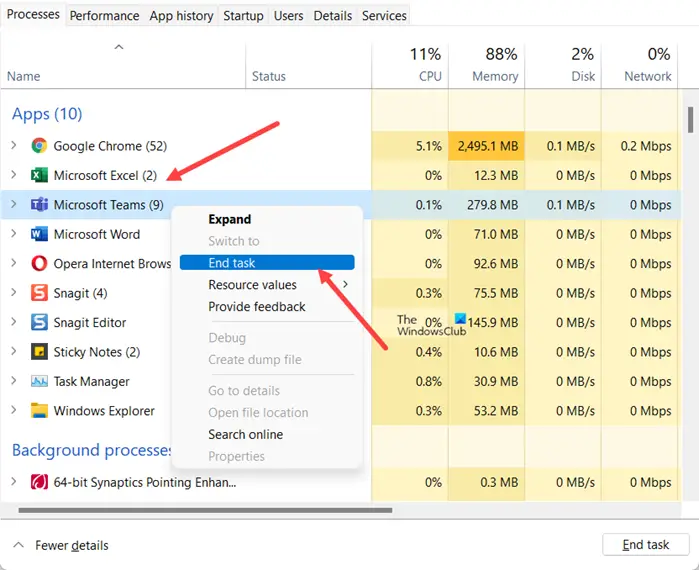
If you are running many apps alongside your game, there is a chance your computer will stutter. The reason for this peculiar behavior is that Sekiro is not getting enough resources to run on your computer. So, close all the apps, then open Task Manager, right-click all the unnecessary processes, and click End Task.
3] Disable Full-Screen Optimization
Full-Screen Optimization is meant to optimize your computer to run a game in fullscreen mode smoothly. However, there is something about this feature that makes it counterproductive. You need to disable Full-Screen Optimization and if you have enabled it. Follow the given steps to do the same.
- Go to the location of Sekiro, right-click on it and select Properties.
- Tick Disable fullscreen optimization.
- Click Apply > Ok.
Now, check if the issue persists.
4] Verify the Integrity of Game Files
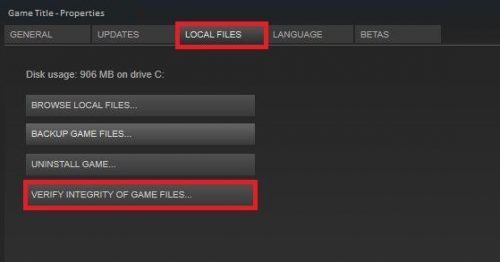
Usually, if your game files are corrupted, then chances are that the game will cease to launch on your computer. However, some files, when corrupted, make the game stutter. To resolve the issue, you need to verify and repair the files using your launcher. So, follow the given steps to do the same.
- Open Steam.
- Go to Library.
- Right-click on the game and select Properties.
- Then, go to the Local Files tab and click VERIFY THE INTEGRITY OF GAME FILES.
Wait for the process to complete and hopefully, your issue will be resolved.
5] Use High-Performance Mode
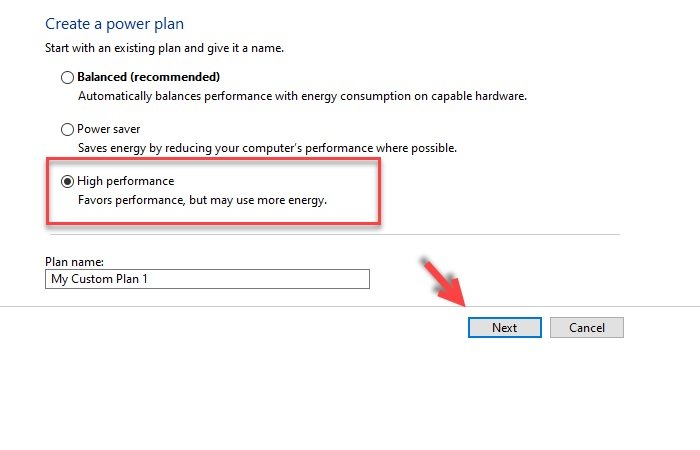
This might not be the right thing to do if you are on battery, but if you are plugged in, then using High Performance or Ultimate Mode can make your computer fly. Follow the given steps to do the same.
- Open Control Panel.
- Change View by to Large icons.
- Click Power Options.
- If you see High performance Mode or Ultimate Mode there, select it. If not, click Create a Power Plan, select High performance, and click Next > Create.
Now, open the game and check if the issue persists.
6] Change In-Game Settings
I am sure most of you have tried this, but there is still room for improvement. I know it is hard to play a game with the lowest graphics, but it is better to have smooth gameplay.
Follow the given steps to do the same.
- Launch Sekiro Shadows Die Twice.
- Open Settings > Graphics Options.
- Change your Screen Resolution.
- Click on Advanced Settings.
- Now, lower all the settings.
Finally, restart your game and check if the issue persists.
Can my computer handle Sekiro?
You need to make sure that your computer meets the Sekiro: Shadows Die Twice system requirements before downloading the game. The following is the configuration your computer should match to ensure the game works.
Recommended System Requirements for Sekiro
- OS: Windows 11/10/8/7 or above (64-bit architecture)
- Direct X: Version 11
- RAM: 8 GB
- Processor: AMD Ryzen 5 1400, Intel Core i5-2500K
- Graphics Card: AMD Radeon RX 570, NVIDIA GeForce GTX 970.
- Storage: 25 GB
Also Read:
