
Elden Ring is undoubtedly one of the best fantasy games released in the recent past. But the game is filled with a lot of bugs, from stuttering to FPS lag, but the most annoying issue is the crashing of the Elden Ring game. In this article, we are going to talk about just that. If Elden Ring is not launching on your computer, try the solutions in this article to resolve the issue.
Why is Elden Ring not launching?
Elden Ring is a very demanding game, so before looking for reasons, it is better to check the system requirements. If your system is barely capable of running the game, make sure there are no apps consuming resources that should have been used by the game.
Next up, we cannot forget to update our system tools, especially those required to run the game, namely the GPU driver and DirectX. We will talk about them later in the article.
Corrupted game files, firewalls, and a lack of permissions are other reasons for this. So, without wasting any time, let us hop into it.
Elden Ring not launching on Windows PC
If Elden Ring is not launching on your Windows 11/10 computer, check the solutions below, follow them and see if the issue persists.
- Install the latest version of DirectX
- Update Graphics Driver
- Run the program as an administrator
- Allow the game through the firewall
- Verify Integrity of Game Files
Let us talk about them in detail.
1] Install the latest version of DirectX
As you may have noticed while reading the system requirements, your computer needs to have DirectX version 12 to play the game. So if you don’t have DirectX installed, you need to install it. If you are running an earlier version of DirectX, you need to update. Therefore, update or install DirectX and check if the issue persists.
2] Update Graphics Drivers
While we are on the topic of updating, do not forget your Graphics Drivers. Since Elden is a graphically demanding game, it needs an updated driver. The following are the methods to update Graphics Drivers
- Install Optional Updates to update your GPU Driver.
- Go to the manufacturer’s website and download the latest version of Graphics Driver for your model.
- Update your driver from the Device Manager.
Hopefully, this will do the job for you.
3] Run the program as an administrator
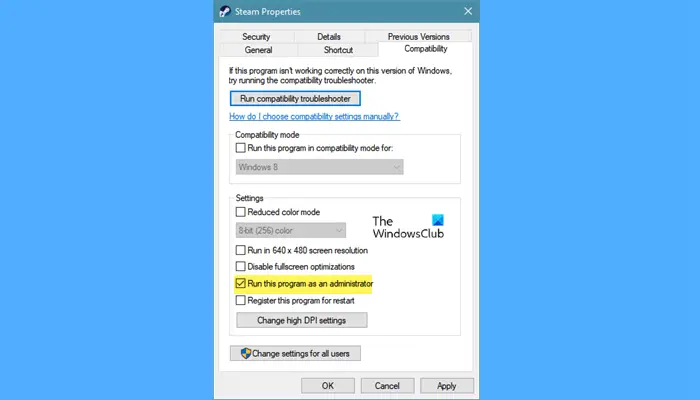
Elden Ring, or any other game, needs to create folders on your computer and write to them. Sometimes, it requires administrative privileges to do the same. Since this game is launched via Steam, giving it permission will do the job. To run a program in elevated mode, right-click it and select Run as administrator.
However, there is a way to configure the app so that every time you open it, administrative privileges are granted automatically. To do that, follow the given steps.
- Right-click on Steam and select Properties.
- Go to the Compatibility tab.
- Tick Run this program as an administrator.
- Click Apply > Ok.
Restart your computer and check whether Elden Ring loads.
4] Allow the game through the firewall
As we have talked about earlier, the game is supposed to write to a folder on your system, Windows Firewall, or antivirus software can mistake it for a virus or malware and can block the game from launching. If you have a third-party antivirus, just whitelist the game, if you are just using the Windows Defender, allow the game through the firewall. Finally, check if the issue persists.
5] Verify Integrity of Game Files
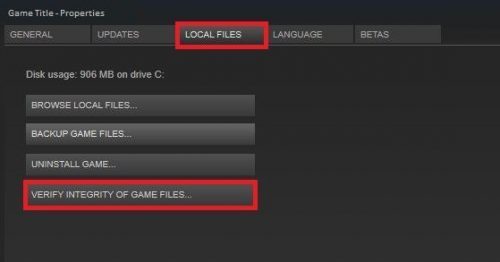
Elden Ring may fail to launch on your system if the files are corrupted. Most gamers reinstall the game to resolve the issue, which can work for you as well, but it should be your first step when dealing with corrupted files. We are going to verify and repair the corrupted files using the Steam launcher. Follow the given steps to do the same.
- Open Steam.
- Go to LIBRARY.
- Right-click on your game and select Properties.
- Click LOCAL FILES > VERIFY THE INTEGRITY OF GAME FILES.
Wait for the process to complete, restart your computer and check if the issue persists.
System Requirements to play Elden Ring
Elden Ring is a demanding game, so before downloading it, you should check the system requirements. The following are the configurations your computer needs to match to run Elden Ring.
Recommended:
- OS: Windows 11 or Windows 10.
- Processor: Intel Core i7-8700K or AMD Ryzen 5 3600X.
- RAM: 16 GB.
- Graphics: Nvidia GeForce GTX 1070, 8GB or AMD Radeon RX Vega 56, 8GB.
- DirectX: Version 12.
- Storage: 60GB.
Elden Ring will not install
If Elden Ring will not download or install on your Windows PC, then follow these suggestions:
- Ensure that your PC meets Elden Ring hardware requirements
- Restart your PC and try again
- Change the download location
- Temporarily disable your firewall and antivirus software.
Has Elden Ring been fixed?
The developers are working to fix bugs related to Elden Ring. Some of them are fixed, whereas some are yet to be resolved. If the game is crashing on your computer, bugs are not the only thing to blame; there are many factors that can cause the issue. You should read the solutions mentioned here to troubleshoot.
