
Adobe Photoshop is one of the most popular graphic software. Photoshop is used for tasks such as image creation, Image restoration, creating posters and business cards and so much more. People use Photoshop as a hobby or for income. Those who rely on this software for income will find it frustrating when it malfunctions. If Adobe Photoshop keeps lagging, closing itself or flickering on your Windows 11/10 computer, here are some steps you can take. Here are some steps you can take to resolve the issue.
Photoshop keeps lagging, closing itself or flickering on PC
Photoshop may begin to have issues at some point and knowing what to do can save precious time. Photoshop may start to freeze, lag, crash, close itself, or flicker. The general rule to troubleshoot any issue, whether software or hardware, is to start with the easiest first. Start with the easiest thing you think may be the problem, then move up gradually to the hardest if the problem continues. Here is a list of things that could cause these problems in Photoshop and what you can do to fix them.
- Overheating Computer
- Low Power to Computer’s Hardware
- Photoshop System Requirement Not Met
- Outdated Photoshop
- Outdated Windows
- Image View Needs Changing
- Performance Settings Need Modifying
- Low Disc Space
- Slow Hard Drive
- Outdated Driver
- Fonts
- Computer Needs Resetting.
1] Overheating Computer
This might seem like a strange one, but an overheated computer may be one of the reasons Photoshop is acting up. Your computer is designed to lower performance if it gets too hot; it will even shut down if it gets too hot. Feel the computer and check the temperature of the heat coming from the vents. Check if any vents are blocked and clean them if they need to. You can also invest in a cooling pad or something that will keep your computer cool. You can diagnose the heat problem by turning off the computer and letting it cool down. Turn it back on and when it is finished booting, start Photoshop, if Photoshop runs OK for a while then starts to act up, check the temperature of the computer at the point when it starts to act up. If your computer is cooling adequately and the Photoshop problem continues, then it is time to move on to the next step. These Laptop cooling software could also help you.
2] Low Power to Computer’s Hardware
The more power a computer gets, the better it performs. More power can cause it to heat up, but with proper ventilation, it will be OK. With laptops, lots of manufacturers attract more buyers by baiting them with high specifications. However, the wattage on this hardware might be low, as the manufacturer may cut corners on the chassis design, which affects cooling. Also, manufacturers want to increase sales by adding high-spec parts in a thin, light chassis. These two will not work well together, especially with high-demand software like Photoshop. Laptops already have limited cooling ability. Look for a good gaming laptop: it is usually well-ventilated, and in some cases, the CPU isn’t even the highest, but performance is still very good. The gaming laptop has great specifications coupled with a larger, well-ventilated chassis. This gives high performance with lots of cooling.
Another trick manufacturers use in laptops is to make components run at less than 50% of their rated level when the power cord is not plugged in. This allows them to use smaller batteries. This is not good, though, because a laptop is bought for its mobility. Users expect that the laptop will perform at its advertised specifications even when the power is unplugged. Users should choose to lower performance when it is unplugged.
Check if Photoshop starts giving problems when you unplug the power cord. For a desktop, check the voltage on the power supply. Check whether too many components are plugged into a power supply that may not be rated for that load.
Related: Photoshop keeps crashing or freezing on Windows PC
3] Photoshop System Requirement Not Met
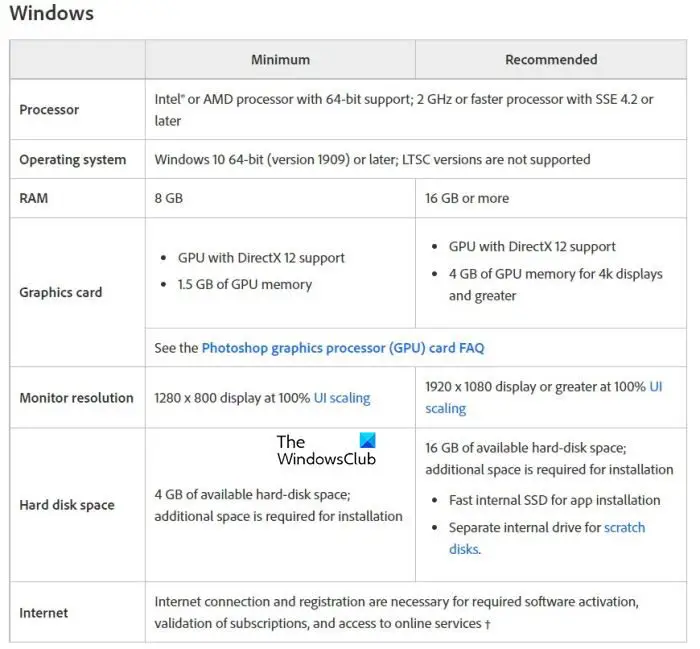
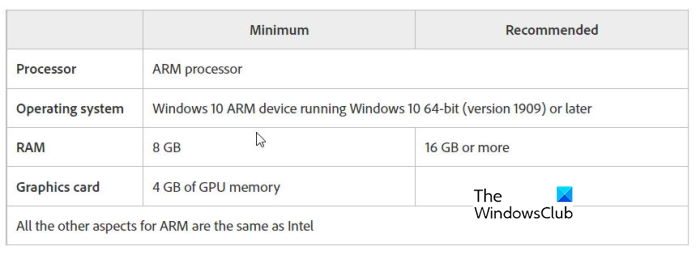
Check the system requirements of Photoshop and compare them to the specifications of your system.Here you will find the system requirements for Photoshop. Compare these system requirements with your computer’s specifications.
These are the system requirements for Photoshop
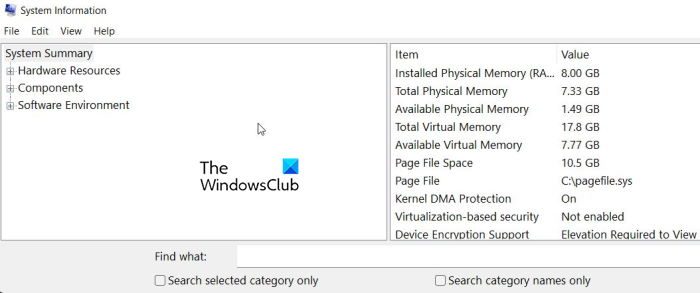
You can search for System Information on your computer to find your computer hardware specs.
If possible, try to go higher than the system requirements; this will ensure you can use the same computer for a long time, even with newer releases of Photoshop. You may have met and possibly exceeded the system requirements for Photoshop; however, you may be running too many power- or resource-hungry applications. Just close some of these and see if this fixes the problem. You can see what is using resources by going clicking Ctrl + Alt + Del then click Task Manager, and this will show you processes, you can then click Performance to see the performance of the CPU, Memory, GPU, and other things.
4] Outdated Photoshop
Keeping Photoshop updated may fix bugs and known issues and add new features. So, if you haven’t updated your photoshop for a long time, it is best to do so now to see if this fixes the freezing and other issues. To see that you have the latest version of Photoshop, open the program, to Help then About Photoshop. To update your Photoshop, go to Help then Updates.
5] Outdated Windows

An outdated Operating System may cause Photoshop to crash or have other issues. Getting the latest version of Windows and other updates may help Photoshop perform without issues. To check for Windows updates, go to Start then click Settings then Windows Update then Check for Updates.
6] Image View Needs Changing
If Photoshop keeps freezing or lagging when you view or edit an image, making a few changes in the application may help.
Use the Efficiency Indicator
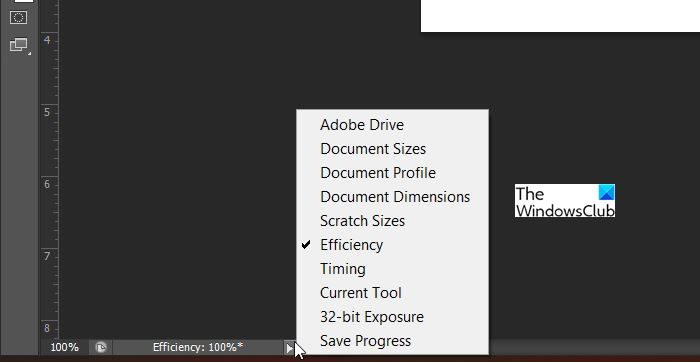
Using the Efficiency Indicator lets your computer run Photoshop at 100% efficiency. To enable it, with a document open, go to the bottom of the screen and click the arrow that looks like a play button, then click Efficiency.
Disable Third-Party Plugins
Photoshop allows users to add third-party plugins for additional features. However, third-party plugins may sometimes cause crashes, freezes, and other issues.
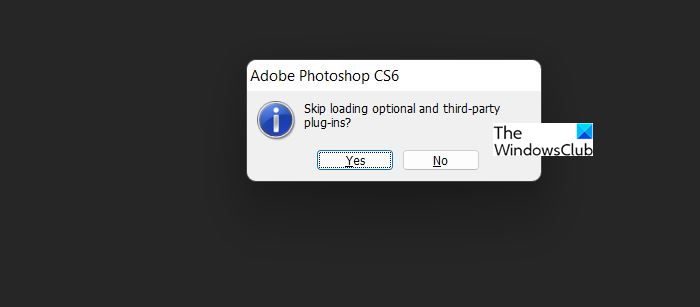
To disable third-party plugins to see if that helps, close Photoshop, hold Shift, and click the Photoshop icon to open it. You will get an option asking Skip loading optional and third-party plug-ins?” Click yes and it will continue opening Photoshop. If Photoshop still freezes or lags, the plug-ins aren’t the issue; restart Photoshop to enable them.
If the issues go away when plug-ins are disabled, the plug-ins may be the problem, and you need to identify the problematic Plug-ins. To identify the problematic plug-in, use a process of elimination. Go to the Photoshop plug-ins folder and move the plugins to a newly created folder, after moving each one you start up Photoshop to see the result. If Photoshop starts working properly after you remove a certain plug-in, you’ll know that plug-in is the problem.
Clear Photoshop Cache
If the issues continue, you can clear the Photoshop cache. Photoshop usually stores data for undo, clipboard, and history to help you work on images more easily. This could consume a lot of memory and cause Photoshop to freeze and crash. Clearing this cache may remedy the issue.
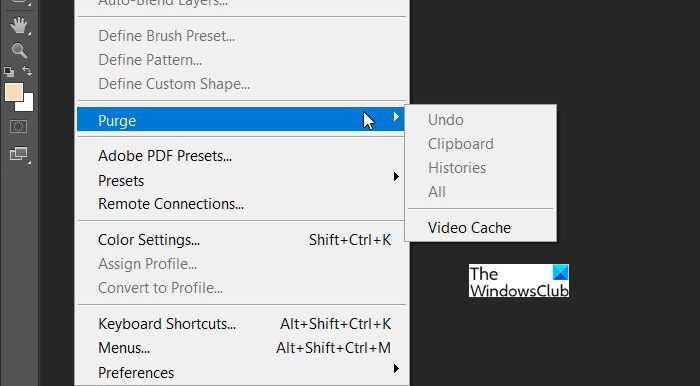
To clear the cache just click Edit on the upper bar then choose Purge and click All. Note that after the cache is cleared you will not be able to undo the most recent changes.
Disable Font Preview
By default, Photoshop enables the Font Preview feature, and the size is usually set to Medium. Disabling this feature may help fix Photoshop freezing and crashing.
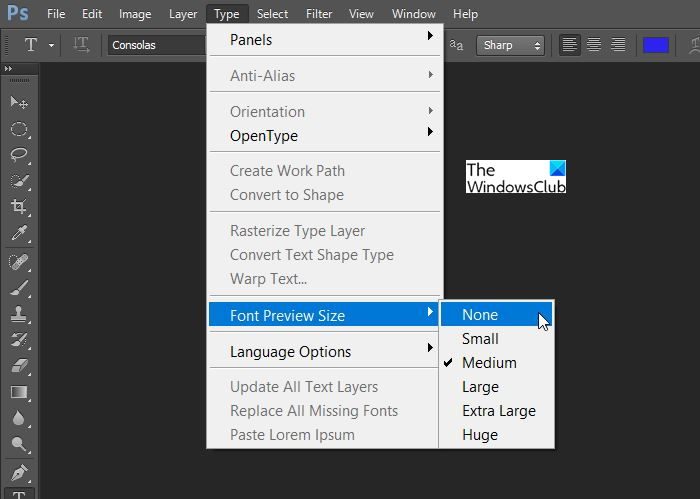
To disable this feature go to Type press Font Preview Size then click None.
Related: Photoshop crashes or freezes when Printing
7] Performance Settings Need Modifying
To see if you can resolve the issue of freezing or crashing you may need to go into the Preferences and modify the Performance Settings. This may improve Photoshop’s overall performance and speed. It may also fix freezing and Photoshop not responding.
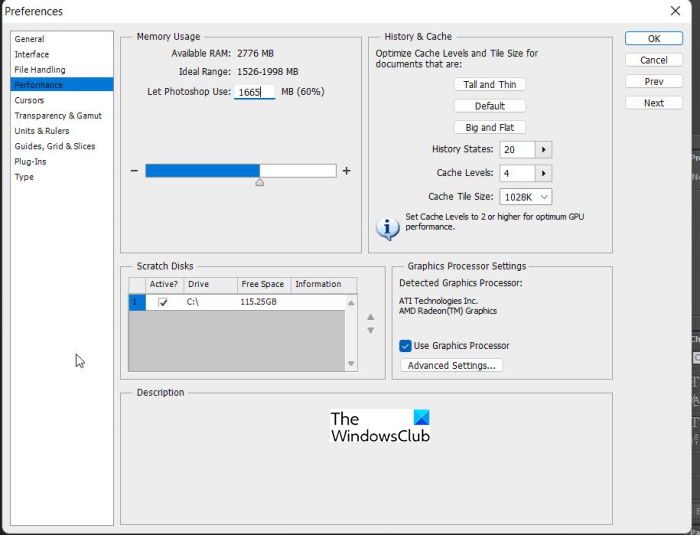
To change the Performance Settings, go to Edit then Preference then Performance. In this setting, you can modify the Memory Usage and make Photoshop use about 70%. You can increase the Cache Level and Reduce Cache Tile Size to speed up moving and zooming in a document. In the Graphic Processor Settings click Advanced Settings, in the Drawing Mode Click Advanced, Basic, or Normal as will suit your needs.
Related: Photoshop running slow on Windows
8] Low Disc Space
Photoshop requires enough RAM to work properly. When enough RAM isn’t available, it uses free space on available drives as a Scratch Disc and saves data there. When your disc space is low, Photoshop may freeze or become unresponsive.
If the Scratch Disc is full, you can go to Photoshop’s Performance Settings to set another fast drive with more free space as Scratch Disc by using the arrow buttons.
To fix the Low Disc space, you need to remove some files or upgrade to a larger hard drive.
9] Slow Hard Drive
Photoshop may freeze, become unresponsive or move slowly if the hard drive is slow. You may have to upgrade from a slow 5400 RPM hard drive to a 7200 RPM hard drive. You may also upgrade from a mechanical hard drive to a Solid-State Drive (SSD). This post will show you how to increase Hard Drive speed & performance.
10] Outdated Drivers
Photoshop may have performance issues if your computer’s hardware drivers are outdated. Try to keep all display drivers updated with the latest one.
11] Fonts
This might be a shocker to some but having bad fonts can affect the performance of software that uses them, and Photoshop is no exception. If you have performance issues and the regular troubleshoots won’t work, try to remember if the issue started after you installed some fonts. Removing previously installed fonts may fix Photoshop freezing or crashing. You may also have installed too many fonts.
12] Computer Needs Resetting
If the problem with Photoshop persists, you may need to restore your computer to an earlier time when Photoshop was working. If this does not help, then you may need to perform Reset This PC. When you reinstall Photoshop, note what happens before and after you install additional software and fonts.
Read: How to curve text around an image in Photoshop
How Can An Overheating Computer Cause Photoshop to Malfunction?
Computers are designed to lower performance if they sense they are getting too hot. Computer components will get damaged if they get too hot. High-performance software requires the processor and other components to draw more power and produce more heat. If the heat cannot be dissipated fast enough, the computer will slow down until it cools.
Read: Fix Adobe Genuine Software Verification Failure on Windows.
Would a Solid-State Drive Stop Photoshop from Freezing, Crashing?
A Solid-State Drive may help fix Photoshop issues because it performs faster than a traditional Hard drive. A solid-state drive has no moving parts, so it performs faster. No moving parts also mean it runs much cooler than a traditional Hard Drive.
