
Some reports say Adobe Photoshop crashes when printing on a Windows 11/10 computer. According to the users, the software crashes when they click on File > Print. In this article, we’ll cover this issue and what you need to do to fix it.
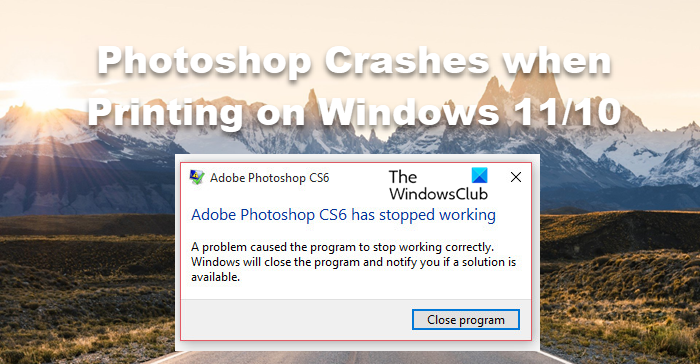
Why does my Photoshop keep crashing when I try to print?
Photoshop lets you print edited files easily from the app, but if Preferences are misconfigured or corrupted, you won’t be able to use the feature. What’s good though, is you can try clearing the Preferences settings and this should do the job.
However, it’s not the only reason; if an issue with your printer’s configuration is stopping it from taking input from the Photoshop app, Adobe Photoshop may crash. The Printer Troubleshooter can take on the burden by detecting and fixing the cause.
We also have a workaround and other solutions you can try to fix this issue easily.
Photoshop crashes or freezes when Printing on Windows 11
If Photoshop crashes when Printing on your Windows computer, try the following solutions.
- Restart and Retry
- Flatten your .PSB file
- Reset Preferences Settings
- Run Printer Troubleshooter
- Troubleshoot in Clean Boot
- Reinstall Adobe Photoshop
Let us talk about them in detail.
1] Restart and Retry
Let us first restart your computer and see if it works. Restarting can clear glitches and help your system print. Go ahead and reboot your computer, then try printing again and see whether Photoshop crashes. If the app still crashes, move to the next solution.
2] Flatten your .PSD file
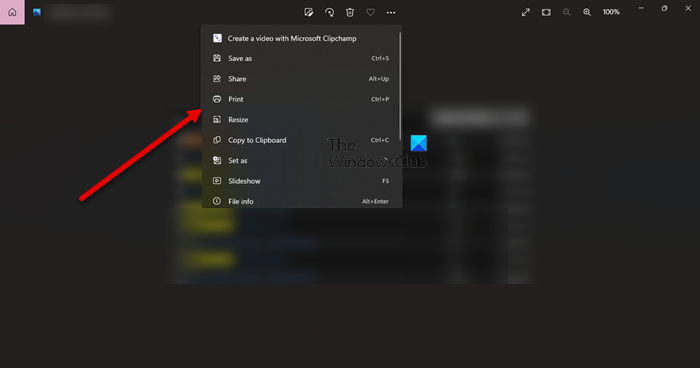
This may not help, but you can flatten the .PSF file and change it into JPG or PNG. Just save your edited file as PNG or JPG. For that, click on File > Save as. Now, just save your edited file as PNG or JPG. Then open the file in Photos and print your image; you can use the shortcut Ctrl + P to print. This will do the job, but if you still want to fix the issue, move to the next solution.
Read: How to open RAW image in Adobe Photoshop CS6 or CC
3] Reset Preferences settings
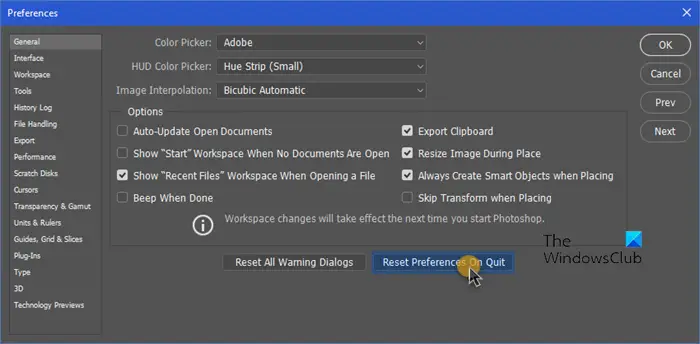
You may also see this error because of corruption or misconfiguration in Adobe Photoshop Preferences Settings. We need to reset it and see if that helps.
Before that, create a backup of the Settings. So, open File Explorer and go to the following location.
C:\Users\[Your Username]\AppData\Roaming\Adobe\Adobe Photoshop <version>
Now, copy the Adobe Photoshop <version> folder to a different location.
After creating the required backup, follow the prescribed steps to reset Preferences Settings.
- Launch Photoshop
- Go to the Edit > Preferences.
- Make sure you are on the General tab and press the Reset Preferences On Quit option.
- After that, click the OK button.
Hopefully, this will do the job for you.
4] Run Printer Troubleshooter
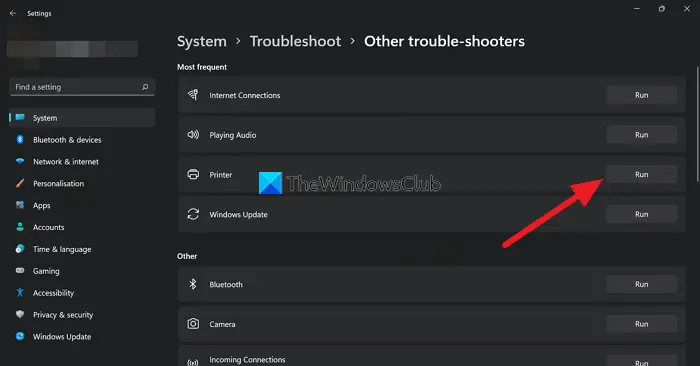
Since the app crashes when users try to print, it’s worth trying the Printer Troubleshooter. So, let us run Printer Troubleshooter using the following steps.
Windows 11
- Open Settings from the Start Menu.
- Click System > Troubleshoot > Other troubleshooters.
- Look for the Printer troubleshooter, and click on the Run button.
Windows 10
- Open Settings.
- Go to Update & Security > Additional troubleshooter.
- Click Printer > Run the troubleshooter.
Hopefully, this will do the job for you.
5] Troubleshoot in Clean Boot
Needless to say, many third-party applications, as well as Adobe Photoshop, can interfere with your printing process. Now, we won’t recommend you to just go and start removing apps from A to Z. What we want for you to perform Clean Boot and find out the culprit. Once you know the culprit, remove that program, and your issue should be resolved.
6] Reinstall Adobe Photoshop
If nothing worked, then we would have to conclude that the issue is caused due to the corruption in the Adobe Photoshop app. To fix the corruption, you need to uninstall it and install a fresh copy. Hopefully, this will do the job.
We hope you can resolve the issue with our solutions.
Why does my Photoshop keep crashing?
The reason that we talked about earlier, applies to this issue as well. If Photoshop keeps crashing or freezing, reasons such as the app consuming too many resources or too many apps running in the background leave no room for the editing app to run.
Also Read: Adobe Photoshop CC tutorials for beginners.
