
If the Share Contacts option is not working in MS Outlook or is grayed out, here is how you can fix the issue. Since it could happen for several reasons, we have gathered almost all possible causes and solutions so you can fix it in Windows 11.
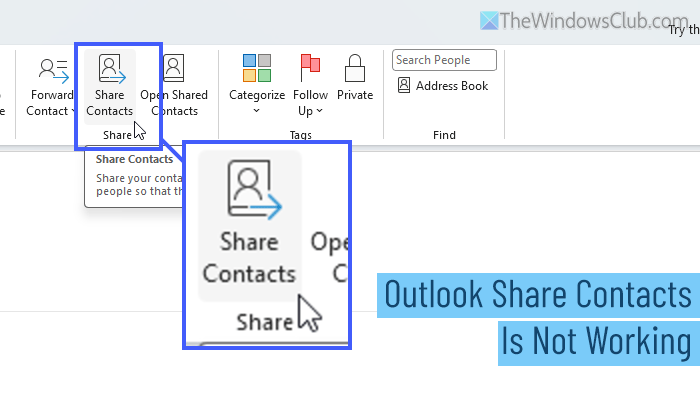
Why is Outlook Share Contacts not working or missing?
If the Share Contacts option is not working or missing in MS Outlook, these could be the reasons:
- You are using the new Outlook app, which doesn’t have the Share Contacts option at all.
- The owner of the shared contact list has removed you from the group.
- You have a corrupt Outlook data file.
- The installation of Outlook might cause this issue.
- The old Outlook cache could be the reason.
- Your administrator has account-level restrictions set for your Work or School account.
Outlook Share Contacts not working or missing
If Outlook Share Contacts is not working, missing, or grayed out, follow these solutions:
- Switch the Classic MS Outlook app
- Ask the owner to give you permission
- Delete Outlook cache
- Ask the administrator to remove restrictions
- Repair Outlook installation
- Create a new profile
To learn more about these solutions, continue reading.
1] Switch the Classic MS Outlook app
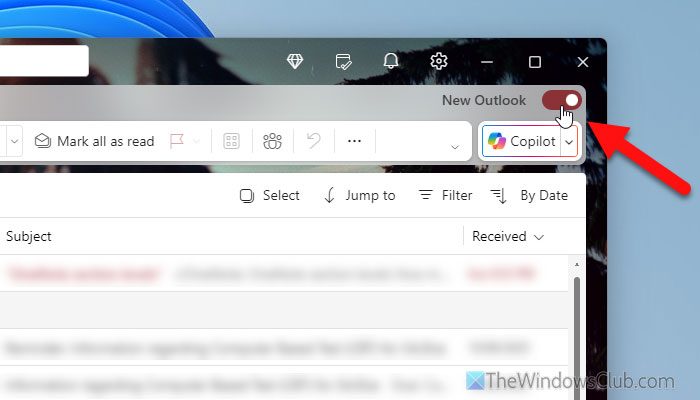
If you are using the New Outlook app, you cannot find the Share Contacts or Open Shared Contacts, as they have been removed from that edition. However, you can see the same option in the Classic MS Outlook. Having said that, if you are using the New Outlook app, it is time to switch to the Classic MS Outlook.
In case you don’t know the process, open the New Outlook app and find the New Outlook toggle button in the top-right corner.
Toggle this button to turn it OFF and click the Continue option when it asks for it.
2] Ask the owner to give you permission
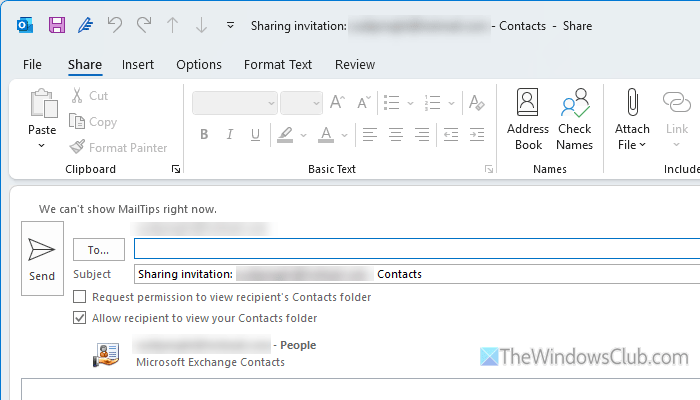
The Shared Contacts list includes several roles, e.g., moderator, administrator, viewer, etc., and every list includes at least one role – administrator. If you were a moderator but the administrator has revoked the access, you cannot find the list.
In some cases, the shared mailbox doesn’t include the Share Contacts option.
Read: Outlook stuck on Updating this folder in Shared mailbox
3] Delete Outlook cache
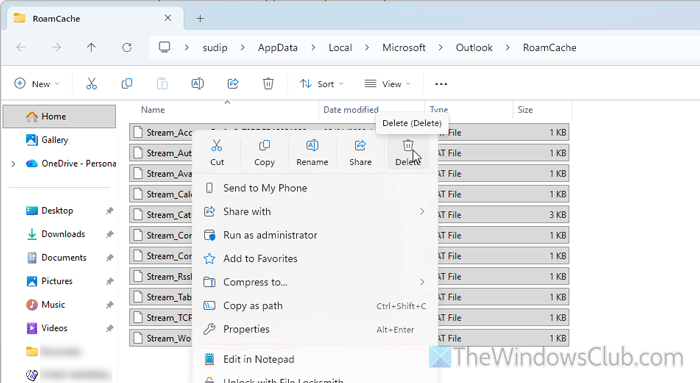
To delete Outlook cache, follow these steps:
- Open the Run prompt by pressing Win+R.
- Type %localappdata%\Microsoft\Outlook and hit the Enter button.
- Double-click on the RoamCache folder.
- Select all the contents, right-click on them, and select the Delete option.
- Confirm the removal.
- Restart the MS Outlook app.
4] Ask the administrator to remove restrictions
If you use a School or Work account, there is a chance that your account administrator has removed the permission to access the Share Contacts facility. In that case, you have no option but to ask your administrator to lift the restriction.
In case you need this option at any cost, you must add a new account holding @outlook.com or @hotmail.com.
5] Repair Outlook installation
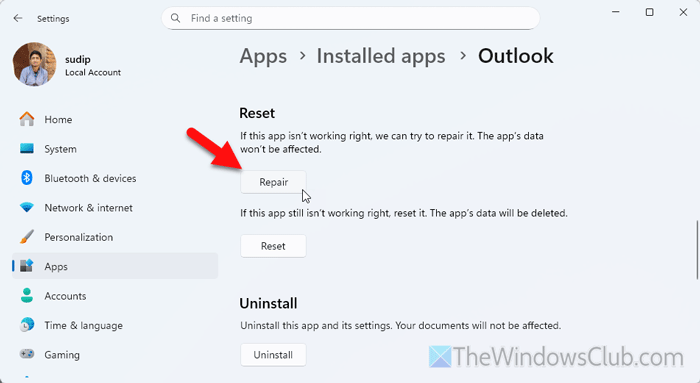
To repair the Outlook installation, follow these steps:
- Press Win+I to open Windows Settings
- Go to Apps > Installed apps.
- Find Outlook > click on the three-dotted button > select Advanced options.
- Click the Terminate button to close all background processes.
- Click the Repair button.
After that, open the MS Outlook app and check whether the aforementioned problem is gone. If not, you must reset the installation. For that, open the same location in the Windows Settings panel and click on the Reset button twice.
Read: Outlook Advanced Diagnostics Troubleshooter will fix configuration problems
6] Create a new profile
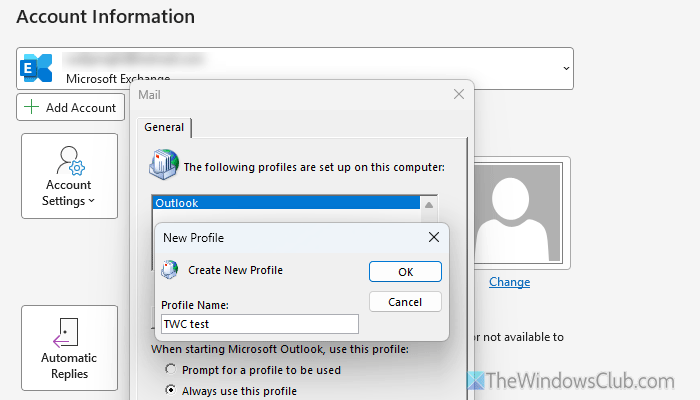
At times, your Outlook profile might be corrupt due to a malware or adware attack. In that case, it is suggested to create a new profile and use.
To create a new Outlook profile, follow these steps:
Open the MS Outlook app on your computer and go to File > Open & Export. Then, click on the Account Settings and choose the Manage Profiles option. Next, select the Show Profiles option.
Here you can find an Add option that helps you create a new profile. Enter a profile name first.
Then, enter the email address that you want to use, your name, and your password. If you want to set things up manually, choose the manual setup option. Otherwise, click the Next button to let Outlook set things up for you.
Once done, select the Prompt for a profile to be used option and click the Apply button. Then, restart the MS Outlook app, and select the new profile to log in. Next, go to the People section to find the Share Contacts option.
Read: Use Outlook Profile Setup Troubleshooter if you cannot configure email
Why can’t I share a contact list in Outlook 365?
If you use the new Outlook app on Windows 11, you cannot find this option because Microsoft has deprecated it. However, if you use the classic MS Outlook, you can use the aforementioned solutions to restore this option.
How do I give permission to share contacts in Outlook?
To give permission to share contacts in MS Outlook, create a list of contacts that you want to share first. Then, enter the recipient’s name or email address in the To section and click the Send button.
