
Have you ever sent an email in Outlook and soon realized you forgot to add some information, missed an attachment, or made a mistake? In this guide, we will show you two methods to edit a sent email in MS Outlook, Outlook app and Outlook.com.
The first method uses the Recall feature to replace the sent message with an updated version. The second method lets you edit the copy of the email stored in your Sent Items folder.
How to edit a sent email in Outlook
To edit a sent email in Outlook, use either of the following methods:
- Use the Recall feature
- Edit the sent email saved in Sent Items
Let’s look at these methods in detail.
1] Use the Recall feature
Outlook’s Recall feature allows you to recall a sent email and replace it with a corrected version. To edit a sent email using Recall, follow these steps:
Open Outlook. Go to the Sent Items folder and double-click the email that you want to edit.
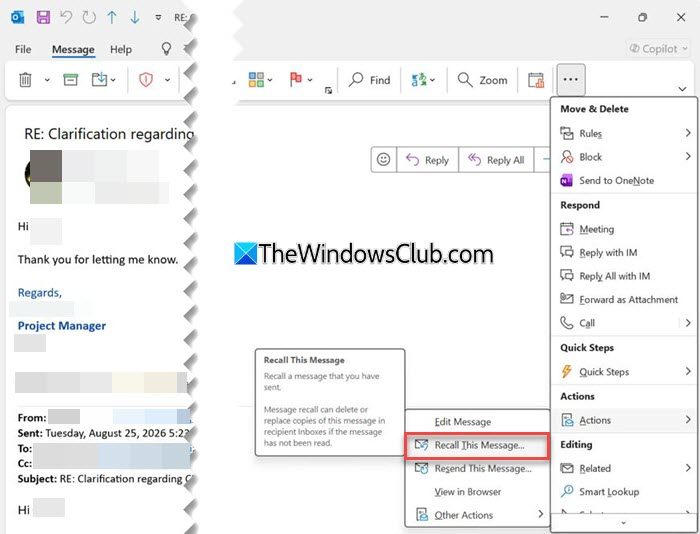
The email will open in its own window. On the Message tab, click the three dots icon on the right side of the toolbar and select Actions > Recall This Message from the menu.
Recall This Message dialog window will open. Select Delete unread copies and replace with a new message. Keep the Tell me if recall succeeds or fails for each recipient check box selected to get notified about the result.
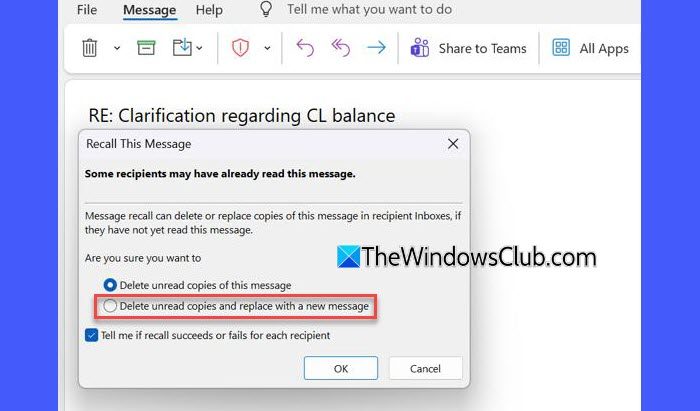
Select Delete unread copies of this message if you only want to remove the original email from the recipient’s mailbox.
Click OK. Outlook will open the original message for editing. Make the required changes to the email and click Send.
Outlook will then attempt to replace the original message with the edited version. If the recall does not succeed, the recipient may still have the original message.
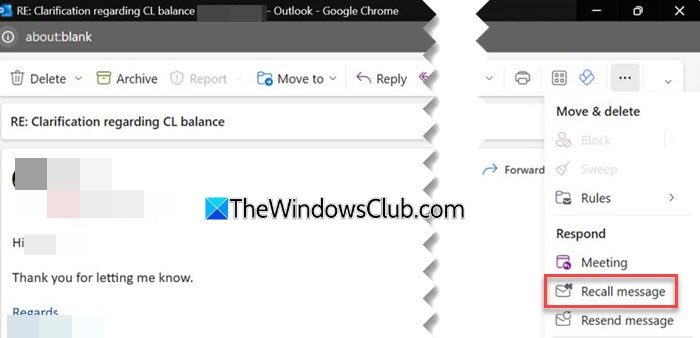
The New Outlook for Windows and Outlook on the web also let you correct a sent email using the Recall feature. Although the option is named differently (Recall message), the process is similar to classic Outlook.
Note:
- Message Recall has specific requirements and limitations. We have already explained the Recall feature and its requirements in detail in our guide on how to recall an email in Outlook. We recommend reading that guide.
- This method works in classic Outlook for Windows. Both you and the recipient must have Microsoft 365 work or school accounts in the same organization, and the recipient must not have opened the original message yet. Personal accounts such as Outlook.com, Hotmail, Live, and MSN do not support message recall.
- If the message has been automatically moved to another folder by a mailbox rule, Recall may not work as expected. Therefore, it is best to attempt the recall as soon as possible.
2] Edit the sent email saved in Sent Items
If you only want to edit the email for your own records, you do not need to recall the message. In classic Outlook, you can open an email, make changes to the message, and save the edited copy. This can be useful, for example, if you want to add a note or additional information to the sent message, update information that has changed after sending, or keep a corrected version of an email for future reference.
To edit the local copy of a sent email in classic Outlook, follow these steps:
Open classic Outlook. Select Sent Items from the left pane. Find the email that you want to edit and double-click it to open it in a separate window.
On the Message tab, click the three dots and select Actions > Edit Message.
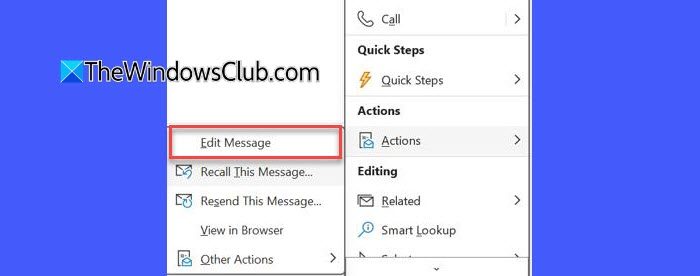
Make the required changes to the message. After making the changes, use Save to save the edited copy. The changes are applied to the copy stored in your Sent Items folder.
Note:
- Editing the message in Sent Items does not edit or delete the copy that the recipient has already received. The recipient will continue to see the original email.
- The option is available only in classic Outlook. The new Outlook and Outlook on the web do not support editing sent messages.
I hope you find this useful.
Read: Recall This Message is missing or greyed out in Outlook.
How can I edit my sent email?
You can edit a sent email in Outlook by using the Recall feature, if your Outlook version supports it. In classic Outlook, you can also edit the copy stored in Sent Items for your own records.
Related: How to delay or schedule an Email in Outlook
Can I unsend or edit an email in Outlook?
Yes. You can use Undo Send in Outlook to unsend an email. Go to Settings > Mail > Compose. Find Undo send, select the desired delay, and click Save. Once the delay is enabled, you can cancel sending during the configured time period. To edit a sent email, you can use the Recall feature, as explained in this guide.
Read Next: Outlook Reactions not showing or working.
