
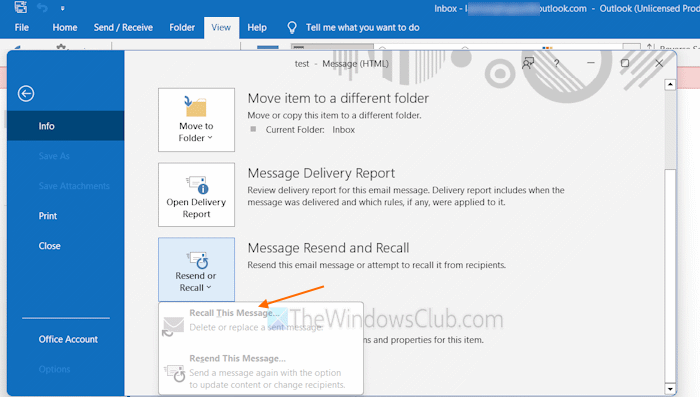
When we open a sent email in MS Outlook or the Outlook app, we can use the Recall This Message (or Message Recall) feature to delete or replace copies of that email in recipients’ inboxes (if the message has not been read yet). However, some users have reported that Recall This Message is missing or greyed out in their Outlook app. If you also face this problem, the options covered in this post will be helpful.
Why is the Recall option greyed out on Outlook?
Message Recall or Recall This Message will be greyed out or missing in Outlook if you open a sent email in the Reading Pane. You must double-click on a sent email to open it in a new window and use the Actions menu (in the Move section) or use the File menu > Resend or Recall to use this feature. In addition, if Outlook is not activated, you aren’t signed in with a supported Account type, or your admin has disabled the feature, the Recall This Message option is greyed out in Outlook.
Recall This Message is missing or greyed out in Outlook
If the Recall This Message option is missing or greyed out in Outlook, use the following solutions:
- Activate Outlook
- Check your Outlook Account type
- Enable Message Recall via the Exchange admin center
- Enable Message Recall via Exchange Online PowerShell
- Use Outlook on the web
- Use the Undo send feature.
Let’s check these options.
1] Activate Outlook
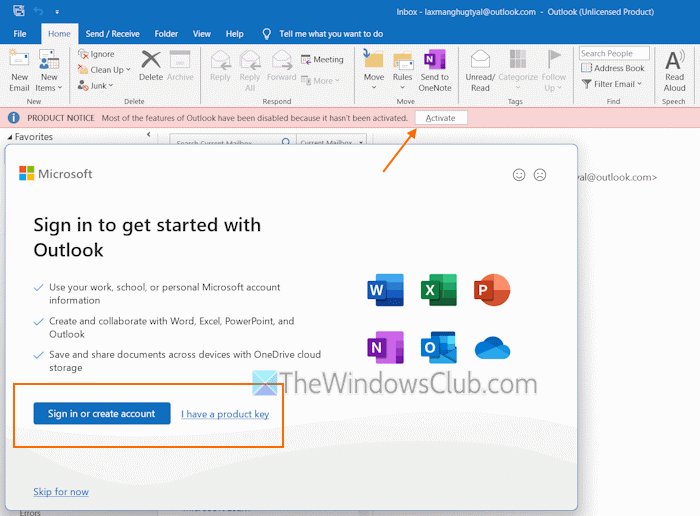
If MS Outlook is not activated, most of its features (including Recall This Message and Resend This Message) will be greyed out or disabled. If this is the reason for your problem, you must activate Outlook.
Do note that the Microsoft 365 Basic plan doesn’t include MS Outlook. So, even if you are signed in and using a Microsoft 365 Basic subscription, Recall This Message will be greyed out or not work in that case either. So, you must buy or sign in with a Microsoft 365 Personal or Family subscription to use all the features.
2] Check your Outlook Account type
You can easily recall an email or message in MS Outlook, Outlook app, and Outlook on the web. But you and the receiver must have a Microsoft Exchange or Microsoft 365 school or work account in the same organization. And, it will only work if the recipient hasn’t opened the email yet.
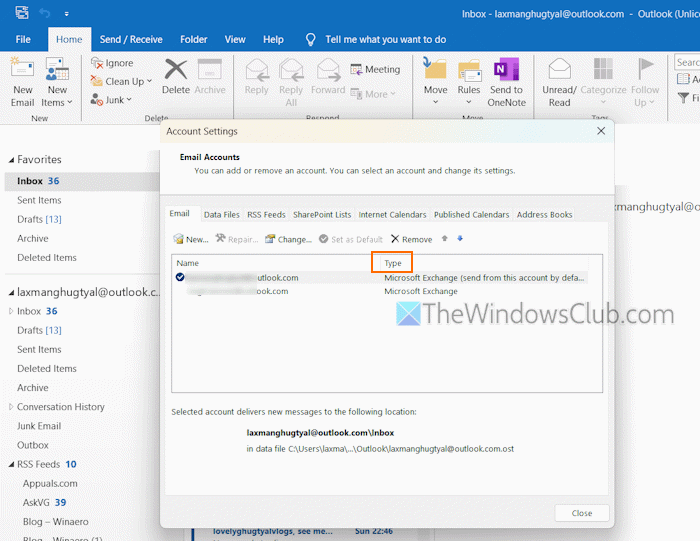
If you have sent an email to someone in Outlook.com or you are using a personal account (Outlook.com, Gmail, @live.com, @msn.com, or Hotmail), you can’t recall it. In this case, you will find that Recall This Message is greyed out or missing in Outlook. First, you should check your Outlook Account type (Microsoft Exchange, IMAP, POP3, or Outlook.com). Here are the steps:
- Open MS Outlook on your desktop
- Go to File > Info > Account Settings > Account Settings
- In the Account Settings window, switch to the Email tab
- You will see a list of added accounts and their Types. If you are using an Exchange account, it is visible as Microsoft Exchange.
Related: How to delay or schedule sending an Email in Outlook
3] Enable Message Recall via the Exchange admin center
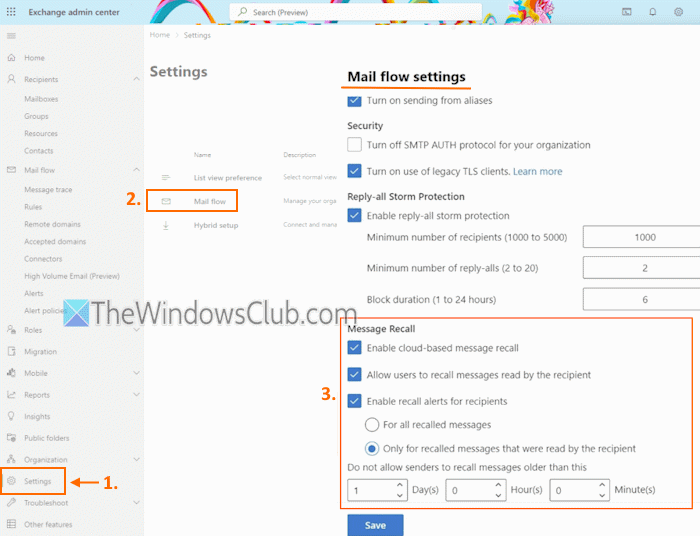
If you are a tenant admin of your organization, you can enable the Cloud-based Message Recall feature using the Exchange admin center (web-based console for managing Exchange Online). Here are the steps:
- Open the Exchange admin center homepage and sign in to your account
- Go to Settings > Mail flow
- In Mail flow settings, access the Message Recall section
- Tick the Enable cloud-based message recall option
- Tick the Allow users to recall messages read by the recipient
- Select Enable recall alert for recipients for all recalled messages or only for the read messages
- Press the Save button.
If you want, you can also set the Maximum recallable message age (between 5 minutes and 10 years).
Do note that the Message Recall only works within an organization in MS Outlook, Outlook app, Outlook on the web, Outlook for Mac, and Outlook for iOS/Android. It won’t work if multiple Exchange accounts are configured in a profile, Outlook is in Online mode, and the shared mailbox is not opened in its own profile.
4] Enable Message Recall via Exchange Online PowerShell
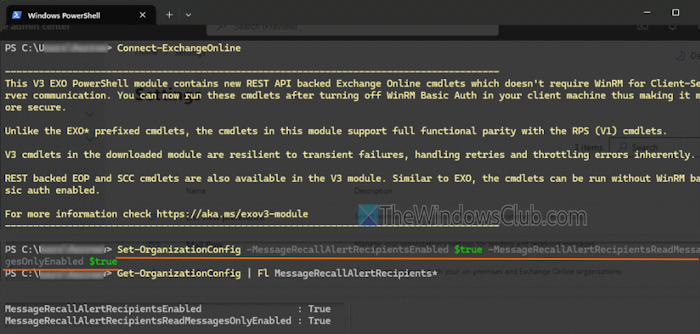
Tenant admins can also configure to enable Message Recall using Exchange Online PowerShell. You need to use the Exchange Online PowerShell module to connect to Exchange Online PowerShell. Now, to disable or enable Message Recall and recall read messages, use the following cmdlet:
Set-OrganizationConfig -MessageRecallEnabled <$true | $false> -RecallReadMessagesEnabled <$true | $false>
Setting it to $true will enable the options.
To enable or disable the message recall notifications for recipients, the command is:
Set-OrganizationConfig -MessageRecallAlertRecipientsEnabled [$False | $True]
If you set the above parameter to $true (as highlighted in the image above), you can further specify if the message recall notifications are sent for read messages only or both read and unread emails:
Set-OrganizationConfig -MessageRecallAlertRecipientsReadMessagesOnlyEnabled [$False | $True]
Set the cmdlet to $false if you want to enable message recall notifications for both read and unread messages.
Also read: Email not saved to Sent Items folder in Outlook
5] Use Outlook on the web
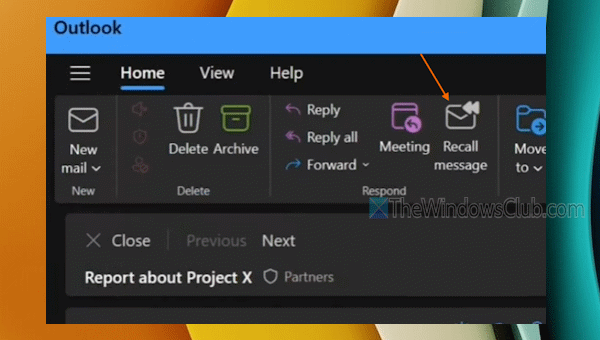
If you are a business user with a work account or if you have a school account, and you can’t use Recall This Message in MS Outlook and the Outlook app, you can use Outlook on the web instead.
Once you are signed in, select Sent Items (from the left folder pane) and double-click on a sent email. Use the Recall Message button and press OK.
6] Use the Undo send feature
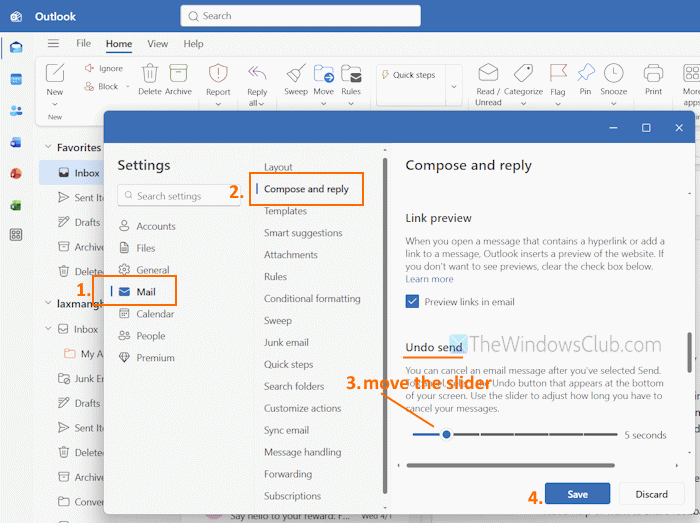
Although we can’t recall a message sent from personal accounts in MS Outlook or the Outlook app, we can still cancel an email or message after pressing Send. We can use the Undo send feature of Outlook and delay sending the message for up to 30 seconds. Here are the steps:
- Open the Outlook app on your desktop
- Select File > Settings
- In the Settings window, select the Mail category
- Click on the Compose and reply option
- On the right section, go to the Undo send section
- Use the slider to set the delay for 5 seconds, 30 seconds, 15 seconds, 10 seconds, 25 seconds, or 20 seconds. The recommended delay is 10 seconds
- Press the Save button.
The next time you send an email, the Undo option will appear at the bottom. Use it to cancel the message.
That’s all.
Now read: How to cancel Scheduled Email in Outlook
What happens if I try to recall an email in Outlook?
When you try to recall an email in Outlook, you will get a Message Recall Report to check if your recall is pending, succeeded, or failed. You must enable the Tell me if recall succeeds or fails for each recipient option (in the Recall This Message box) to get the report or receive the status of recall.
Read next: Outlook emails disappeared or missing.
