
If Outlook disappeared or has stopped working after importing PST file in Windows 11, here is how you can fix the problem. You can go through this article if you have already imported the PST file from another computer, as well as your own computer.

Why does Outlook disappear after importing a PST file?
If Outlook disappears after importing a PST file, the causes could be any one of these:
- Version mismatch: If you have exported the PST file from an older version and tried to import it in a newer version, you might encounter this problem.
- The desired PST file is corrupted or encrypted.
- Outlook doesn’t have access to the folder containing the PST file.
- You have a large PST file.
- Third-party software has removed content from the PST file.
Outlook disappears after importing PST file
If Outlook disappears after importing a PST file in Windows 11, follow these solutions:
- Confirm Outlook versions
- Make an exception in your antivirus
- Check folder permission
- Make sure the file size is within 20GB range
- Disable additional security software
- Repair PST file
To learn more about these solutions, continue reading.
1] Confirm Outlook versions
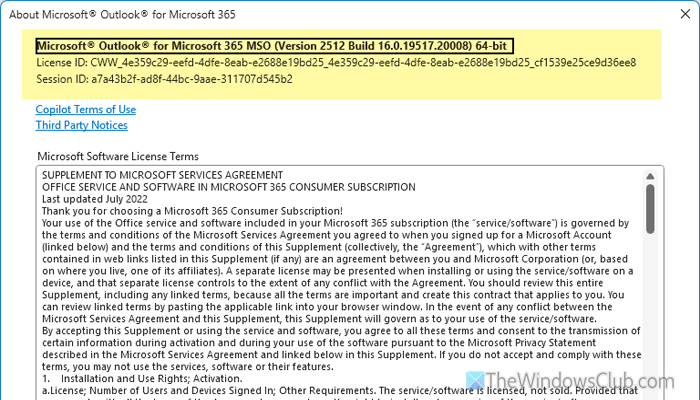
Note: Perform these steps on the source computer.
As this problem may arise from having two different versions of Outlook, it is suggested to first confirm the Outlook versions. To check the Outlook version, follow these steps:
- Open Outlook and go to File.
- Click on the Office Account option.
- Click the About Outlook option.
- Here you can find the version number.
Read: How to find which Microsoft Office version in Windows
2] Make an exception in your antivirus
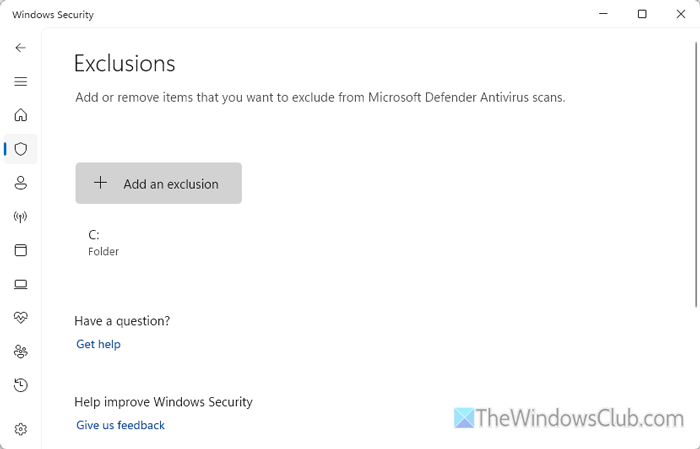
At times, your antivirus may flag your PST file for any reason. That is why we suggest making an exception so your antivirus skips the data file. To exclude a folder or file, do the following:
- Open Windows Security on your computer.
- Go to the Virus & threat protection section.
- Click on Manage settings.
- Click the Add or remove exclusions option.
- Click the Add an exclusion button > File.
- Choose the PST file.
Read: How to add File or Folder to Antivirus Exception List in Windows 11
3] Check folder permission
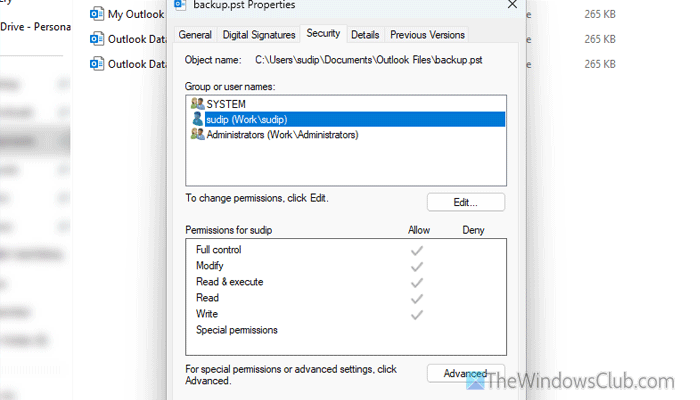
To check file or folder permissions in Windows 11, follow these steps:
- Right-click on the PST file and select Properties.
- Switch to the Security tab.
- Select your user account.
- Find the existing permissions in the Permissions for section.
However, if your user account doesn’t have the Full control permission, you can go through this article to change file or folder permissions in Windows 11.
Read: You don’t currently have permission to access this folder or file
4] Make sure the file size is within 20GB range
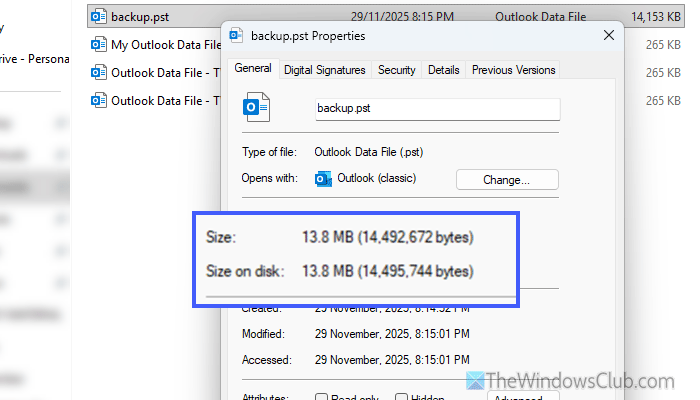
In case you don’t know, Outlook has a size limit for PST files. The newer version of Outlook has a 50GB size limit, whereas the older versions (Outlook 2003 and 2007) have a 20 GB limit.
If you have exported the PST file from an Outlook version with a 20GB limit, you won’t be able to import it entirely into newer versions.
Read: Outlook Data File PST has reached the maximum size
5] Disable additional security software
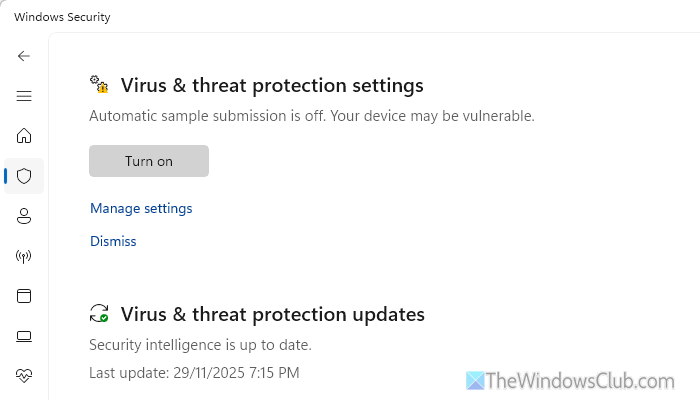
At times, your security software may block certain tasks because it believes they could harm your computer or pose a threat to your system. That is why it is suggested to disable your additional security software.
Not only antivirus software, but also third-party firewall software, adware removal tools, etc., can block the PST file from being imported in different ways.
Read: How to disable Windows Defender
6] Repair PST file
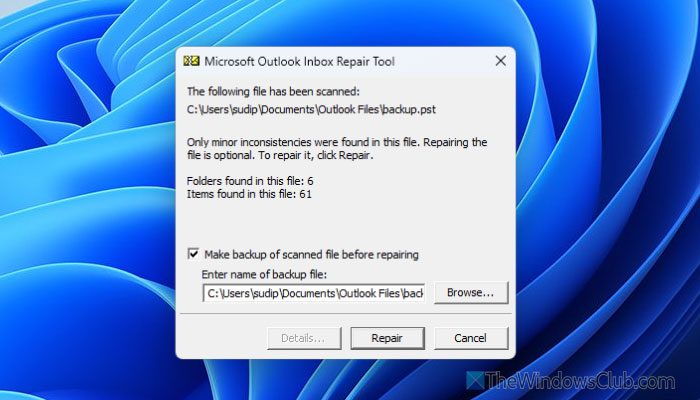
To repair Outlook PST files, you can use the Outlook Inbox Repair Tool or SCANPST.EXE. This tool is given by Microsoft, and you do not have to install it. To repair PST files using SCANPST.EXE, follow these steps:
- Open the File Explorer.
- Navigate to this path: C:\Program Files\Microsoft Office\root\Office16
- Double-click on the SCANPST.EXE file.
- Click the Start button.
- Tick the Make backup of scanned file before repairing checkbox.
- Click the Repair button.
Read: Outlook Inbox Repair Tool keeps popping up
Why are my emails suddenly disappearing in Outlook?
You Outlook emails may suddenly disappear if:
- New rules have been applied to the Inbox and other folders.
- You have a corrupt PST file.
- Your emails are not synchronized yet.
- Your server is experiencing some issues.
- You may have deleted emails by mistake from another device.
Read: Outlook emails disappeared or missing
How to restore Outlook email from PST file?
To restore Outlook email from a PST file, you must import the PST file first. Go to File > Open & Export > Import/Export > Import from another program or file. Then, choose the PST file.
Read: How to import or export RSS Feed subscriptions in Outlook
