
When you install OneDrive on your computer and sign in using your Microsoft account, OneDrive creates a folder on your C drive that contains all the files that you have stored on the cloud. You do not need an internet connection to access the OneDrive folder on your computer. Moreover, you can also add new files and delete the existing ones to this folder on your computer. When you connect your system to the internet, OneDrive automatically syncs your data, and it becomes available in the cloud. On the other hand, an internet connection is required to open OneDrive on your browser. This is the advantage of the OneDrive folder. While opening the OneDrive folder if you see the “Sorry there is a problem displaying this folder” error message, the solutions provided in this article will help you.
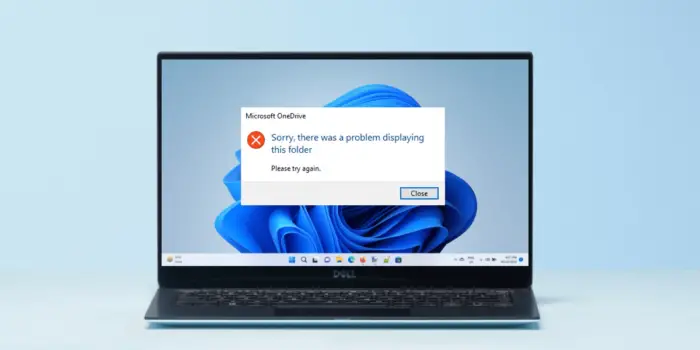
Fix OneDrive error: Sorry there is a problem displaying this folder
To fix the OneDrive error “Sorry there is a problem displaying this folder,” use the following fixes:
- Unlink OneDrive and set it up again
- Reset OneDrive
- Change the OneDrive folder location
- Uninstall and reinstall OneDrive
Below, we describe each fix in detail.
1] Unlink OneDrive and set it up again
First, unlink OneDrive from your computer. This action will not delete your OneDrive files. After unlinking OneDrive from your PC, you can access it in your web browser by signing in to your Microsoft account. Unlinking OneDrive only stops syncing it to and from the cloud. Follow the steps written below to unlink OneDrive;
- Click on the OneDrive cloud icon on your Taskbar or System Tray.
- Click on the gear-shaped icon on the top right side and select Settings.
- Select the Account tab.
- Click Unlink this PC.
- You will receive a confirmation prompt. Click Unlink account.
After unlinking OneDrive from your PC, restart your computer. Now, click on the OneDrive icon on your Taskbar or System Tray to open the OneDrive setup wizard.
Enter your Microsoft account details and follow the on-screen instructions to set up OneDrive again. When the setup is complete, you will see the message “OneDrive is ready for you.” Click Open my OneDrive folder. See if it helps.
Fix: OneDrive error code 0x8004def7
2] Reset OneDrive
If the fix above doesn’t work, resetting OneDrive may help. If OneDrive doesn’t work or shows errors when you launch it, you can reset it to fix the problem. To reset OneDrive, copy the following command and paste it into the Run command box, and hit Enter. To launch the Run command box, press the Win + R keys.
%localappdata%\Microsoft\OneDrive\onedrive.exe /reset
This process will take some time. After completion, OneDrive automatically opens. Now check whether you can open the OneDrive folder. If not, open the Run command box and type the following command, and hit Enter.
%localappdata%\Microsoft\OneDrive\onedrive.exe
This should work.
3] Change the OneDrive folder location
If the error still persists, changing the OneDrive folder location can help. By default, the OneDrive folder is located at the following location on the C drive:
C:\Users\username\OneDrive
In the path above, the username indicates the name of the user on the PC. You can change this location while setting up OneDrive. To do so, first, you have to unlink OneDrive from your computer. We already covered how to unlink OneDrive from your PC above in this article.
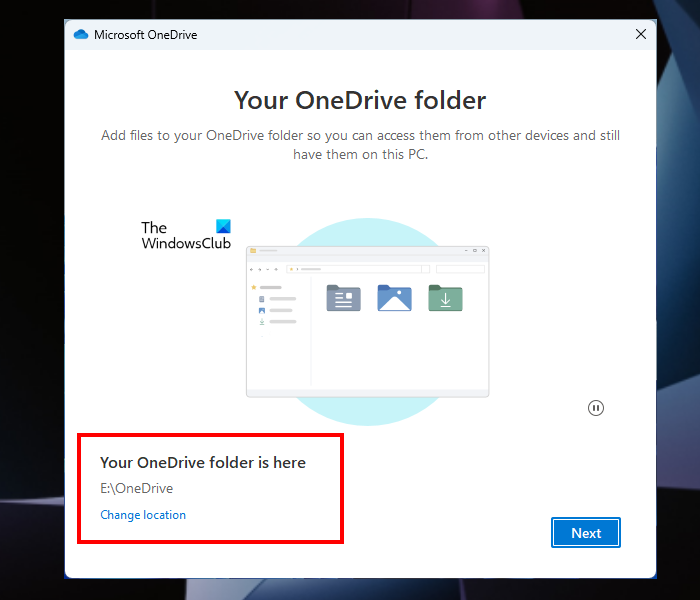
While setting up OneDrive, you will see the screen shown in the above screenshot. Click on the link that says Change location and select a folder on another location. After selecting the folder, set up OneDrive.
See if you can open the folder now.
4] Uninstall and reinstall OneDrive
If none of the above fixes helped you, uninstall and reinstall OneDrive. You can uninstall OneDrive via Windows 11/10 Settings. After uninstalling OneDrive, restart your computer. Now, download the latest version of OneDrive from the Microsoft website and install it on our system.
This should help.
Read: Fix OneDrive.live.com is currently unable to handle this request.
Why are my OneDrive folders not showing up?
If OneDrive is not opening on your system, unlink it from your PC and set it up again. If that doesn’t help, reset OneDrive. Resetting OneDrive is an effective troubleshooting step that helps fix many OneDrive problems. You can also try to change the default location of the OneDrive folder. We explain all these fixes in detail above.
How do I resolve the OneDrive error?
OneDrive displays different error codes in different scenarios. Each OneDrive error code has a different meaning. So, the ways to fix different OneDrive errors also differ. Microsoft lists all OneDrive error codes and their meanings on its website. You can read about the OneDrive error code you receive on Microsoft’s official website and resolve it accordingly.
Read next: How to use OneDrive Comments on any file on Mobile or Web.
