
If you want to use the Comments feature on OneDrive files on mobile and web, this guide will be handy for you. Here is everything you need to know about the OneDrive Comments on any file so that you can take notes, chat with someone on a project, etc. As mentioned, you can find the same feature in both the web version and the mobile app.

What does the Comment do on OneDrive files?
Let’s assume that more than one person is editing a OneDrive file – let’s say it is a document. If they are sitting next to each other, there won’t be an issue. However, if they live in two different locations, it will be a mess to collaborate on the document in real time. If you use the Comments, you can communicate with each other, making things easier to edit the document. Similarly, let’s assume that you have shared the project with five or ten people and want to get some feedback. Instead of making a call, your viewers can comment on the file.
For your information, you can comment on any file that you created or uploaded to OneDrive. For example, whether it is an image, document, spreadsheet, presentation, or anything else, you can make a comment. The best part is that you can use the Comment feature on mobile and on the computer.
In this example, we will show the process of commenting on an image. However, you can do the same on PDFs, documents, and other files.
How to add Comments to any OneDrive file on mobile
To use OneDrive comments on any file on mobile, follow these steps:
- Open OneDrive on your mobile.
- Open the file you want to comment on.
- Tap on the Comment option.
- Write down the comment.
- Tap on the Send button.
To learn more about these steps, continue reading.
First, you need to open the OneDrive app on your mobile and open a file you want to comment on. Once the file is opened on your mobile, you can find a Comment option.
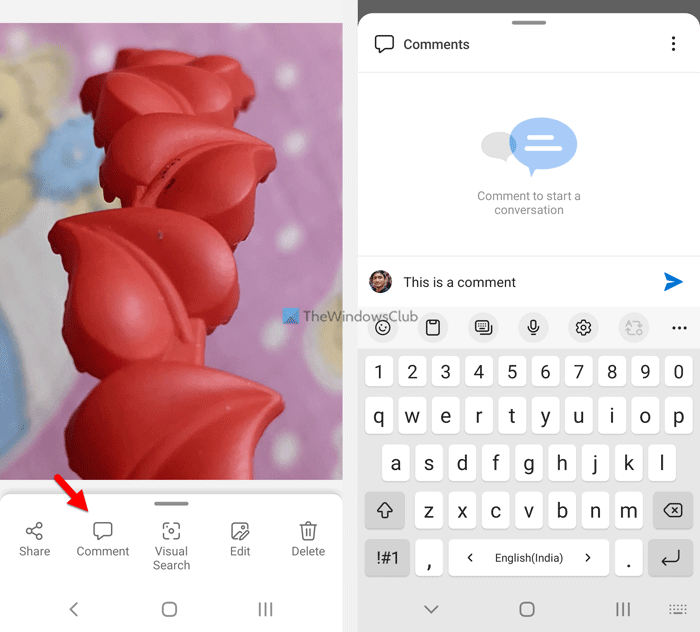
You need to tap on this button and write down the comment. Then, tap on the Send button.
Once done, you and everyone else can find the comment immediately.
How to use OneDrive Comments on any file on web
To add comments to Office as well as non-Office files on OneDrive, follow these steps:
- Open OneDrive on your browser.
- Open a file you want to comment on.
- Tap on the Details icon.
- Write down the comment.
- Click the Send button.
Let’s check out more about these steps.
To get started, open OneDrive on your browser and open the desired file in OneDrive. Depending upon the file, you need to click on the Details icon.
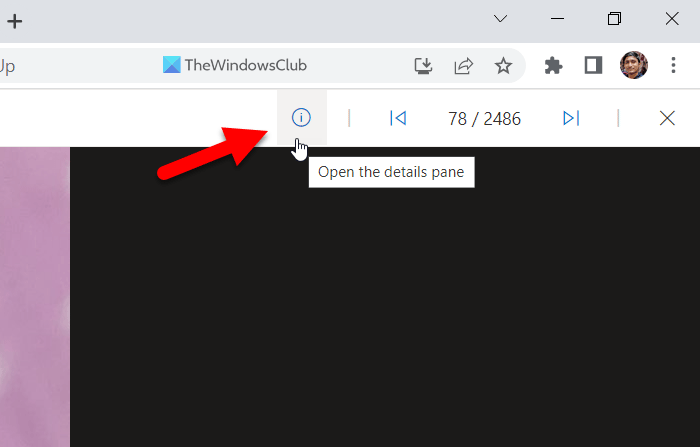
Then, you can find the section to write your comment. Do that and click on the Send button.
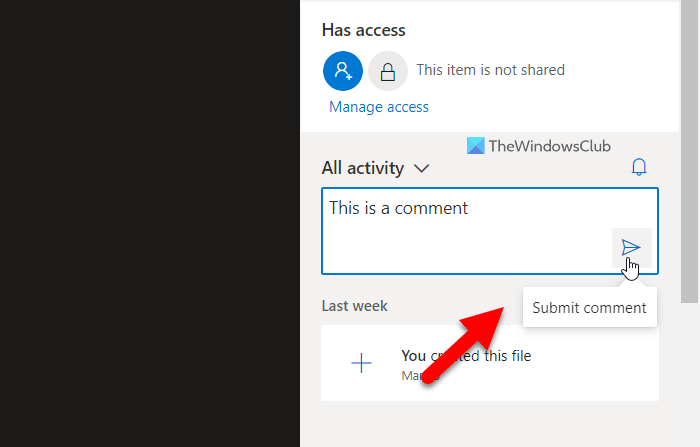
Once done, others can view the comment immediately.
That’s all! Hope this guide helped.
Read: How to map OneDrive as Network Drive in Windows
How do I view comments in OneDrive?
To view comments in OneDrive, you need to follow different steps on mobile and computer. If you’re on a mobile, open the file and tap the Comments option. On the other hand, if you use the web version, you need to click on the Details icon. Both display the same thing and synchronize all the comments across devices.
How do I insert comments in Word Online?
To insert comments in Word Online, you need to open the document first. Then click the Comments button in the top-right corner. After that, click the New button and write your comment accordingly. Once done, you can view the comment on both mobile and PC. However, this specific comment functionality is slightly different from the comments option described in the article.
Read: How to show OneDrive Notifications when deleting multiple files.
