
While accessing OneDrive on the browser, if you get onedrive.live.com is currently unable to handle this request message along with HTTP ERROR 500, you need to follow these steps to troubleshoot the issue. Whether you get this error on Google Chrome, Mozilla Firefox, Microsoft Edge, or any other web browser, you need to follow the same set of options to get rid of this issue.
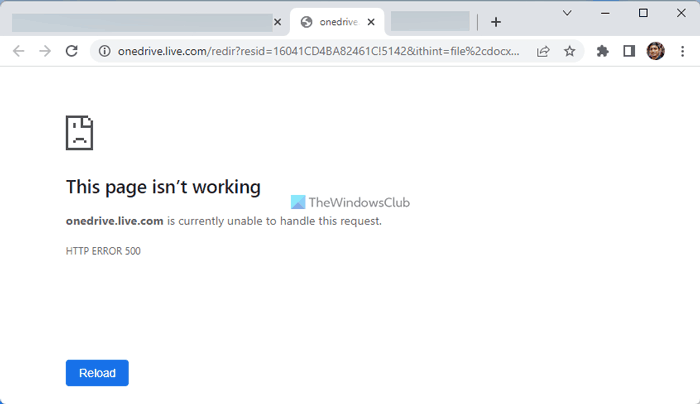
The error message says:
This page isn’t working
onedrive.live.com is currently unable to handle this request.
HTTP ERROR 500
This error message might occur in two different situations. First, when you open the OneDrive’s official website on your browser. Second, when you try to open a file. If the second scenario applies to you, make sure the file is intact before following the solutions below. If you opened a file earlier, delete it later, and then, when trying to edit the document in the open tab, you will receive the aforementioned error.
OneDrive.live.com is currently unable to handle this request
To fix onedrive.live.com is currently unable to handle this request error, follow these steps:
- Hard Refresh the page
- Try in Incognito Mode
- Change internet connection
- Disable VPN and proxy
- Change DNS
- Clear cookies and cache
Let’s take a closer look at these steps to learn more.
1] Hard Refresh the page
At times, refreshing the page solves the issue within moments. If there was a sudden issue at the OneDrive’s end, you could get rid of the error screen by reloading the web page. No matter which browser you use, you can easily reload the page by pressing the Ctrl+F5 key to hard refresh the webpage.
2] Try in Incognito Mode
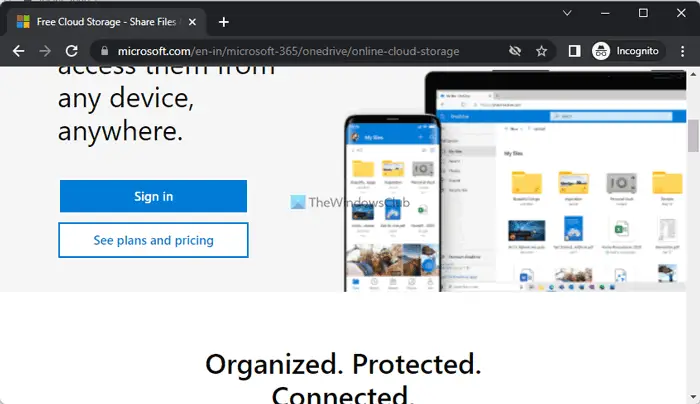
Let’s assume you changed many settings recently, and after that, some websites started showing these kinds of error messages frequently. If so, you can try opening the same web page in an Incognito or private browser window. Since incognito mode does not retain any standard mode settings or options, you may be able to view the webpage without errors.
3] Change internet connection
There are two reasons why this solution might work on your computer. First, if there is an internet connection issue on your PC, it will be resolved. Second, if there are some issues with DNS, you can fix it by changing the internet connection source. Therefore, if you have a second internet source, it is recommended to use it before reloading the page next time. It can be a mobile hotspot, another Wi-Fi network, an Ethernet connection, etc.
4] Disable VPN and proxy
Many times, VPN and proxy create such issues. Even if you have a reliable VPN or proxy, there could be problems at their end. If their servers are not responding for any reason, you won’t be able to access any website, including OneDrive. That is why it is recommended to disable the VPN or proxy.
Read: How to disable Proxy or Prevent changing Proxy settings
5] Change DNS
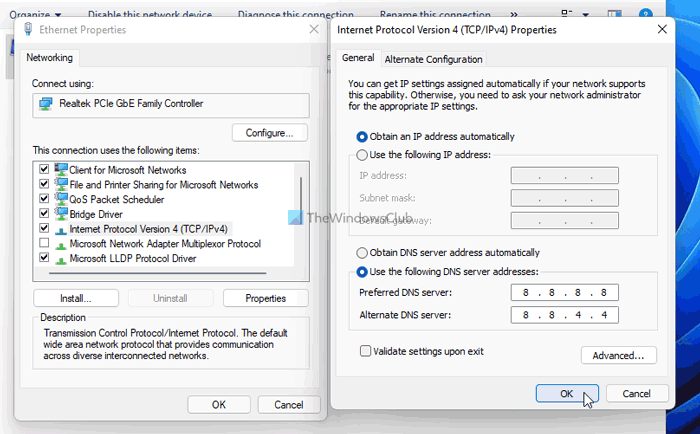
As mentioned earlier, an incorrect DNS setting could also cause this error. Also, if the current DNS has issues, you might encounter the same problem. That is why it is recommended to change the DNS and opt for Google Public DNS. For that, do the following:
- Press Win+R to open the Run prompt.
- Type ncpa.cpl and hit the Enter button.
- Right-click on the current internet source and select Properties.
- Double-click on the Internet Protocol Version 4 (TCP/IPv4).
- Choose the Use the following DNS addresses option.
- Preferred DNS server: 8.8.8.8
- Alternate DNS server: 8.8.4.4
- Click the OK button to save the change.
Then restart your browser and try opening the OneDrive website. It should open without any error.
6] Clear cookies and cache
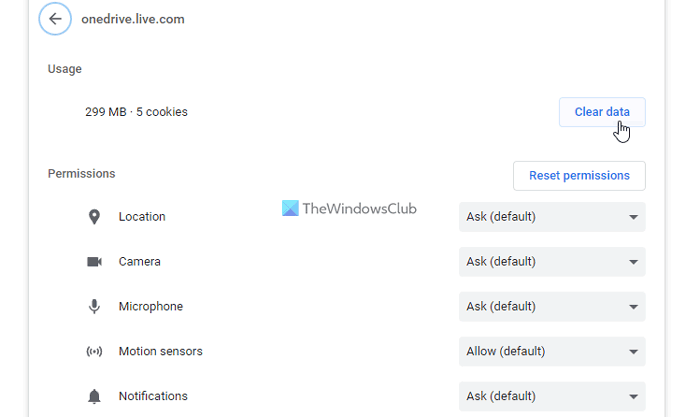
If none of the aforementioned solutions worked for you, you could try to clear cookies and cache of OneDrive. At times, those things could cause massive problems like this one. That is why it is recommended to clear cookies and cache for OneDrive and try opening the same webpage. No matter which browser you use, you can follow that guide to delete them. Following that, you will be able to open the OneDrive website and files without any errors.
That’s all! Hope you can access OneDrive now.
How do I fix Currently unable to handle this request?
If you get onedrive.live.com is currently unable to handle this request, you need to follow the aforementioned solutions. However, as mentioned earlier, there are two aspects you need to keep in mind. First, you need to check with OneDrive whether there is any problem. Second, you need to find solutions to fix the HTTP 500 error, which is pretty common across various standard browsers.
Why is my OneDrive temporarily unavailable?
If you are unable to access OneDrive or it is temporarily unavailable in your browser, make sure you can access other websites. If yes, check whether OneDrive is down at the moment. After that, you can apply the above-mentioned solutions one after another to resolve this issue.
Read: How to fix HTTP Error 503, The service is unavailable.
