
While Microsoft Edge uses the same Chromium Engine as the Chrome browser, the CPU and RAM usage is drastically less. That said, it is still possible that the Edge browser may start consuming more resources, and that’s where the guide will come in handy. This post offers suggestions to help you when Microsoft Edge gets into a high memory usage situation. We will also show you how to use Resource controls in Microsoft Edge to limit RAM usage.
Reduce Microsoft Edge High Memory Usage

If you notice your computer or browsing experience slowing down while using the Edge browser, it’s a good idea to investigate the issue first.
Open Task Manager (Ctrl+Shift+Esc), and sort it by memory usage.
- If it is something other than Edge consuming process and memory, you need to check on that application.
- If it is the Edge browser, let’s take a look into more details.
Use Edge Browser Task Manager to check Tab Memory Usage
Did you know the Edge browser also offers a built-in task manager? It helps you know how much memory each open tab is consuming. That’s important because a particular website may take many resources, slowing the experience.
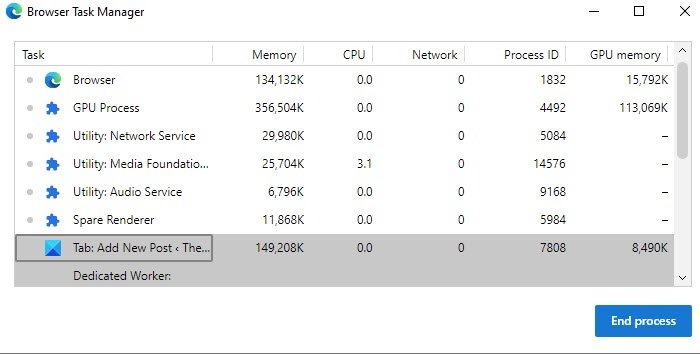
When on Edge browser, press Shift+Esc, to bring up the browser’s task manager. It will reveal all tasks, including the Browser, GPU process, Network Service, Audio and video services, and memory usage for each tab and extension.
That said, the Microsoft Edge Team has its own recommendation for how much memory each of these processes within the Browser can use. Here is the list of the maximum each of these processes should take:
- Browser process: 400 MB. This can be pushed up as you open more tabs.
- Renderer process: 500 MB. Playing video, social news feeds, and more.
- Subframe process: 75 MB. This can extend if there are complex ads, especially those playing videos.
- GPU Process: 1.75GB
- Utility process: 30 MB
- Extension process and plug-in processes: 15-0 MB
Windows reserves memory that can come in handy when needed. It is also called as Commit charge and is based on the amount of Page Size. When Edge launches, it requests committed memory space, and Windows allocates it through Page Size or Virtual Memory. This is all dynamic, so even if a program requests 3 GB and utilizes only 500 MB, the remaining space is still available.
Factors that impact Edge memory usage
Microsoft Edge does not always use much memory. The amount of RAM used by Edge and other web browsers depends on several factors, including the number of tabs, advertisements, extensions, content, screen resolution, window size, and the number of browser windows open.
If you see any open tabs or extensions taking a lot of memory compared to others, close them or uninstall the extension. Once you close, and the resource usage drops, then the problem is with whatever was open in that tab. Make sure to compare to the value we just shared above.
A second method to figure out if any background process or inactive tab in Microsoft Edge is consuming is to look through the Private work set. Consider this as a subpart of the Edge Process, and according to Microsoft, more than 80% of a commit in the private working set, which is not the active tab, would be considered excessive.
The keyword is the Active Tab, which refers to a tab that consumes excessive memory in the background, causing problems.
We will use the Resource Manager and the Edge task manager to determine which is using most of the committed memory.
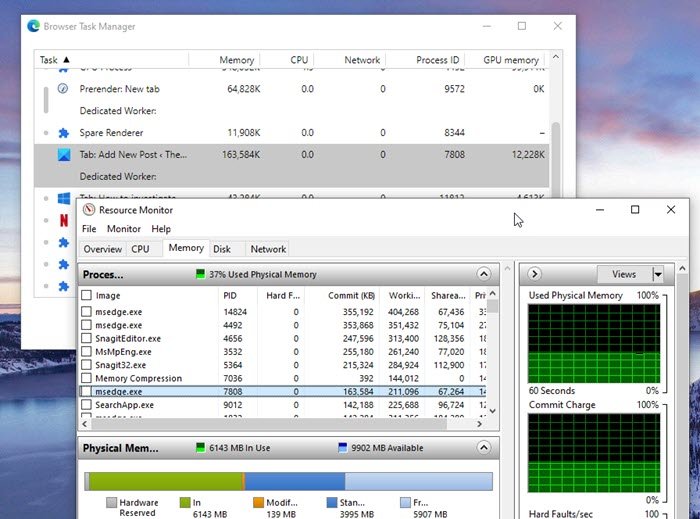
Type Resource Monitor in the Start menu, and click to launch once it is in the list, Sort by name so you can see the msedge.exe process and the commit size.
Next, in the Edge browser, press Shift+Esc to open the browser’s task manager. Right-click on the columns, and select PID, Commit Size, Memory (Private working set), Name, Status, User Name, and CPU
Note the PID, which takes a lot of resources, and then switch to Windows Task Manager. If the process’s private working set exceeds 80% of your commit, close it. You will also need to report it to Microsoft.
How to reduce the memory usage in Edge?
It might be a good idea to customize the Edge tab page. Disable Sponsored links, Background, Feeds and reduce all Personalization features. Having done that, you can make a few changes in Edge settings.
Use RAM Limiter or Resource controls in Microsoft Edge to limit RAM usage
Resource controls is a new feature of Microsoft Edge. When turned on, you can control how much memory (RAM) the browser can use from the total available system memory which overall affects browser performance. We already have an Efficiency mode feature in Microsoft Edge for memory management, reducing background tab activity, limiting computer resources while playing games, etc. Now this Resource controls feature makes the browser and user experience better.
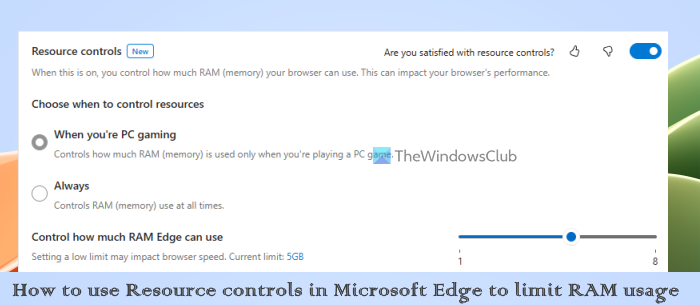
This Resource controls feature has been recently introduced, so, you should update your browser (if not already) to have and use this feature.
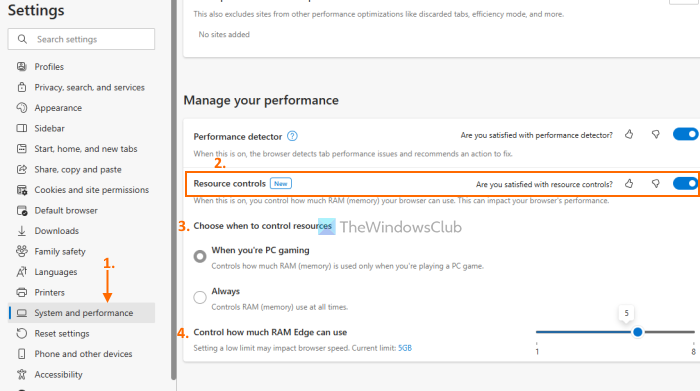
Here are the steps to use the Resource controls feature of Edge browser for limiting RAM usage on a Windows 11/10 PC:
- Open the Microsoft Edge browser
- Click on Settings and more icon (three horizontal dots) available on the top right part or press Alt+F hotkey
- Click on the Settings option in the menu that appears
- In the Settings page, select the System and performance category from the left sidebar
- Scroll down the page and access the Manage your performance section
- Turn on the Resource controls button
- Now you can select when to control resources. Available options are:
- Always
- When you’re PC gaming
- Once you’ve selected an option, you can use the Control how much RAM Edge can use slider to set the RAM limit.
You may allot around 30-40% of your total system RAM to Edge. If you allot too little RAM, your Tabs may reload often, video playback may stutter, and performance may drop. If you allot too much RAM, other applications may struggle if Edge consumes more than its fair share. So you will have to decide what is best for your system and usage.
You can then monitor Edge performance in the sidebar if you click on the Performance button in the browser.
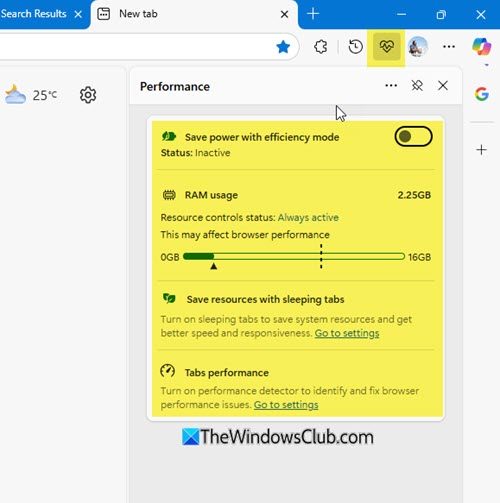
When you don’t want to use this feature, you can turn off the Resource controls button.
Use Edge Sleeping Tabs Feature
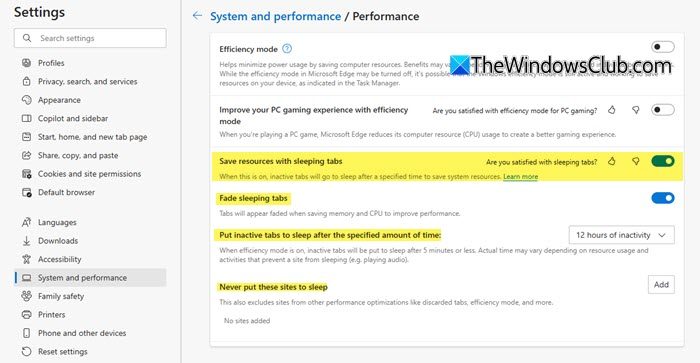
Once you enable the Edge Sleeping Tabs Feature, it will help you save resources by putting the background tab to sleep. You can also specify the time after which Edge tabs should be put to Sleep or exclude tabs of some websites.
Related: How to Disable or Enable Performance Mode in Microsoft Edge
Other steps to reduce Memory or CPU usage in Edge
- Disable Startup Boost in
edge://settings/systemto prevent Edge from running in the background before it’s opened. - Activate Efficiency Mode in the System and performance menu, to enhance performance and reduce resource consumption.
- Open
edge://settings/systemand turn off Use hardware acceleration when available - Open
edge://settings/startHomeNTPand turn off Preload the new tab page for a faster experience setting - Clear Edge browser cache regularly
- Remove unwanted browser extensions, addons, and themes
- Reset Microsoft Edge browser
- Use the Modify/Reinstall button in Settings.
- Open Settings > Apps > Apps and features and search for Edge. Press Modify. This will reinstall Edge, and you will see a new icon placed on the desktop.
To summarize: A browser can become resource-hungry and slow down a computer, but the browser might not be at fault. It could be an open tab, an extension running in the background, or a website that slows down the computer. The only way to figure it out is to check if it is taking resources and close it.
Sometimes, processes like GPU, Audio-video service, and network service are at fault. Restarting the browser might help.
If you need to keep the website open, close other tabs and work with them. You can also use a different browser, check whether the issue persists, and finish the work.
I hope the post helped you understand why your Microsoft Edge was using high memory.
How much RAM does Microsoft Edge use?
It depends on the number of tabs, installed extensions, and browser usage. With 4-5 tabs and continuous usage, Microsoft Edge can consume between 2GB and 4GB of memory. However, if the Edge browser consumes a lot of memory (RAM), you can enable Efficiency mode to keep Balanced savings or Maximum savings to optimize performance. Enabling the Resource controls feature is also very helpful in managing memory usage.
Read: Enable high-performance GPU for Edge browser
Why does Microsoft Edge take so much RAM?
It can happen because of the number of processes and services (like GPU Process, Storage Service, Network Service, etc.) running in the background. Installed extensions can also cause Microsoft Edge to consume a lot of memory. Even if you are not using extensions, these can consume memory in the background. You can use Browser Task Manager of Microsoft Edge to keep an eye on the running tasks. For each task, memory, network, and CPU usage is provided. If some tasks are consuming too much RAM or CPU usage unnecessarily, you can select those tasks, and end the process.
Read: How to configure Tracking Prevention & Privacy Settings in Microsoft Edge.
How do I fix high memory usage on Windows 11?
There are multiple reasons why your RAM usage is high on Windows 11. Every program requires some amount of memory to run on Windows. RAM consumption increases when you open multiple programs. Closing the open programs frees up memory, and the RAM usage returns to normal. However, if you see high memory usage even if no or fewer program(s) are running, there might be some hardware or software issues. To fix high memory usage, you can try some fixes, like repairing your system files, running a Chkdsk scan, updating drivers, running the memory diagnostic tool to check your RAM health, etc.
Read next: Microsoft Edge won’t open on Windows 11.
