
If your Windows laptop screen backlight remains Always on, follow the solutions provided in this article. This issue can occur due to several causes, such as faulty cables (in case of external display), faulty wall socket, incorrect monitor settings, incorrect power settings, etc.
Laptop screen backlight remains Always on
Use the following suggestions if your Windows laptop screen backlight remains Always on:
- Perform a hard reset
- Change the display cable (if applicable)
- Connect your PC to another wall socket
- Update your monitor firmware (if applicable)
- Remove the battery
- Change your power plan
- Disable hybrid sleep
- Disable the Auto Source setting for your monitor
- Reset your monitor
- Update BIOS
- Hardware fault
All these fixes are explained below in detail:
1] Perform a hard reset
The first step is to perform a hard reset on your computer. Follow these steps:
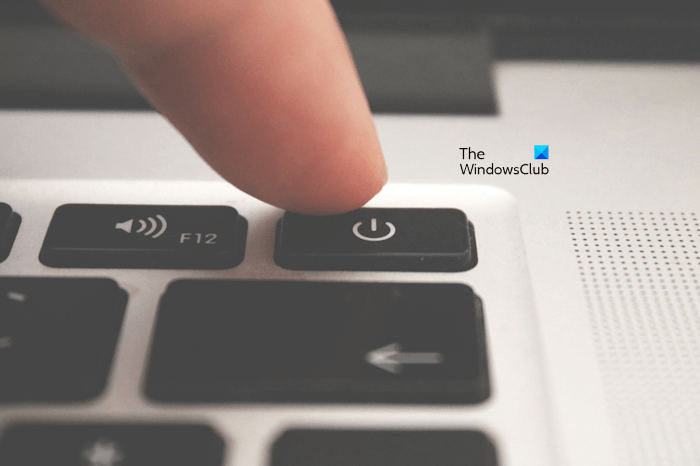
- Turn off your computer.
- Remove the peripherals and the battery (if it is a laptop).
- Disconnect the power cord.
- Now, press and hold the power button for up to 30 seconds.
See if the issue persists.
2] Change the display cable (if applicable)
If this issue occurs on your PC, the display cable might be faulty. You can check this by connecting the monitor with another cable. If you’re using the DisplayPort cable, try using the HDMI cable instead.
3] Connect your PC to another wall socket
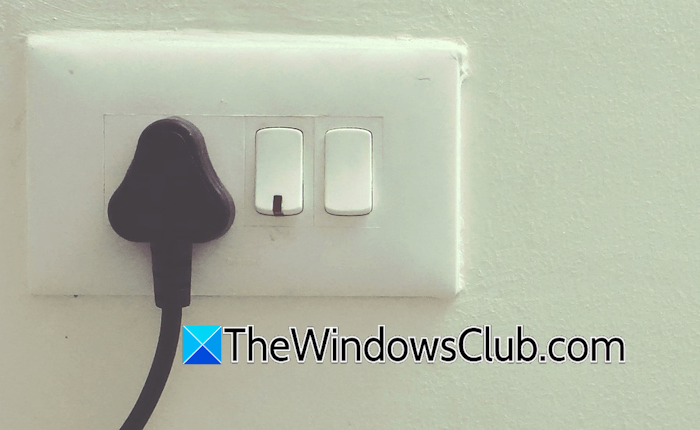
The problem may also be associated with your wall socket. It might be faulty. To check this, connect your PC to another available wall socket. If this fix works, call an electrician and replace the wall socket. Otherwise, it may damage other electronic devices you connect to that wall socket.
4] Update your monitor firmware (if applicable)
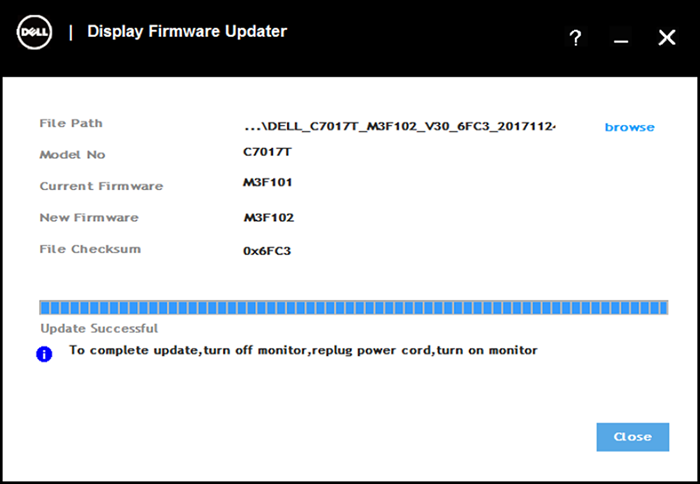
Your monitor firmware might need to be updated. Outdated monitor firmware may contain bugs and cause this type of problem. Monitors of different brands have different methods for installing the firmware update. Therefore, refer to the user manual of your monitor to download and install the firmware update.
5] Remove the battery

Your laptop battery might be faulty. A faulty laptop battery can cause unusual behaviour by not completely cutting the power off after the laptop is shut down. To check this, turn off your laptop and remove the battery. The screen backlight should turn off if the battery is faulty. If this happens, replace your laptop battery.
6] Change your power plan
Change your current power plan or create a new custom power plan. You can also switch to the default power plans. If they are missing, you can restore them by executing the required commands in the Command Prompt window.
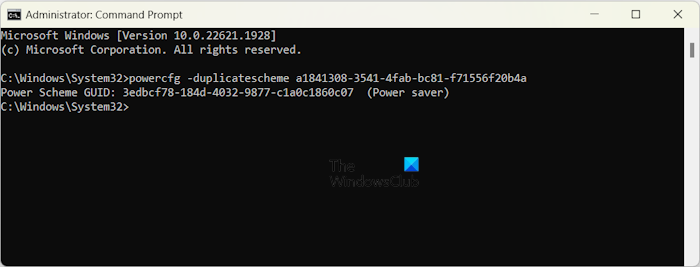
If only the Balanced Power Plan is available, and the commands to restore the missing power plans do not work if your laptop is running on Modern Standby Mode S0. In this case, first, you have to disable the Modern Standby Mode S0 by running the following command in the elevated Command Prompt.
reg add HKLM\System\CurrentControlSet\Control\Power /v PlatformAoAcOverride /t REG_DWORD /d 0
7] Disable hybrid sleep
Hybrid Sleep can also cause this problem. Check if this option is enabled. Follow these instructions:
- Open the Control Panel.
- Type power in the Control Panel search bar.
- Select Power Options.
- Now, click the Change plan settings link.
- Click Change advanced power settings.
- If the Allow hybrid sleep setting is available, expand it and select Off.
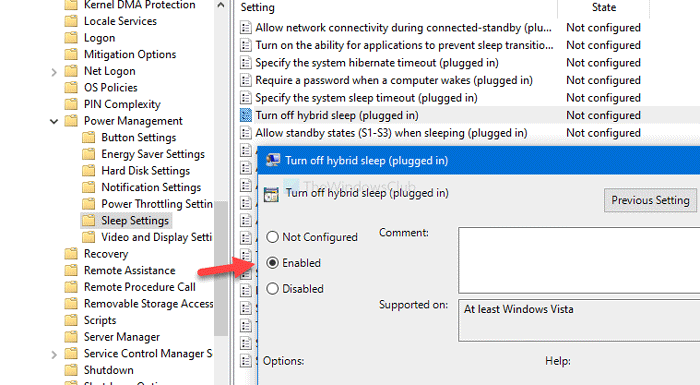
You can also disable the Hybrid sleep by using the Local Group Policy Editor or Registry Editor.
8] Disable the Auto Source setting for your monitor
The Auto Source setting in some monitors automatically switches the display input to the active source when a device is connected and powered on. This can be one possible cause of your problem. Refer to the user manual of your monitor and check if it has such a setting. If so, the manual should also include instructions for disabling it. Follow the instructions to disable this setting.
9] Reset your monitor
You can also try to reset your monitor. This action will restore all your monitor settings to the default. Instructions for resetting your monitor can be found in the user manual or on the support page of your monitor manufacturer.
10] Update BIOS
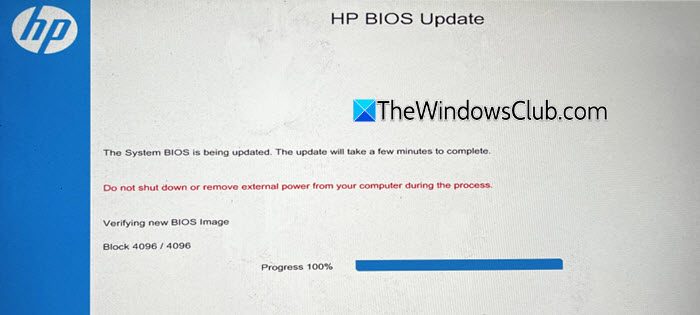
A BIOS update increases the system’s stability. Therefore, you should install the BIOS updates whenever they are available. Check the currently installed version of BIOS on your system using the System Information. Now, visit the official website of your computer manufacturer and check the available BIOS version. If there is an updated version of BIOS, download and install it.
11] Hardware fault
If the issue persists, there may be a hardware fault with your monitor or laptop screen. You can check this by connecting another monitor to your laptop or PC. High humidity can also damage digital displays and cause such problems. Contact a professional computer repair technician for further assistance.
How to fix the Laptop screen staying black?
A Black Screen of Death issue on a laptop occurs due to several reasons. To fix this issue, check the cable connections. The cable connecting your monitor to your computer might be damaged, or there may be an issue with the graphics card driver. Boot in Safe Mode and see if the display becomes visible. If yes, roll back the graphics card driver or perform a clean installation of the graphics card driver.
Why is my laptop stuck on a black screen?
The black screen issue can occur in different scenarios, such as black screen after turning on the computer, black screen after waking the computer from sleep mode, etc. The solution varies in different scenarios. However, you can try some general fixes like reinstalling the display driver, updating BIOS, etc.
Read next: Part of a laptop screen is flickering.
