
When you boot a computer and all you see is a black or blank screen with a blinking cursor (it may look like an underscore), it means the BIOS or UEFI is attempting to boot from a source other than the hard drive. The next step of the boot process will begin only when it finds the exact path from which it can boot. In this post, we will show you how to resolve this situation.
Windows computer boots to black or blank screen
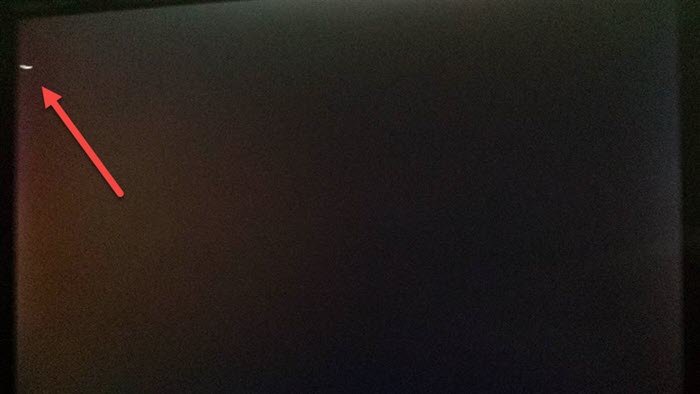
If your Windows computer restarts & boots to a black/blank screen with a blinking cursor, it is usually because of conflicting boot devices. There are some easy ways to fix this problem, and it will only fail when the source is corrupt or inaccessible.
- Remove unnecessary external devices
- Change the order of the boot source
- Change Hard Drive or Reinstall Windows
- Run Black Screen Troubleshooter.
Some resolution steps will need someone who understands computer BIOS and can change a few settings. If you do not know, it is best to seek help to fix it.
1] Remove unnecessary external devices
If you have a USB device that you used to install Windows or perform a reset using a bootable device, but later formatted, this could be a problem. The BIOS is still investigating.
Another set of situations is where you are trying to boot from the wrong USB drive. It could be a similar-looking USB, just not bootable. The second probability is that creating a bootable USB was unsuccessful.
All you need to do for these scenarios is to remove the additional USB or Optical drive connection.
Read: Total identified Windows installations 0
2] Change the order of boot source
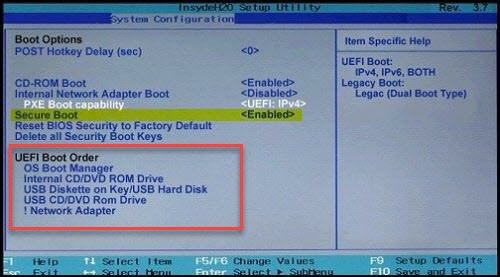
Boot into BIOS, and change the order of boot source from CD-ROM/Drive to HDD. The process of changing will vary by computer, but here are the basic steps.
- Press F2/F10/Del key to boot into BIOS Settings
- Switch to the Book section
- Locate the section that defines the order of the boot
- Select HDD, and use Page up or Page down to change the order.
Related: Fix Black Screen with cursor problem in Windows.
3] Change Hard Drive
If nothing else works, then it’s probably the Hard Drive. The BIOS cannot find a boot device, and hence it keeps displaying a black/blank screen with a blinking cursor. To double-check the HDD’s condition, connect it to another computer and try booting from it. If it still doesn’t work, then you will have to reinstall Windows or fix the boot record using the recovery method.
During the fix, if the recovery process can’t find the hard drive, it’s time to buy a new one. We recommend you switch to SSD, which will make the overall experience a lot faster.
TIP: If DisplayPort DP 1.3 or 1.4 monitor displays a blank or black screen, or flickers, use NVIDIA Firmware Update tool to fix the issue easily.
4] Run Black Screen Troubleshooter
You can also use the online Black Screen Troubleshooter from Microsoft and see if that helps you fix the Windows Black screen problem.
We hope the methods resolved the problem of a blank or blinking cursor appearing every time your computer boots.
Post that may help you if your computer does not boot:
- Windows PC will not boot up or start
- Windows computer unable to boot to BIOS
- Windows does not boot after compressing System Drive
- Windows computer won’t boot after System Restore
- Windows Startup & Boot problems – Advanced Troubleshooting.
