
This post features different solutions to get rid of Forza Horizon 6/5 low video memory & low memory issues. Forza Horizon 6/5 is a popular racing video game available for Microsoft Windows. The game is the talk of the town due to its high-end graphics and utterly unique gameplay. However, like any other game, Forza Horizon 5 isn’t free from problems. There are many reports of users experiencing low video memory & low memory issues in the game. The problem directly results in low FPS in the game. So, if you are facing a similar problem, try the solution below to resolve it.

Forza Horizon 6/5 Low video memory & Low memory issue
Below is a list of effective solutions to fix the Forza Horizon 6/5 low video memory & low memory issues.
- Close unnecessary background applications
- Change the Power Plan
- Update the Graphics Driver
- Enable Game Mode
- Adjust the in-game settings
- Turn off Overlay
Now, let’s take a look at all the solutions in detail.
1] Close unnecessary background applications
One of the significant reasons behind Forza Horizon’s low video memory & low memory issue is unnecessary background running applications. As it turns out, Forza Horizon 5 is a graphics-oriented game; thus, it requires maximum system resources to run without any issues. But if this isn’t the case, i.e, different background applications are consuming system memory, Forza Horizon will be left with limited resources, which will automatically cause the problem in question. You will need to close all unnecessary applications to resolve the problem. Here’s how.
- Open the Task Manager by pressing Ctrl + Shift + Esc shortcut key
- Right-click on all the unnecessary applications, and choose End task.
Launch the game, and check if the problem persists.
Read: How to increase dedicated Video RAM in Windows
2] Change the Power Plan
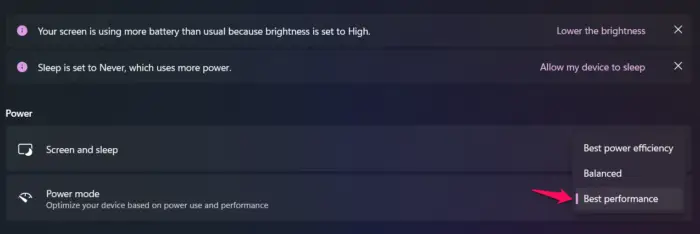
The next solution you can try in this situation is to change the system power plan. By default, the power mode is configured to Balanced. The Balanced mode is used to save the battery. But if you want the best performance from your system, you will have to change the power plan. Here’s how to do it.
- Open the Settings by pressing Windows + I shortcut key.
- Navigate to System > Power & battery section.
- Choose the Power mode drop-down option present under the Power section.
- Choose Best Performance mode or activate and use the Ultimate Power Performance Plan.
Now relaunch the game and check if you’re still facing the problem.
Read: Fix Your system is running low on virtual memory message
3] Update the Graphics Driver
Another effective solution in this situation can be downloading the latest graphics driver update. As it turns out, games like Forza Horizon 5 require the latest driver update to run without any problem. If this isn’t the case, you will always find yourself surrounded by issues like low video memory & low memory. So, update the graphics driver and check if it resolves the problem.
See: Fix Total War Warhammer FPS drop, Lag and Stuttering on PC
4] Enable Game Mode
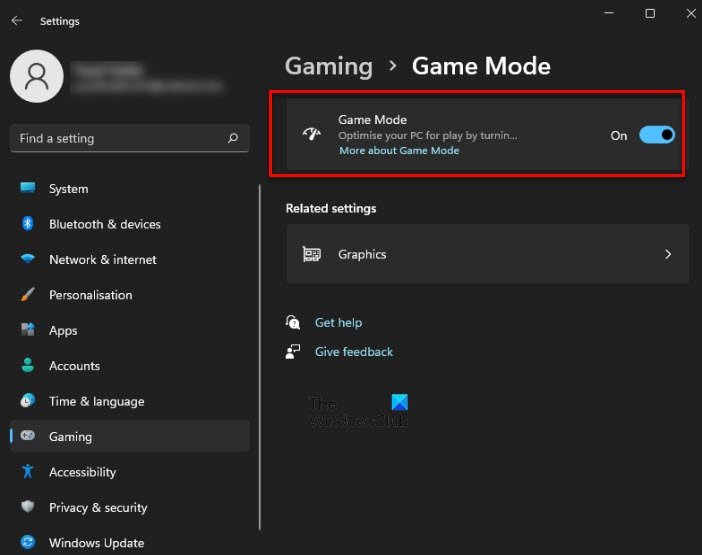
Windows comes with a dedicated gaming mode feature. You can use it to enhance the gaming performance to a great extent. To enable the feature, follow the steps below.
- Open Settings, and click on the Gaming option present on the left panel of the screen.
- In the following window, select the Game Mode option.
- Enable the toggle present next to Game Mode.
Restart the game and check if the problem is fixed.
Read: Battlefield 2042 FPS Drops and Stuttering Issues on PC
5] Adjust the in-game settings
If your system isn’t capable of running the game in the applied in-game settings, you will most likely face low memory issues. To solve the problem, you will have to make some changes to the Forza Horizon video settings. Below are the settings to use for the best performance.
- Lower the resolution
- Set Anisotropic Filtering to low/medium.
- Set Shadow quality to low
- Disable Nigh shadows
- Put Blur quality to low
- Environmental texture quality to medium/ low.
- Anti-Aliasing MSAA – 2x
Read: How to increase Virtual Memory in Windows
6] Turn off overlays
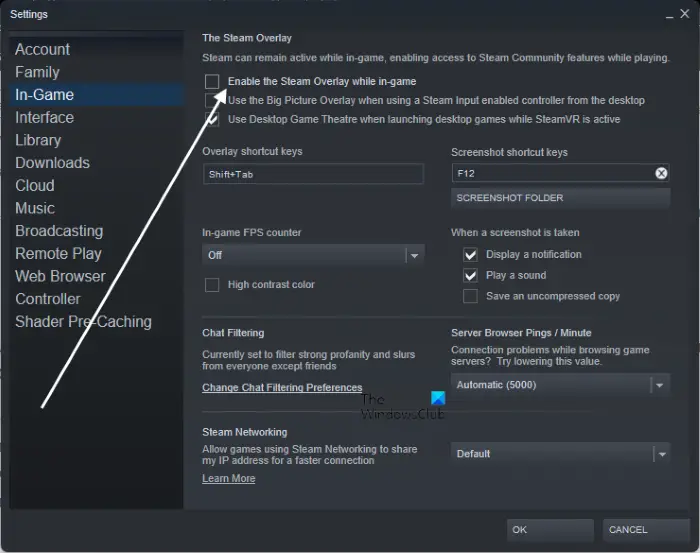
The next solution you can try is to disable Overlay on Steam. You can do it by following the below steps.
- Launch the Steam client on your Windows PC.
- Click on the Library option.
- Right-click on Forza Horizon 5, and from the context menu, choose the Properties option.
- In the General tab, disable the Enable Steam Overlay while in-game option.
That’s it. Launch the game, and you will see that you are no longer facing the problem.
Read: Fix FIFA FPS Drop and Increase FIFA Performance
Why is Forza 6 Choppy?
If Forza Horizon 6 is choppy or lagging on your Windows PC, the possibility is high that you haven’t downloaded the latest game patch update. Download the update and check if it resolves the problem. The issue can also occur if your system doesn’t feature the latest graphics driver update.
Read: Fix High Disk & Memory Usage when playing Games
What are the system requirements for Forza Horizon 6?
Minimum requirements to run Forza Horizon 6 on Windows PC:
Forza Horizon 6 requires an Intel Core i5-8400 or AMD Ryzen 5 1600 CPU, paired with a Nvidia GTX 1650, AMD RX 6500 XT, or Intel Arc A380 GPU. You’ll also need 16GB of RAM, an SSD, and Windows 10/11 (version 22H2 or newer). This setup is designed to run the game at 1080p, 60 FPS on Low settings, which is fairly accessible on most modern gaming PCs.
Recommended requirements to run Forza Horizon 6 on Windows PC:
Forza Horizon 6 targets 1440p, 60+ FPS on High settings. This requires an Intel Core i5-12400F or AMD Ryzen 5 5600X CPU, along with an NVIDIA RTX 3060 Ti, AMD RX 6700 XT, or Intel Arc A580 GPU. RAM requirements remain at 16GB, with an SSD still mandatory. This configuration balances performance and visuals, making it ideal for most PC gamers who want sharp graphics without needing ultra-high-end hardware
