
Here is a complete guide to fix Total War Warhammer 3 FPS drop, Lag and Stuttering on Windows 11/10 computer. Total war Warhammer 3 is one of the best tactical strategy video games available for PC. However, like any other video game, it has its own share of problems. But among all, the one that has been troubling users the most is the FPS drop problem. So if you are encountering the same issue, continue with this troubleshooting guide to fix the problem.
Fix Total War Warhammer 3 FPS drop, Lag and Stuttering on PC
Here are the steps you need to follow in case you face FPS drop, Lag and Stuttering while playing Total War Warhammer 3 game on Windows 11/10 PC.
- Check the System Requirements
- Activate Game Mode in Windows
- Download the Latest Driver Update
- Run Total War Warhammer 3 in Administrator Mode
- Clear the Total War Warhammer 3 Cache Data
- Change the Power Settings
- Change the In-game Settings
- Reinstall the Game
Let’s check out all these solutions in detail.
1] Total War Warhammer 3 System Requirements
Total War Warhammer 3 is a graphics-centric game; therefore, you must have a high-end device to run the game seamlessly. In case your device doesn’t match the minimum requirement, you will face different issues in the game, including the FPS drop problem. Here are the recommended requirements to run Total War Warhammer 3
- Operating System: Windows 11/10 or later 64-bit
- Processor: Intel Core i5 (e.g., i5-6600 or newer) / AMD Ryzen 5 series
- RAM: 8 GB
- GPU: NVIDIA GeForce GTX 1660 / AMD Radeon RX 5600
- DirectX: DirectX 12
- Free Space: 120 GB of free storage; SSD recommended.
If the device fulfills the above requirement, then there can be any other reason why you are facing the FPS drop in the game. Continue with the troubleshooting guide to fix the problem.
2] Activate Game Mode in Windows
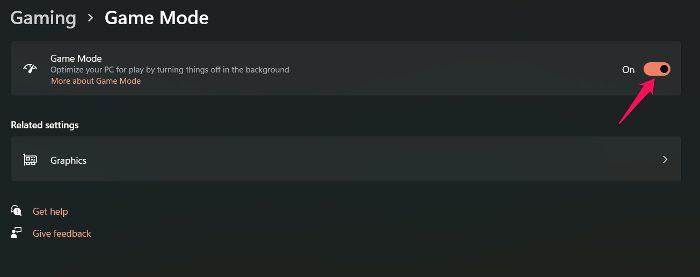
In the latest Windows OS, Microsoft offers a dedicated gaming mode feature. You can enable this feature to deactivate all the unnecessary applications running in the background which automatically boosts the in-game FPS. So, if you are experiencing a FPS drop on Total War Warhammer 3, activate the game mode and check if it makes any difference. Here are the steps to follow to activate game mode on Windows 11/10.
- To begin with, press Windows + I to open the Settings menu.
- Click on the Gaming section present on the left panel of the screen.
- Tap on the Game Mode option.
- On the following page, toggle on the Game Mode feature.
Now launch the game and check whether the low FPS issue is fixed.
3] Download the Latest Driver Update
If you haven’t downloaded the latest graphics driver update on your system for a long time, it’s no surprise you are facing an FPS drop in the game. Thus, make sure you update your graphics driver to the latest version to fix the problem. You can use either of the below methods to update the graphics driver on your system.
- Download the latest graphics driver update using the Windows Optional update feature.
- Visit the graphics driver manufacturer’s website to download the latest update.
- You can even update the graphics driver via the Device Manager.
Once you have updated the graphics driver, open the game and check if the problem is fixed or not.
4] Run Total War Warhammer 3 in Administrator Mode
Sometimes, granting administrative privileges to an application can fix various issues related to it. A similar case can be with Total War Warhammer 3. Here are the steps you need to follow to grant administrative privileges to the game.
- Right-click on the game icon and choose Properties.
- Click on the Compatibility tab.
- Check the Run this program as an administrator option.
- Click on Apply > OK.
That’s it. Now relaunch the game and check if the problem persists.
5] Clear the Total War Warhammer 3 Cache Data
A huge amount of cache data can also trigger the mentioned problem. Thus, to fix the FPS drop issue in the game, you will have to delete the corrupted game cache data. To do so, follow the steps below.
- Press the Windows + E shortcut key to open the File Explorer.
- Now, navigate to the below-mentioned location.
- Open the Cache folder and select all the files inside it.
- Click on the Delete button to clear the cache data.
Now restart the system and open the game. Check whether the problem is fixed.
6] Change the Power Settings
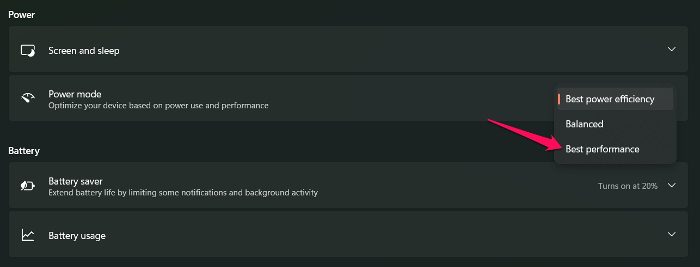
You can adjust your system’s power settings to resolve the issue mentioned. Windows OS comes with different power modes, each suited to different tasks. For gaming, it is recommended to keep the system in high-performance mode. However, if the system is set on the Balanced mode, you are most likely to face the FPS drop issue in the game. Thus, set the power mode to high performance to fix the FPS drop issue on Total War Warhammer 3. To do so, follow the steps below.
- Open the Windows + I shortcut key to open the Settings menu.
- Now, navigate to System and then Power & Battery.
- Click on the dropdown icon present next to Power mode.
- Choose the Best performance option.
Now, relaunch the game and check if the FPS drop issue is fixed or not.
7] Change the In-game Settings
Sometimes, the default in-game video settings can also be the reason you are facing the problem. If your system is only compatible with running the game and you have set the settings to their maximum, you will experience FPS drops or stuttering. In such a situation, you will have to lower the in-game video settings to fix the problem.
You can disable the Future frame rendering and Vertical sync features, adjust the Mesh quality, effect quality, and other graphics settings, and check whether it makes any difference.
8] Reinstall the Game
If none of the above-mentioned workarounds help you solve the problem, the last thing you can try is to reinstall the game. Sometimes reinstalling can resolve almost all game-related issues, including FPS drops. So, reinstall Total War Warhammer 3 on your system to fix the problem you are currently facing.
Why I am facing FPS drops and stutters?
There can be multiple reasons why you are facing FPS drops in the game. But among all, some of the main reasons include outdated graphics drivers, a huge amount of cache data, misconfigured in-game settings, and more. It’s very easy to fix the FPS drop issue.
Read Next: Sifu FPS Drops, Stuttering, Freezing, or Crashing on PC.
